Overview Back to top
The JSM Portal Calendar lets you embed calendars directly into your Jira Service Management customer portals and the Help Center. Customers can view upcoming maintenance windows, release schedules, team availability, and other events without needing to log into Jira or submit a request.
Key capabilities:
- Help Center & Portal support — show calendars on the Help Center home page and on specific Service Desk portals
- Multiple calendar support — assign different calendars to different portal locations
- Anonymous access — custom events are visible to all visitors, including anonymous and unlicensed users
- Month, Week, and List views — customers can switch between views to find relevant events
- Event details popup — click any event to see its full details including type, dates, and description
- Dark mode support — automatically adapts to the portal theme
- Collapsible — customers can hide or show the calendar using the toggle button
Configuration Back to top
Configure the portal calendar from the Calendar for Jira admin page in Jira. Navigate to Apps → Calendar for Jira → Configuration and scroll down to the Service Management Portal section.
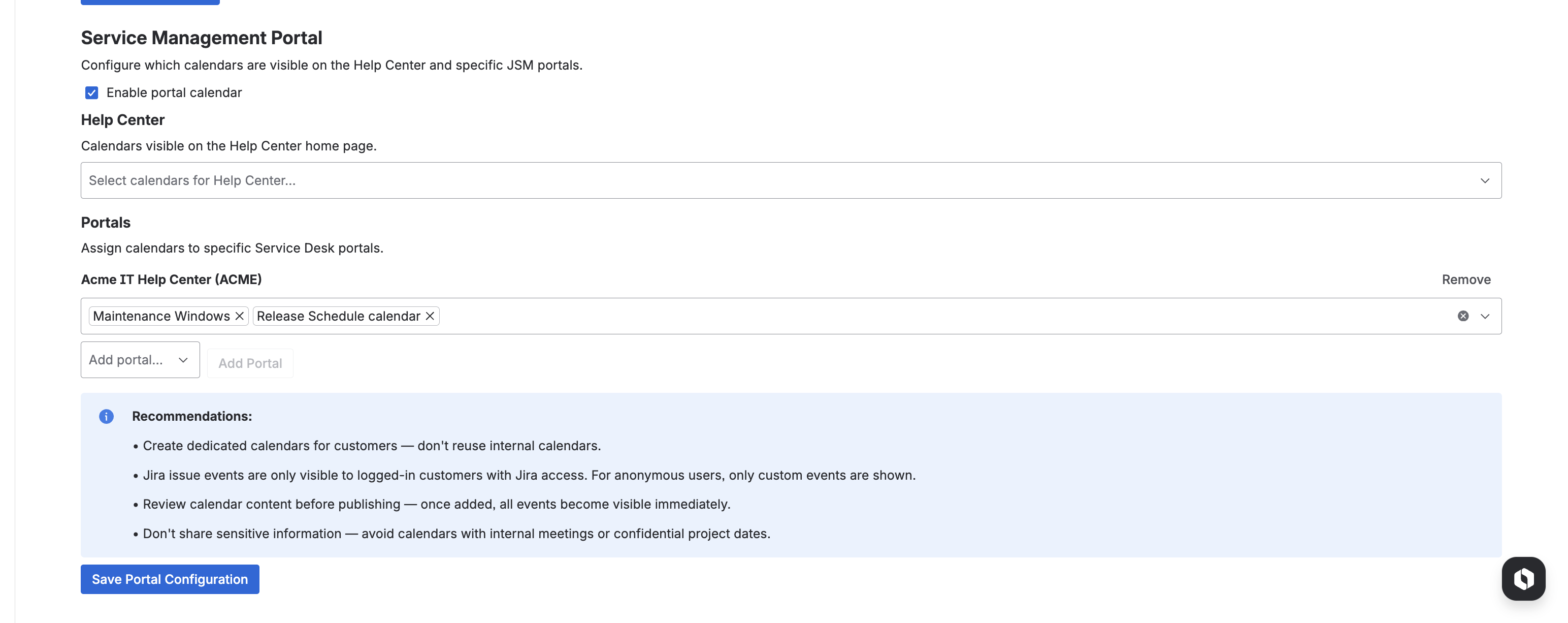
- Enable portal calendar — Check the "Enable portal calendar" checkbox to activate the feature.
- Configure Help Center calendars — Select which calendars should be visible on the Help Center home page. Use the multi-select dropdown to choose one or more calendars.
- Add portal-specific calendars — Use the "Add portal..." dropdown to select a Service Desk portal, then click "Add Portal". Assign calendars to each portal individually. You can add up to 10 portal locations.
- Click "Save Portal Configuration" to apply your settings.
Recommendations:
- Create dedicated calendars for customers — don't reuse internal calendars
- Jira issue events are only visible to logged-in customers with Jira access. For anonymous users, only custom events are shown
- Review calendar content before publishing — once added, all events become visible immediately
- Don't share sensitive information — avoid calendars with internal meetings or confidential project dates
Portal Calendar View Back to top
Once configured, the calendar appears at the top of the portal page. Customers see a color-coded legend of all calendars and can browse events using the month, week, and list views.
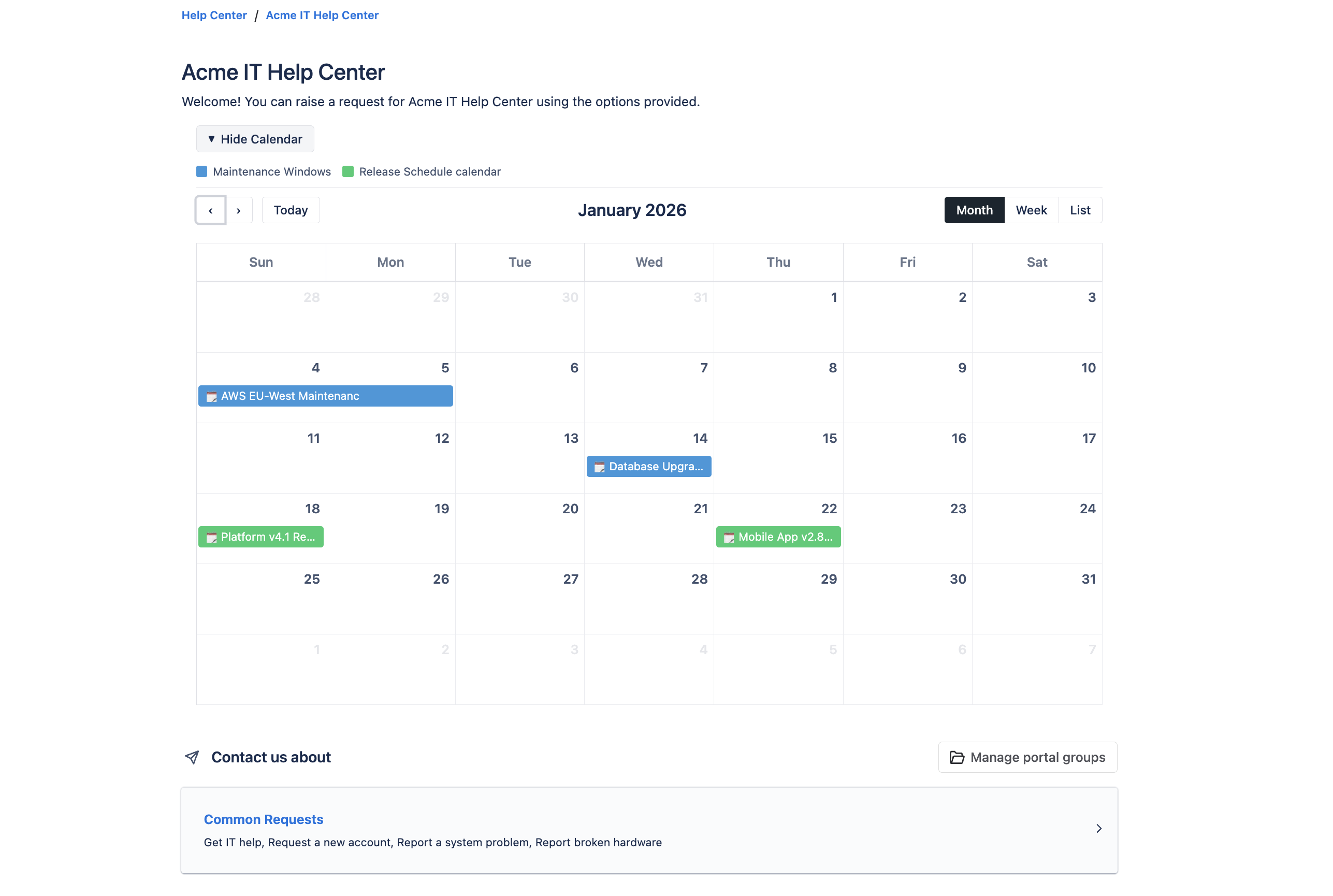
The portal calendar is read-only — customers can view events but cannot create, edit, or delete them. The calendar supports all custom event types with their corresponding icons and colors.
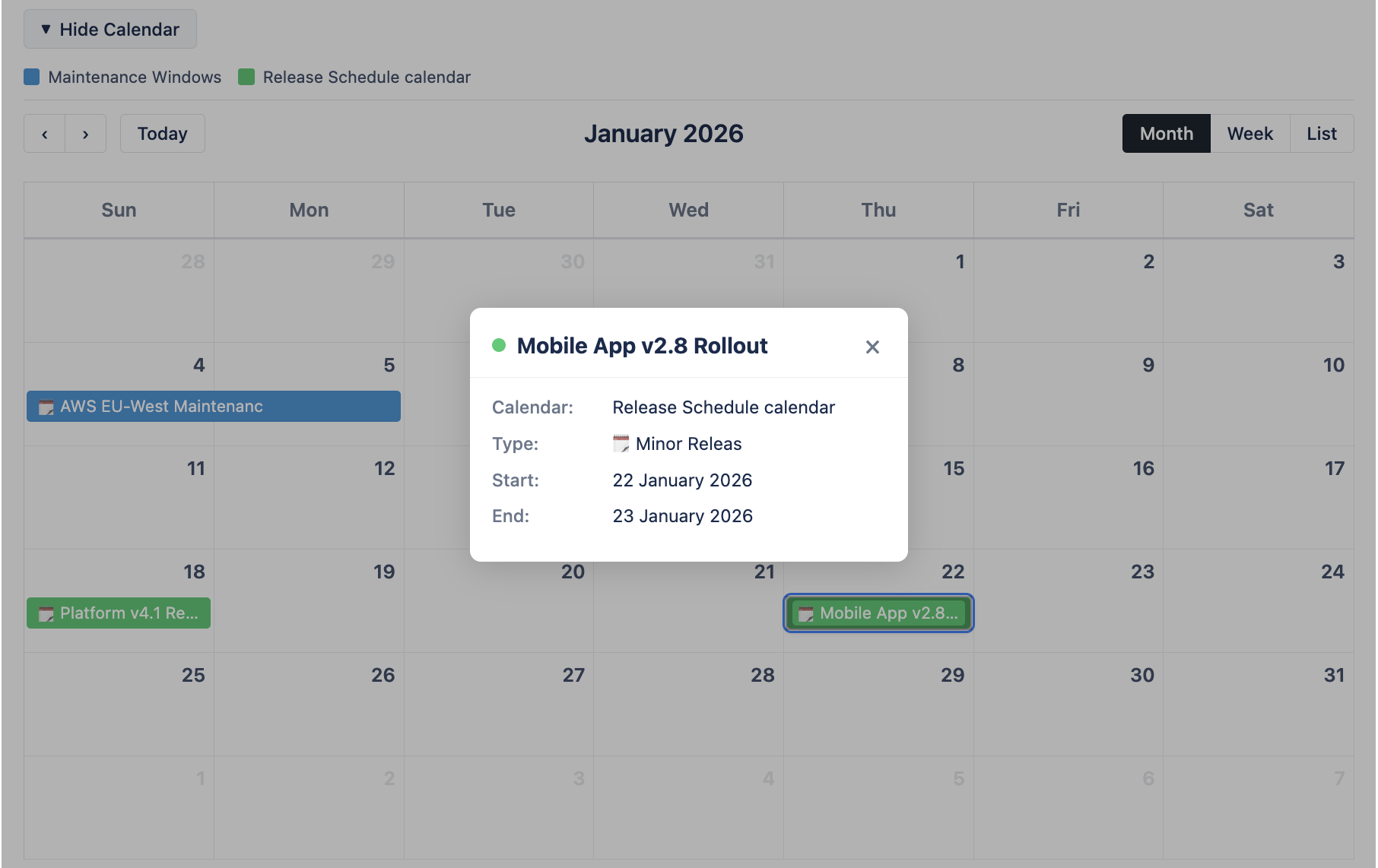
Clicking on any event opens a details popup showing the calendar name, event type, start/end dates, and description.
Customer-facing features:
- Hide/Show toggle — Customers can collapse the calendar to focus on the portal content
- Month / Week / List views — Switch between views using the buttons in the toolbar
- Navigation — Browse past and future months with the arrow buttons or jump to today
- Event popup — Click any event to see its details including type, dates, and description
- Color-coded legend — Each calendar has a colored dot and name for easy identification
Calendar Visibility in Jira Back to top
When a calendar is assigned to a portal location, its visibility is displayed in the main Jira calendar view. Hover over the info icon next to a calendar name to see which portal locations it is published to.
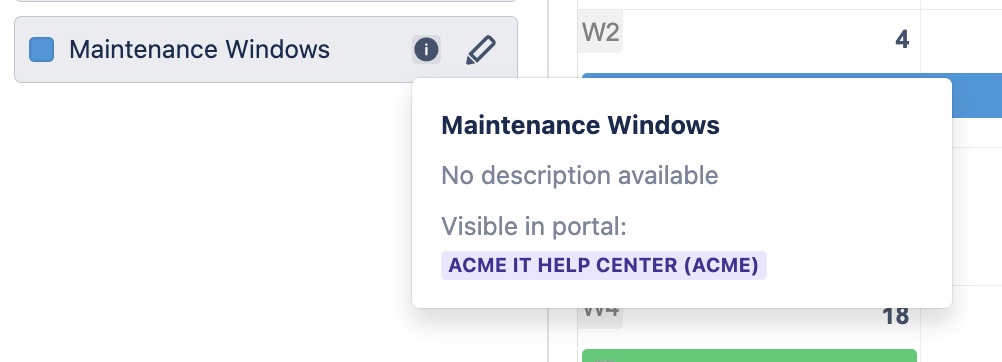
This helps administrators keep track of which calendars are customer-facing and which are internal-only, directly from the calendar sidebar.
Important Notes Back to top
Need Help?
If you have questions or need assistance with the JSM Portal Calendar, our support team is here to help.
Contact Support