Introduction
Label Manager & Reports for Jira offers powerful label management and reporting features to effortlessly manage labels in Jira. Whether you need to manage labels globally across your entire Jira instance or within specific projects, this app provides the tools you need to organize, search, edit, merge, and report on labels with ease.
Overview Back to top
Label Manager & Reports for Jira provides comprehensive label management capabilities including:
Key Features
- Manage labels globally (instance-wide) or per project
- Search and filter labels with advanced JQL support
- Create, edit, rename, merge, and delete labels in bulk
- View and manage issues by label
- Support for custom label fields
- Powerful reporting and analytics
Manage Labels Globally Back to top
You can search, list, and administer all labels in Jira system-wide (i.e., labels used in all projects).
- Navigate to Apps → Manage Labels from the Jira top navigation.
- View all labels across your entire Jira instance with issue counts, projects, and actions.
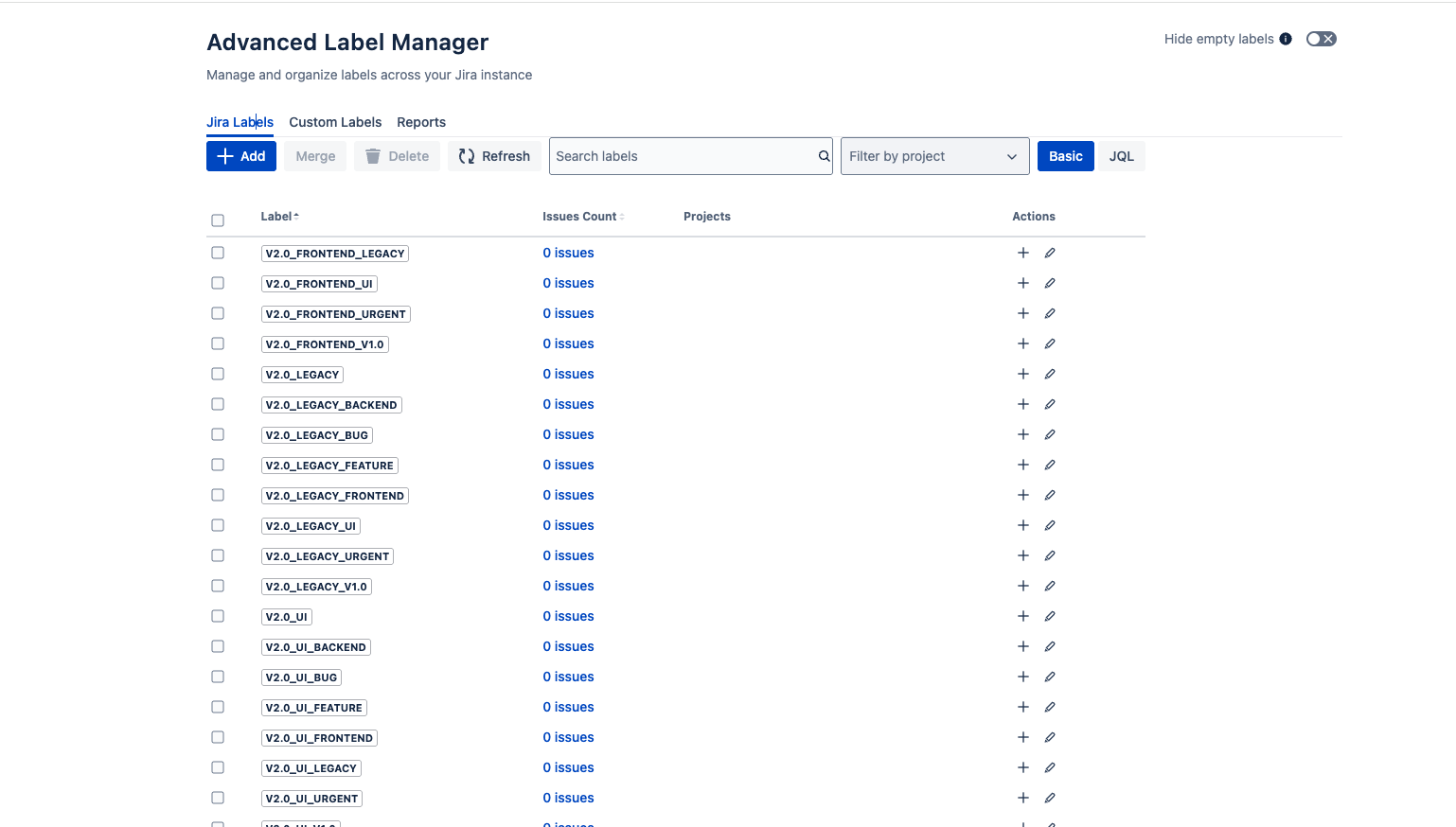
Global Label Management - View and manage all labels across your Jira instance
Manage Labels in a Specific Project Back to top
- Navigate to your Jira project where you want to manage labels.
- Click on "Manage Labels" tab on the left sidebar in your project.
- View and manage labels specific to this project.
Search and Filter Labels Back to top
1. Basic Search
You can simply search specific labels and sort labels by number of issues or alphabetically, and quickly understand how they are used.
- Use the search box to find labels by name.
- Sort labels by issue count or alphabetically.
- Filter by project using the project dropdown.
2. Advanced Label Search Using JQL
Label Manager & Reports for Jira supports filtering issues by projects and advanced search by JQL. Switch the toggle to change how you would like to search the labels.
- Toggle to JQL mode using the Basic/JQL switch.
- Enter your JQL query to filter labels based on complex criteria.
- View filtered results matching your JQL conditions.
View Issues by Label Back to top
Easily view issues by label. Click on the issue count in the table to see all issues tagged with that label.
- Click on the issue count for any label in the labels table.
- View the issues list in a modal window.
- Filter issues by project, status (To Do, In Progress, Done).
- Search issues by summary and other text fields.
- Click "See JQL filter" to view all issues in Jira's issue navigator.
Create Labels and Add to Issues Back to top
Create labels in advance and quickly add them to multiple issues at once.
Create a New Label
- Go to Apps → Manage Labels from the top navigation.
- Click the "Add" button to create a new label.
- Enter the label name in the dialog.
- Select at least one issue to add the label to.
- Click Confirm to create the label.
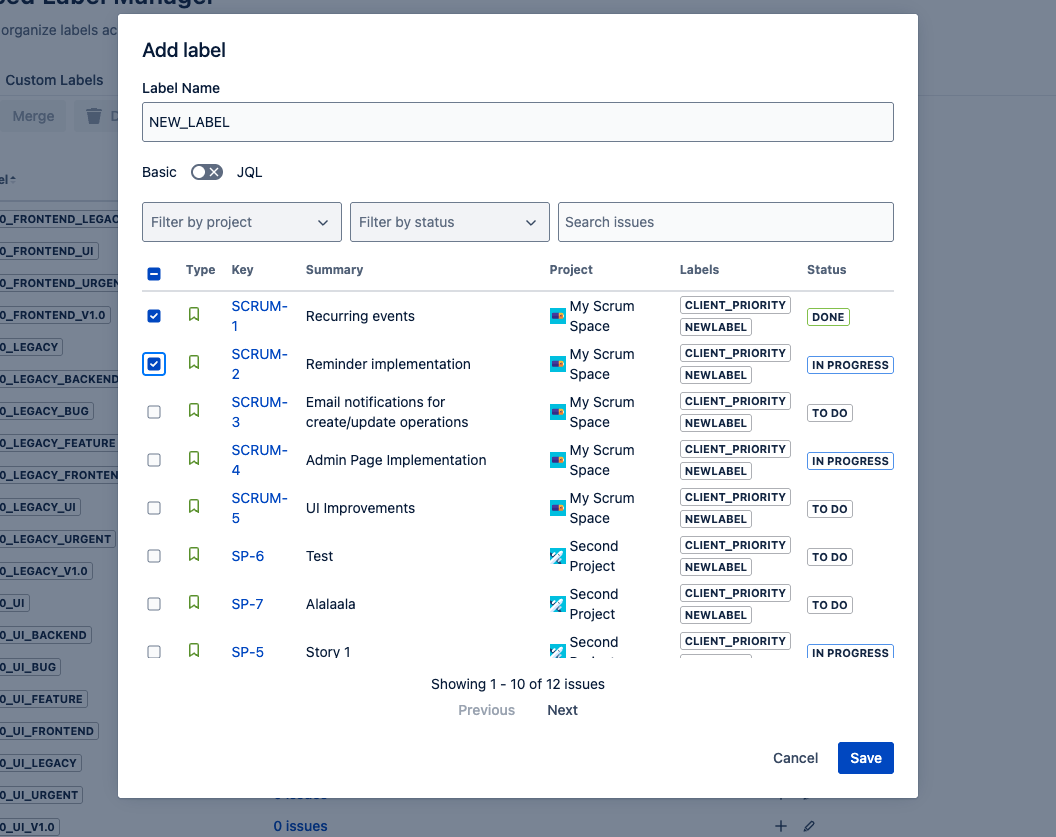
Create a new label and add it to selected issues
Add Existing Label to Multiple Issues Back to top
Quickly add an existing label to one or more issues in bulk.
- Find the label you want to add to issues.
- Click the bulk add icon (+ icon) under the Actions column.
- Select issues by checking the checkboxes.
- Use filters to narrow down issues by project, status, or search.
- Click "Add label to X issues" to apply the label.
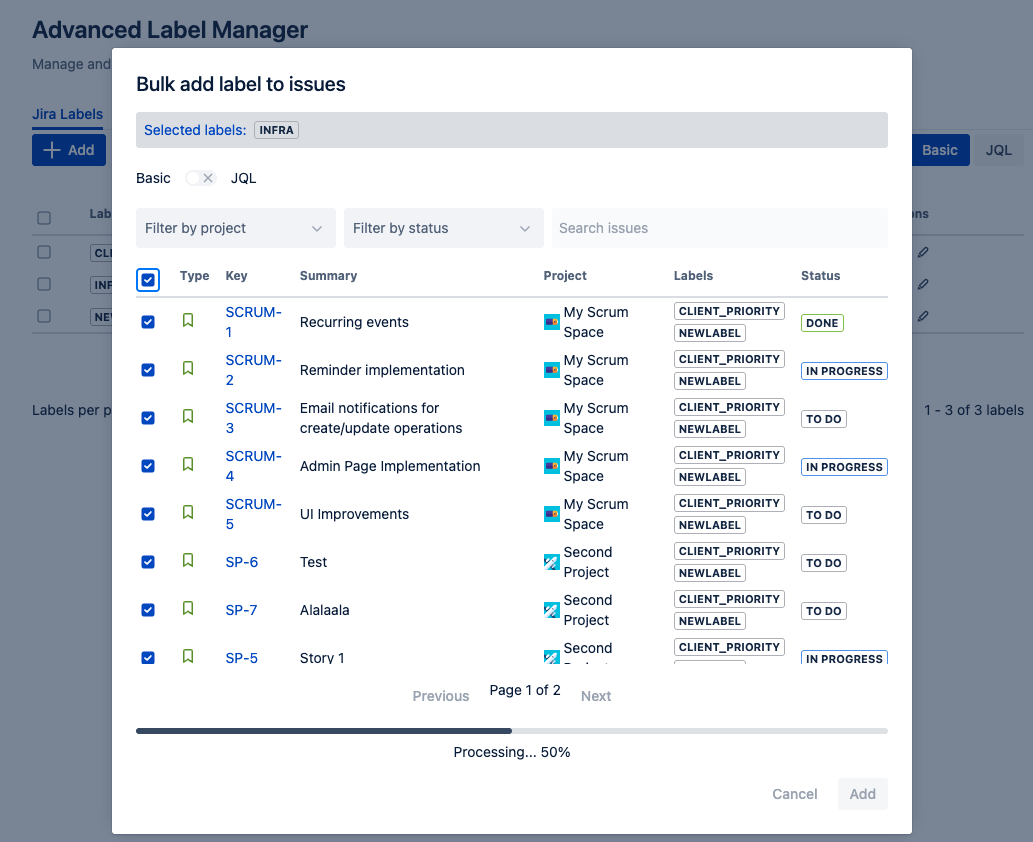
Add existing labels to multiple issues at once
Remove Labels from Issues Back to top
Remove labels from specific issues when they are no longer needed. You can select which issues to remove labels from, or select all issues to completely remove the label.
- Find the label(s) you want to remove from issues.
- Click the delete icon under the Actions column (or select multiple labels and click "Delete" button).
- Use filters to narrow down issues by project, status, or use the search box.
- Select specific issues from which you want to remove the label, or click "Select all" to remove from all issues.
- Click "Delete from Issues" to confirm the removal.
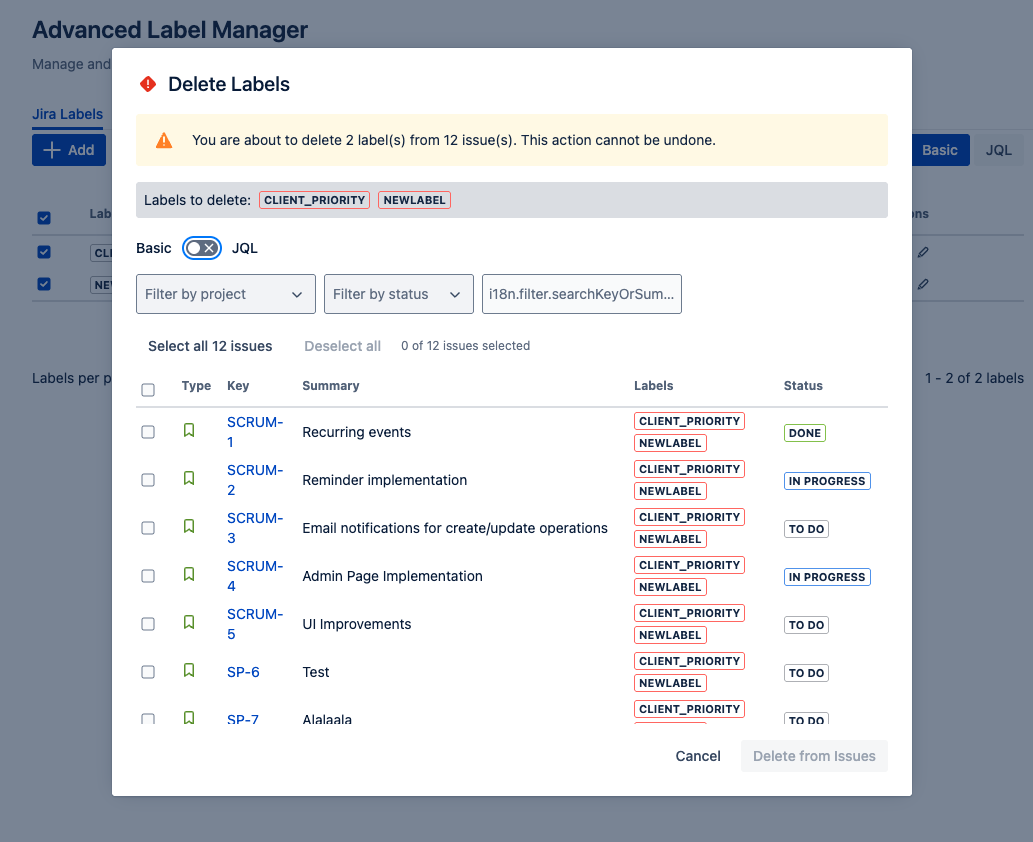
Delete labels from selected issues - filter by project, status, and select specific issues
Edit or Merge Labels in Jira Back to top
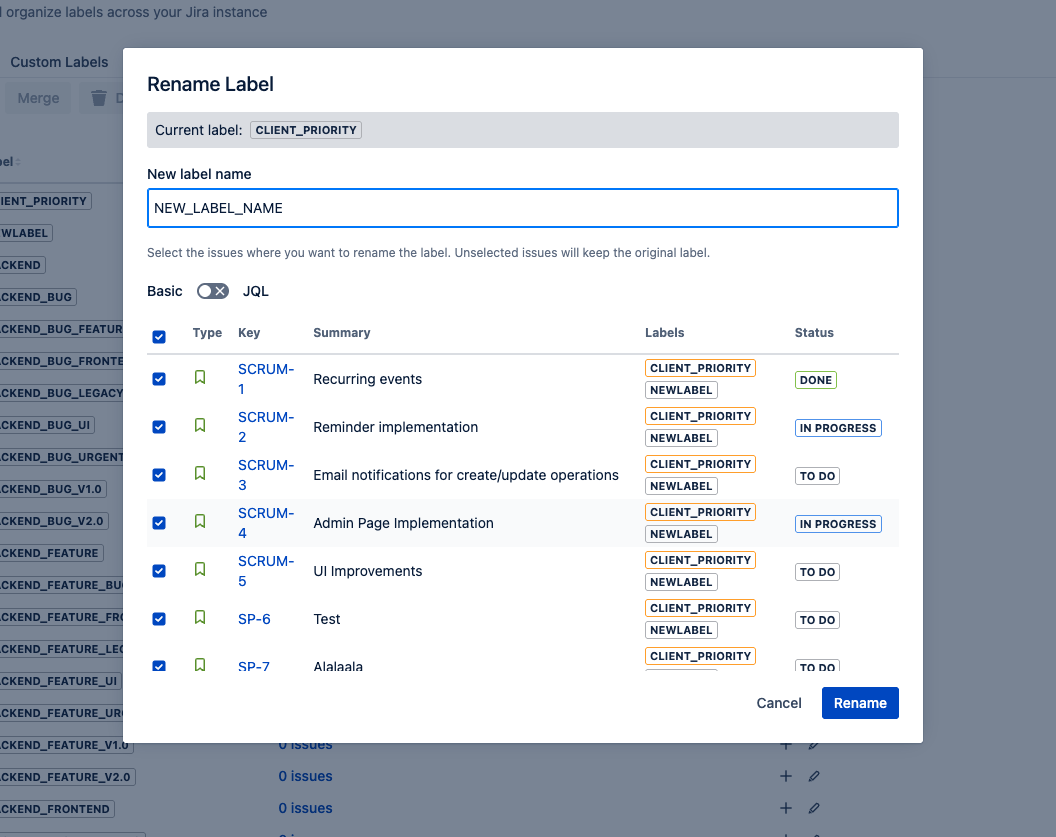
Rename Labels
You can edit the label name as needed. The renaming will be reflected in all issues where the label was used.
- Go to Apps → Manage Labels (or Project → Manage Labels).
- Find the label you want to rename.
- Click the pencil icon (✏️) to rename.
- Enter the new label name.
- Select issues to rename (or select all).
- Click "Save" to apply the changes.
Merge Two or More Labels
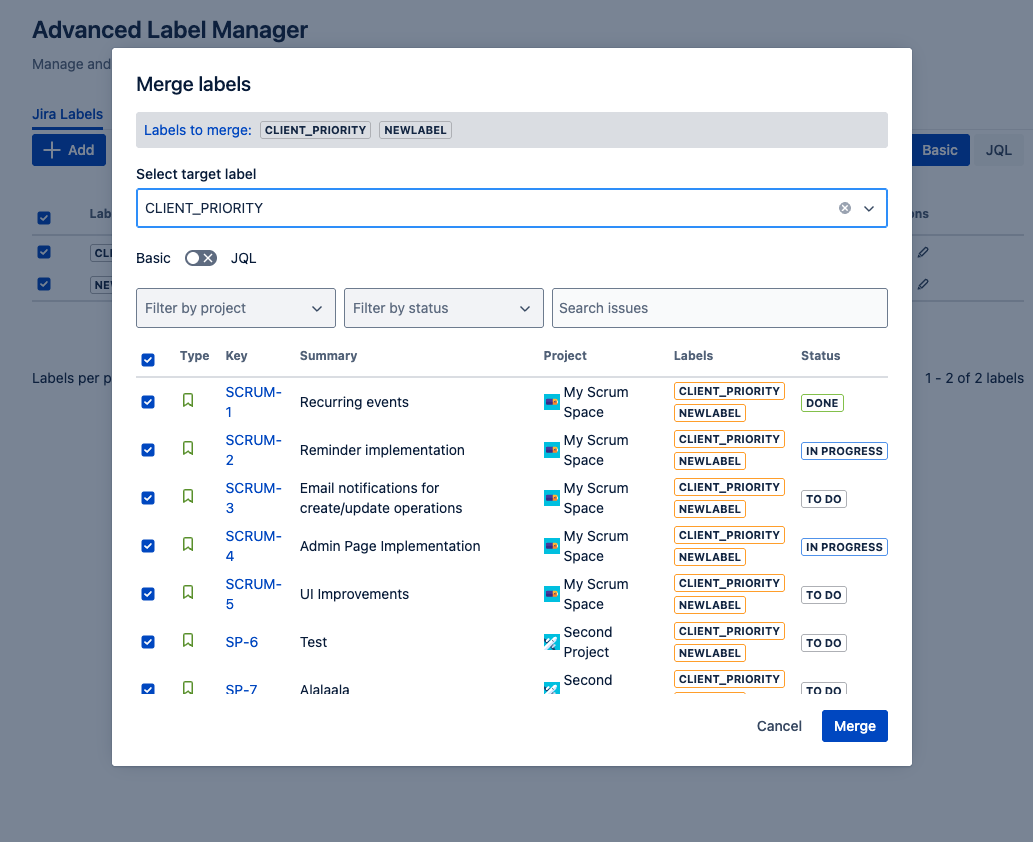
If you have duplicate labels or need to merge multiple labels into one, this feature makes it simple.
- Select multiple labels to be merged by checking their checkboxes.
- Click "Merge" button in the toolbar.
- Select or type the target label name (existing or new).
- Review the issues that will be affected.
- Click "Merge" to combine the labels.
Managing Custom Labels Back to top
If you use custom label fields, you can manage them alongside Jira's default labels.
Select a Custom Field
- Go to Top Nav → Manage Labels → Custom Labels.
- Select a Custom Label Field from the dropdown.
Manage Custom Labels
Once a label field is selected, you can manage labels with a similar interface to default label management.
Custom Labels Features
- Create labels and quickly add to multiple issues
- View issue counts, projects, and more
- Search labels, filter by projects, or use JQL for advanced search
- Use rename, bulk delete, and merge to save time
- Seamlessly switch between different custom fields
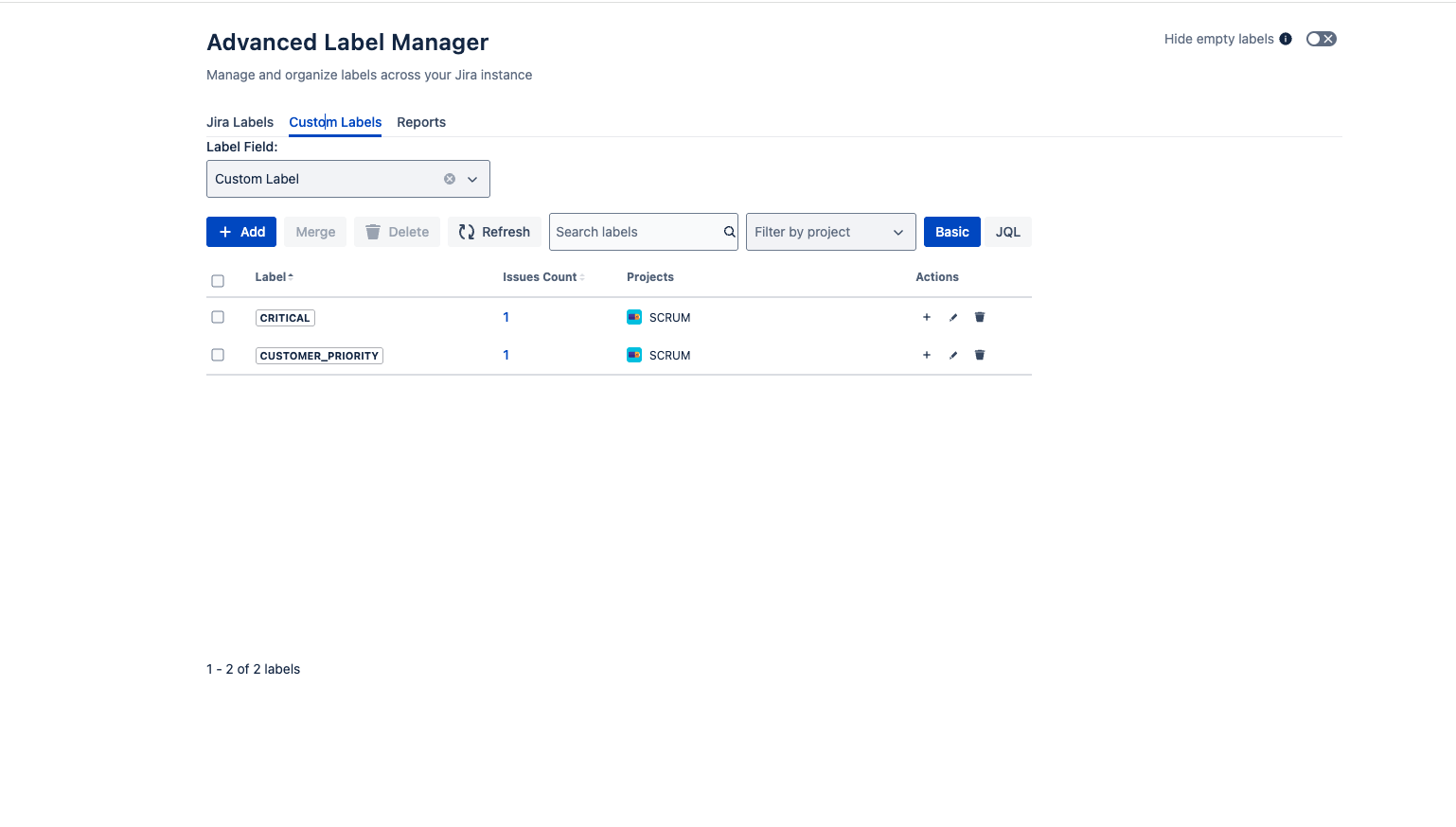
Manage custom label fields with the same powerful features
Label Reports & Analytics Back to top
Generate powerful reports to visualize label usage and distribution across your Jira instance.
Access Reports
- Navigate to Apps → Manage Labels → Reports tab.
- Select projects to include in the report.
- Select labels to compare.
- Choose time period (e.g., Last 6 months).
- Click "Refresh" to generate the report.
Report Views
Issue Distribution by Status
View how issues are distributed across different statuses (To Do, In Progress, Done) for selected labels.
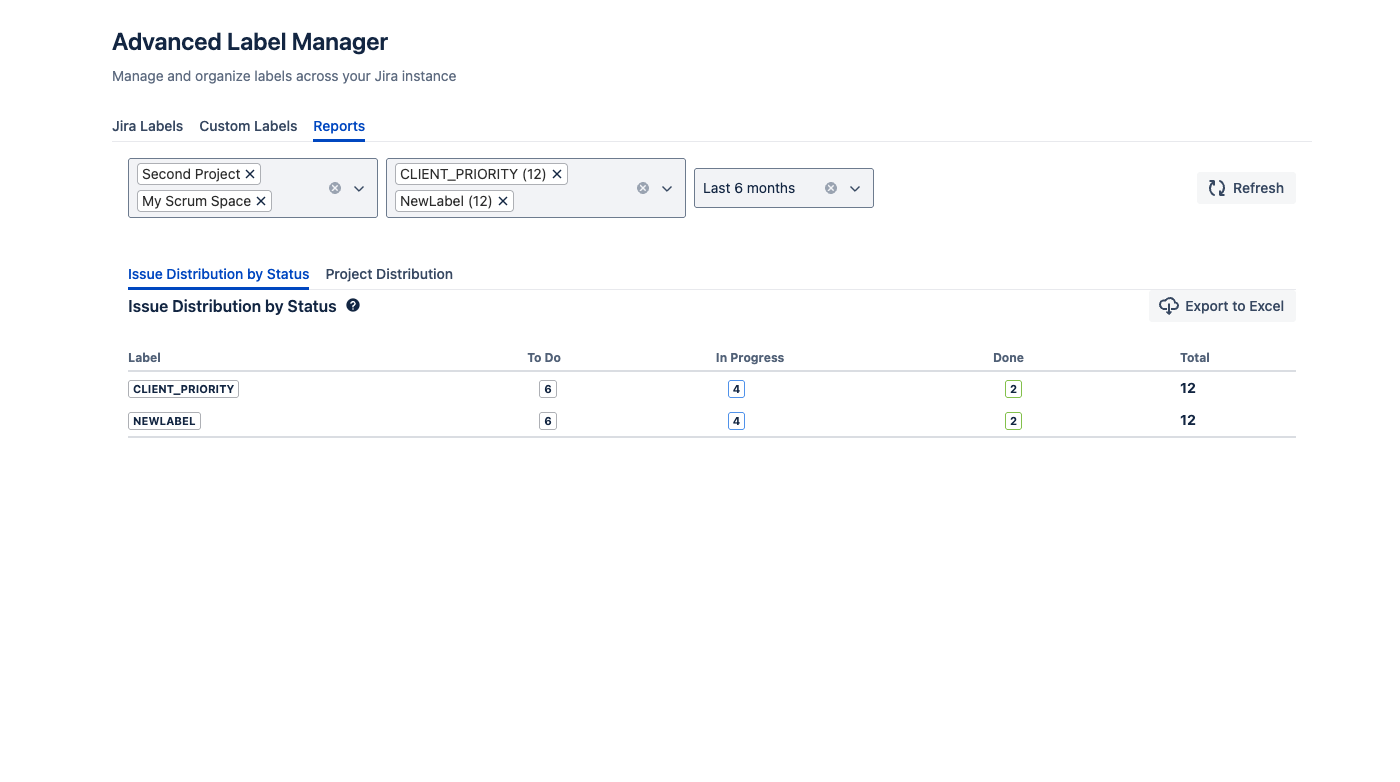
Issue distribution report showing label usage across different statuses
Project Distribution
See how labels are distributed across different projects in a tabular format.
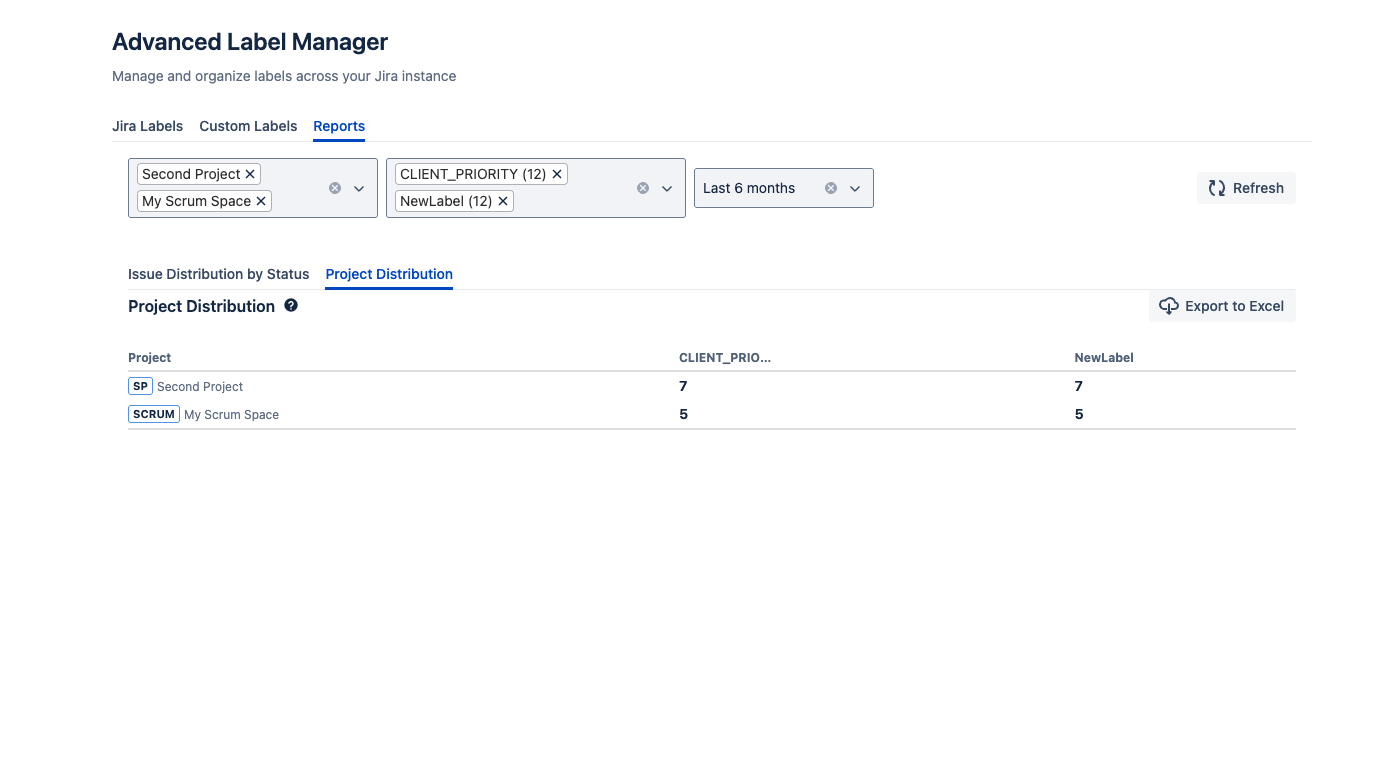
Project distribution report showing how labels are used across projects
Export to Excel
All reports can be exported to Excel format for further analysis, sharing with stakeholders, or archiving. Click the "Export to Excel" button in the report view.
Need Help?
If you have questions or need assistance with Label Manager & Reports for Jira, our support team is here to help.
Contact Support