Permissions Back to top
Each calendar and timeline has its own permission settings. You can control who can view, edit, and manage your calendars and timelines by assigning permission levels to users and groups.
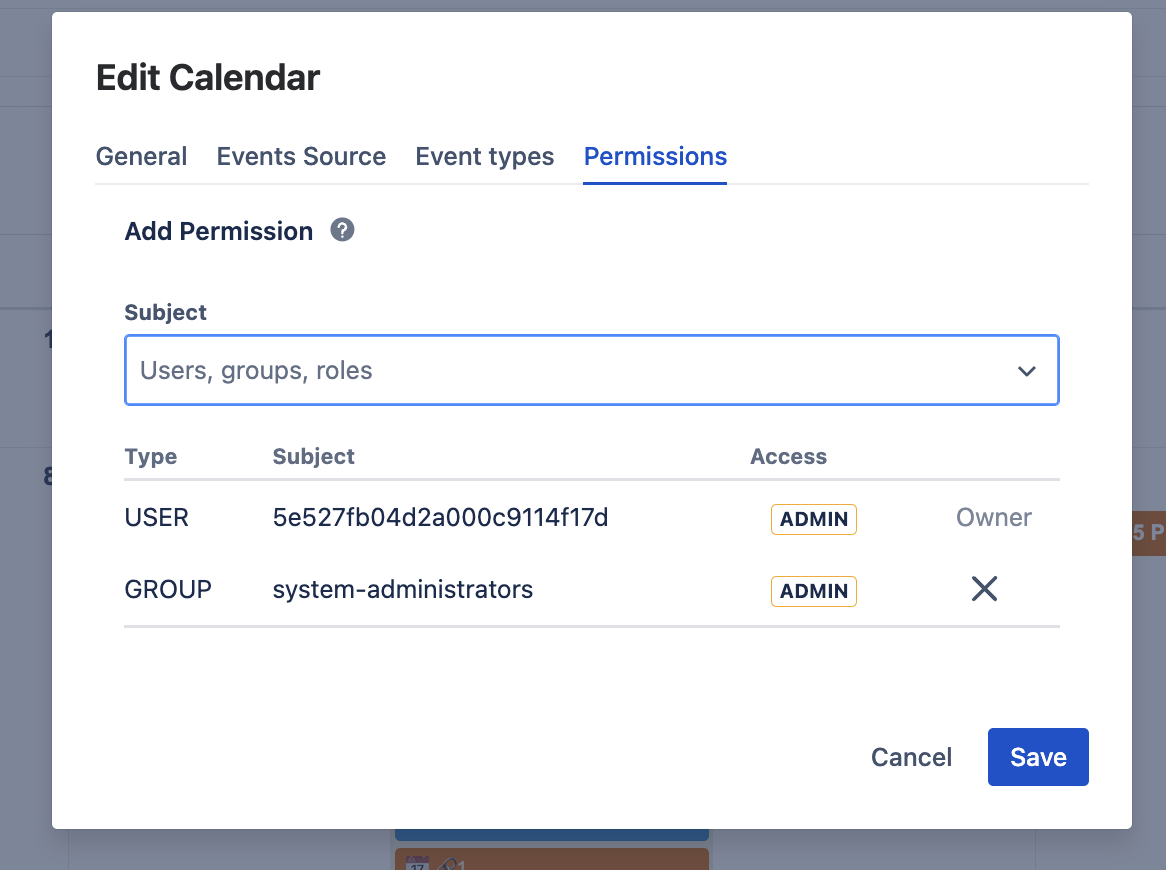
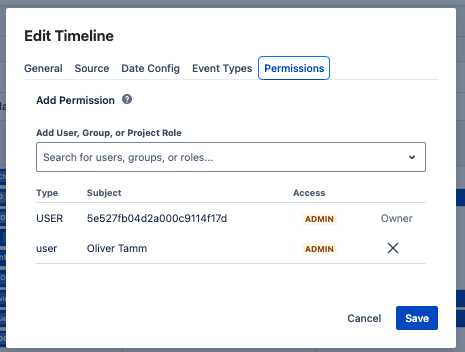
- Click the three dots next to the calendar or timeline name you want to configure.
- Select "Edit" to open settings, then navigate to the Permissions tab.
- Add users or groups — Search and select the users or Jira groups you want to grant access to.
- Assign permission levels to each user or group:
| Permission Level | What Users Can Do |
|---|---|
| Admin | Full access: edit settings, manage event types, manage permissions, create/edit/delete events, delete the calendar or timeline |
| Use | Create, edit, move, and delete events. Cannot modify settings, event types, or permissions |
| Read Only | View only. Cannot create, edit, delete, or move any events or issues |
- Click Save to apply the permissions.
Admin Configuration Back to top
Configure global settings for working days, business hours, and group visibility. These settings apply to all calendars and timelines and control access to Calendar for Jira (Resource Timeline & JSM Calendar).
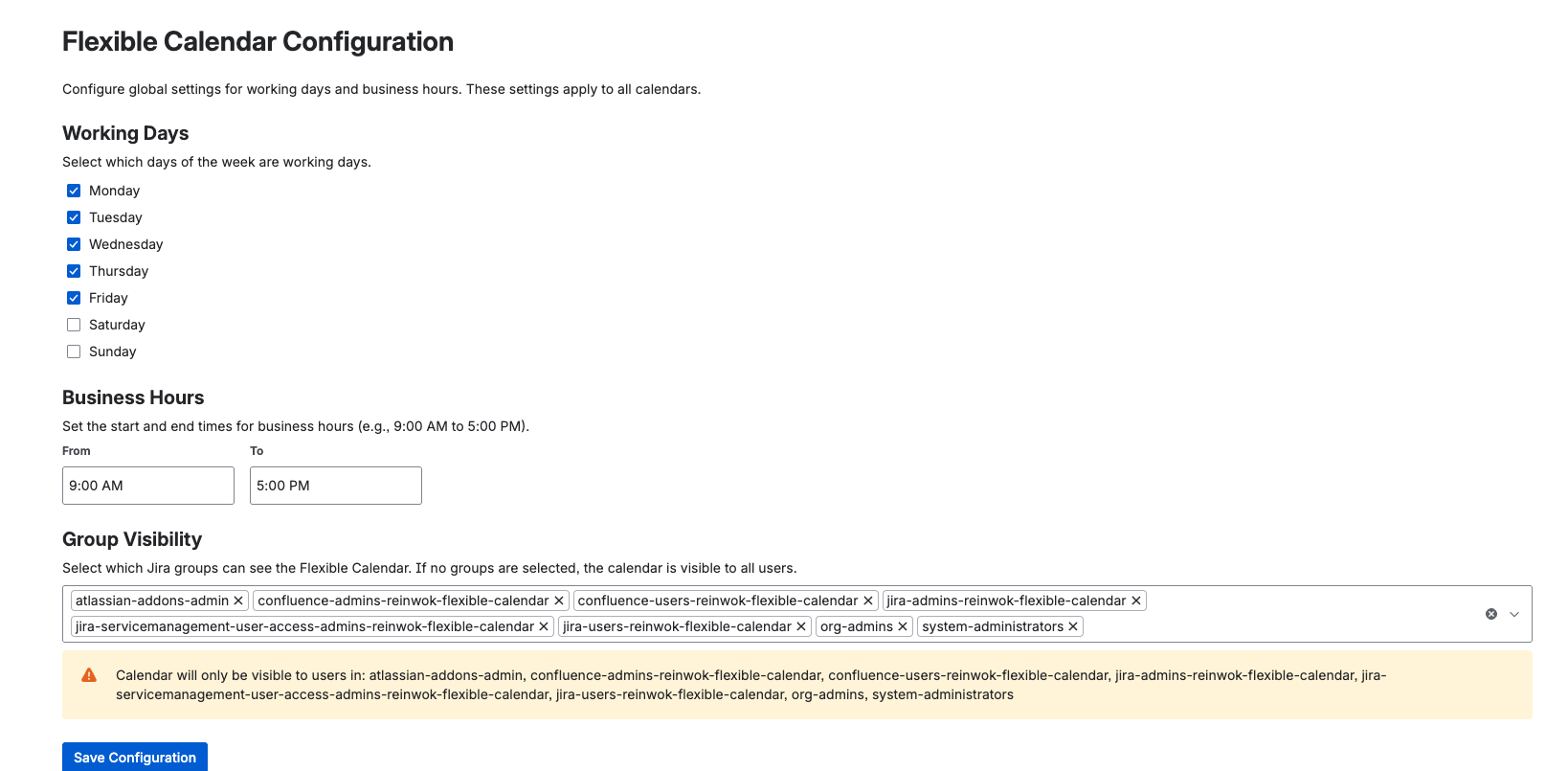
- Navigate to Calendar for Jira Configuration: Access the global configuration page from Jira settings.
- Configure Working Days: Select which days of the week are working days (Monday through Sunday).
- Set Business Hours: Define the start and end times for business hours (e.g., 9:00 AM to 5:00 PM).
-
Configure Group Visibility: Select which Jira groups can access the application:
- If no groups are selected, the application is visible to all users
- Add specific groups to restrict access to only those group members
- Multiple groups can be selected to grant access to users in any of the selected groups
- Review Warning: The system will display which groups have access.
- Click "Save Configuration" to apply the global settings.
Important Notes
Group visibility settings are global and apply to all calendars and timelines. This is different from individual calendar or timeline permissions which control what actions users can perform on specific calendars or timelines. Group visibility determines whether users can access Calendar for Jira (Resource Timeline & JSM Calendar) at all.
Need Help?
If you have questions or need assistance, our support team is here to help.
Contact Support