Introduction
Start using Reminder for Jira and forget about missed actions and deadlines. Our intelligent reminder system keeps your team on track with timely notifications, conditional alerts, and flexible recipient management. Whether you need personal reminders or team-wide notifications, Reminder for Jira has you covered.
Key Features
Create reminders on any issue or set up global reminders not tied to a specific issue. Use JQL conditions for smart notifications, send to individual users and groups, set up recurring schedules (daily, weekly, monthly, yearly), and manage everything from a centralized My Reminders page. Automatic cleanup keeps your system organized by removing sent reminders after 90 days for Jira Cloud and 30 days for Jira DC.
Create Reminder Back to top
- Open the issue where you want to set a reminder.
-
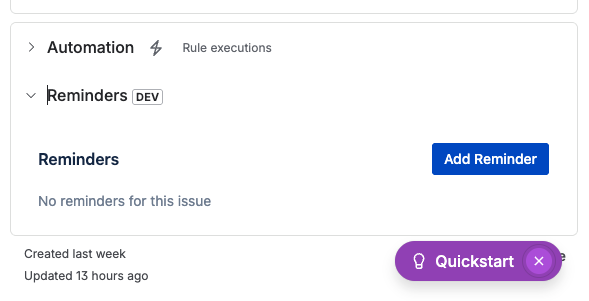
Click "Add Reminder" on the Reminders panel on the right side of the issue page.
-
Fill in the reminder details:
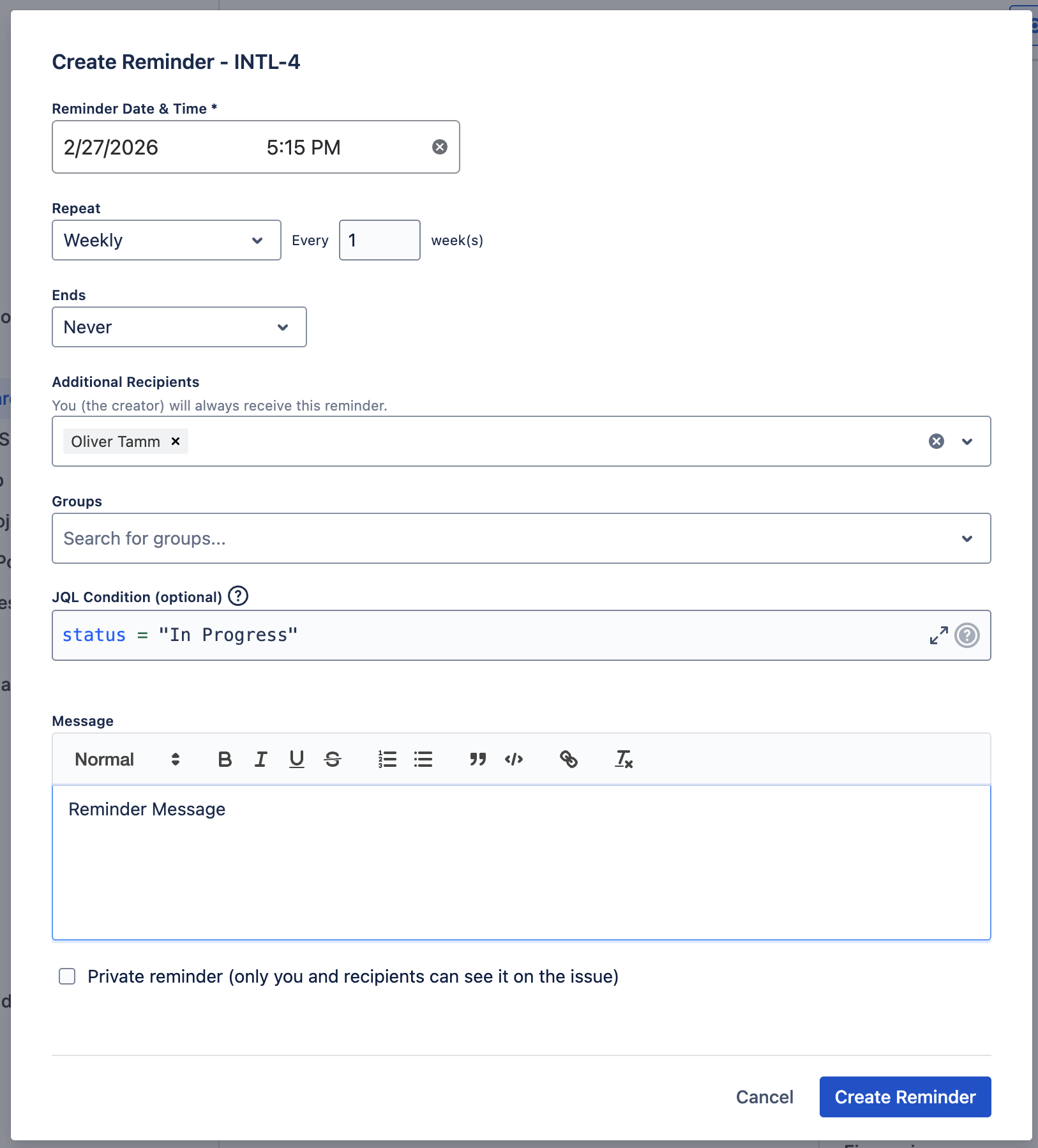
- Reminder Date & Time: Choose when the reminder should be sent (required)
- Additional Recipients: Add Jira users who should also receive the reminder. You (the creator) are always included automatically.
- Groups: Add Jira groups whose members will be notified
- JQL Condition (optional): Add a JQL query to send the reminder only if the condition is true at the scheduled time. For example,
status = "In Progress"will skip the notification if the issue has already moved to another status. - Message: Add a rich-text message that will appear in the notification email and on the issue panel
- Private reminder: Check this box to make the reminder visible only to you and the recipients. Leave unchecked for a public reminder visible to all users on the issue.
- Click "Create Reminder" to save.
Pro Tip: JQL Conditions
Use JQL conditions to create smart reminders that only send when specific criteria are met. For example, remind assignees only if an issue is still in "In Progress" status, or notify the team only if a critical bug hasn't been resolved by the deadline.
Create Global Reminder Back to top
Global reminders are not tied to a specific Jira issue. They are useful for general tasks such as team-wide check-ins, periodic administrative actions, or personal to-dos that don't belong to any particular issue.
- Open the My Reminders page. On Jira Cloud, find it in the left sidebar under Apps > Your apps > My Reminders. On Jira Server / Data Center, click your profile icon (top-right) and select My Reminders.
- Click "Create Reminder" at the top of the page.
-
Configure the reminder:
- Reminder Date & Time: Set when the reminder should fire (required).
- Repeat: Optionally configure a recurring schedule (daily, weekly, monthly, or yearly).
- Ends: If recurring, choose when it should stop (never, after N occurrences, or on a specific date).
- Additional Recipients: Add other Jira users who should receive the reminder. You (the creator) are always included.
- Groups: Add Jira groups whose members will be notified.
- Message: Add a rich-text description that will be included in the notification email.
- Click "Create Reminder" to save.
How Global Reminders Differ from Per-Issue Reminders
Because global reminders are not linked to an issue, some options are not applicable:
- JQL Condition is not available — there is no issue to evaluate the condition against.
- Private/Public toggle is not available — global reminders are not shown on any issue panel.
- Notification emails use the subject "Reminder" instead of "Reminder: ISSUE-KEY".
- On the My Reminders page, global reminders show a "Global" badge in the Issue column instead of an issue link.
Tip: Issue-Specific vs Global
To create a reminder for a specific issue, use the Reminders panel on the issue page instead. Global reminders are best suited for tasks that span multiple issues or don't relate to any issue at all.
Recurring Reminders Back to top
Set up reminders that repeat automatically on a schedule. Recurring reminders are supported for both issue-bound and global reminders, making them perfect for periodic tasks such as weekly status checks, monthly reviews, or annual license renewals. After each occurrence is sent, the system automatically schedules the next one based on your configuration.
Setting Up a Recurring Reminder
When creating or editing a reminder, you can configure a recurrence schedule using the Repeat and Ends options.
Repeat Options
Select a Repeat type from the dropdown, then specify how often it should repeat using the "Every N" field:
- Daily: For example, "Every 1 day" for a daily reminder or "Every 3 days" to repeat every three days. When you select Daily, an Active days option appears, letting you choose which days of the week the reminder should fire on (see below).
- Weekly: For example, "Every 1 week" for a weekly check-in or "Every 2 weeks" for a bi-weekly review.
- Monthly: For example, "Every 1 month" for a monthly review. The reminder keeps the same day of the month. If the month has fewer days (e.g., a reminder set for January 31st will fire on February 28th), it adjusts automatically.
- Yearly: For example, "Every 1 year" for annual reviews, license renewals, or anniversary reminders.
Active Days (Daily Recurrence)
When you select Daily as the repeat type, an Active days row appears with checkboxes for each day of the week (Monday through Sunday). This lets you control exactly which days the reminder fires on.
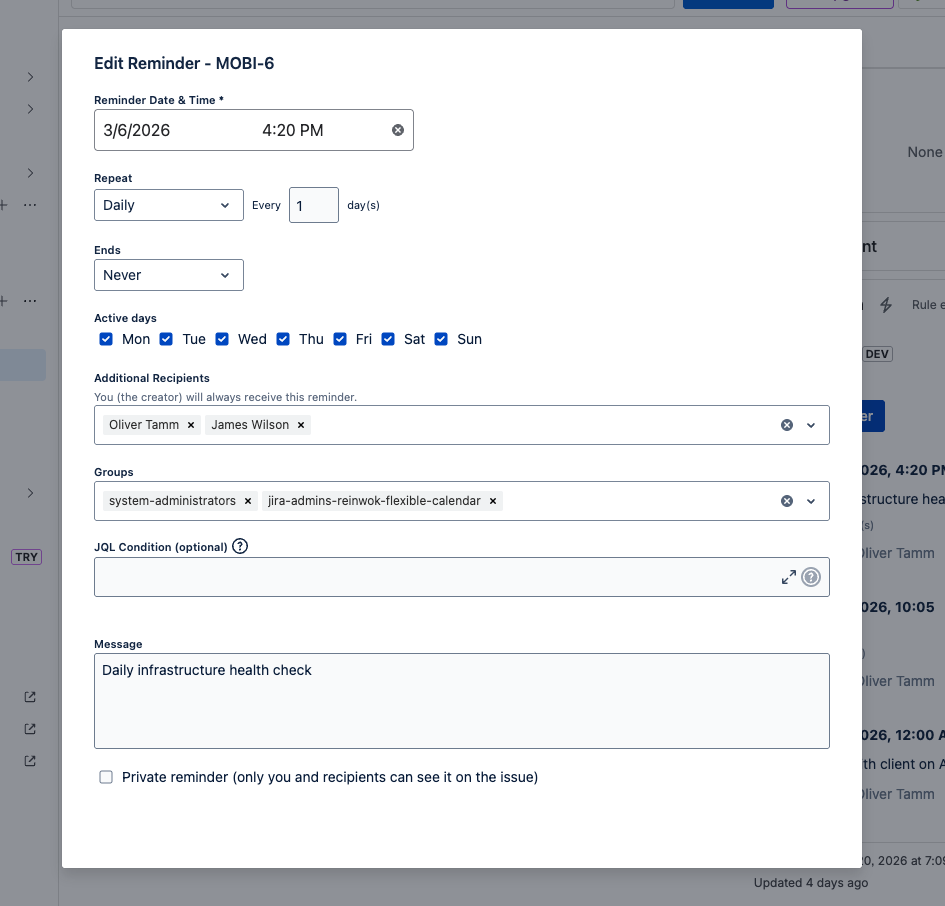
Common use cases for active days:
- Weekdays only: Select Mon–Fri to skip weekends.
- Specific days: Select only the days you need, such as Mon, Wed, Fri for a three-times-a-week schedule.
- Every day: All days are selected by default, so the reminder fires every day in the interval.
End Conditions
Control when a recurring reminder should stop repeating using the Ends option:
- Never: The reminder repeats indefinitely until you manually delete it.
- After N occurrences: The reminder stops after a specified number of occurrences (2 to 999). For example, set it to 4 for a reminder that fires 4 times and then stops.
- On date: The reminder stops repeating after a specific end date. No further occurrences will be scheduled past this date.
How Recurring Reminders Work
- The reminder fires at the scheduled date and time. All recipients receive the notification, just like a regular reminder.
- The next occurrence is scheduled automatically. Based on your repeat settings, the reminder date advances to the next occurrence (e.g., one week later for a weekly reminder).
- This cycle continues until the end condition is reached (if configured) or the reminder is manually deleted.
Recurring Reminders on the Issue Panel
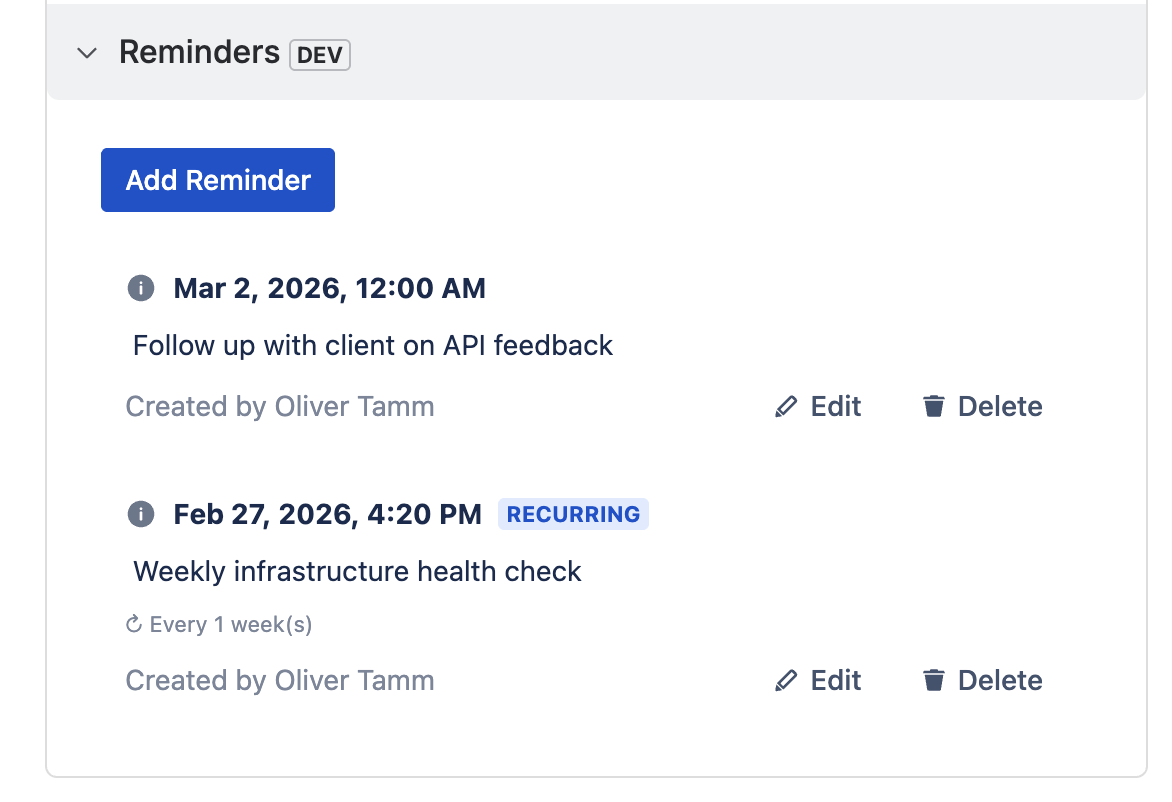
Recurring reminders are clearly distinguished on the issue panel with a RECURRING badge and a description of the recurrence schedule (e.g., "Every 1 week(s)"). Regular one-time reminders appear without a badge.
Recurring Reminders on the Dashboard Gadget (Jira Cloud only)
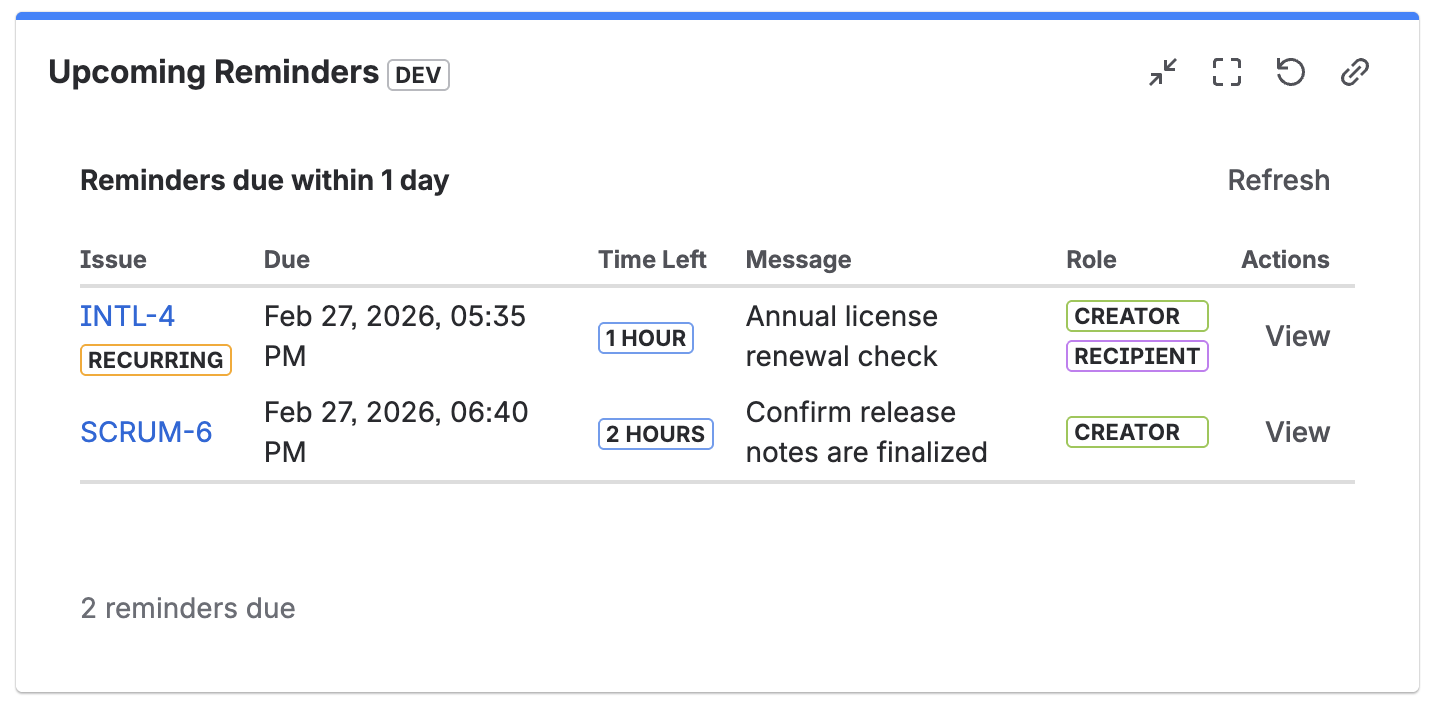
The Upcoming Reminders dashboard gadget also displays the RECURRING badge next to the issue key, making it easy to identify which upcoming reminders are part of a recurring schedule.
Pro Tip: Combine with JQL Conditions
Recurring reminders work together with JQL conditions. For example, set a weekly recurring
reminder with the condition status = "In Progress" to get notified every week
only while the issue remains in progress. Once the issue moves to "Done", the reminder still
recurs but notifications are skipped until the condition is met again.
Manage Reminders on Issue Panel Back to top
Quickly view, edit, and delete reminders directly from the issue panel. This provides a convenient way to manage reminders in the context of the issue you're working on.
- Open any issue that has reminders configured.
-
View all reminders for this issue on the Reminders panel on the right side of the page. Each reminder shows its scheduled date, message, creator, and whether it is recurring.
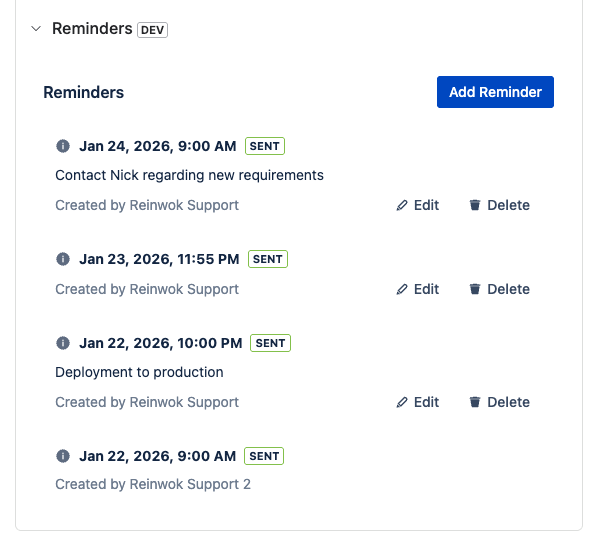
- Edit or delete any reminder you created using the buttons next to each entry.
Reminder Permissions
Only the creator of a reminder can edit or delete it. Public reminders are visible to all users, while private reminders are only visible to the creator and specified recipients. This ensures proper access control and privacy for your team's notifications.
Manage Reminders Page Back to top
The My Reminders page gives you a centralized view of all your reminders across every issue in your Jira instance, including global reminders. You can filter, create, edit, and delete reminders from this single page.
- Open the My Reminders page. On Jira Cloud, find it in the left sidebar under Apps > Your apps > My Reminders. On Jira Server / Data Center, click your profile icon (top-right) and select My Reminders.
-
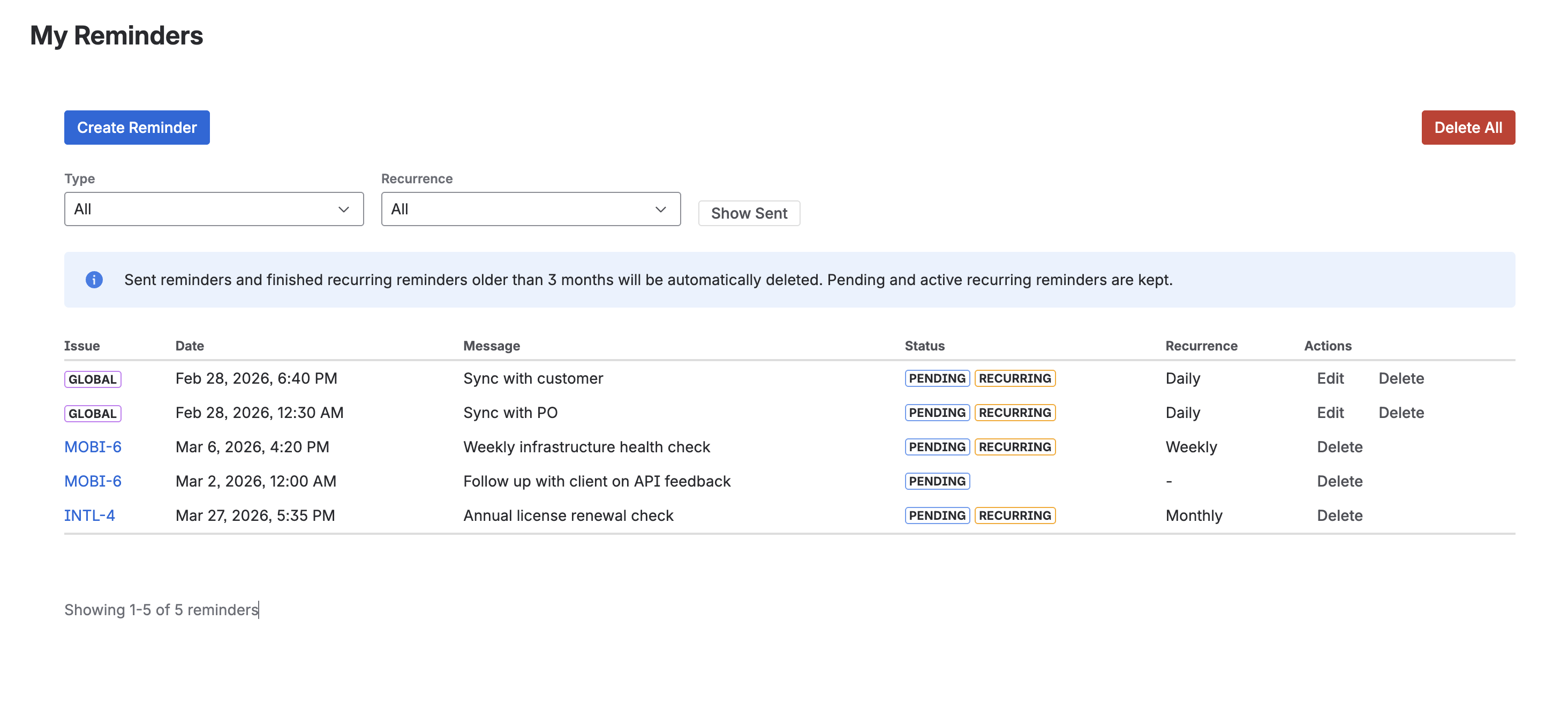
Browse your reminders in the table. Each row shows the issue key (or a "Global" badge for global reminders), scheduled date, message, status, recurrence type, and available actions.
Filtering Reminders
Use the filter controls at the top of the page to narrow down the list:
- Type: Filter by reminder type — All, Global (reminders not tied to an issue), or Issue (reminders linked to a specific issue).
- Recurrence: Filter by recurrence — All, Recurring (only recurring reminders), or One-time (only non-recurring reminders).
- Show Sent / Hide Sent: Toggle whether sent reminders appear in the list. By default, only pending reminders are shown. Click "Show Sent" to also see reminders that have already been delivered.
Actions
- Create Reminder: Creates a new global reminder not tied to any issue. To create a reminder for a specific issue, use the Reminders panel on the issue page instead.
- Edit: Modify the details of a global reminder you created. Issue reminders can be edited directly from the Reminders panel on the issue page.
- Delete: Remove a single reminder.
- Delete All: Remove all your reminders at once. This button appears in the top-right corner.
Table Columns
- Issue: The linked issue key (clickable) or a "Global" badge for global reminders.
- Date: The scheduled date and time for the next notification.
- Message: A preview of the reminder message.
- Status: Shows Pending or Sent, plus a Recurring badge if the reminder is on a repeating schedule.
- Recurrence: The repeat frequency (e.g., "Daily", "Weekly", "Monthly") or "-" for one-time reminders.
- Actions: Edit and Delete buttons for reminders you created.
Automatic Cleanup
Sent reminders and finished recurring reminders older than 3 months are automatically deleted. Pending reminders and active recurring reminders are always kept. This keeps your list clean without requiring manual maintenance.
Dashboard Gadget Back to top
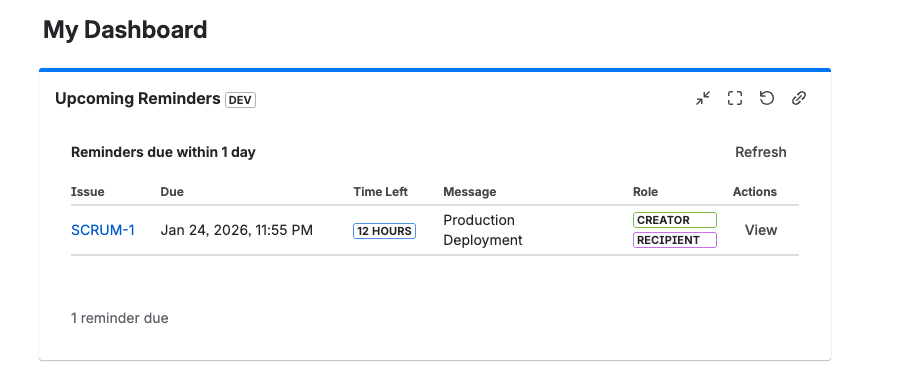
View upcoming reminders directly on your Jira dashboard with the Reminder Gadget. This powerful feature allows you to monitor all your upcoming reminders in one place, helping you stay on top of deadlines and important tasks.
Cloud Only Feature
The Reminder Gadget is currently available only for Jira Cloud instances. This feature provides a centralized view of all your upcoming reminders directly on your dashboard.
Configure Reminder Gadget (Jira Cloud Only)
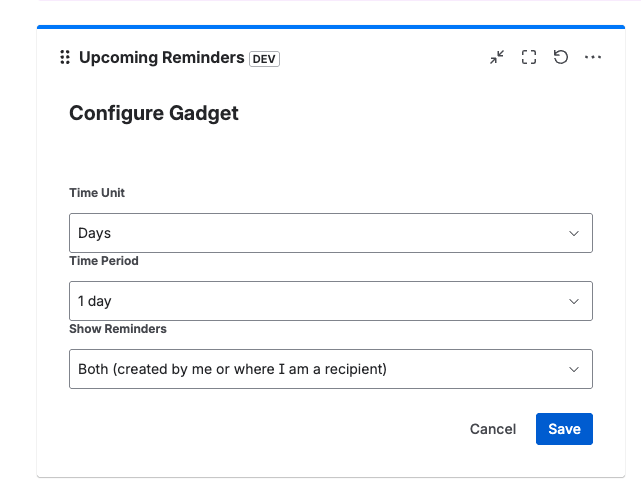
- Add the gadget to your dashboard by clicking "Add gadget" and searching for "Upcoming Reminders".
- Configure Time Unit: Select the time unit for filtering reminders (Days, Hours, etc.)
- Set Time Period: Specify how far ahead you want to see reminders (e.g., 1 day, 7 days)
-
Choose Show Reminders option:
- Created by me: Show only reminders you created
- Where I am a recipient: Show reminders where you're listed as a recipient
- Both: Show all reminders created by you or where you are a recipient
- Click Save to apply your configuration.
Gadget Features
The gadget displays the issue key, due date, time remaining, reminder message, your role (Creator/Recipient), and a quick "View" action. Recurring reminders are marked with a RECURRING badge so you can easily spot them.
Admin Configuration (Jira Cloud Only) Back to top
Administrators can configure global settings for the Reminder app to control permissions, restrict access, and manage how reminders are created and distributed across your Jira instance.
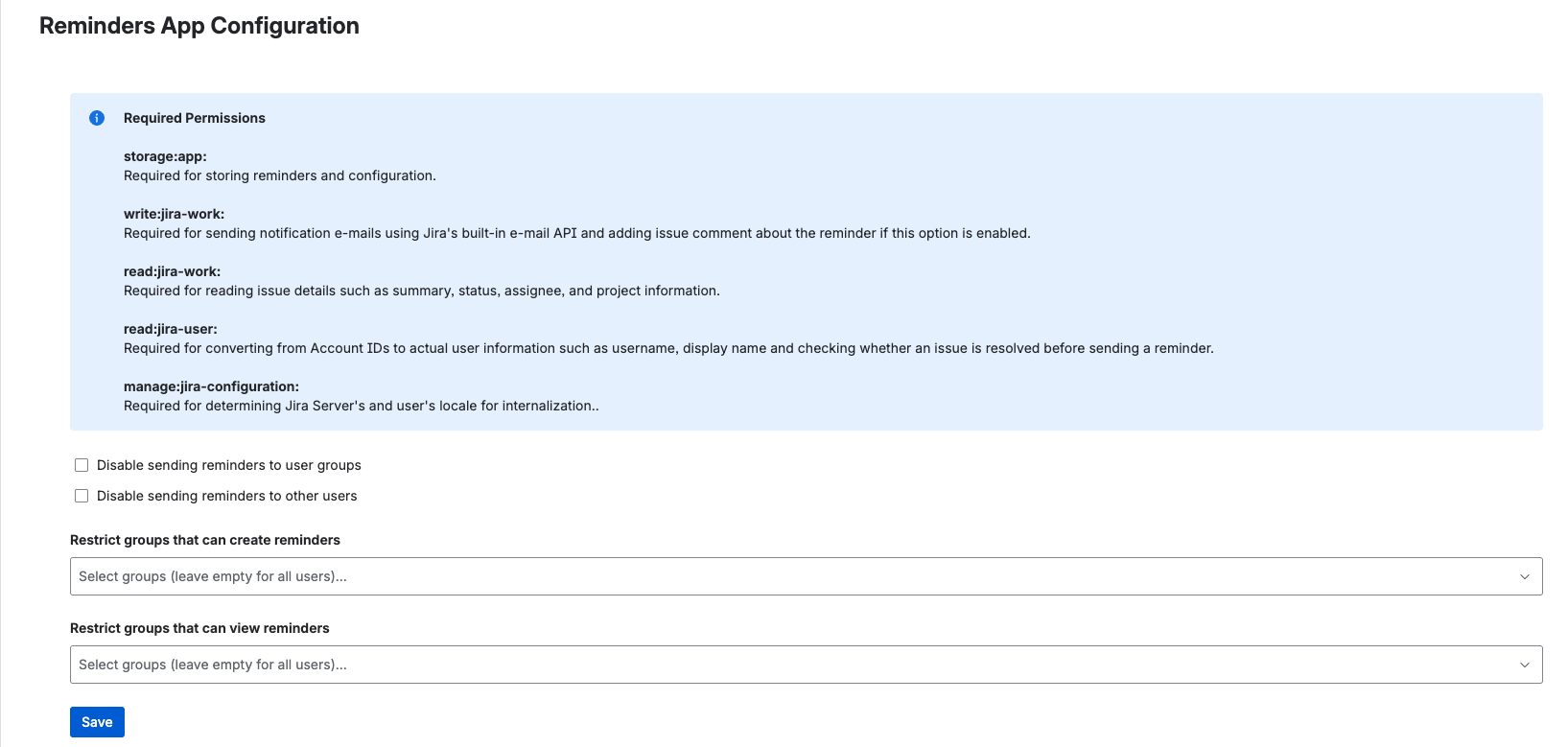
Required Permissions
During installation, the app requests the following permissions. These are granted once by an admin and are needed for the app to function:
- App storage: Storing reminders and configuration data
- Write access to issues: Sending notification emails via Jira's built-in email API and optionally adding issue comments about reminders
- Read access to issues: Reading issue details such as summary, status, assignee, and project information
- Read access to users: Resolving user names and display names, and checking issue status before sending
- Jira configuration: Detecting the user's locale for displaying the app in the correct language
Configuration Options
-
Disable sending reminders to user groups
When enabled, users will not be able to add groups as recipients when creating reminders. This restricts reminder distribution to individual users only.
-
Disable sending reminders to other users
When enabled, users can only create reminders for themselves. This prevents users from sending reminder notifications to other team members.
-
Restrict groups that can create reminders
Select specific Jira groups that are allowed to create reminders. Leave empty to allow all users to create reminders. This helps control who has permission to use the reminder feature.
-
Restrict groups that can view reminders
Select specific Jira groups that are allowed to view reminders. Leave empty to allow all users to view reminders (subject to public/private visibility settings). This provides an additional layer of access control.
Need Help?
If you have questions or need assistance with Advanced Reminders for Jira, our support team is here to help.
Contact Support