Overview Back to top
The Admin Settings page is accessible only to Jira administrators. It provides four configuration tabs that control how the calendar app behaves across your entire Jira instance: Calendar Configuration, Global Permissions, Service Management Portal, and Export Settings.
To open Admin Settings, navigate to the calendar app and click the gear icon in the top toolbar, or go to Jira Administration → Apps → Calendar for Jira.
Calendar Configuration Back to top
The Calendar Configuration tab controls the default display settings for all calendars in your Jira instance. These settings affect how the calendar grid renders working and non-working time.
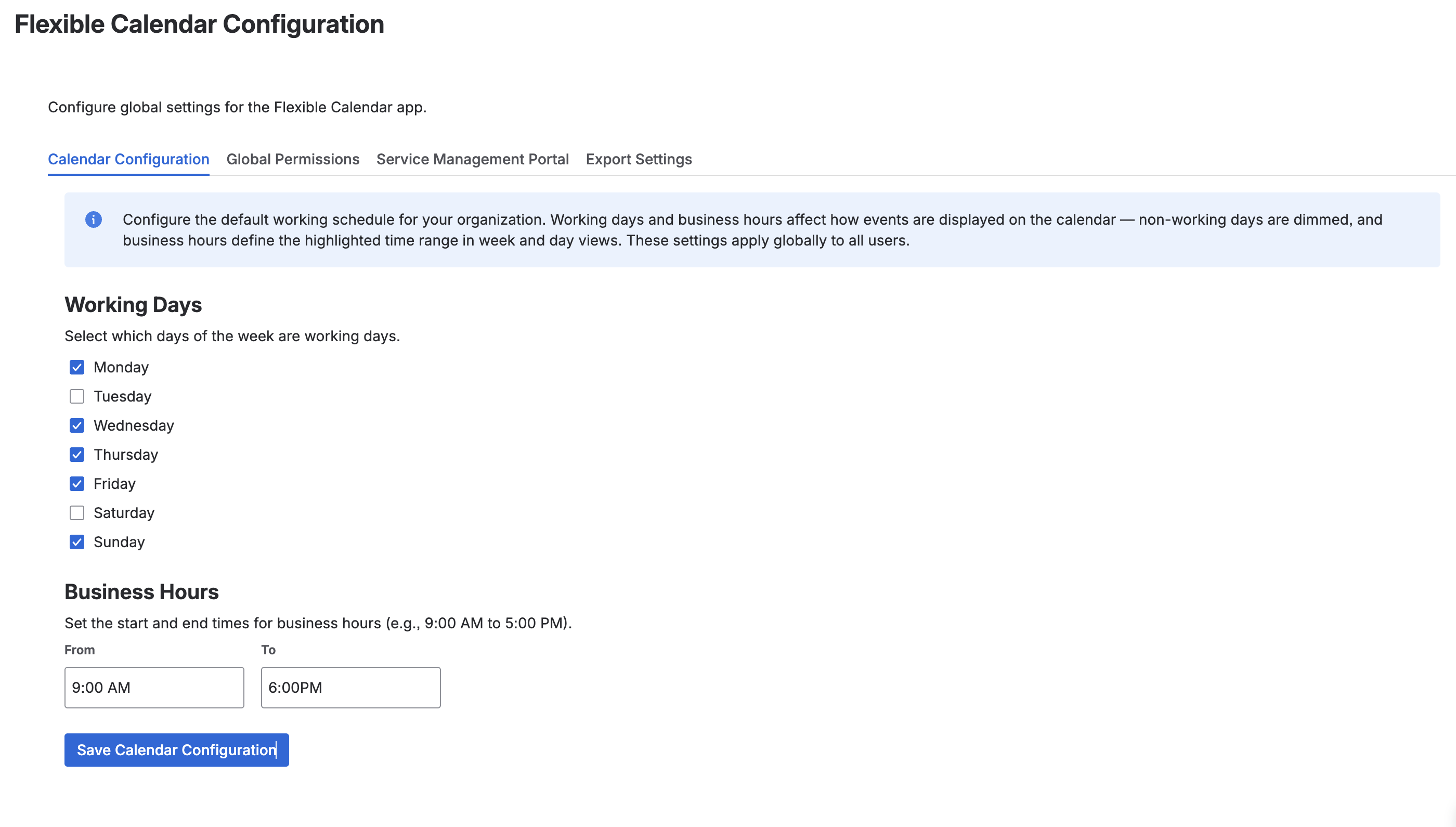
Working Days
Select which days of the week are considered working days using the checkboxes for Monday through Sunday. By default, Monday through Friday are selected. Non-working days appear with a shaded background on the calendar grid, making it easy to distinguish weekends or custom rest days from active workdays.
Business Hours
Set the start and end time for your organization's business hours. The default is 9:00 AM to 6:00 PM. In the week and day views, hours outside the configured business hours range are displayed with a subtle background tint so users can quickly identify core working hours at a glance.
Global Permissions Back to top
The Global Permissions tab controls which users can access the Calendar for Jira app. Use this to restrict the app to specific teams or departments.
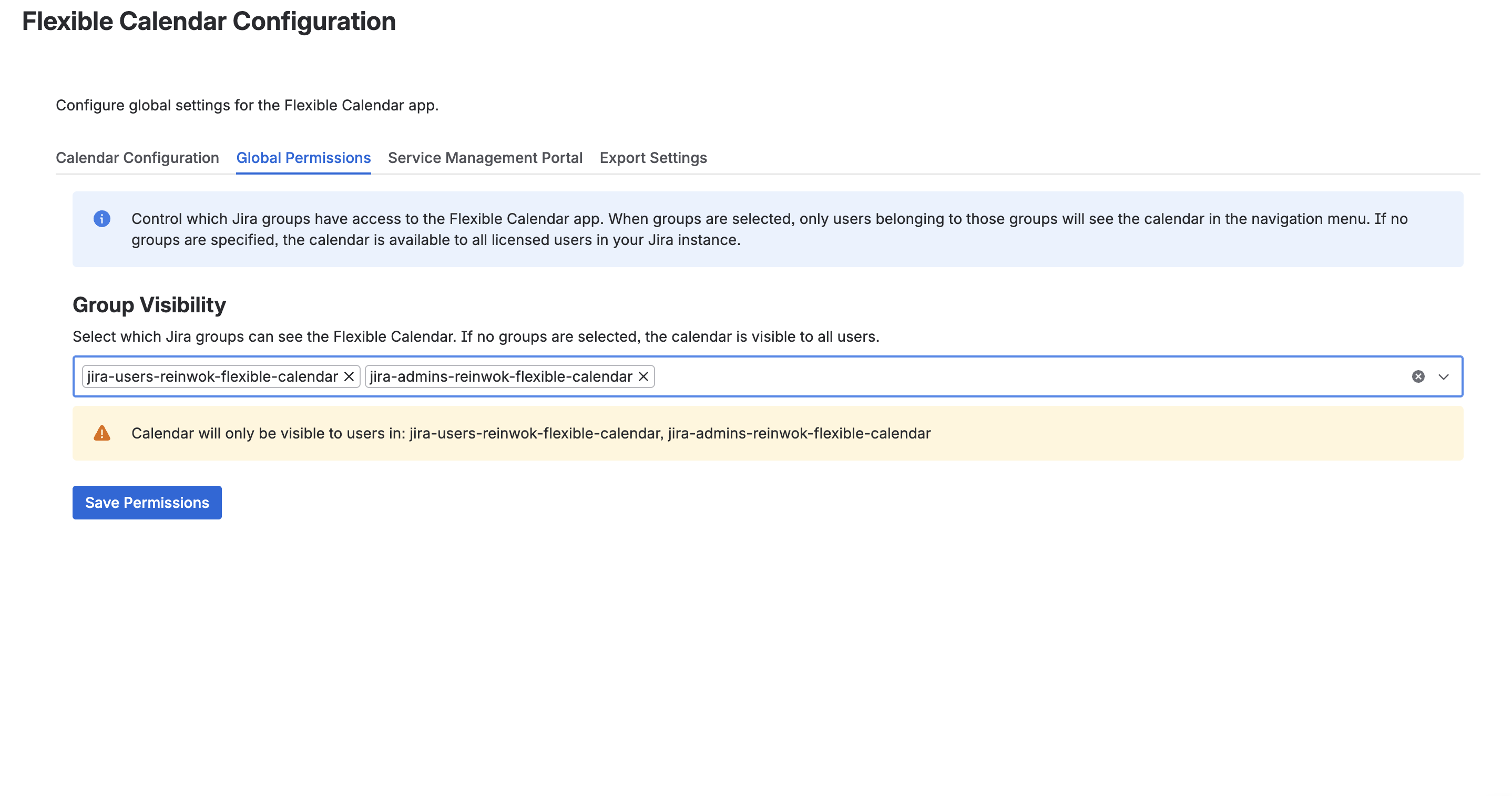
Group Visibility
Use the multi-select field to choose one or more Jira groups. Only members of the selected groups will be able to see and use the calendar app. If the field is left empty, all users in the Jira instance have access to the calendar.
Service Management Portal Back to top
The Service Management Portal tab lets you expose calendars to customers through Jira Service Management Help Centers and individual portals.
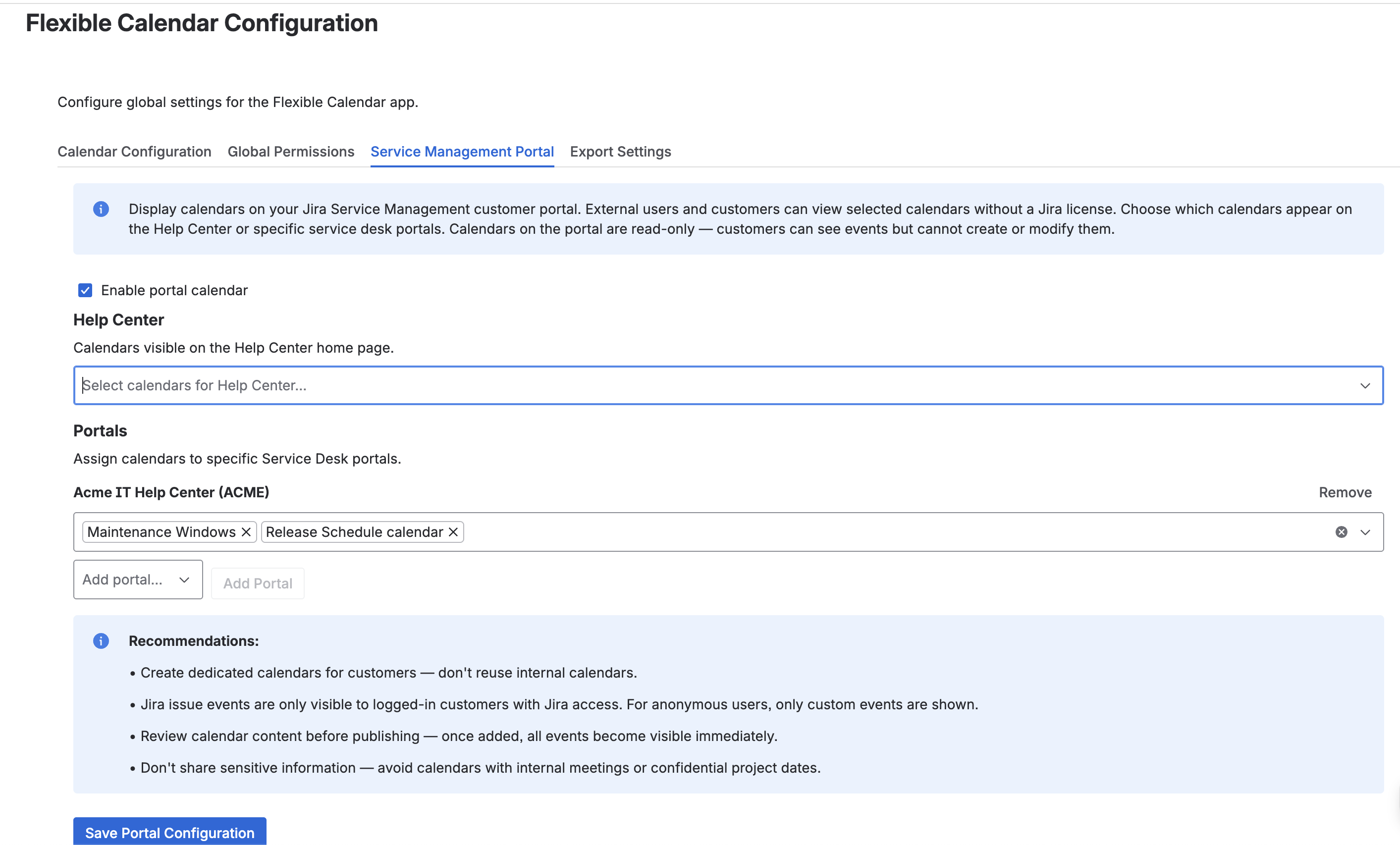
Enable Portal Calendar
Toggle this setting to enable or disable the calendar widget in Service Management portals. When enabled, customers can view calendars directly from the Help Center or specific portals.
Help Center Calendars
Select which calendars should be displayed on the main Help Center page. These calendars are visible to all portal customers who access the Help Center.
Per-Portal Calendars
Assign specific calendars to individual Service Management portals. This allows you to show different calendars to customers of different services — for example, a maintenance schedule calendar for IT support and a release calendar for product portals.
Export Settings Back to top
The Export Settings tab contains six sub-tabs that control all aspects of calendar data export and import security. All export features are disabled by default for security. You must explicitly enable each export type before users can generate feed URLs.
General Settings
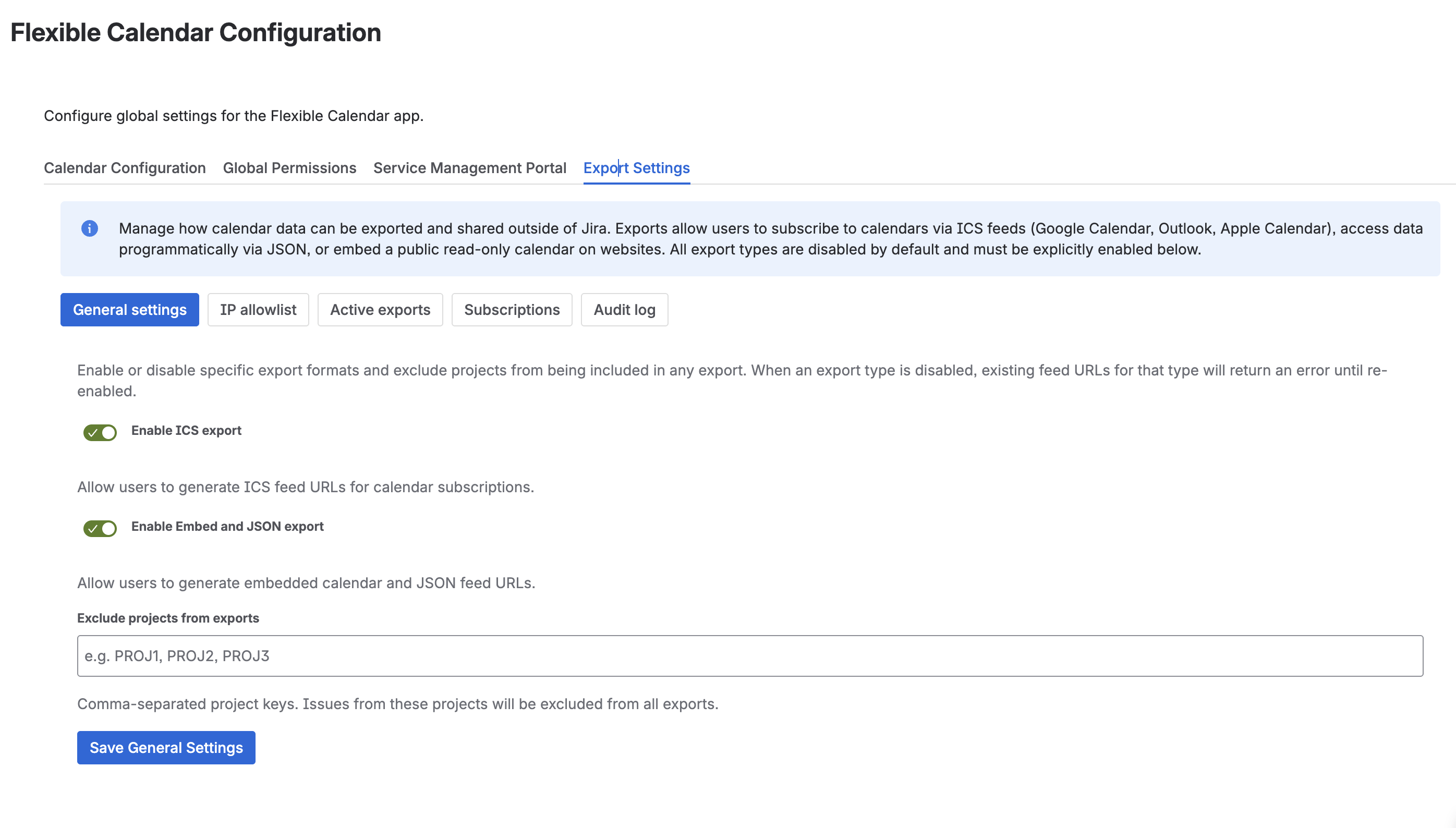
The General Settings sub-tab provides master toggles for each export format:
- Enable ICS export — enable or disable the ability to generate ICS subscription URLs for Google Calendar, Outlook, and Apple Calendar. Disabled by default.
- Enable Embed and JSON export — enable or disable embedded calendar views and JSON API feeds. Disabled by default.
- Project Exclusion — select Jira projects whose issues should be excluded from all exports. Use this for confidential or internal-only projects that should never appear in external feeds.
IP Allowlist
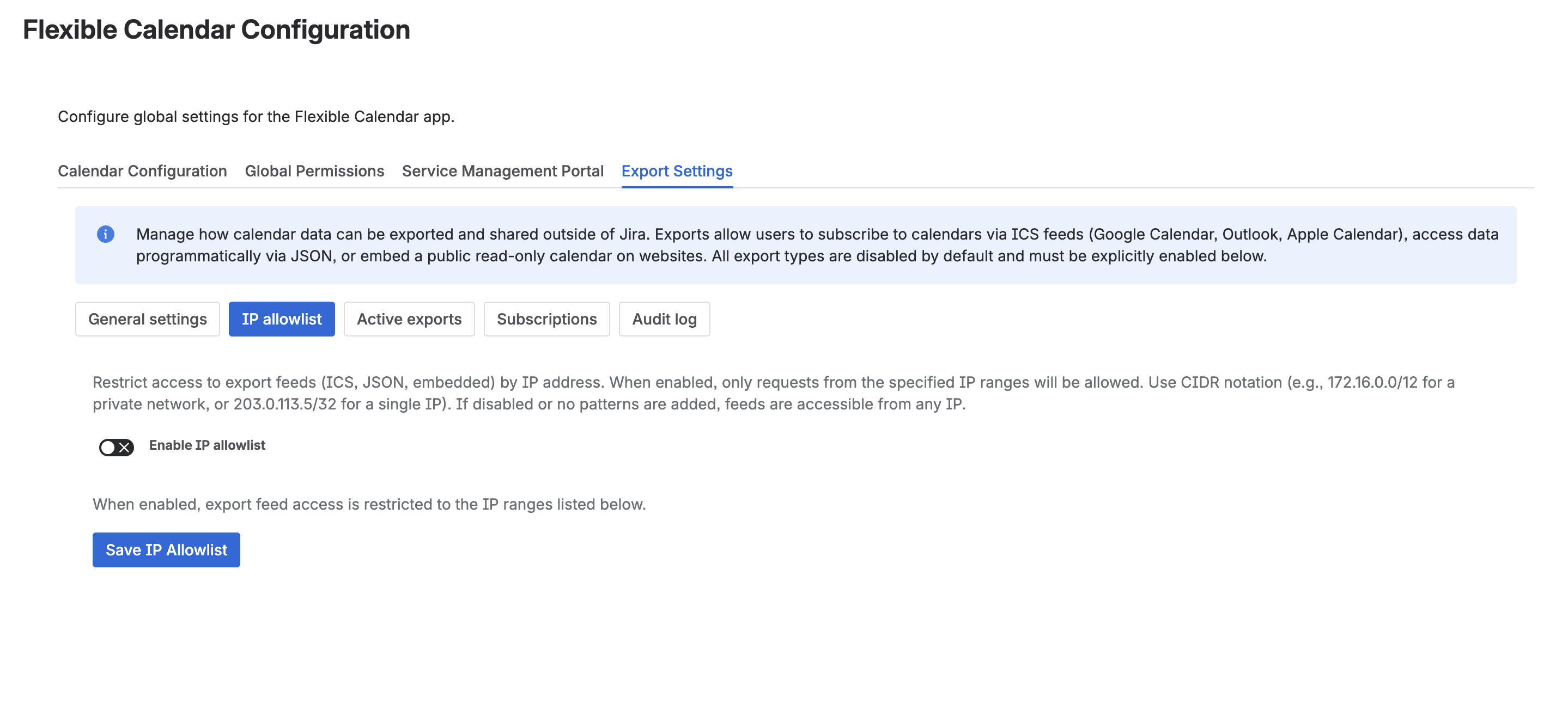
The IP Allowlist restricts which IP addresses can access exported calendar feeds. When enabled, only requests from the specified IP ranges will be served — all other requests receive a 403 Forbidden response.
- Enable IP Allowlist — toggle to activate IP-based access control. When disabled, feeds are accessible from any IP address.
- CIDR Patterns — add IP ranges in CIDR notation (e.g.,
192.168.1.0/24,10.0.0.0/8). You can add multiple ranges to cover your office networks, VPN endpoints, or cloud service IPs.
Active Exports
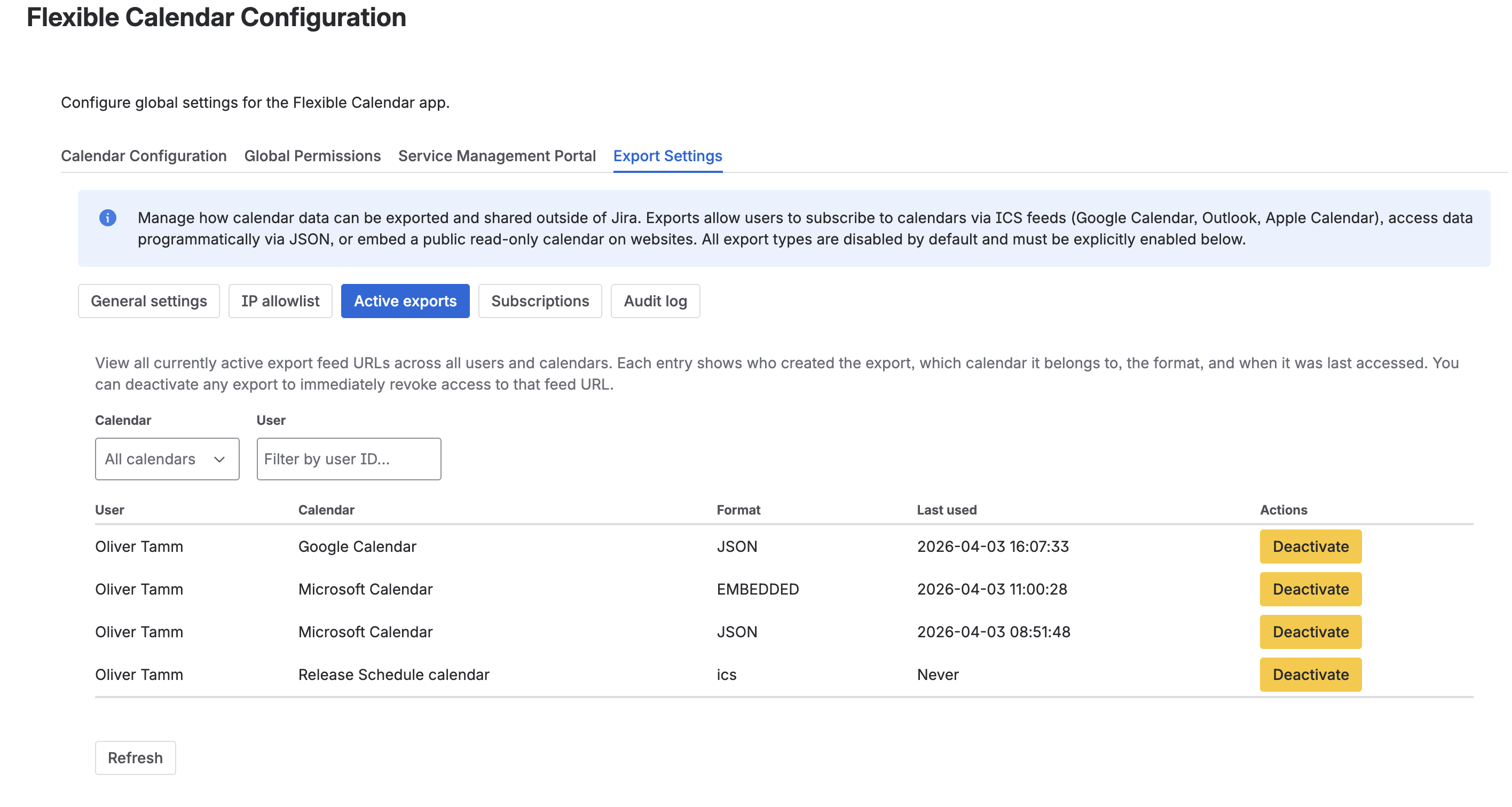
The Active Exports sub-tab displays a table of all currently active export URLs across the Jira instance. Use this to monitor and manage feed access.
| Column | Description |
|---|---|
| User | The Jira user who generated the export URL |
| Calendar | The calendar associated with the feed |
| Format | The export type (ICS, JSON, or Embedded) |
| Last Used | Timestamp of the most recent access to the feed URL |
| Deactivate | Button to immediately revoke the feed URL. The old URL stops working and the user must generate a new one. |
Subscriptions
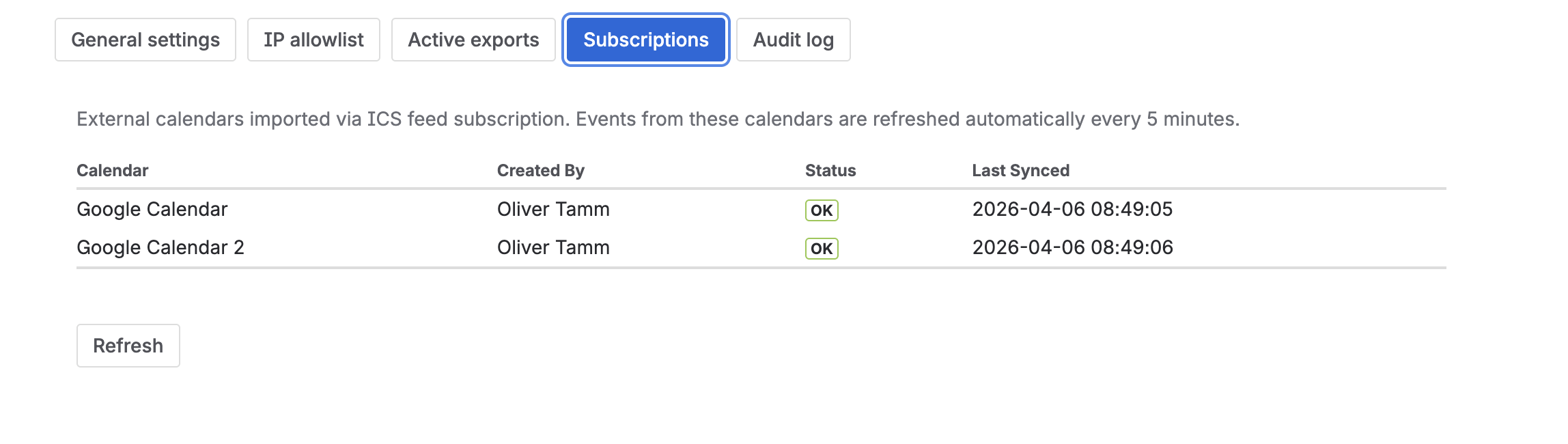
The Subscriptions sub-tab lists all external calendar subscriptions (ICS imports) created across the Jira instance. Administrators can monitor which external calendars are connected and investigate any sync issues.
| Column | Description |
|---|---|
| Calendar Name | The display name of the subscription calendar in Jira |
| Created By | The Jira user who created the subscription |
| Status | Shows a green "OK" badge when the subscription is syncing correctly, or a red "Error" badge when the last refresh failed. Error states include the error message from the last failed refresh attempt. |
| Last Synced | Timestamp of the most recent successful refresh |
| ICS URL | The external ICS feed URL that the subscription is pulling events from |
Allowed Domains
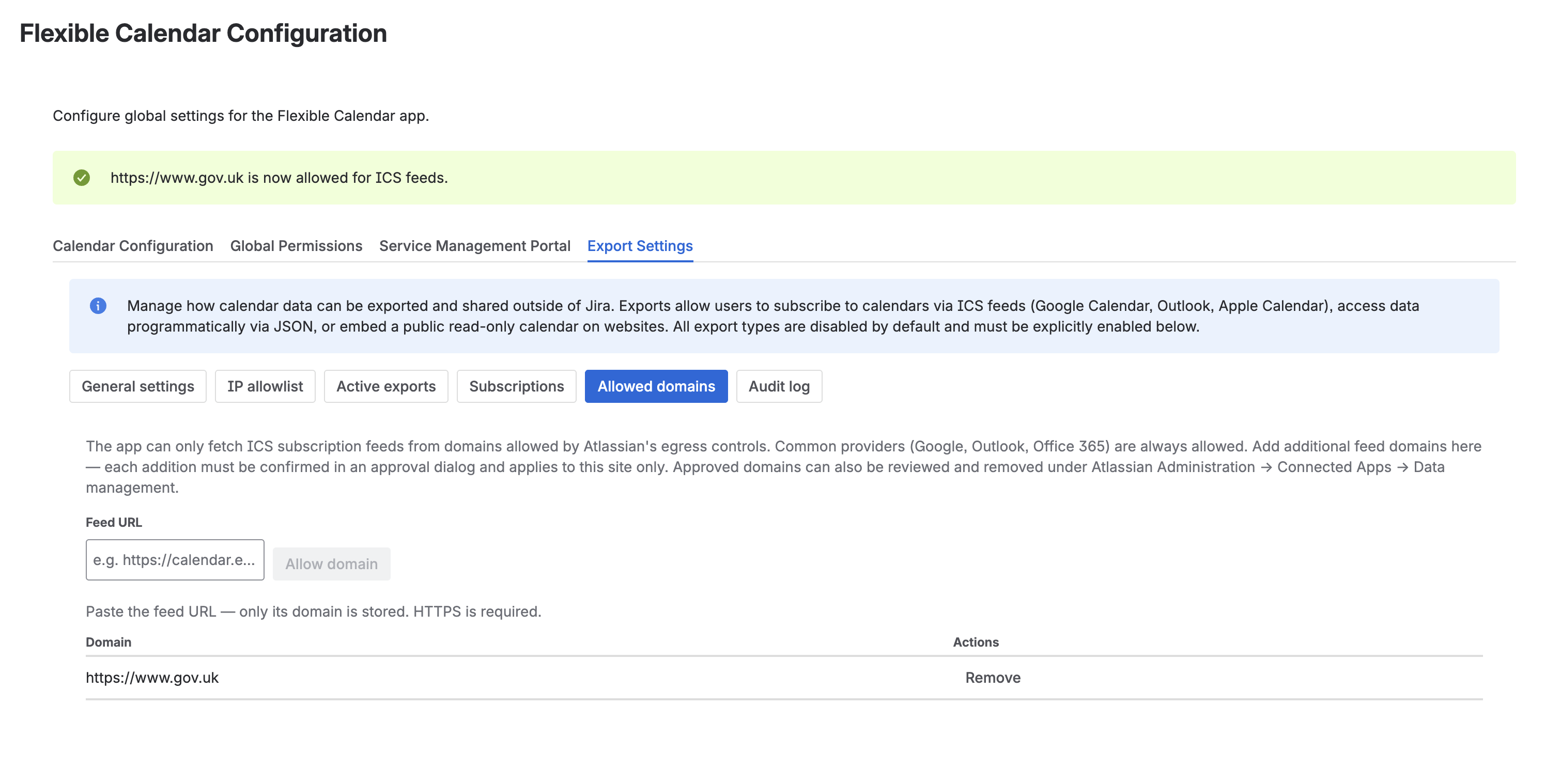
For security, the app's backend can only fetch external ICS subscription feeds from domains approved by Atlassian's egress controls. Feeds hosted by common providers — Google Calendar, Outlook, and Office 365 — are allowed out of the box. The Allowed Domains sub-tab lets administrators approve additional feed domains (for example, a self-hosted calendar server or an industry-specific scheduling service) for their site, without waiting for an app update.
To allow a new feed domain:
- Paste the full feed URL (e.g.,
https://calendar.example.com/team.ics) into the Feed URL field — only the domain part is stored. HTTPS is required. - Click "Allow domain"
- Atlassian displays a confirmation dialog describing the domain about to be allowed — review and approve it
- The domain appears in the list below, and ICS subscriptions to that domain start working immediately
To revoke access, click "Remove" next to a domain. Subscriptions pointing at a removed domain stop refreshing and show an Error status on the next refresh cycle; their already-imported events are retained.
- Allowed domains apply only to this Jira site — each site maintains its own list
- Up to 10 additional domains can be allowed per site
- Only Jira administrators can add or remove domains, and every addition requires explicit confirmation in the approval dialog
Audit Log
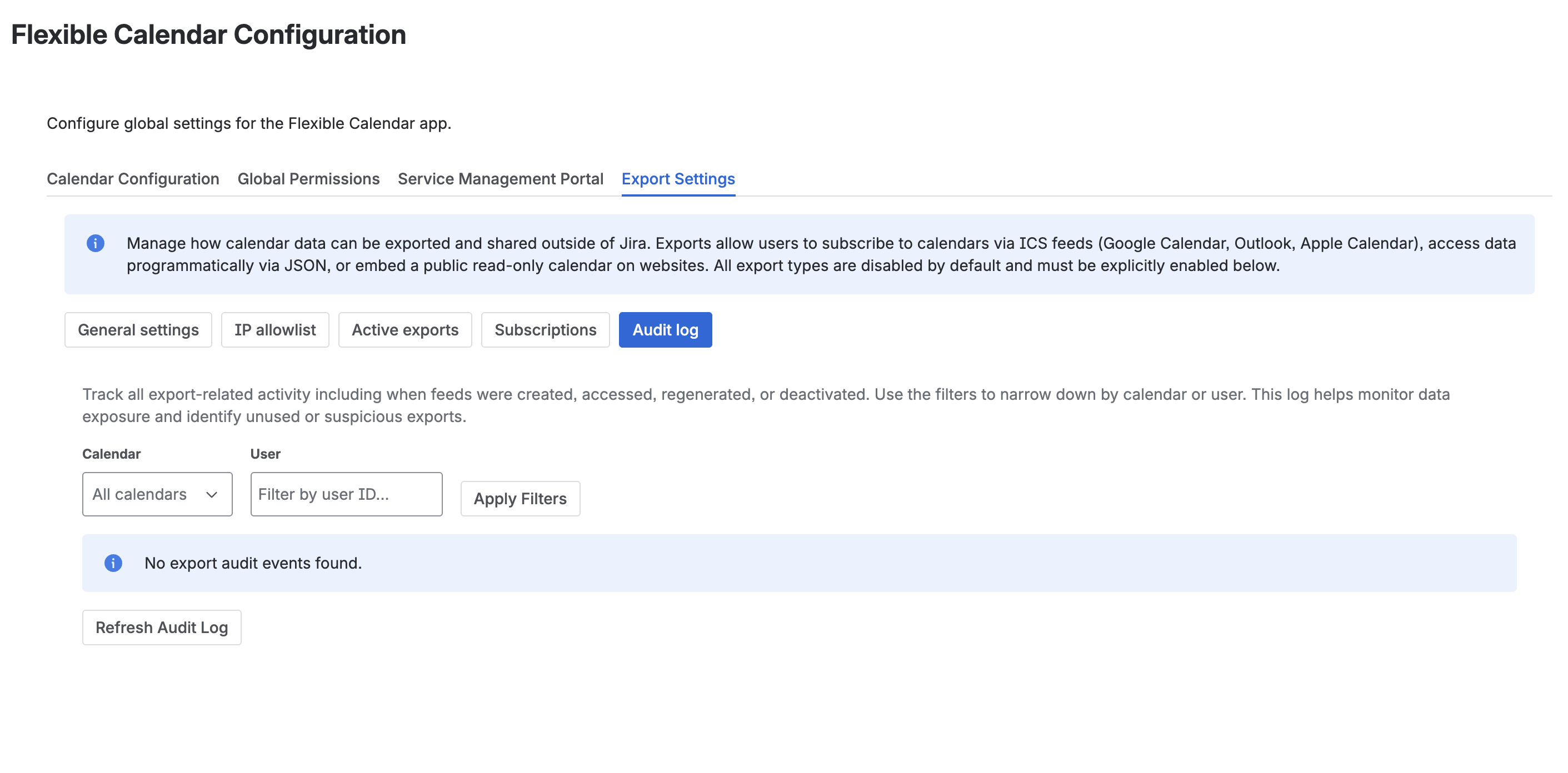
The Audit Log records all export-related activity for compliance and security review. Every significant action is tracked with a timestamp, user, and event details.
Tracked event types include:
- Export Created — a user generated a new feed URL
- Export Accessed — an external service fetched data from a feed URL
- Export Deactivated — an administrator or user revoked a feed URL
- Settings Changed — an administrator modified export configuration
Use the filters at the top of the log to narrow results by event type, user, calendar, or date range.
Need Help?
If you have questions about admin settings or export configuration, contact our support team.
Contact Support