What is Project Calendar? Back to top
The Project Calendar provides a calendar view scoped to a single Jira project — only issues belonging to that project appear on the calendar. Compared to the global calendar, it has a simplified toolbar with no calendar management controls, purpose-built for working within a single project.

The Project Calendar is ideal for:
- Sprint planning — schedule stories and tasks onto specific dates
- Release tracking — visualize milestones and deadlines within a project
- Team scheduling — see who is working on what and when
Calendar Selector Back to top
If your project has multiple calendars configured (for example, one calendar using "created" dates and another using "due dates"), a dropdown at the top of the Project Calendar lets you switch between them.
Each calendar can use different date fields, giving you multiple perspectives on the same set of issues. For instance, you might have:
- A Due Date calendar showing when issues are due
- A Sprint Date calendar showing sprint start and end dates
- A Created Date calendar showing when issues were filed
Calendar Views Back to top
The Project Calendar supports the same views as the global calendar (except Timeline, which has its own module):
- Month — overview of the entire month
- Week — 5-day work week with hourly time slots
- All Week — full 7-day week without time slots
- Day — single day with hourly time slots
- Basic Day — single day as a simple list without time slots
- Agenda — a flat chronological list of upcoming events
- Quarter — three-month overview for long-range planning
Events display the same rich information as the global calendar: issue type icons, status lozenges, assignee avatars, and priority icons. You can drag and drop issues directly on the calendar to reschedule them — the underlying Jira date field updates automatically.
Backlog Planning Back to top
This is the standout feature of the Project Calendar. The Issue Planner panel lets you drag unscheduled issues from your project backlog directly onto calendar dates.
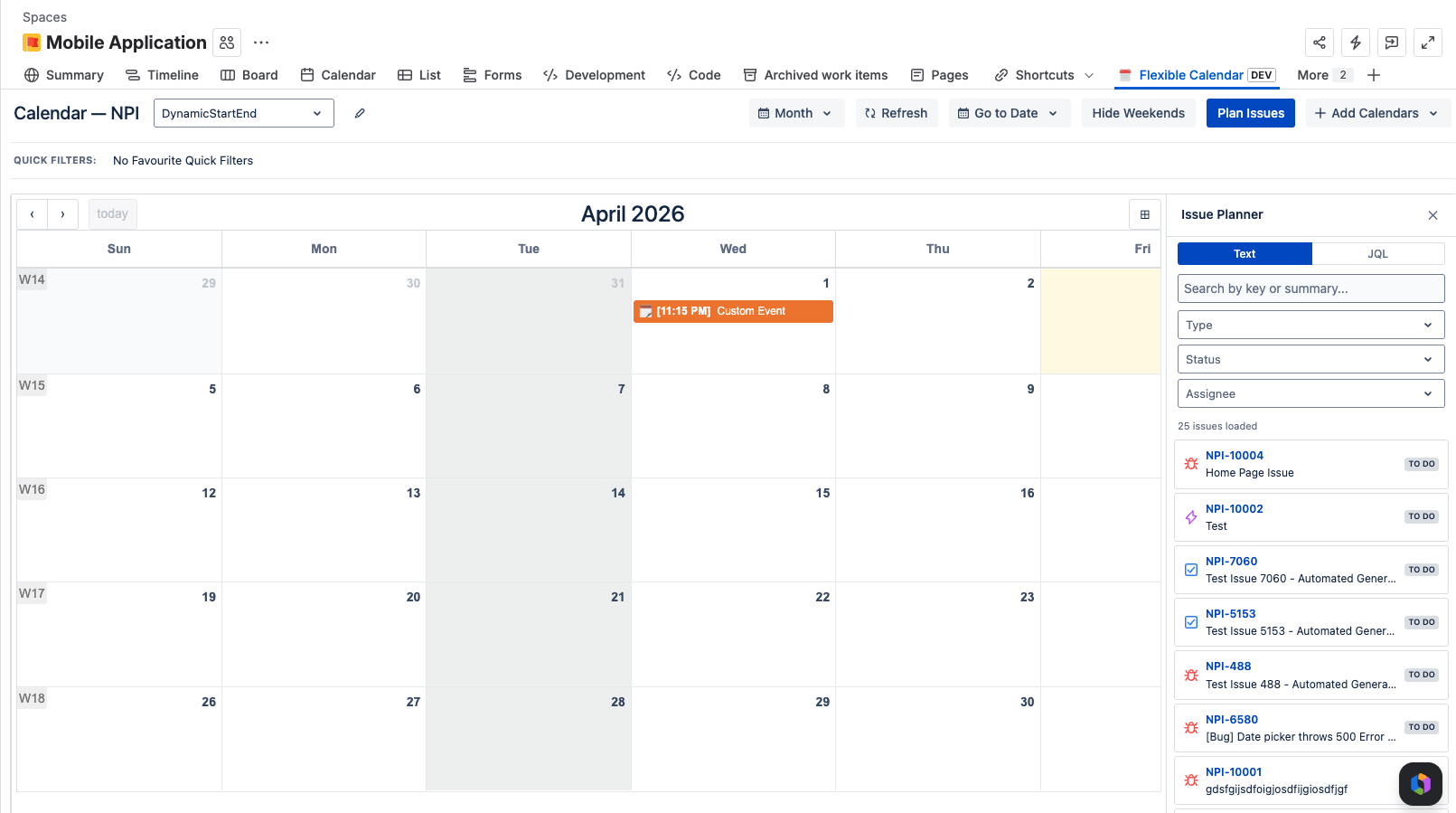
How to use the Issue Planner
- Click the "Plan Issues" button in the toolbar (top right of the calendar)
- A panel opens on the right side showing unscheduled issues from the project — issues that do not yet have a value in the calendar's date field
- Each issue in the panel shows: issue type icon, issue key, summary, and status
- Use the search/filter bar at the top of the panel to find specific issues
- Drag an issue from the panel and drop it onto a calendar date to schedule it
- The issue's start date field is automatically set to the date you dropped it on
- If the calendar has an end date field configured, you can resize the event on the calendar to set the duration
- The panel updates in real time — scheduled issues are removed from the unscheduled list
- Click "Plan Issues" again to close the panel when you are done
Use Cases Back to top
Sprint Planning
Open the Issue Planner, filter for stories in the upcoming sprint, and drag them onto the appropriate dates. Resize events to reflect estimated duration. Plan an entire sprint in minutes.
Release Tracking
Visualize release milestones, deadlines, and blockers on the calendar. Use the Month or Quarter view to see the big picture and identify scheduling conflicts early.
Team Coordination
See who is working on what and when. Assignee avatars on each event make it easy to spot overloaded team members or gaps in coverage across the project timeline.
Deadline Management
Quickly spot overdue or upcoming items. The calendar view makes it immediately obvious when due dates are clustering together or when deadlines are at risk.
Next Steps
- Managing Calendars — create, configure, and manage calendars with custom event sources and permissions
- Export & Import — share calendars via ICS, JSON, embedded views, or import external calendars
Need Help?
If you have questions about the Project Calendar or backlog planning, contact our support team.
Contact Support