Overview Back to top
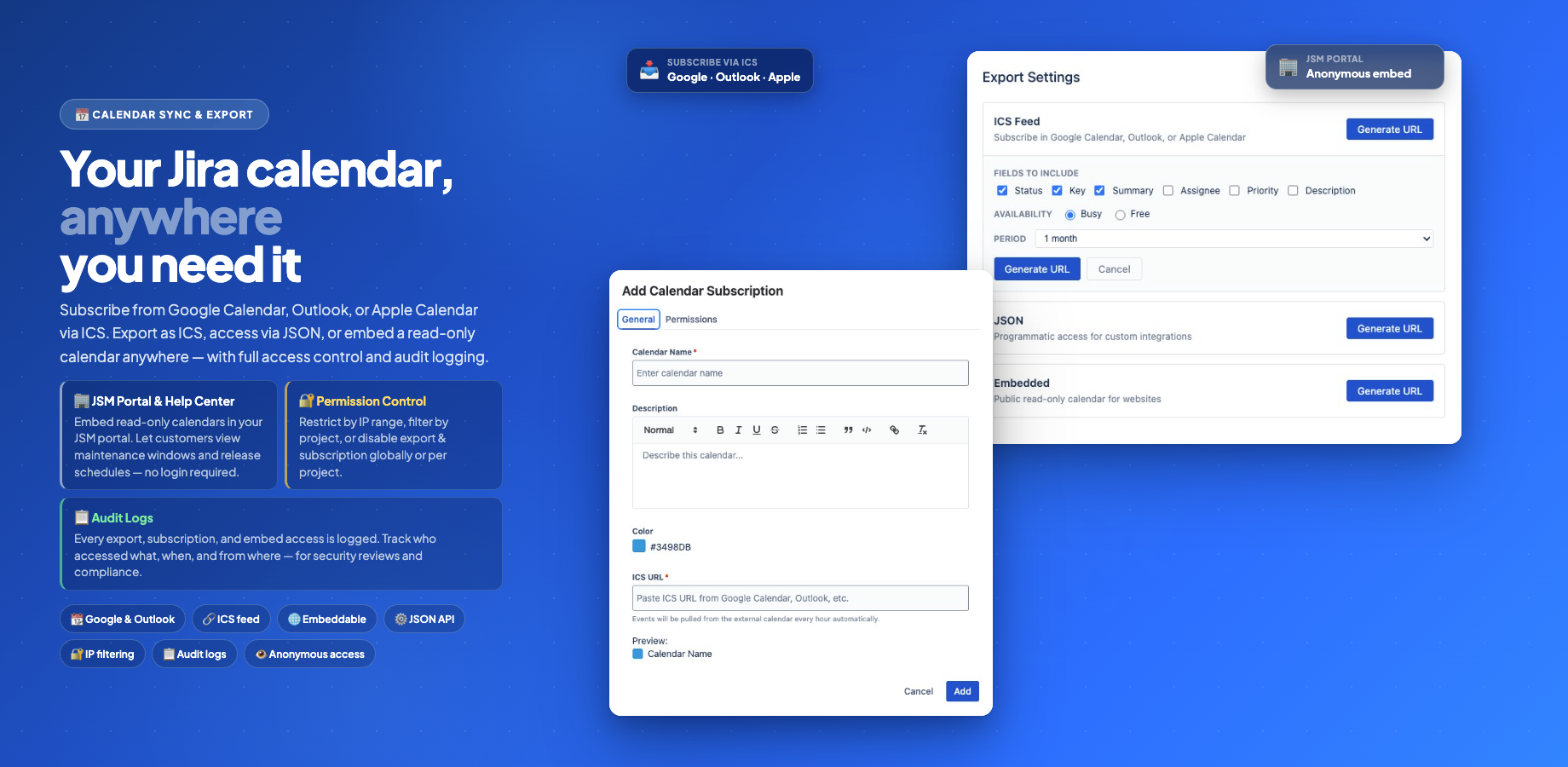
Calendar for Jira provides multiple ways to share calendar data with external applications and import events from other calendar services. Whether you need to sync your Jira schedule with Google Calendar, share a team calendar on your website, or consolidate external calendars into Jira — all of these workflows are supported.
Export Options Back to top
PDF & Excel
Download calendar events as a formatted PDF document or Excel spreadsheet. Configure date range, columns, and format.
Learn more →ICS Feed
Generate a subscription URL for Google Calendar, Outlook, or Apple Calendar. Events sync automatically.
Learn more →JSON Feed
Access calendar data programmatically for custom dashboards, automation workflows, and third-party integrations.
Learn more →Embedded Calendar
Publish a read-only monthly calendar on websites, wikis, or team portals. No Jira login required for viewers.
Learn more →Single Event Export Back to top
Custom events can be exported individually to Google Calendar, Outlook, or as an ICS file directly from the event popup. See Custom Events → Export to External Calendar for details.
Calendar Feed Export Back to top
Feed exports generate a persistent URL that external applications can subscribe to. Unlike single event export, feeds keep your external calendar automatically updated as events change in Jira.
How to access Export Settings
- Find the calendar you want to export in the left sidebar
- Click the edit icon (pencil) next to the calendar name
- Select Export Settings from the dropdown menu
- Choose a format (ICS Feed, JSON, or Embedded) and configure options
- Click Generate URL
- Export Settings are only visible to calendar administrators
- A Jira admin must enable exports globally first
- Individual calendars can have export disabled via the Permissions tab
Available formats
| Format | Use Case | Options |
|---|---|---|
| ICS Feed | Subscribe in Google Calendar, Outlook, Apple Calendar | Fields, Availability (Busy/Free), Period |
| JSON | Programmatic access for integrations | Fields, Period |
| Embedded | Public calendar for websites | Fields |
Import External Calendar Back to top
You can import events from Google Calendar, Outlook, Apple Calendar, or any service that provides an ICS feed URL. Imported calendars appear alongside your Jira calendars with read-only events that refresh automatically every 5 minutes.
How to import
- Click the Add Calendar dropdown at the top of the calendar sidebar
- Select Add Calendar Subscription
- Enter a Calendar Name, paste the ICS URL, and choose a color
- Configure permissions on the Permissions tab
- Click Create
Events will be fetched immediately and displayed on the calendar. The feed refreshes automatically every 5 minutes to pick up changes from the source calendar.
Detailed guide with step-by-step instructions for Google, Outlook, and Apple Calendar →
Security & Privacy Back to top
Calendar exports include several security controls:
- Disabled by default — Jira admin must enable each export type in Admin Settings
- Token-based URLs — each feed URL contains a unique, unguessable token. URLs act as bearer credentials.
- Per-calendar control — calendar admins can disable export for individual calendars via the Permissions tab
- IP allowlist — restrict feed access to specific IP ranges (CIDR notation)
- URL regeneration — rotate feed tokens if a URL is compromised. Old URLs stop working immediately.
- Audit logging — all export activity is logged (creation, access, deactivation) for compliance review
- Project exclusion — exclude specific Jira projects from all exports
Need Help?
If you have questions about export or import features, contact our support team.
Contact Support