Overview Back to top
Resource Timeline's multi-timeline view lets you combine timelines with different source types on a single screen. By selecting the right combination of timelines, you can build powerful planning views tailored to your team's workflow.
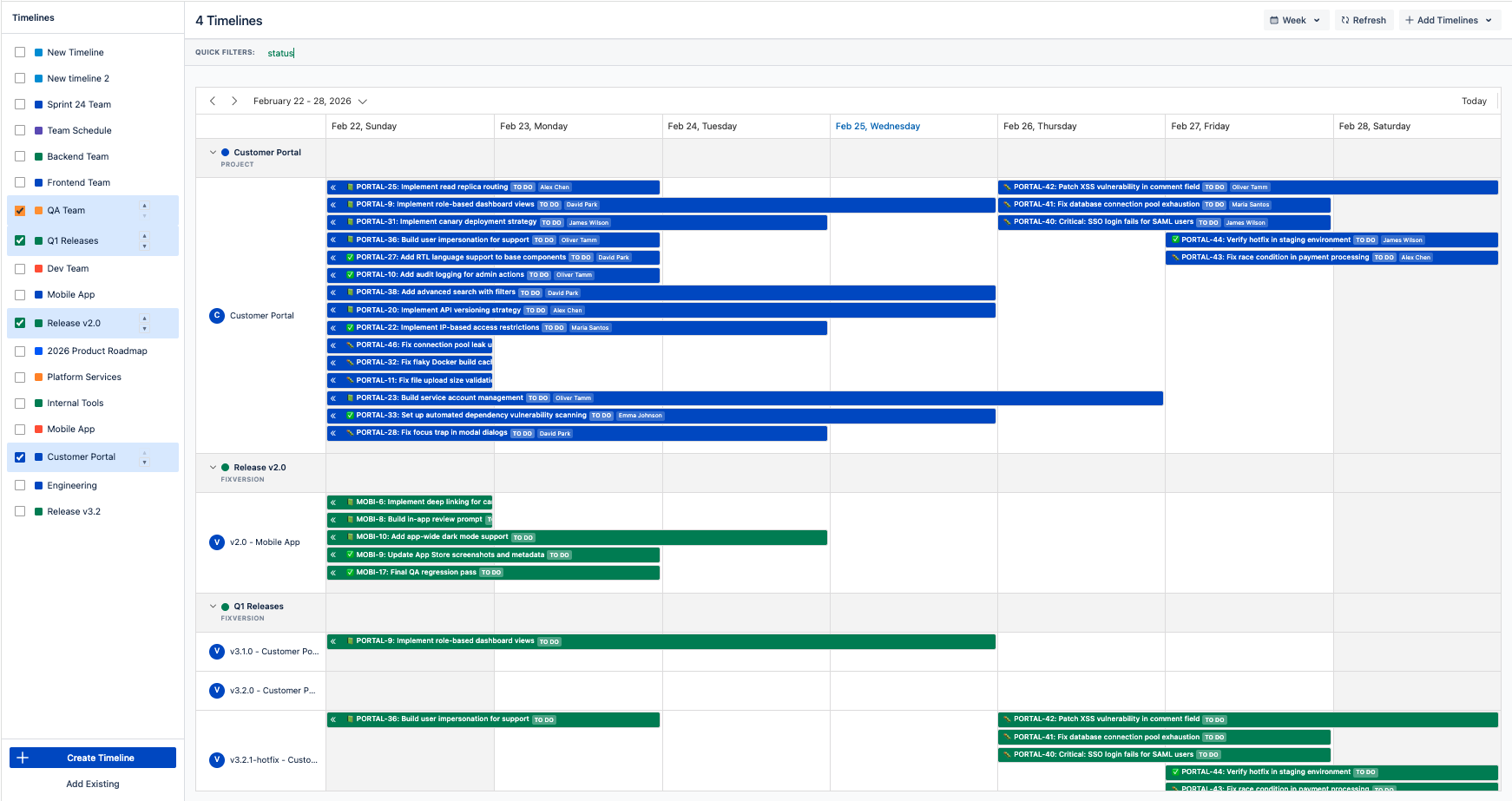
Each timeline is configured with a source type that determines how rows are organized — by Assignee, Fix Version, Project, Sprint, Epic, Component, or Custom Field. Combining timelines with different source types gives you a complete picture of your delivery pipeline.
How to Set Up
Create separate timelines for each planning dimension (team, release, project), then select them together in the timeline selector. Your selection is saved automatically and persists across sessions. See Create a Timeline and Source Configuration for setup details.
Release Planning Back to top
Track all upcoming releases across products in one view. Each Fix Version timeline shows version rows with their associated Jira issues, making it easy to spot delivery conflicts and manage scope.
| Timeline | Source Type | What You See |
|---|---|---|
| Q1 Releases | Fix Version | All Q1 versions (v3.1.0, v3.2.0, v3.2.1-hotfix, v4.0.0-beta) with their issues |
| Release v2.0 | Fix Version | v2.0 versions across projects (e.g., v2.0 — Mobile App) |
| Release v3.2 | Fix Version | All v3.2 patch versions with remaining work |
When to Use
- Release managers tracking multiple version streams simultaneously
- Product owners comparing scope and timelines across planned releases
- Sprint retrospectives reviewing what shipped in each version and what slipped
Key Actions
- Drag issues between versions to reassign them to a different release
- Resize issue bars to adjust delivery timelines directly on the chart
- Apply Quick Filters to focus on specific issue types, priorities, or assignees within releases
Cross-Team Planning Back to top
View workload across all engineering teams side by side. Each Assignee-based timeline shows team members as rows with their assigned issues, making it easy to identify scheduling conflicts, spot overlapping assignments, and rebalance work.
| Timeline | Source Type | What You See |
|---|---|---|
| Frontend Team | Assignee | Each frontend developer with their assigned issues over time |
| Backend Team | Assignee | Backend engineers and their workload distribution |
| QA Team | Assignee | QA engineers with testing tasks and deadlines |
| Dev Team | Assignee | Development team members and their assigned issues over time |
When to Use
- Engineering managers balancing workload across squads during sprint planning
- Scrum masters identifying team members with too many overlapping assignments
- Resource allocation deciding where to assign new work or hire additional support
Key Actions
- Drag issues between team members to reassign work (updates the Jira assignee field)
- Use Day or Week views for detailed workload visibility per person
- Collapse teams you don't need to focus on and expand the ones that matter
Sprint Planning Back to top
Visualize sprints from one or more Scrum boards as timeline rows. Each Sprint-based timeline shows the sprint's issues on a horizontal schedule, making it easy to see how work is distributed within and across iterations.
| Timeline | Source Type | What You See |
|---|---|---|
| Team Schedule | Sprint | Active and upcoming sprints from your Scrum board, each showing its issues |
| Sprint 24 Team | Sprint | A focused view of a specific sprint with all committed issues on the timeline |
When to Use
- Sprint planning ceremonies reviewing upcoming work and scheduling issues across sprint dates
- Scrum masters comparing active vs. upcoming sprints to check if work is evenly distributed
- Cross-board visibility viewing sprints from multiple boards side by side when teams share dependencies
Key Actions
- Drag issues between sprints to move work to a different iteration (updates the Sprint field in Jira)
- Resize issue bars to adjust start and end dates within a sprint
- Combine with an Assignee timeline to see both sprint scope and who's doing each task
Epic Roadmapping Back to top
Build a product roadmap by using Epics as timeline rows. Each Epic-based timeline shows the epic and all its child issues, giving Product Managers and stakeholders a feature-level view of delivery progress.
| Timeline | Source Type | What You See |
|---|---|---|
| Product Roadmap | Epic | Each epic as a row with its child stories and tasks on the timeline |
| Engineering | Epic | Technical epics (infrastructure, tech debt, platform work) and their subtasks |
When to Use
- Product managers mapping out feature delivery across quarters on a visual roadmap
- Stakeholder presentations showing which features are in progress, upcoming, or delivered
- Dependency tracking seeing how child issues within different epics overlap in time
Key Actions
- Use Quarter or Year views for a roadmap-level overview of epic timelines
- Drag issues between epics to re-parent work (updates the Epic Link field in Jira)
- Add custom events for product milestones, launch dates, or external deadlines alongside your epics
Project Portfolio Overview Back to top
See all active projects on a single screen. Each Project-based timeline shows a project as a row with its Jira issues, letting you see which projects have the most activity, where timelines overlap, and how delivery is progressing. Use Quick Filters to show only Epics for a high-level roadmap view.
| Timeline | Source Type | What You See |
|---|---|---|
| Customer Portal | Project | All Customer Portal issues with their scheduled dates |
| Mobile App | Project | Mobile application development work and milestones |
| Platform Services | Project | Infrastructure and platform work across the team |
| Internal Tools | Project | Internal tooling development and maintenance |
When to Use
- PMO and leadership reviewing progress across all initiatives in a single view
- Stakeholder updates showing delivery timelines and upcoming milestones in meetings
- Strategic planning identifying scheduling overlaps and delivery dependencies across projects
Key Actions
- Use Quarter or Year views for roadmap-level planning across all projects
- Apply Quick Filters to show only epics or high-priority items for a cleaner overview
- Add custom events for milestones, deadlines, and key dates that span projects
Full Delivery Picture Back to top
The most powerful approach: combine timelines with different source types on a single screen to see what's being built (Project), when it ships (Fix Version), and who's doing the work (Assignee) — all at once.
| Timeline | Source Type | Planning Dimension |
|---|---|---|
| Customer Portal | Project | What — All work for the Customer Portal project |
| Q1 Releases | Fix Version | When — Versions and their target delivery dates |
| Release v2.0 | Fix Version | When — v2.0 milestone across all products |
| QA Team | Assignee | Who — QA engineers and their testing workload |
When to Use
- Sprint planning aligning project goals with team assignments and release deadlines
- Delivery reviews checking whether issues are scheduled and assigned ahead of upcoming releases
- Risk assessment spotting when a release has too many issues concentrated on the same people or time period
Example Combinations
Here are some recommended multi-timeline setups depending on your role:
| Role | Recommended Timelines |
|---|---|
| Engineering Manager | Frontend Team + Backend Team + QA Team + Q1 Releases |
| Product Owner | Product Roadmap (Epic) + Q1 Releases + Team Schedule (Sprint) |
| Scrum Master | Team Schedule (Sprint) + Frontend Team + Backend Team |
| Release Manager | Q1 Releases + Release v2.0 + Release v3.2 + QA Team |
| CTO / VP Engineering | Customer Portal + Mobile App + Platform Services + Product Roadmap (Epic) |
Getting Started
Start by creating one timeline per planning dimension — a Project timeline for scope, a Fix Version timeline for releases, and an Assignee timeline for your team. Then select all three in the timeline selector to see the full picture. You can always add or remove timelines as your needs evolve.
Enrich with Custom Events Back to top
Any of the use cases above can be enhanced with Custom Events — standalone events that appear alongside Jira issues on your timelines. Use them to mark key dates that don't have a corresponding Jira issue.
| Event Example | Use Case |
|---|---|
| Code Freeze | Mark the cut-off date on a Release Planning timeline so the team knows when to stop merging |
| Deployment Window | Show scheduled deployment slots on a Sprint or Release timeline |
| Product Launch | Pin a launch milestone on an Epic Roadmap or Project Portfolio timeline |
| Team Offsite / Holiday | Highlight team unavailability on a Cross-Team timeline so schedules are realistic |
Custom events support recurring schedules (daily, weekly, monthly, yearly), reminders, participants, and can be linked to Jira issues via the Issue Panel. They are a powerful way to add context that doesn't live in Jira but matters for planning.
Need Help?
If you have questions or need assistance setting up timeline combinations, our support team is here to help.
Contact Support