What is an ICS Subscription? Back to top
An ICS subscription lets you import events from an external calendar into Jira. You provide the ICS feed URL from your external calendar provider (Google Calendar, Outlook, Apple Calendar, or any ICS-compatible service), and Calendar for Jira periodically fetches events from that URL and displays them alongside your Jira events.
This is a one-way import — events from the external calendar appear in Jira as read-only. Changes made in the external calendar are reflected in Jira on the next refresh. You cannot edit imported events from within Jira.
- One-way sync: external calendar → Jira (read-only in Jira)
- Automatic refresh every 5 minutes
- Supports Google Calendar, Outlook/Office 365, Apple Calendar, and any ICS-compatible service
- Both all-day and timed events are imported
How to Get the ICS URL Back to top
Before creating a subscription in Jira, you need to obtain the ICS feed URL from your external calendar provider. Follow the instructions for your provider below.
From Google Calendar
- Open Google Calendar (calendar.google.com)
- Click the gear icon → Settings
- In the left menu, click on the calendar you want to share (under "Settings for my calendars")
- Scroll down to "Integrate calendar"
- Copy the "Secret address in iCal format"
From Outlook / Office 365
- Open Outlook.com or Office 365 web
- Click the gear icon → Settings → Calendar → Shared calendars
- Under "Publish a calendar", select the calendar you want to share
- Choose the permission level ("Can view all details" recommended)
- Click "Publish"
- Two links appear — copy the ICS link (not the HTML link)
From Apple Calendar
- Open Apple Calendar (iCal) on your Mac
- Right-click the calendar in the sidebar
- Select "Share Calendar..."
- Choose "Public Calendar" and copy the URL
icloud.com URLs, which are not pre-approved. Ask a Jira administrator to allow the feed's domain in Admin Settings → Export Settings → Allowed Domains before subscribing. If the copied URL starts with webcal://, replace that prefix with https://.
Create a Subscription in Jira Back to top
- Open Calendar for Jira
- Click the "Add Calendar" dropdown at the top of the calendar sidebar
- Select "Add Calendar Subscription"
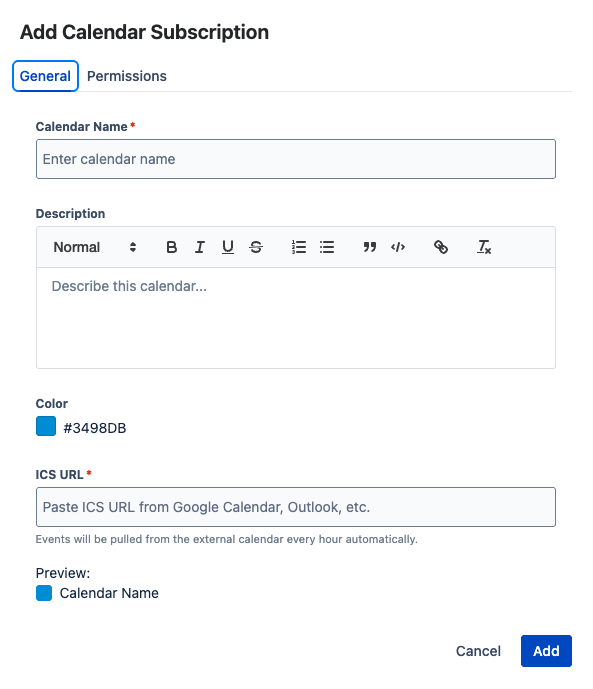
- The subscription dialog opens with two tabs: General and Permissions
General Tab
| Field | Required | Description |
|---|---|---|
| Calendar Name | Yes | A display name for this calendar (e.g., "Team Google Calendar", "Marketing Events") |
| Description | No | Optional rich text description for the calendar |
| Color | Yes | Choose a color for the imported events. Tip: use a distinct color so imported events are easily distinguishable from Jira events. |
| ICS URL | Yes | Paste the ICS feed URL you copied from your external calendar provider |
A note is displayed below the URL field: "Events will be pulled from the external calendar every 5 minutes automatically."
A Preview section shows the calendar name with the selected color so you can confirm the appearance before creating.
Permissions Tab
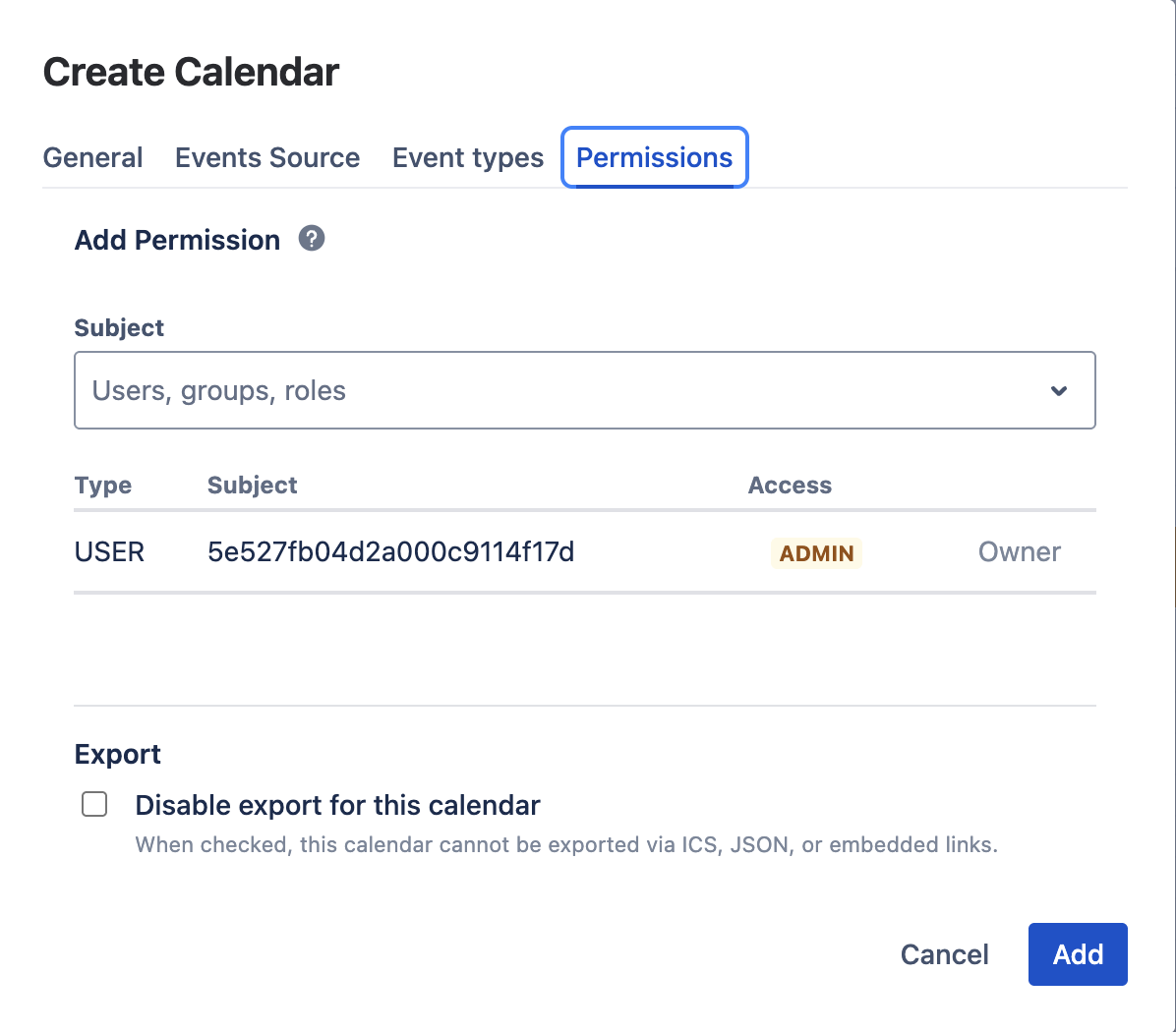
Configure who can see this imported calendar:
- Add users, groups, or project roles with Read Only, Use, or Admin permission
- The creator is automatically added as Admin
- "Disable export for this calendar" checkbox — prevents this calendar from being re-exported via ICS/JSON/Embedded feeds
After configuring both tabs:
- Click "Create"
- Events are fetched immediately and displayed on the calendar
How Events Appear Back to top
Imported events have a distinct appearance to differentiate them from native Jira events:
- Events display with a provider-specific icon:
- Google Calendar events: Google icon
- Outlook events: Outlook icon
- Other sources: Globe icon
- Events are read-only — no edit or delete buttons appear in the event popup
- A "Read-only (external calendar)" badge appears in the event popup
- Events use the calendar's configured color
- Both all-day and timed events are supported and displayed correctly
Automatic Refresh Back to top
Events are refreshed automatically every 5 minutes via a scheduled background task. The refresh fetches the latest version of the ICS feed and updates events accordingly:
- New events in the feed are added to the Jira calendar
- Changed events (updated title, time, description, etc.) are updated in Jira
- Removed events (deleted from the external calendar) are deleted from Jira
Administrators can monitor subscription status in Admin Settings → Export Settings → Subscriptions tab.
Manual Refresh Back to top
Calendar administrators can manually trigger a refresh to get the latest events without waiting for the next automatic 5-minute cycle. This is useful when you know the external calendar has been updated and you want to see the changes immediately.
- Click the edit icon (pencil) next to the subscription calendar in the sidebar
- Select "Edit" from the dropdown
- The calendar settings dialog opens with the General and Permissions tabs
- Update any settings if needed (name, color, ICS URL), or leave everything as-is
- Click "Save" to trigger an immediate refresh of the external calendar data
Editing a Subscription Back to top
- Click the edit icon (pencil) next to the subscription calendar in the sidebar
- Select "Edit"
- The edit dialog opens in subscription mode (General + Permissions tabs only)
- You can change the name, description, color, or ICS URL
- Click "Save"
Deleting a Subscription Back to top
- Click the edit icon (pencil) next to the subscription calendar in the sidebar
- Select "Delete"
- Confirm deletion in the confirmation dialog
- All imported events are removed along with the calendar
Limitations Back to top
| Limitation | Details |
|---|---|
| One-way sync only | Changes in Jira do not flow back to the external calendar. To modify an event, edit it in the source calendar. |
| Fixed refresh interval | The automatic refresh runs every 5 minutes. This interval cannot be changed. Use manual refresh for immediate updates. |
| Maximum events per feed | Up to 10,000 events per subscription feed. Feeds exceeding this limit will be truncated. |
| Large feed performance | External calendars with very large feeds may experience slower initial import times. |
| Recurring events | Recurring event expansion depends on the source calendar's ICS format. Some providers expand recurrences inline, others use RRULE definitions. |
| Allowed feed domains | Feeds can only be fetched from approved domains. Google, Outlook, and Office 365 are pre-approved; a Jira administrator can allow up to 10 additional domains per site in Admin Settings → Export Settings → Allowed Domains. |
Need Help?
If you have questions about importing external calendars via ICS subscription, contact our support team.
Contact Support