Event Types Back to top
Every calendar defines its own event types — named categories with an icon, like Event, Meeting, Holiday, or Travel. The icon appears on every event card, so a glance at the month grid tells you what kind of things are happening.
Types are managed by calendar Admins on the Event types tab of the calendar dialog: create new types, rename them, change their icon, or remove them.
Creating an Event Back to top
Three ways to open the Create Event dialog:
- Double-click an empty date cell — the event starts on that date.
- Open a calendar's actions menu (pencil icon) and choose New event.
- In Week/Day views, drag across a time range to pre-fill the start and end times.
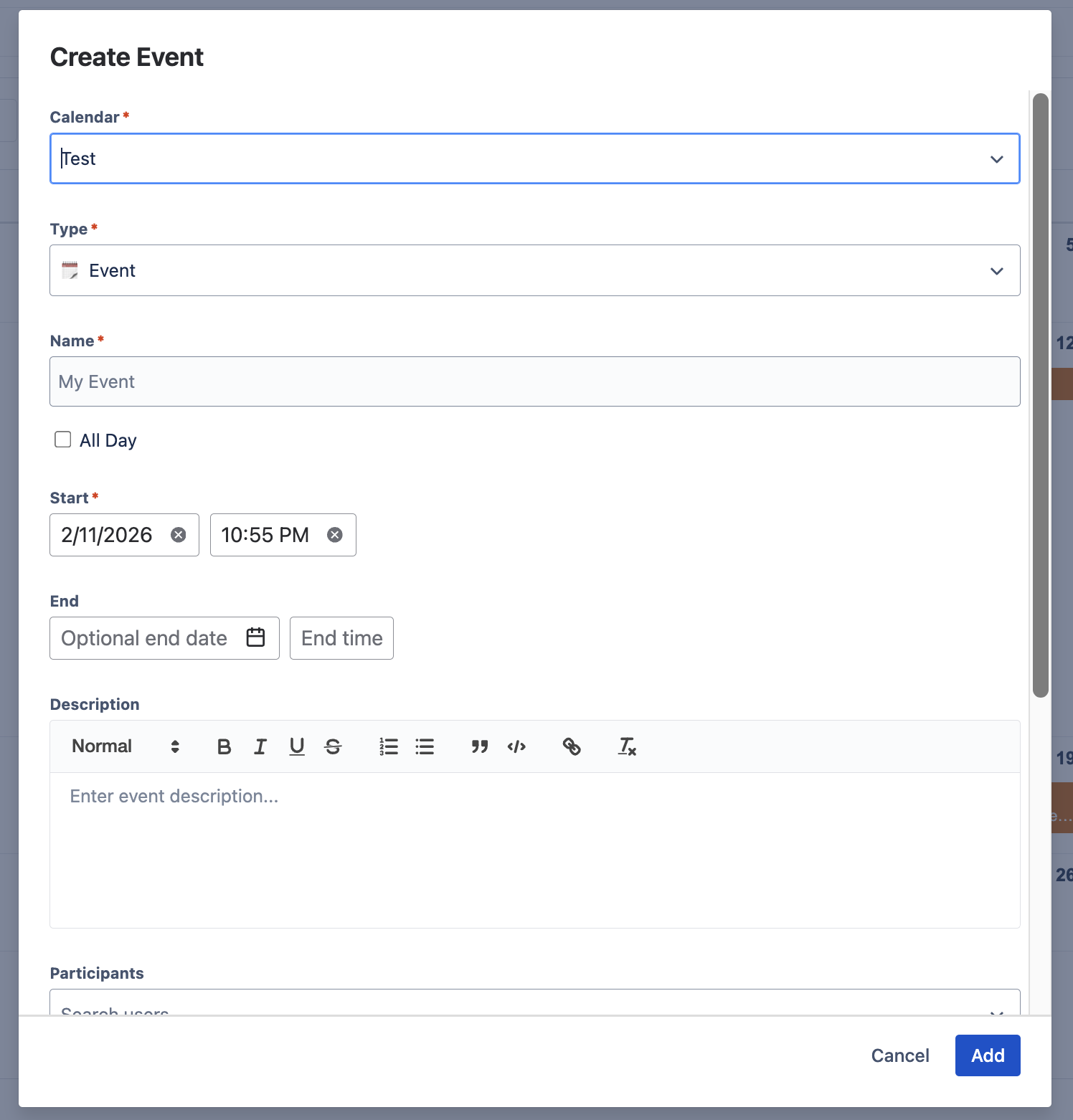
The dialog's fields:
- Calendar — which calendar the event belongs to (you need Use or Admin access on it).
- Type — one of the calendar's event types.
- Name — the event title shown on the grid.
- All Day — toggle between an all-day event (date only) and a timed one (date + time). All-day events can span multiple days.
- Start / End — the end date and time are optional for single-point events.
- Description — rich text: formatting, lists, quotes, code, and hyperlinks.
- Participants — search and add Confluence users. Participants are shown in the event's details popup.
- Link — attach a URL (a page, a doc, a meeting link).
- Repeat — make the event recurring.
Recurring Events Back to top
Turn on Repeat in the event dialog to create a recurring series:
- Frequency — daily, specific days of the week, monthly, or yearly, with an interval (e.g. every 2 weeks).
- Ends — never, on a date, or after a number of occurrences.
Recurring events are marked with a recurrence indicator on their event cards.
Editing & deleting recurring events
When you edit, move, or delete an occurrence of a recurring event, the app asks how far the change should reach:
- This event — only the single occurrence you clicked.
- This and following events — the occurrence and everything after it.
- All events in the series — the entire series.
The Event Details Popup Back to top
Click any event to open its details popup: full name, calendar, type, dates and times (in your timezone), description, participants, and link. If you have Use or Admin access on the calendar, the popup also offers Edit and Delete; with Read Only access it is view-only.
Drag & Resize Back to top
- Drag an event to another day (or time, in Week/Day views) to reschedule it.
- Resize an event by dragging its edge to change its duration.
- Both require Use or Admin access on the event's calendar; with Read Only access events simply don't move.
- Jira issues can be dragged too — with Jira's own permissions in charge. See Jira Integration.
Need Help?
If you have questions or need assistance, our support team is here to help.
Contact Support