Available Views Back to top
Flexible Calendar for Confluence offers six view layouts. Switch between them with the view selector in the toolbar — your choice is remembered per user (and separately per space once you change it there).
- Month — a full month grid showing all events. Best for high-level planning and spotting busy periods.
- Week — a week with an hourly time grid. Great for day-to-day scheduling.
- All Week — a full 7-day week in the same layout as Month, scoped to a single week.
- Day — a single day with an hourly time grid for detailed scheduling.
- Basic Day — a single day in the Month-style layout: event bars, no time grid.
- Agenda — a flat chronological list of upcoming events. Easy to scan.
All views support drag and drop. Custom events move (and resize) if you have Use or Admin access on their calendar; Jira issues move if you can edit them in Jira — see Jira Integration.
Color-code Jira issues with conditional rules
Paint matching issues a different color based on status, priority, assignee, due date, or any
field. Rules support AND / OR groups and date functions like today().
See Conditional Colors.
Month View Back to top
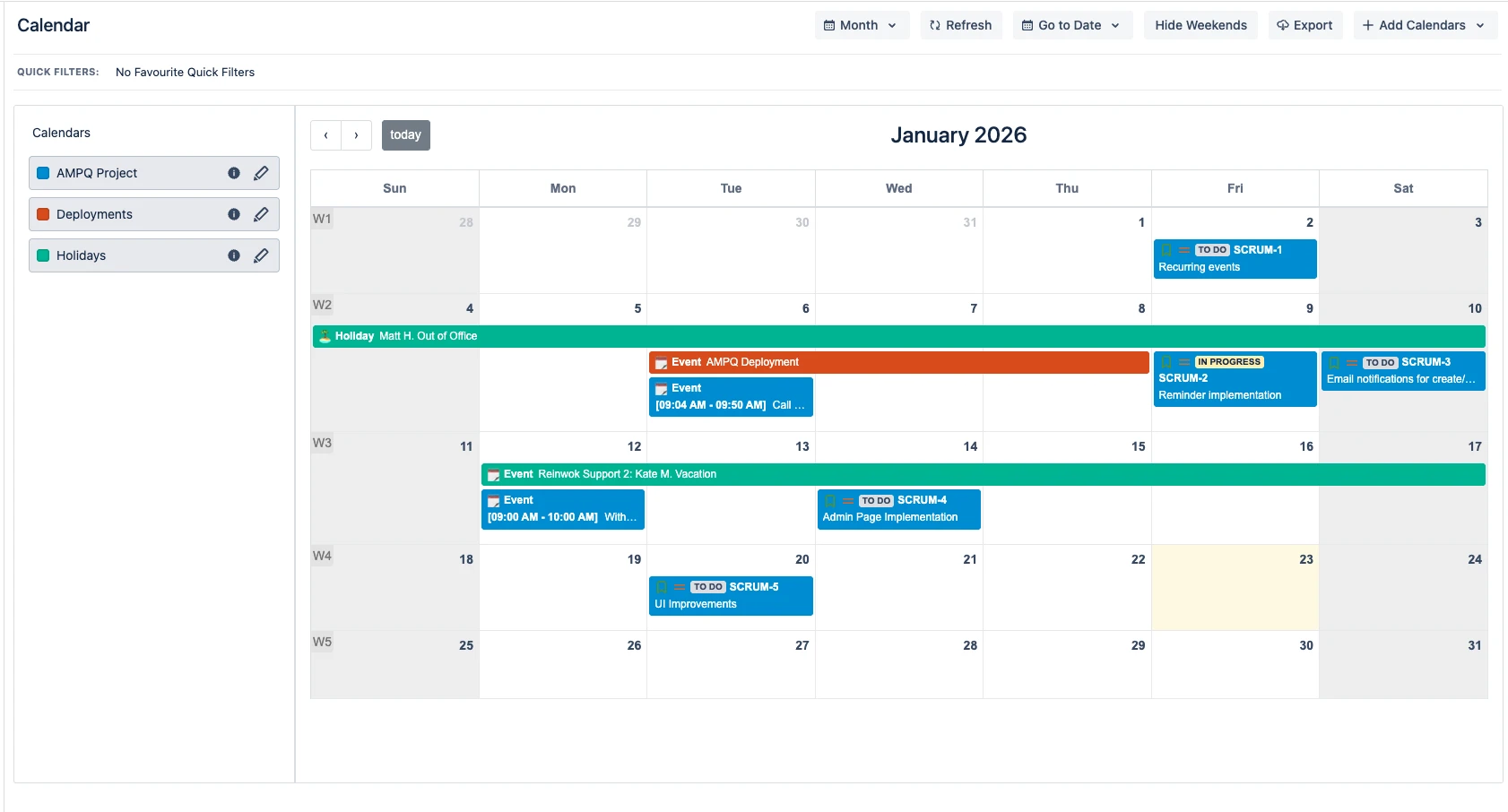
The default view. Events appear as colored bars spanning their date range, in each calendar's color (or a conditional color). Custom events show their event-type icon and time; Jira issues show the issue type icon, status, assignee, and issue key (status and assignee are per-calendar display toggles).
Week & Day Views Back to top
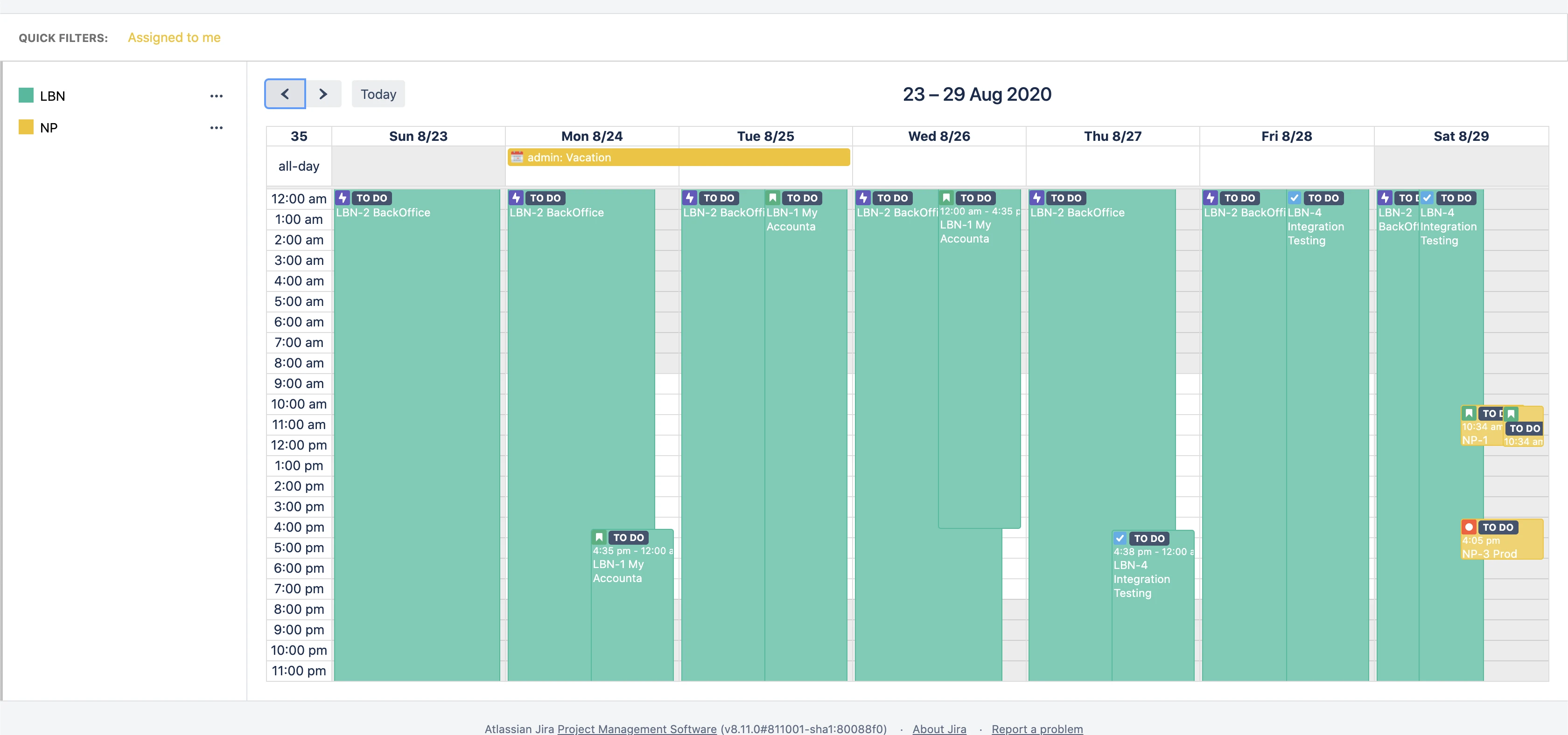
The Week and Day views display an hourly time grid, so you can see exactly when events start and end. All-day events appear in a separate row at the top. Timed events can be resized by dragging their edge to change the duration.
The All Week and Basic Day views use the Month-style layout — event bars on day cells, no time grid — scoped to one week or one day.
Agenda View Back to top
Agenda view shows a flat chronological list of events sorted by date — ideal for scanning what's coming up across every calendar in your sidebar.
Timezones Back to top
Every view renders times in your own timezone (your Atlassian profile timezone, or your browser's if none is set). A teammate in another timezone sees the same moment rendered in theirs. A calendar's configured timezone affects only one thing: how times you type into the event dialog are interpreted — see Managing Calendars.
Need Help?
If you have questions or need assistance, our support team is here to help.
Contact Support