How It Works Back to top
Jira is optional. Flexible Calendar for Confluence is a complete calendar app on its own — custom events, sharing, space calendars, and the page macro all work on a Confluence-only site. If your Atlassian site also has Jira, calendars gain a superpower: they can display Jira issues as calendar events, sourced from a project, a JQL query, or a saved filter, and you can reschedule those issues by dragging them on the calendar.
- Issues are fetched live — the calendar always reflects current Jira data for the visible date range.
- Issues are fetched as the viewer — everyone sees exactly the issues they could see in Jira, never more. See Who sees what.
- A calendar mixes freely: the same calendar view can overlay Jira-sourced calendars and custom-event calendars.
Connecting Jira Back to top
Connecting is a one-time, site-level action performed by a site admin: the app is installed into Confluence, and the admin additionally allows it to access Jira on the same site (Atlassian prompts for the Jira permissions the app requests). No per-user setup is needed — once connected, every calendar with a Jira source comes alive for every viewer with Jira access.
The Three Jira Sources Back to top
On the Events Source tab of the calendar dialog, pick one:
| Source | Shows | Best for |
|---|---|---|
| Project | All issues of one Jira project (searchable project picker) | A project's delivery calendar with zero query writing |
| JQL | Issues matching a JQL query you write | Anything — cross-project queries, "my team's bugs due this quarter", etc. |
| Filter | The issues of a saved Jira filter (searchable filter picker) | Reusing query logic that already exists and is maintained in Jira |
Writing JQL with autocomplete
The JQL source gives you the full Atlassian JQL editor: syntax highlighting and autocomplete for fields, functions, and values as you type — with value suggestions drawn from the projects you can see. The query is validated against your Jira site when you save, so unknown fields or malformed syntax are caught in the dialog, not discovered later as an empty calendar.
Filter sources respect Jira filter sharing
A saved filter is itself a permission surface in Jira, and the calendar honours it strictly: issues are fetched with each viewer's own filter access.
- The filter picker offers only filters shared with you (the person configuring the calendar).
- At view time, a person the filter is not shared with sees no issues from that calendar, with a notice: "Some calendars use a saved Jira filter that isn't shared with you or no longer exists, so their issues are hidden."
- A deleted filter looks the same as an unshared one — Jira intentionally doesn't reveal which.
Date Fields Back to top
Every Jira source needs a Start Date Field (required) and can have an End Date Field (optional) — any date or date-time field, including custom fields. An issue appears on the calendar spanning start to end; with no end field it appears on its start date only.
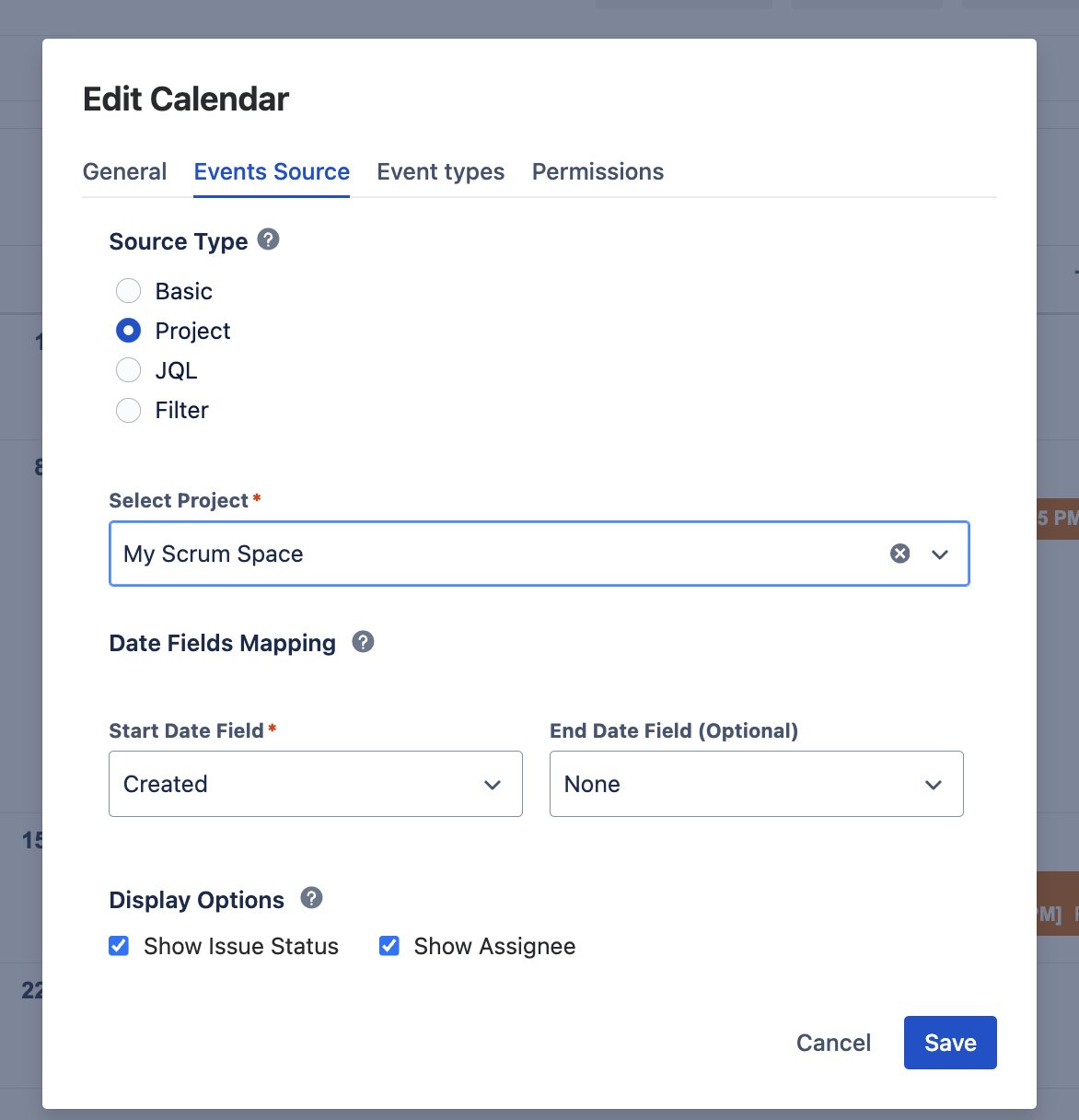
The dialog warns you about two field combinations worth knowing:
- Mixed granularity — one field is a date (like Due date), the other a date-time (like a custom datetime field). Issues still display correctly, but resizing them on the calendar is disabled (the two ends don't share a time scale). Dragging still works.
- Read-only system fields — Created, Updated, and Resolved are managed by Jira and can never be written back. A calendar mapped onto them is perfectly fine for viewing (e.g. "issues by creation date"), but its issues cannot be dragged or resized.
Display options
Two per-calendar toggles control how much each issue card shows: Show Issue Status (the status lozenge) and Show Assignee (the assignee's avatar/name). The issue type icon, priority, key, and summary are always shown.
Rescheduling Issues by Drag & Drop Back to top
Drag an issue to a new date and the app updates the calendar's configured date fields in Jira — start and end shift together, keeping the duration. Resize an issue (when both fields share the same granularity) to change just its end. This works on the hub and on space pages; the page macro is deliberately read-only.
Three independent checks decide whether a drag succeeds — each with its own clear message when it doesn't:
- Site admin consent. Writing to Jira is a permission the app requests separately; until a site admin has approved it, issue chips don't move and the app says a consent is pending — the right person to ask is your site admin, not your Jira project admin.
- Your own Jira permission. The change is written as you. If you can't edit that issue in Jira, the chip snaps back with a notice — being able to see an issue on a shared calendar never grants the right to move it.
- The fields must be editable. Read-only system fields (Created / Updated / Resolved) can never be written; and if a Jira admin hasn't put the date fields on the issue's edit screen, Jira refuses the change — the app tells you it's a screen-configuration issue.
Who Sees What Back to top
Issues are always fetched with the viewer's own Jira access. Consequences worth internalizing:
- Two people looking at the same calendar can legitimately see different issues — each sees exactly their own Jira-visible subset.
- Sharing a calendar never widens Jira access. A calendar share controls custom events and settings; Jira data stays governed by Jira.
- A viewer with no Jira access at all (no Jira license, or Jira not connected) still sees all custom events, with a quiet notice that Jira events are hidden.
When Jira Isn't Available Back to top
"No Jira" is a normal state, not an error. The app tells each person exactly which situation applies:
| Situation | What you see |
|---|---|
| Jira isn't connected to the app on this site | "Jira events are hidden — Jira isn't connected to this app. Ask a site admin to connect it. Custom events are unaffected." |
| Jira is connected, but you have no Jira access | "Jira events are hidden — you don't have Jira access on this site. Custom events are unaffected." |
| A calendar's saved filter isn't shared with you (or was deleted) | A per-calendar notice naming the affected calendars — see filter sharing above. |
| A calendar's JQL was rejected by Jira (e.g. a field was deleted) | A notice naming the affected calendars, so an admin can open the dialog and fix the query. |
In the calendar dialog, the Jira source options stay visible without Jira — labelled "requires Jira", with an inline explanation if you select one. You can even type and save a JQL query while Jira is down; it starts working when Jira connects. The project and filter pickers need Jira reachable to offer choices, so a new project/filter calendar waits for the connection — editing an existing one keeps the stored selection.
Need Help?
If you have questions or need assistance, our support team is here to help.
Contact Support