The Three Access Levels Back to top
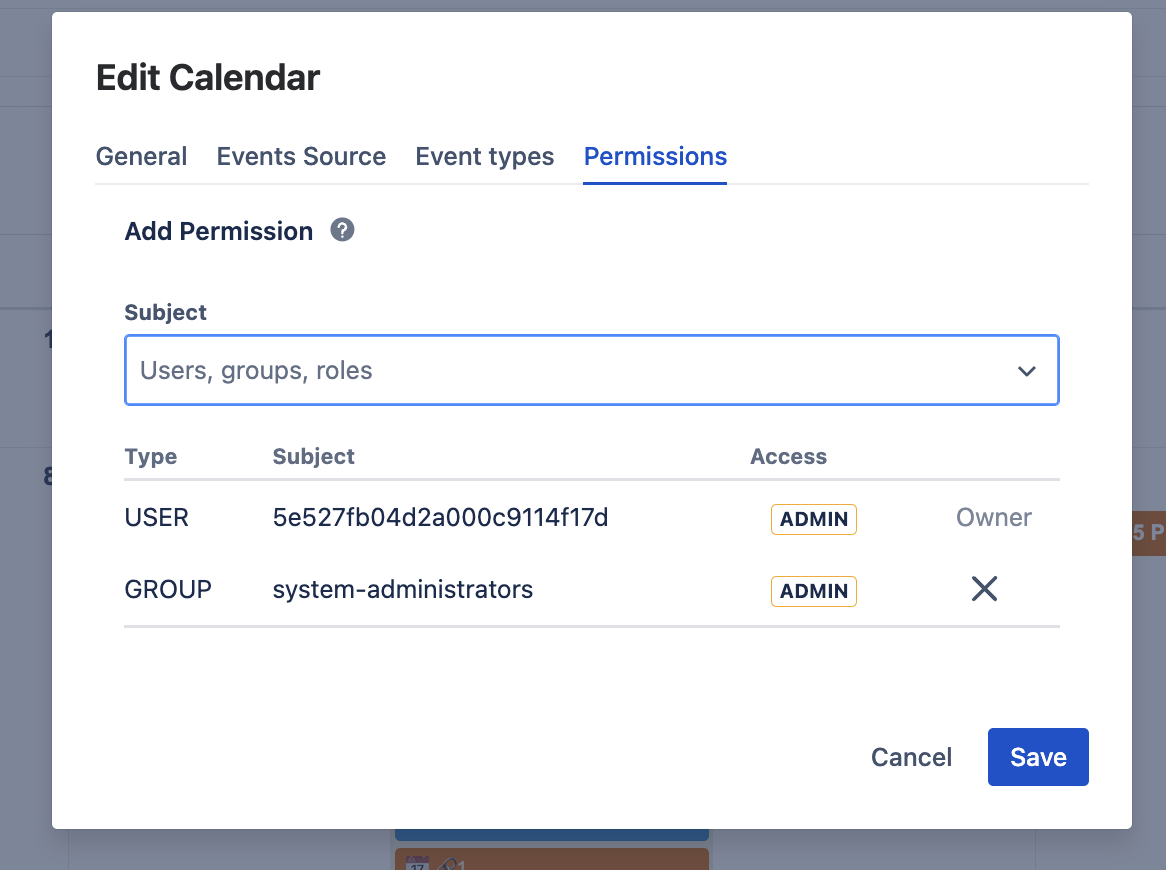
Every calendar has its own permission list, managed on the Permissions tab of the calendar dialog (calendar actions menu → Edit; Admin access required). Each entry grants one of three levels:
| Access level | What this level can do |
|---|---|
| Admin |
Full control over the calendar:
|
| Use |
Day-to-day event editing — but not configuration:
|
| Read Only |
View-only access:
|
Who You Can Share With Back to top
The Subject picker on the Permissions tab searches two kinds of principals, and a third can be added directly:
- Users — individual Confluence users, matched by name.
- Groups — Confluence groups (e.g. confluence-users, a team group). Access automatically tracks the group's membership.
- Anyone on this site — every logged-in user of your Confluence site. The simplest way to publish a company-wide calendar.
- Use Anyone on this site for org-wide calendars (holidays, all-hands, releases) — usually at Read Only.
- Use a group for team calendars — membership changes in Confluence flow through automatically.
- Use individual user entries for exceptions — e.g. one stakeholder gets Read Only on an otherwise team-only calendar, or one coordinator gets Admin.
The Owner
The calendar's creator is its Owner: always Admin, cannot be downgraded, cannot be removed. Everyone else's row shows a clickable access lozenge and a remove (×) control.
Changing a level, removing access
- Open the calendar's actions menu and choose Edit, then the Permissions tab.
- Click the access lozenge on a row to pick a different level.
- Click × at the end of a row to remove that subject entirely.
- Click Save — nothing changes until you save.
Deactivated users and deleted groups
If a user is deactivated or a group is deleted, their permission rows simply stop matching anyone — no access leaks. The rows remain visible in the dialog, marked "no longer available", so an Admin can prune them.
Site Admins Back to top
Confluence site administrators have implicit Admin access to every calendar. This is a support and offboarding necessity: when a calendar owner leaves the company, a site admin can reassign shares, fix permissions, or delete the calendar.
Need Help?
If you have questions or need assistance, our support team is here to help.
Contact Support