Adding Calendars Back to top
Click the Add Calendars button at the top of the sidebar (on the hub or on any space calendar page):
- Create Calendar — build a new calendar from scratch, with full control over its source, event types, and permissions. Opens the Create Calendar dialog with four configuration tabs (below).
- Add existing — add a calendar somebody already created and shared with you to your own sidebar. This never duplicates the calendar; it just makes it visible in your view. See Favorites.
The Create Calendar Dialog Back to top
The dialog has four tabs. The same dialog reopens later via the calendar's actions menu → Edit (Admin access required).
General tab
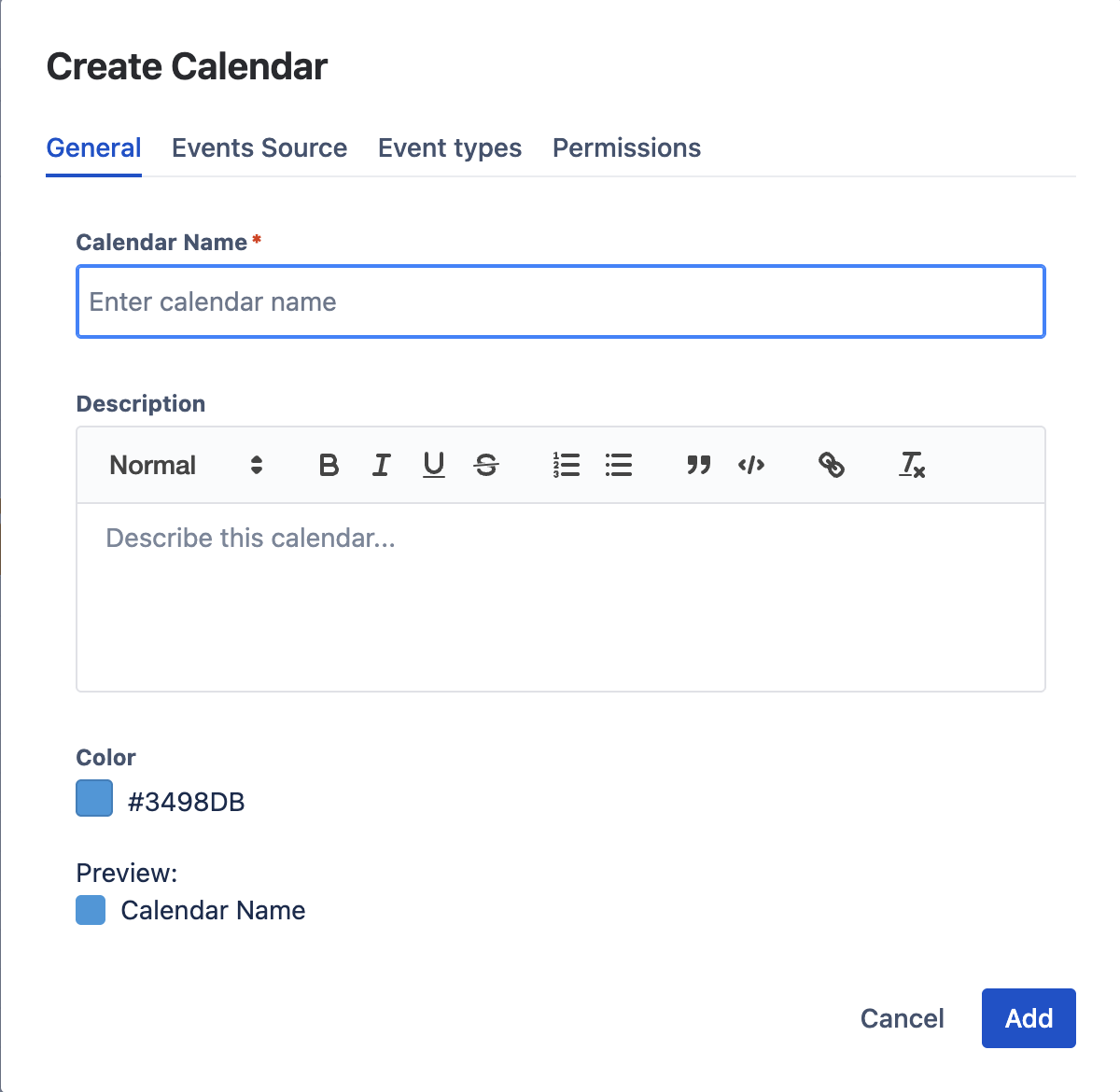
Set the calendar's name, optional rich-text description, and color. The color identifies this calendar's events everywhere in the app. A live Preview shows how the calendar will look in the sidebar.
Events Source tab
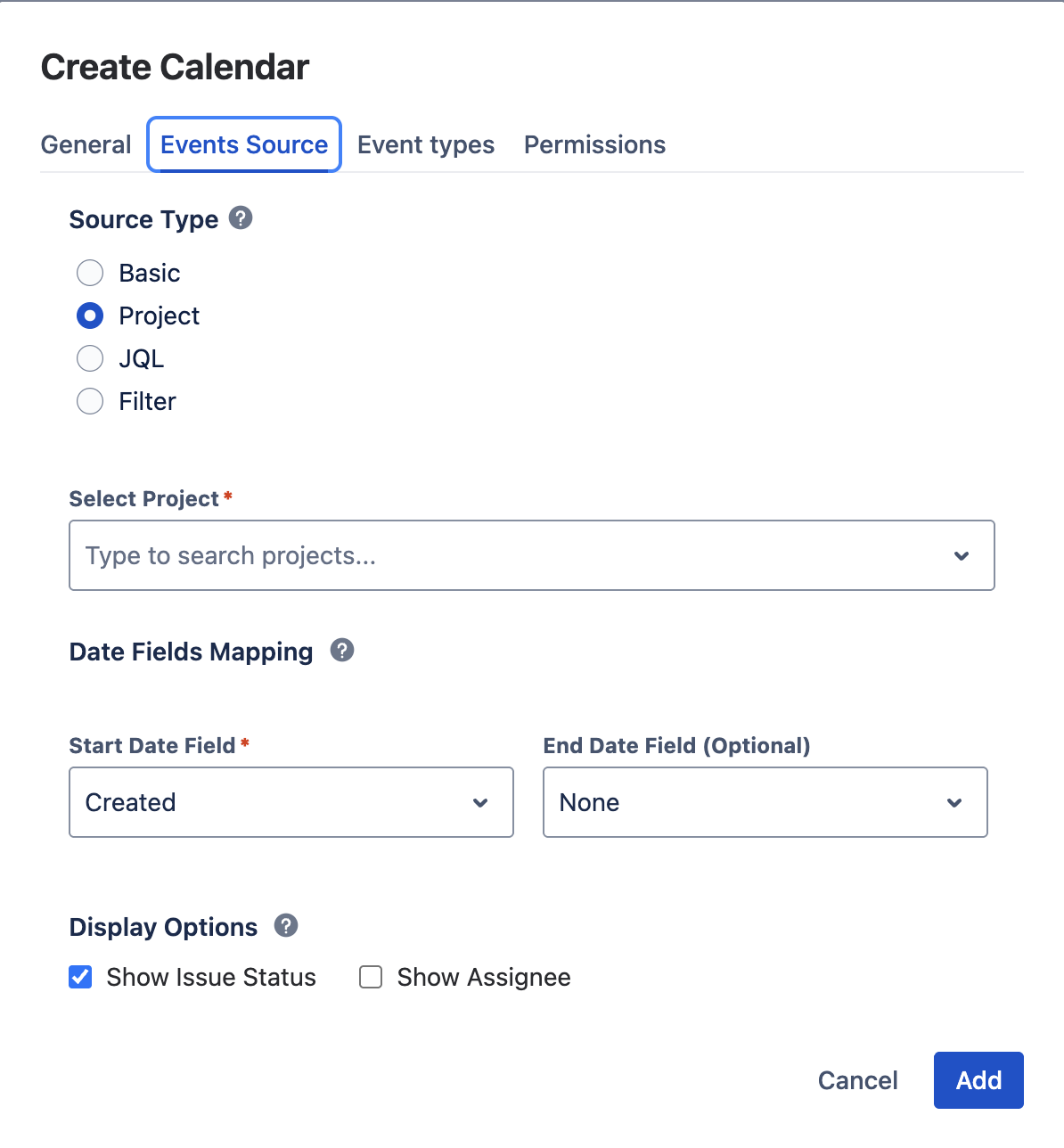
Choose what populates the calendar. Four source types:
- Custom events — a standalone calendar holding only custom events. No Jira required. Ideal for team schedules, holidays, or company-wide events.
- Project — show Jira issues from a selected Jira project.
- JQL — show Jira issues matching a JQL query. The most flexible option, with a full JQL editor and autocomplete.
- Filter — show the issues of a saved Jira filter (issues are fetched with each viewer's own filter access).
The three Jira source types require Jira on your site; without it they are labelled "requires Jira" and the calendar would show no issues until Jira is connected. For date-field mapping, display options, and everything else Jira: see Jira Integration.
Event types tab
Configure the calendar's timezone — when someone types a time like 10:00 AM into the event dialog, it is interpreted in this timezone. Leave it empty to use each user's own profile timezone. (Display is unaffected either way: everyone always sees events in their own timezone.)
Define event types — named categories like Event, Meeting, Holiday, Travel — each with an icon. When users create custom events in this calendar, they pick from these types. See Custom Events.
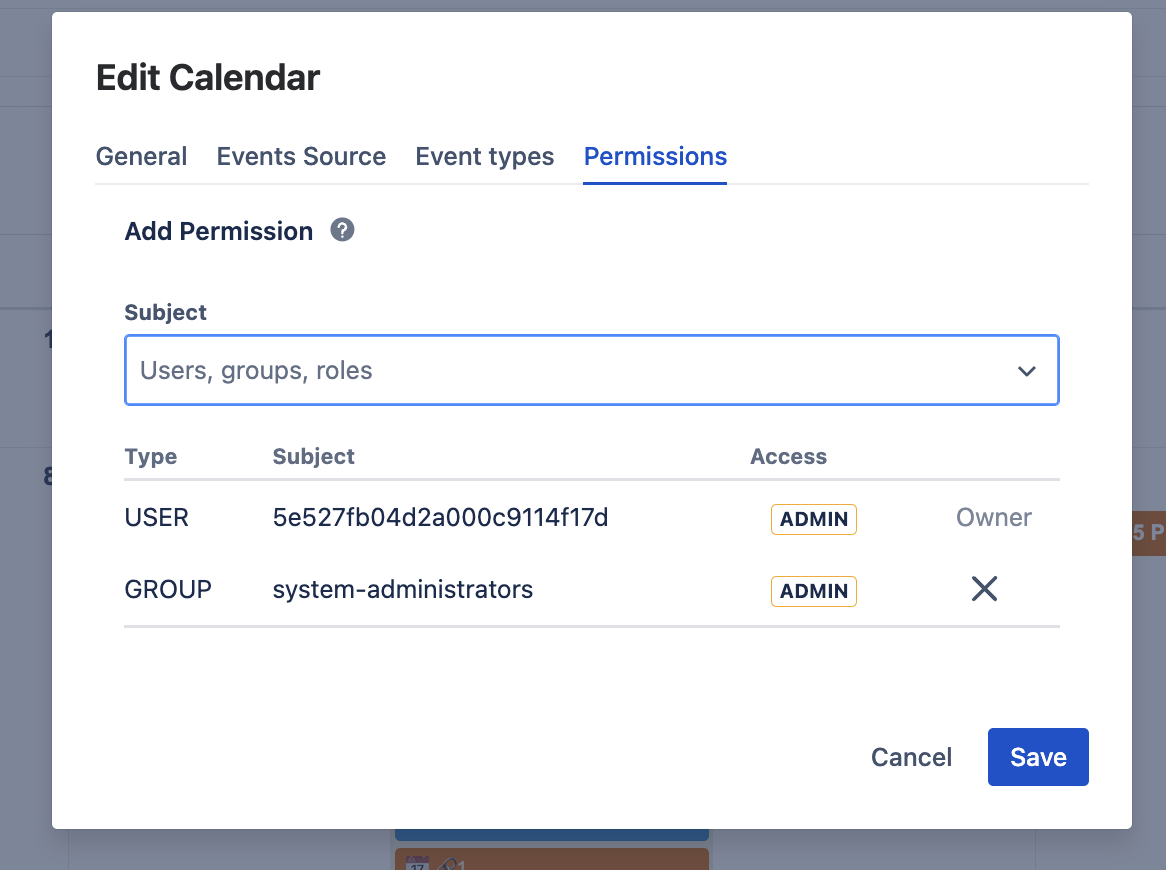
Permissions tab
Control who can view, use, and administer this calendar. Add users, groups, or "Anyone on this site" with one of three access levels: Admin, Use, or Read Only. The creator is automatically the calendar's Owner with Admin access and cannot be removed.
The full model — levels, subjects, the two-step sharing flow, site-admin override — is on Sharing & Permissions.
Editing & Deleting a Calendar Back to top
Hover over the calendar in the sidebar, click the pencil icon, and choose:
- Edit (Admin) — reopens the four-tab dialog to change anything: name, color, source, date fields, event types, timezone, permissions.
- Delete (Admin) — permanently removes the calendar and all its custom events, for everyone. Jira issues are never affected — a calendar only displays issues, it doesn't own them. Deletion cannot be undone.
- Remove from favorite — just takes it out of your sidebar. See Favorites.
Need Help?
If you have questions about creating or managing calendars, contact our support team.
Contact Support