What Conditional Colors Do Back to top
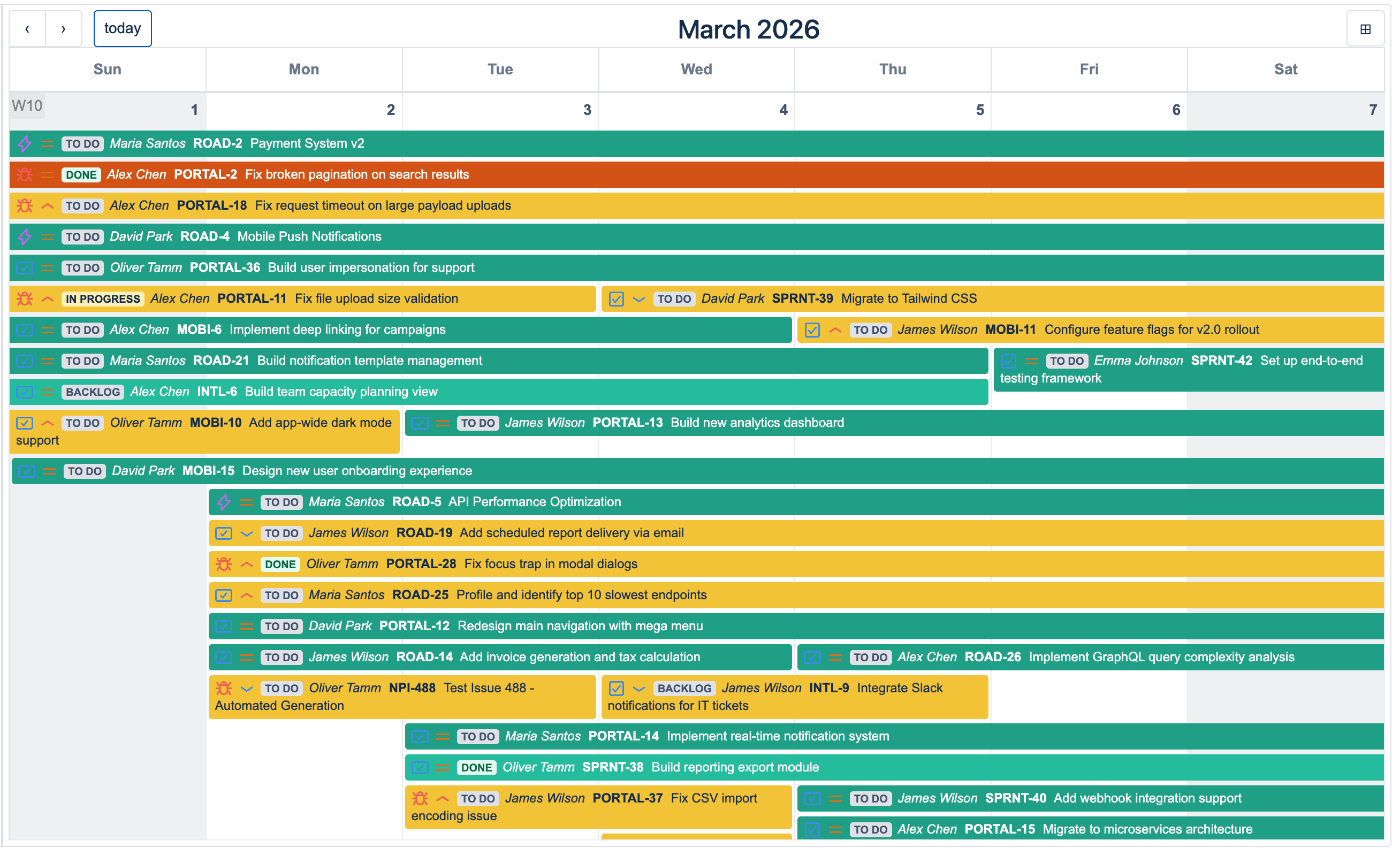
By default, a Jira issue takes the color of its calendar. A conditional color rule overrides that when the issue matches a condition — Status = Blocked → red, Priority = Highest → orange, Due date < today() → dark red. Rules make problem issues jump out of a busy month grid.
- Rules apply to Jira issues only — custom events always keep their calendar's color.
- Rules are app-wide, not per calendar: an enabled rule recolors matching issues on every calendar you can see — on the hub, on space pages, and in page macros.
- Rules are evaluated top to bottom — the first matching rule wins. The order is shared by everyone, so precedence means the same thing for all viewers.
- Whether a rule is turned on is personal: each user toggles rules for their own view.
Creating a Rule Back to top
- In the toolbar, open the Conditional Colors dropdown and choose Manage conditional colors.
- Pick a color and give the rule a name.
- Build the condition: choose a field, an operator, and a value. Add more conditions with Add condition, and nest AND / OR groups with Add group for logic like "Fix version is empty AND (Status = Open OR Status = In Progress)".
- Optionally tick "Visible to all users in this workspace" to share the rule (see below).
- Click Create.
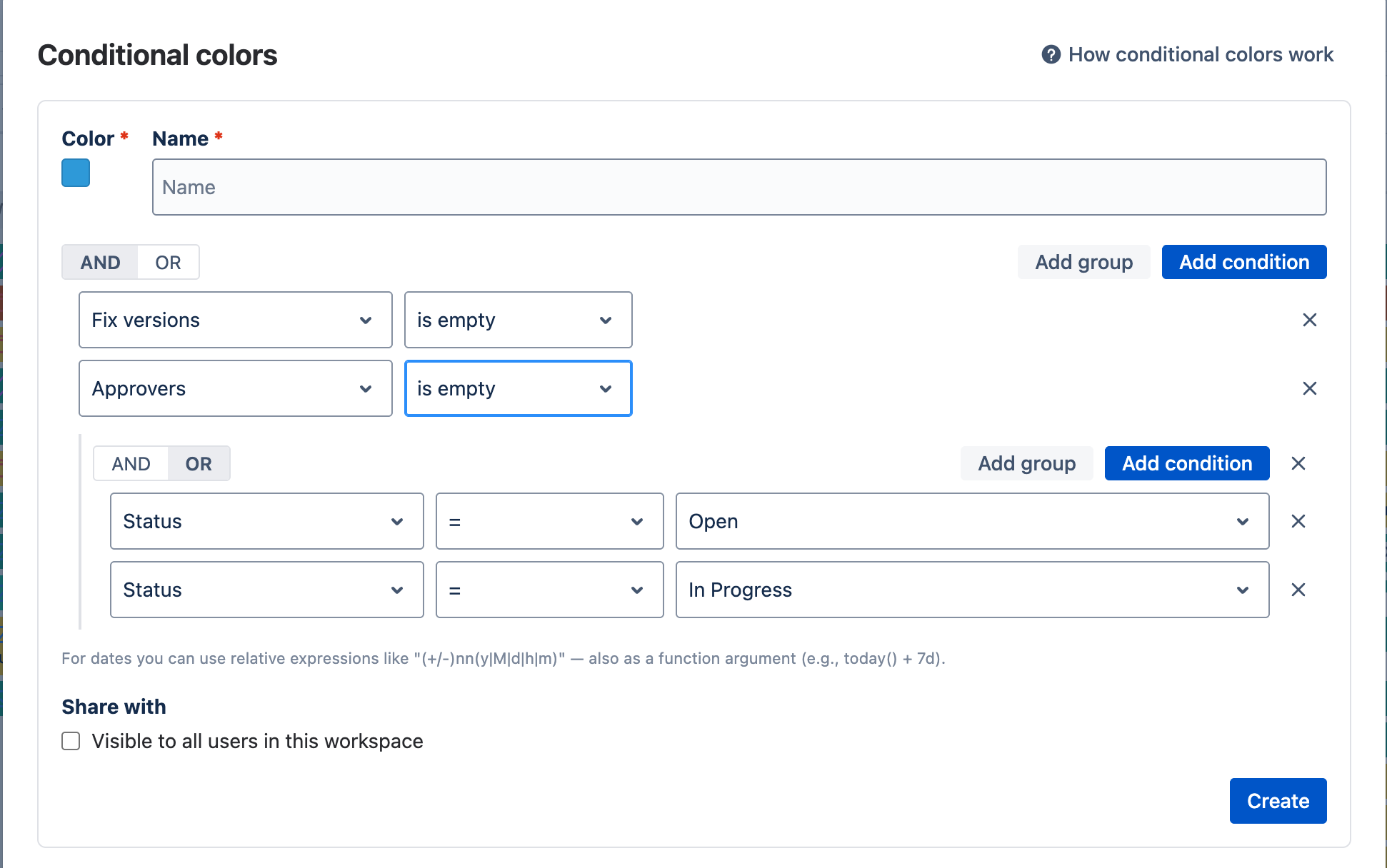
Value pickers suggest real values from your Jira site — statuses, priorities, projects, people — drawn
from the projects you can see. Text and date fields accept typed values, and date conditions
support relative expressions like (+/-)nn(y|M|d|h|m) and functions such as
today() + 7d.
Managing Rules Back to top
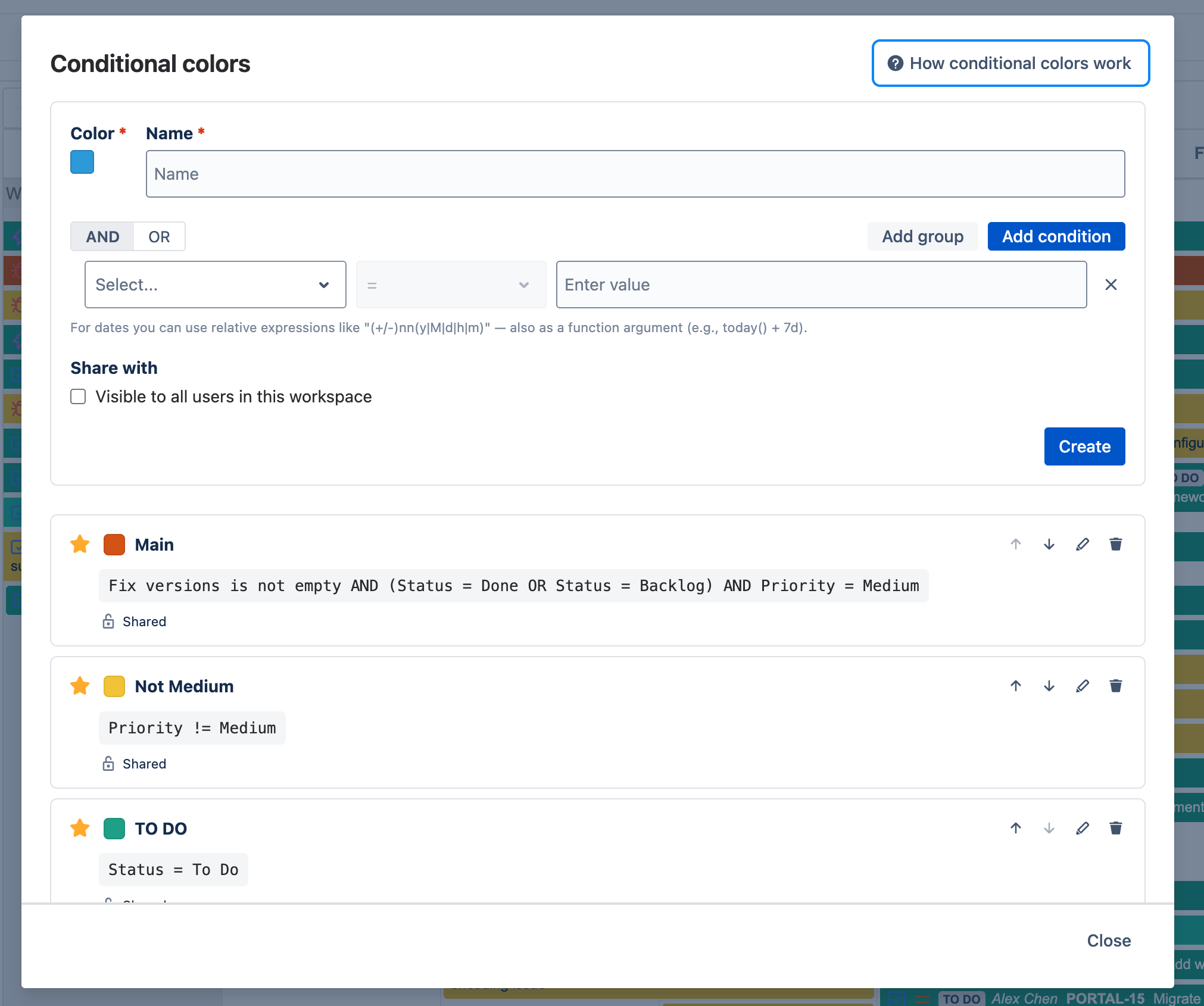
The manage dialog lists every rule you can see, each with:
- Reorder arrows — move a rule up or down. Order decides precedence (first match wins) and is global: reordering changes which color wins for everyone using those rules.
- Edit / Delete — change or remove the rule.
- Shared badge — marks rules whose creator made them visible to everyone.
- Star — pin the rule into your header dropdown for quick toggling.
Ownership: rules belong to their creator
- A private rule (the default) is visible only to you.
- A shared rule is visible to everyone on the site — each person still chooses whether to turn it on for themselves.
- Only the creator can edit, delete, or reorder a rule — even site admins cannot modify someone else's rule. Deleting a shared rule removes it for everyone who used it (the dialog warns before doing this).
Day-to-Day: the Header Dropdown Back to top
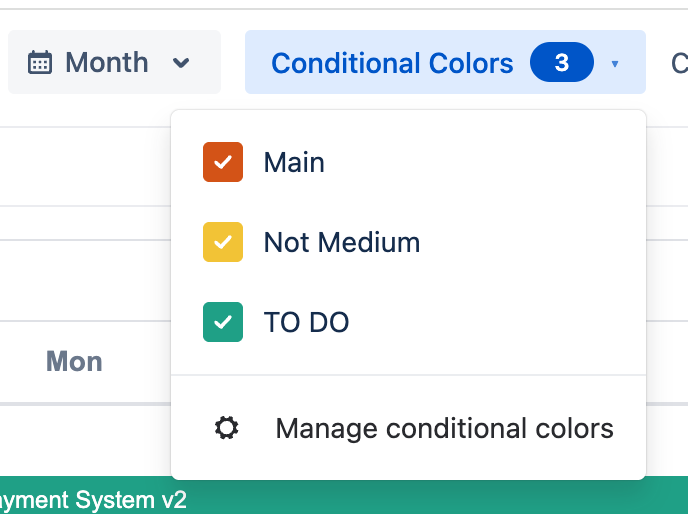
The Conditional Colors button in the toolbar shows how many rules you have active and opens a dropdown where you flip individual rules on and off. Toggles are per user — switching a rule off tidies your view without affecting anyone else. The dropdown's last entry opens the manage dialog.
Need Help?
If you have questions or need assistance, our support team is here to help.
Contact Support