What the Hub Is Back to top
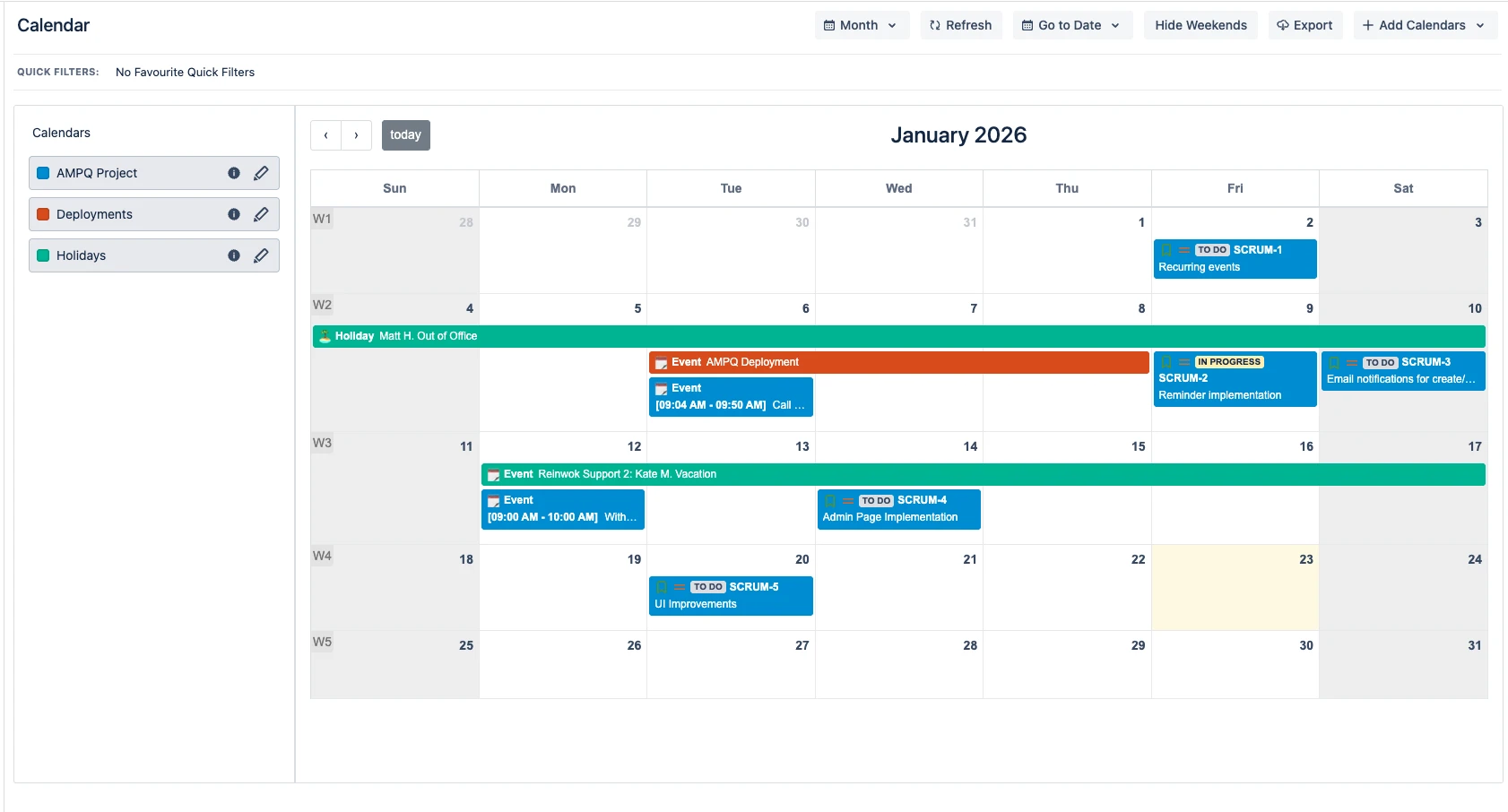
The Calendar Hub is the full-page calendar you reach from the Confluence Apps menu (Apps → Flexible Calendar). It shows all the calendars you have added to your personal list, overlaid on one calendar grid, and it is the one place where calendars are created and configured — the space calendar pages and the page macro display calendars, but management lives here.
The Calendar Sidebar Back to top
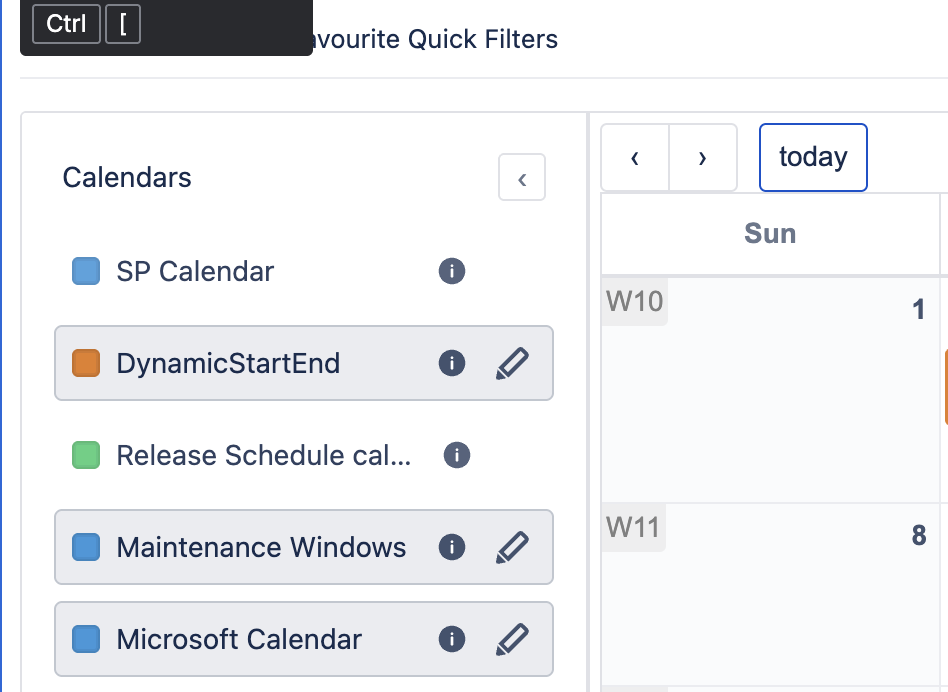
The left sidebar lists your favorite calendars. Each entry provides quick controls:
- Visibility toggle — click the colored checkbox next to a calendar name to show or hide its events on the grid. Hidden calendars stay in your sidebar; their events are simply not rendered.
- Info icon — see the calendar's description and details.
- Actions menu — hover over a calendar and click the pencil to open the per-calendar menu (see below).
- Collapse — collapse the whole sidebar to give the calendar grid the full width; click again to expand.
Shared Calendars row
When somebody sends you a calendar link (see "Sharing a link" below), the linked calendars appear in a separate Shared Calendars section of the sidebar. Click Add to favorites to keep any of them in your regular list — otherwise they are only shown for this visit.
The Toolbar Back to top
The toolbar across the top of the hub provides:
- View selector — switch between Month, Week, All Week, Day, Basic Day, and Agenda. See Calendar Views.
- Refresh — reload events from all sources.
- Go to Date — jump straight to any date.
- Hide Weekends — toggle Saturday and Sunday off the grid.
- Conditional Colors — toggle your color rules on and off, and open the rule manager. See Conditional Colors.
- Add Calendars — a dropdown with two options: Create Calendar (build a new one — see Managing Calendars) and Add existing (add a calendar somebody shared with you — see Favorites).
- Help — links to this documentation, contact support, leave feedback, raise a bug, and request a feature.
Sharing a Link to a Calendar Back to top
- Open the calendar's actions menu and choose Copy calendar URL.
- Paste the link in chat, a page, or an email.
- When a recipient opens it, the hub loads with that calendar shown in the Shared Calendars row — from there they can Add to favorites to keep it.
Note: the copied link always opens the global hub, even when copied from a space calendar page.
Need Help?
If you have questions or need assistance, our support team is here to help.
Contact Support