Inserting the Macro Back to top
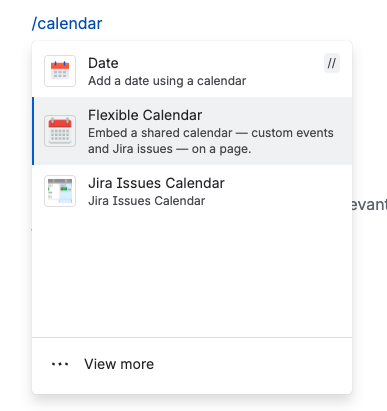
- Edit a Confluence page and type /calendar (or open the + insert menu and search for Flexible Calendar).
- Select Flexible Calendar — "Embed a shared calendar — custom events and Jira issues — on a page." The configuration dialog opens automatically.
- Pick at least one calendar (below), adjust the display options, and save.
- Publish the page — the calendar renders live for every viewer.
To change the configuration later, select the macro in the editor and click the pencil icon.
Configuration Back to top
| Setting | Options | Default |
|---|---|---|
| Calendars | One or more calendars — searchable list of the calendars you (the page author) can see | — (required) |
| Initial view | Month / Week / Day / Agenda | Month |
| Height | 400 px / 600 px / 800 px / Fit to content | 600 px |
| Show weekends | On / Off | On |
What Viewers See Back to top
The published macro is a live, read-only calendar: viewers switch views, navigate between months, and click events to open the full details popup — but creating, editing, and dragging stay in the app itself. An Open in Flexible Calendar button takes viewers to the hub for anything interactive.
Access is checked per viewer, at view time
The macro stores which calendars to show; whether a given viewer sees them is decided fresh on every page view, against the calendar's permissions:
- Each viewer sees only the configured calendars that are shared with them. Calendars they lack access to are silently omitted.
- If none of the configured calendars are visible to a viewer, the macro shows a neutral placeholder — "You don't have access to this calendar" — that never reveals calendar names or contents.
- Jira issues inside the embed additionally follow the viewer's own Jira access; a viewer without Jira sees the custom events with a quiet notice. See Jira Integration.
- Your conditional color rules apply inside embeds exactly as on the hub.
Placeholder Reference Back to top
| You see | It means | Fix |
|---|---|---|
| "No calendar selected" | The macro was inserted but not configured | Select the macro in the editor and click the pencil to pick calendars |
| "You don't have access to this calendar" | None of the configured calendars are shared with this viewer | Share the calendar(s) with the page's audience |
| "N selected calendar(s) are no longer available…" (edit mode only) | Some configured calendars were deleted or unshared with you since configuration | Re-open the config and re-pick; readers of the published page just see the remaining calendars |
Deliberately, the "no longer available" hint is a count, never a name — "deleted" and "no longer shared with you" are indistinguishable by design, so calendar ids can't be probed through macro configs.
Multiple Macros & Current Limitations Back to top
- Multiple macros per page are supported — each is independent, with its own calendars, view, and height. Useful for a page showing, say, the release calendar and the vacation calendar separately.
- One macro can overlay several calendars — often the better choice when the events should share one grid.
Current limitations
- Read-only: events can't be created or edited from inside an embed — use Open in Flexible Calendar. (Editing for users with Use access is on the roadmap.)
- Page exports: when a Confluence page is exported to PDF or Word, the macro's calendar is not included in the export output.
Need Help?
If you have questions or need assistance, our support team is here to help.
Contact Support