Settings Menu Back to top
Access settings via the gear icon in the top-right corner of the toolbar. The menu provides quick access to:

- Capacity Settings — configure default hours per day, working days, and default booking color
- Manage Categories — create, edit, and delete custom categories for bookings
Capacity Settings Back to top
Capacity settings define the global defaults for your resource allocation. These values apply to all teams and bookings.
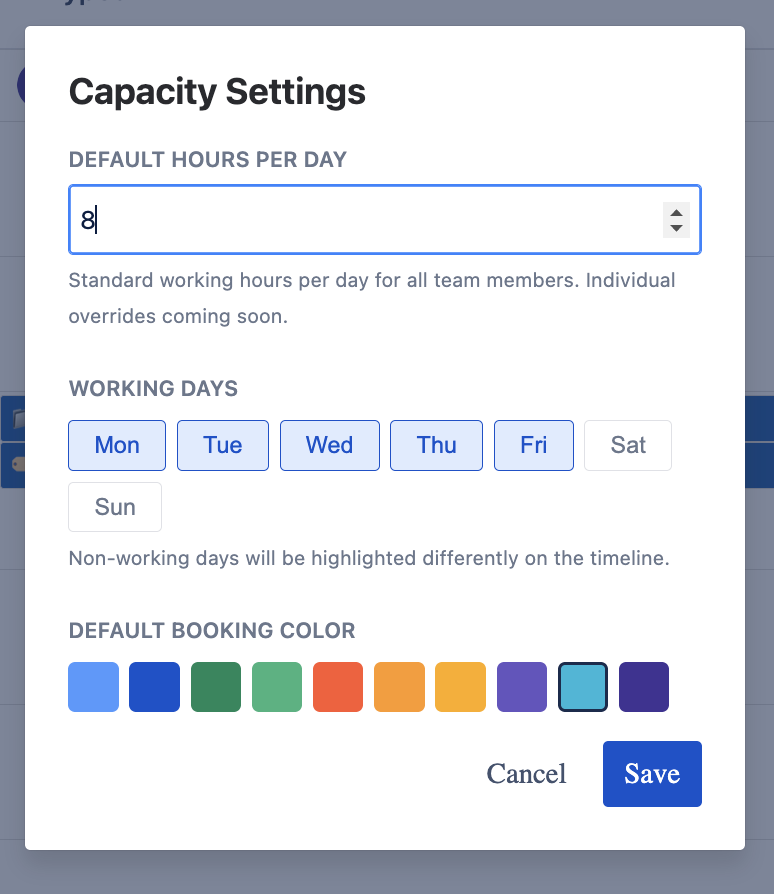
Default Hours per Day
Set the standard working hours per day for all team members (e.g., 8 hours). This value is used as the default when creating new bookings. You can override it per booking.
Working Days
Select which days of the week are working days (Monday through Sunday). Non-working days are highlighted differently on the timeline to help distinguish weekends or non-working periods. The default is Monday through Friday.
Default Booking Color
Choose a default color for new bookings. This color is used when no specific color is assigned to the work target or overridden on the booking.
Custom Categories Back to top
Custom categories let you define non-Jira work targets for resource allocation. Common examples include "Education", "Internal Meetings", "Training", "Vacation", or "Administrative".
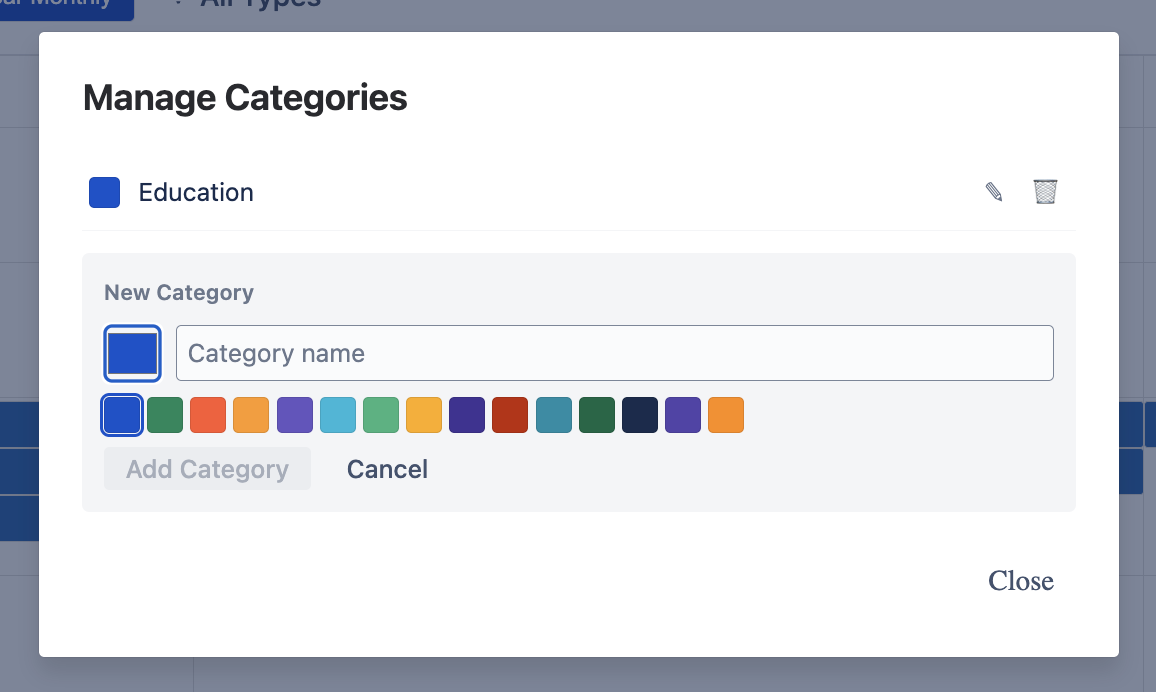
Create a Category
- Open "Manage Categories" from the settings menu (gear icon).
- Enter a category name in the "Category name" field under "New Category".
- Select a color from the color palette. This color will be used for all bookings linked to this category.
- Click "Add Category" to create it.
Edit & Delete Categories
- Edit: Click the pencil icon next to a category to change its name or color
- Delete: Click the trash icon to remove a category. If bookings reference this category, you will be warned before deletion
Global Categories
Categories are shared globally across all teams and users. Any category you create is available to everyone when creating bookings.
Need Help?
If you have questions or need assistance, our support team is here to help.
Contact Support