Create a Team Back to top
Teams are the foundation of Resource Allocation. Each team defines a set of Jira users whose bookings are displayed together on the timeline.
- Open the team selector in the toolbar (top-left of the page) and click "Create Team", or use the prompt shown on first use.
- Enter a Team Name — a descriptive name such as "Engineering", "Design Team", or "Q2 Project".
- Add Team Members — search for Jira users in the "Available Users" panel and select them with checkboxes. Selected users appear in the "Selected" panel on the right.
- Reorder Members (optional) — use the up/down arrows in the "Selected" panel to set the row order on the timeline.
- Click "Save" to create the team. Users will appear as rows in the timeline grid.
Edit a Team Back to top
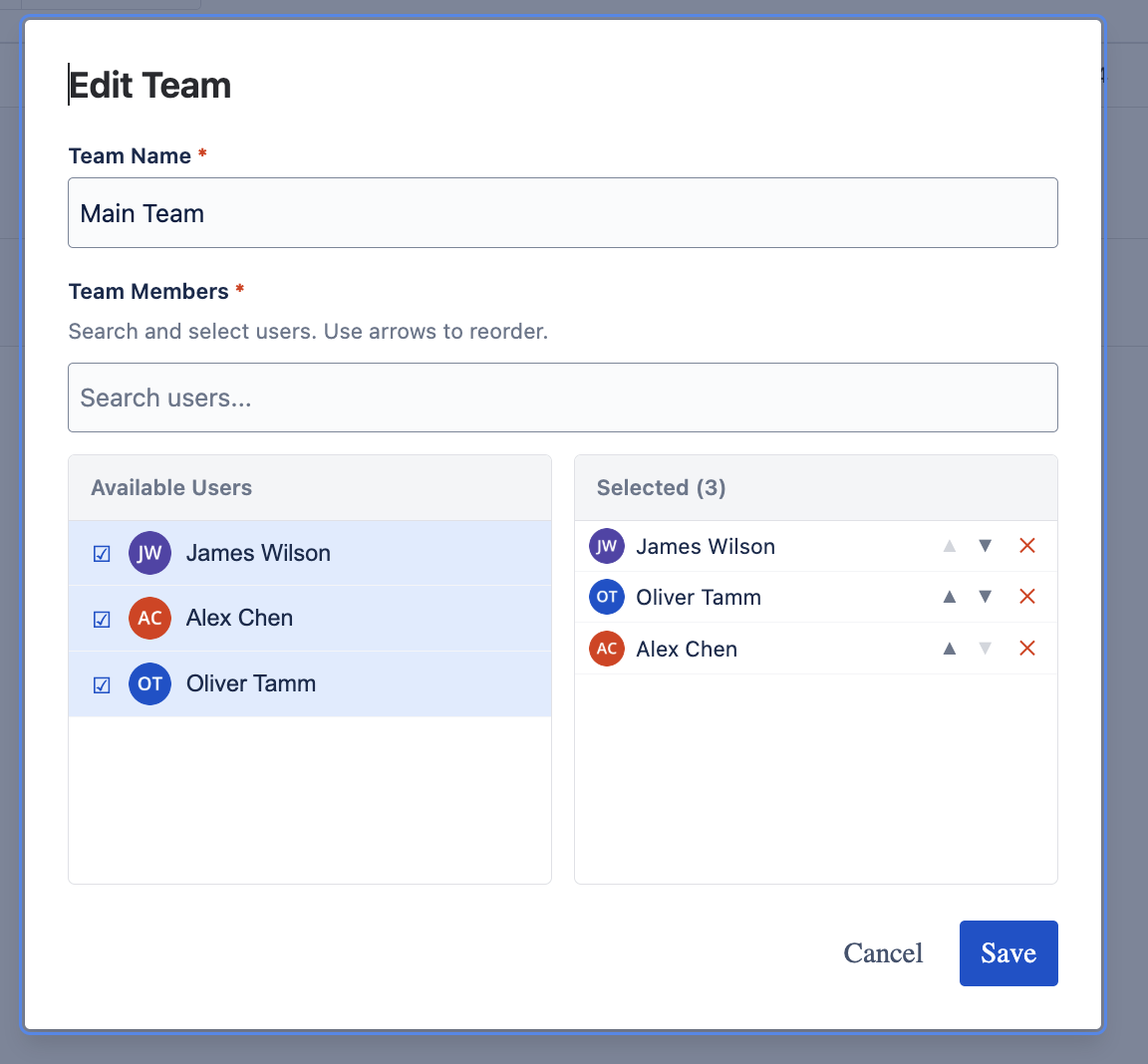
Edit a team to change its name, add or remove members, or adjust the display order.
- Open the team selector in the toolbar and click the edit icon next to the team name.
- Modify the Team Name if needed.
- Add or remove members — check/uncheck users in the "Available Users" panel. Remove users from the "Selected" panel using the × button.
- Reorder members using the up/down arrows to adjust how user rows appear on the timeline.
- Click "Save" to apply changes.
Switch Between Teams Back to top
Use the team switcher dropdown in the top-left of the toolbar to quickly navigate between your teams. The timeline grid updates immediately to show the selected team's members and their bookings.
Multiple Teams
Create as many teams as you need. Common patterns include teams per department (Engineering, Design, QA), per project (Project Alpha, Project Beta), or per time period (Q1 Sprint Team, Q2 Sprint Team).
How Teams Work Back to top
Understanding the relationship between teams and bookings:
- A team is a view filter — it defines which users you see on the timeline
- The same user can belong to multiple teams
- Bookings are user-level, not team-level — a booking appears in every team that includes the user
- Creating a booking in one team view will automatically show it in other team views that contain the same user
- Deleting a team does not delete any bookings — it only removes the view
Need Help?
If you have questions or need assistance, our support team is here to help.
Contact Support