What Quick Filters Do Back to top
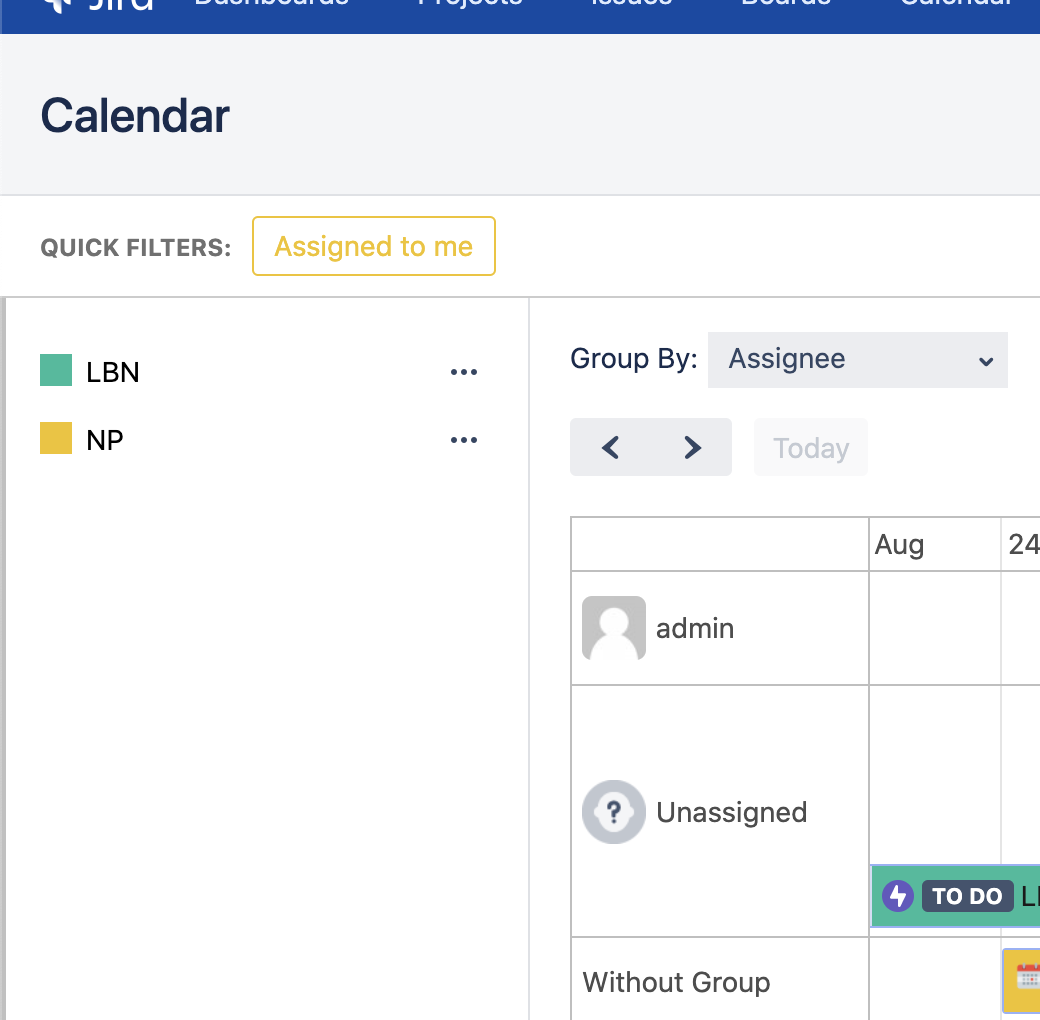
A busy calendar shows everything its source query returns. A quick filter is a saved JQL condition — "My issues", "Blockers", "Unassigned" — that you switch on to narrow that calendar down to what you care about right now, and switch off again when you're done.
- Filters belong to one calendar. Each calendar has its own set, and a filter only ever affects that calendar's issues.
- Filters affect Jira issues only. Custom events are always shown, whatever is switched on.
- Turning a filter on or off is personal. Two people looking at the same calendar can have different filters active.
- Filters only remove issues from what you can already see — they never reveal anything Jira wouldn't show you anyway.
Creating a Quick Filter Back to top
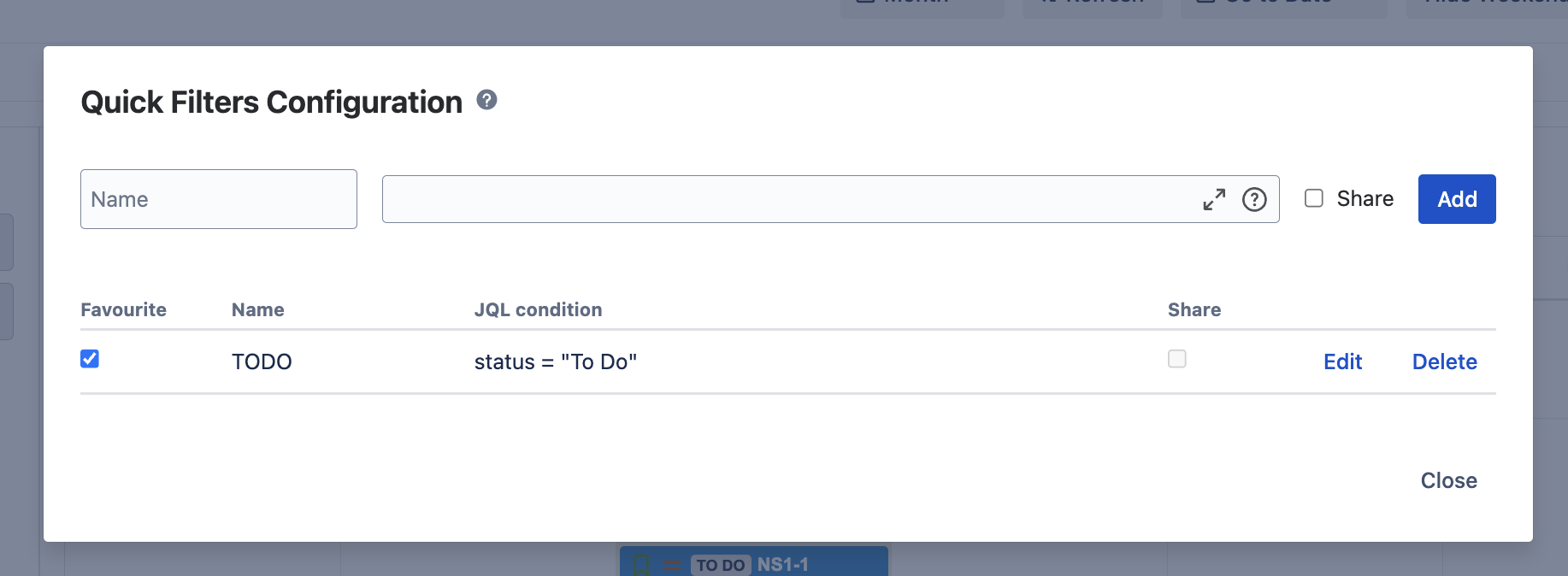
- In the sidebar, open the ⋮ menu next to a Jira-sourced calendar and choose Configure quick filters.
- Give the filter a name — this is the text on the chip, so keep it short.
- Write the JQL condition. With Jira connected you get the full JQL editor with field and value autocomplete; the query is checked against your Jira site as you type.
- Optionally tick "Visible to everyone who can see this calendar" to share it (see below).
- Click Create. The new filter is pinned to your chip bar, switched off.
Conditions are ordinary JQL, so anything you can write in Jira works here:
assignee = currentUser()— my issues (personal for every viewer, without a filter each)priority = Highest OR labels = escalation— the things that can't waitstatus != Done AND duedate < endOfWeek()— due this week and still openassignee IS EMPTY— unassigned work
Applying Filters Back to top
Pinned filters appear as chips in the bar above the calendar, coloured to match the calendar they belong to. Click one to apply it; click again to switch it off. An applied chip is outlined. Hovering a chip shows its JQL, so you can check what it does without opening the dialog.
- Several filters at once combine with OR. With "My issues" and "Blockers" both on, you see issues that match either — filters are alternative slices of the calendar, not a narrowing stack.
- Filters on different calendars are independent. Each chip only narrows its own calendar; the others are untouched.
- Hidden calendars hide their chips. Switch a calendar off in the sidebar and its filters leave the bar with it.
- Your choices stick. Applied filters are remembered per person, so a calendar comes back the way you left it — on the hub and on space pages alike.
Pinning: the star
In the configuration dialog, the star next to each filter controls whether it gets a chip in your bar. Filters you create are starred automatically; a colleague's shared filter starts unstarred, so nobody's bar fills up with other people's presets. Un-starring a filter removes its chip and switches it off — a filter you can't see isn't left hiding issues.
Good to Know Back to top
- Not in the page macro. A calendar embedded on a page shows what its author configured, without filter chips. Use the hub or a space page to filter.
- Invalid JQL is caught when you save. If Jira rejects the condition, the dialog says so and the filter isn't stored — a broken filter can't quietly empty a calendar later.
- Deleting a calendar deletes its filters. They're part of that calendar's configuration.
- Read-only when unlicensed. If the subscription lapses, existing filters keep working and stay switchable; creating and editing them is disabled until it's renewed.
Need Help?
If you have questions or need assistance, our support team is here to help.
Contact Support