Overview Back to top
Flexible Calendar for Confluence brings shareable team calendars into Confluence Cloud. Create as many calendars as you need, fill them with custom events or Jira issues, share them with the right people, and put them where your team already works — on the calendar hub, on each space's own calendar page, or embedded directly on any Confluence page.
Calendars for anything
A calendar can hold custom events — team schedules, releases, vacations, meetings, recurring rituals — with configurable event types, participants, and rich descriptions. If your site also has Jira, a calendar can additionally show Jira issues from a project, a JQL query, or a saved filter, and you can reschedule issues by dragging them.
Six calendar views — Month, Week, All Week, Day, Basic Day, and Agenda — with drag-and-drop rescheduling in all of them.
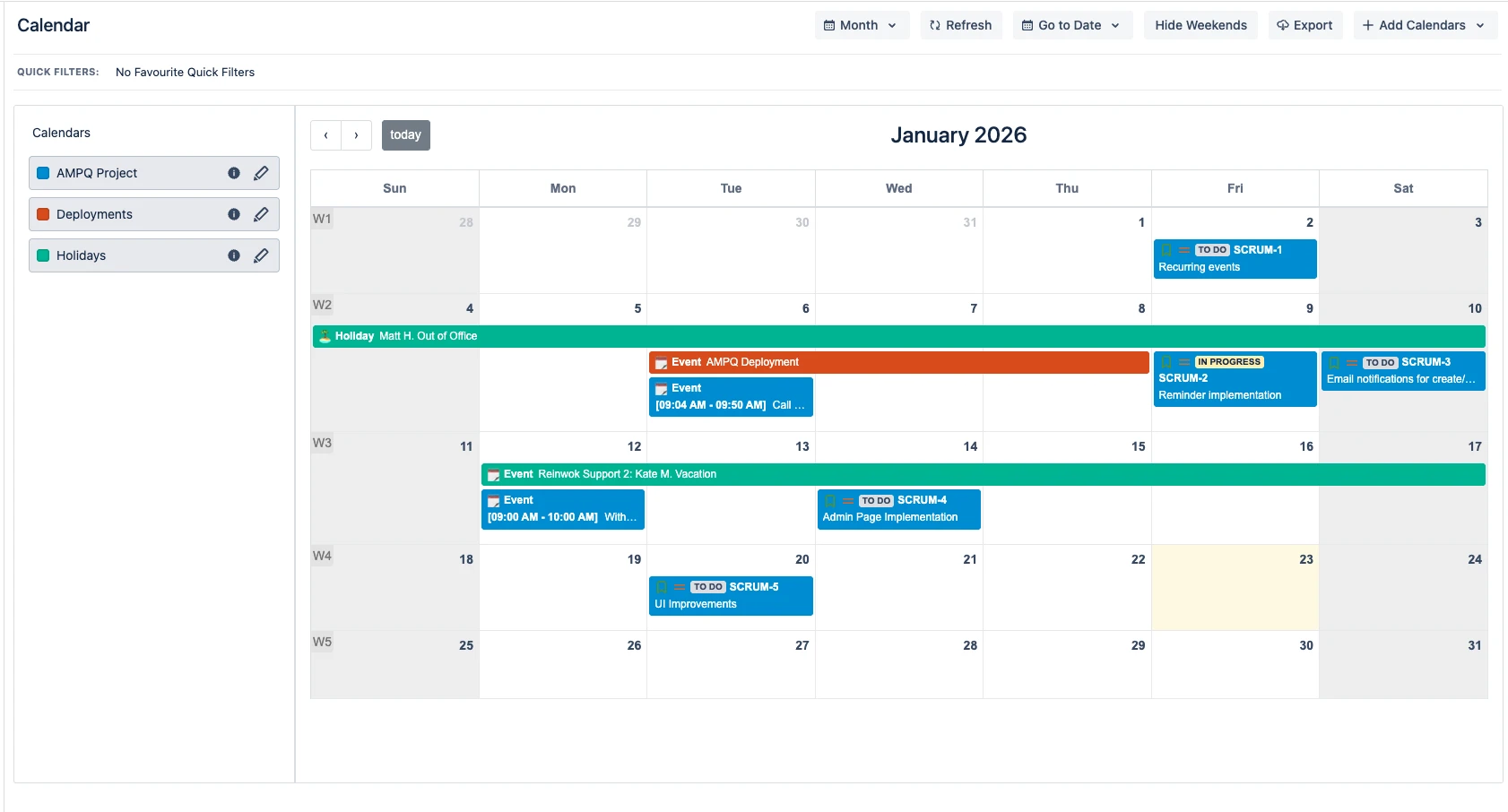
Three places your calendars live
- The Calendar Hub — the app's home page (Confluence Apps menu). Create and manage calendars here, and curate your personal sidebar.
- Space Calendars — every Confluence space gets its own calendar page with its own curated set of calendars, independent of your global list.
- The Page Macro — embed a live, read-only calendar on any Confluence page. Every viewer sees exactly the calendars shared with them.
Sharing built in
Every calendar has its own permission list: share with individual users, Confluence groups, or everyone on the site, at one of three access levels — Admin, Use, or Read Only. Jira issues additionally respect each viewer's own Jira permissions, always.
Install & Open Back to top
- Install from the Atlassian Marketplace — a Confluence site admin installs the app on your Confluence Cloud site.
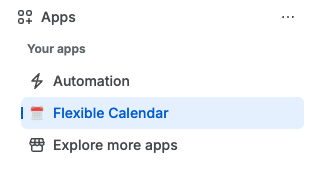
- Open the app — click Apps in the Confluence top navigation and choose Flexible Calendar. This opens the Calendar Hub.
- Optionally connect Jira — if your site also has Jira, a site admin can connect it so calendars can show Jira issues. This is entirely optional: custom-event calendars work without Jira. See Jira Integration.
Create Your First Calendar Back to top
- Open the Calendar Hub (Apps → Flexible Calendar).
- Click Add Calendars → Create Calendar at the top of the sidebar.
- Name it and pick a color on the General tab — the color identifies this calendar's events everywhere.
- Choose an events source — Custom events for a standalone calendar, or Project / JQL / Filter to show Jira issues (requires Jira). See Managing Calendars.
- Add event types (optional) — e.g. Meeting, Holiday, Release — each with its own icon.
- Share it (optional) — add users, groups, or "Anyone on this site" on the Permissions tab. See Sharing & Permissions.
- Click Add — the calendar appears in your sidebar. Double-click any date to create your first event.
Language Support Back to top
The app automatically detects your Atlassian language setting and displays the interface in the matching language. All UI elements, labels, navigation, and date formatting are fully localized.
Licensing & Read-Only Mode Back to top
Flexible Calendar for Confluence is a paid app with a free trial. If the site's subscription lapses, the app degrades to read-only instead of switching off:
- Every calendar and every event stays visible — on the hub, on space pages, and in page macros.
- Creating, editing, and deleting calendars or events is disabled. The buttons stay visible but greyed out, each with a note explaining why — so a disabled action is never mistaken for a lost permission.
- A dismissable notice explains the state and who can fix it (a site admin renews the subscription on the Atlassian Marketplace).
- Personal view settings — favorites, view choice, conditional-color toggles — keep working, since they only change what you see.
Need Help?
If you have questions or need assistance with Flexible Calendar for Confluence, our support team is here to help.
Contact Support