If you have not installed WorkHub yet, grab it from the Atlassian Marketplace. Once installed, the app is available from the Apps menu in your Jira site.
Accessing the App Back to top
WorkHub is a Forge app for Jira Cloud, accessible from the Apps menu in your Jira navigation bar. It provides a full-screen application with a sidebar for navigating between modules.
The app contains eight modules:
- My Work — your personal page: your scheduler row paired with a daily logged-hours chart
- Scheduler — Gantt-like resource planning across all your Jira projects
- Time Tracking — log worklogs against any Jira issue
- Timesheets — submit and approve weekly timesheets
- Leave — request and approve time off
- Reports — utilization, worklog, leave, and planned-vs-actual reports
- Settings — field mapping, capacity schemes, holidays, permissions (admin only)
- My Account — personal preferences and assigned schemes
When you open WorkHub, the app remembers whether you last had My Work or the Scheduler open and reopens that view automatically. New users land on the Scheduler by default; switching to My Work makes it the new default for next time.
Field Mapping Back to top
On first launch, a Field Setup Dialog asks you to choose where WorkHub stores the start date and end date of your issues — the two dates that place an issue bar on the scheduler timeline. This is the only required configuration — the app uses Jira's native Assignee, Status, and Estimate fields automatically.
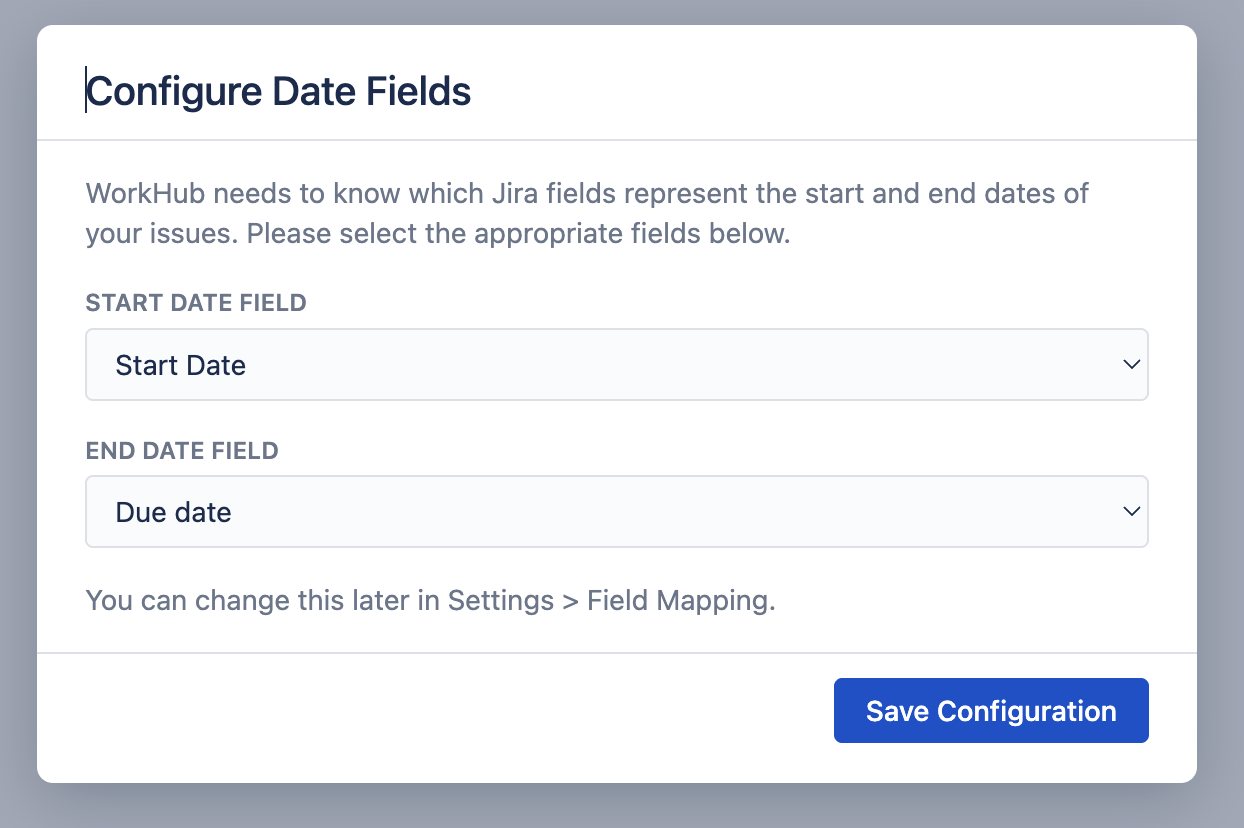
Choosing where dates are stored
Each date can be stored in one of two places, chosen independently per date:
| WorkHub storage (no Jira field) | A Jira date field | |
|---|---|---|
| Works in | Every project, including team-managed — no Jira configuration needed | Projects where the field is available (field context, field configuration) |
| Visible in Jira | Shown in the WorkHub panel on each issue; not in Jira's own date fields, boards, or the native timeline | Shown wherever the field appears — issue views, boards, gadgets, other apps |
| Searchable | JQL via workhubStartDate / workhubEndDate |
Standard JQL on the field |
| Editable | Only in WorkHub | In Jira and in WorkHub |
WorkHub storage is the zero-friction choice: save the dialog as-is and start scheduling immediately. Choose Jira date fields when your team needs the dates visible on boards and issue views, or when other tools consume them. Mixing is common — for example, WorkHub storage for the start date (few sites have a start-date field available in every project) and the built-in Due date field for the end date, so due dates stay visible to everyone. See Settings › Field Mapping for full details, including what to do when Jira rejects a date update because a mapped field isn't available in a project.
The setup dialog pre-selects WorkHub storage (no Jira field) for both dates, so you can save and start scheduling right away. The mapping can be changed at any time in Settings › Field Mapping.
Automatically detected fields
WorkHub reads these Jira fields without explicit mapping:
- Assignee — determines who is responsible for each issue. The scheduler organizes issues by person.
- Status — used to color-code issue bars by workflow category (To Do, In Progress, Done) by default, and for filtering completed issues. Admins can override the default palette and build custom color rules — see Issue Colors.
- Original Estimate — Jira's built-in time estimate field (
timeoriginalestimate). Used for workload calculations and capacity planning. - Remaining Estimate — Jira's remaining estimate field (
timeestimate). Jira auto-populates this from Original Estimate and decrements as work is logged.
Issues in Jira Back to top
WorkHub works with all standard Jira issue types — Stories, Tasks, Bugs, Epics, and any custom issue types you have configured. The scheduler displays issues from your Jira projects based on the configured field mapping.
- Parent issues and subtasks — both appear on the scheduler timeline. Subtasks are shown alongside parent issues.
- Epics — can be scheduled like any other issue if they have start and end dates.
- Custom allocations — in addition to Jira issues, you can create manual allocation entries (e.g., "Training", "Meetings") that are not linked to specific Jira issues but still contribute to workload calculations.
The scheduler pulls issues from all Jira projects you have access to. Use the project and status filters in the toolbar to narrow what is displayed.
Scheduler Overview Back to top
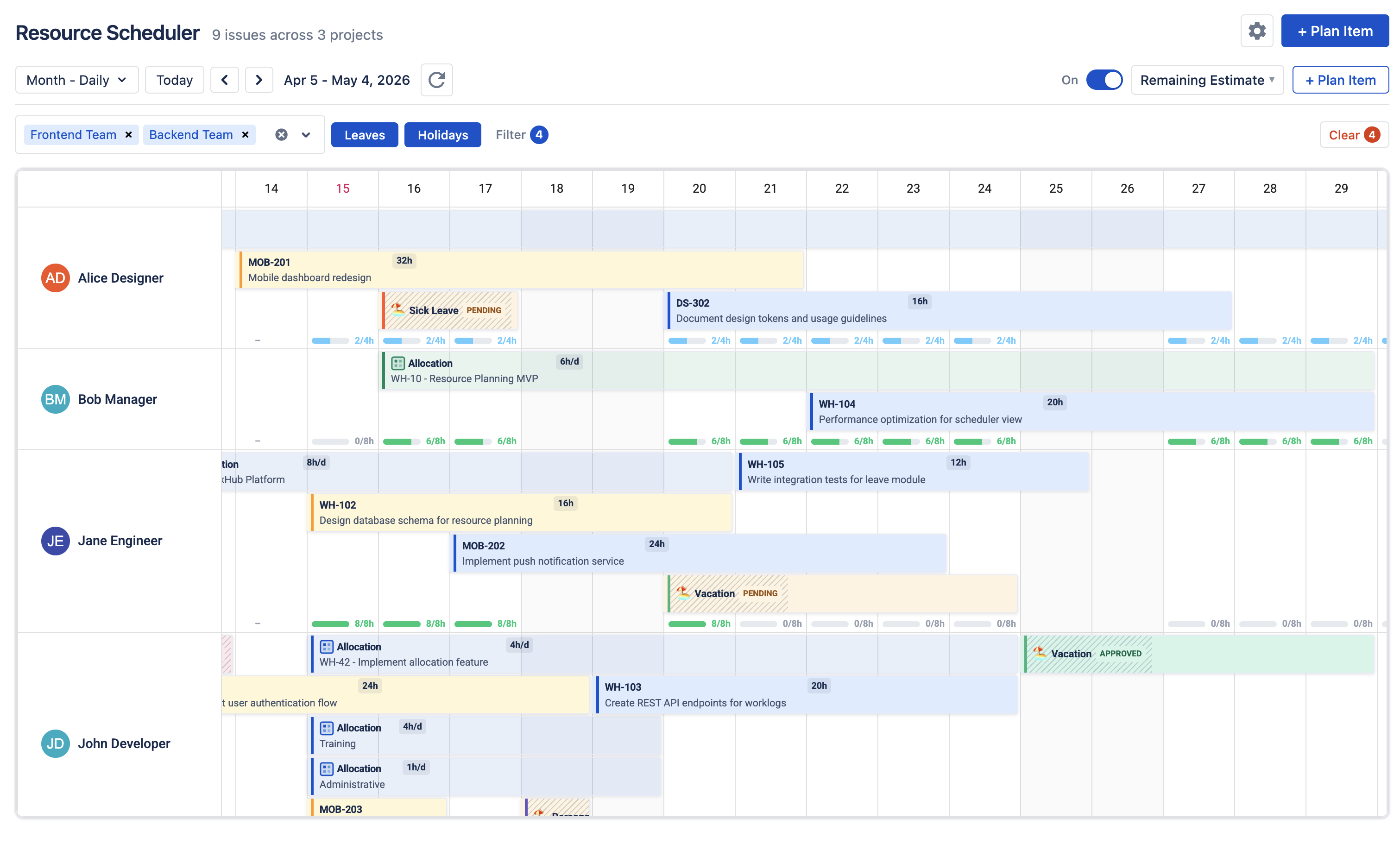
The resource scheduler is a Gantt-like timeline where each row represents a team member and issue cards are positioned by their start and end dates.
Right after the initial field setup, a short guided tour walks you through the key controls in place. You can open it anytime from the button in the Scheduler header.
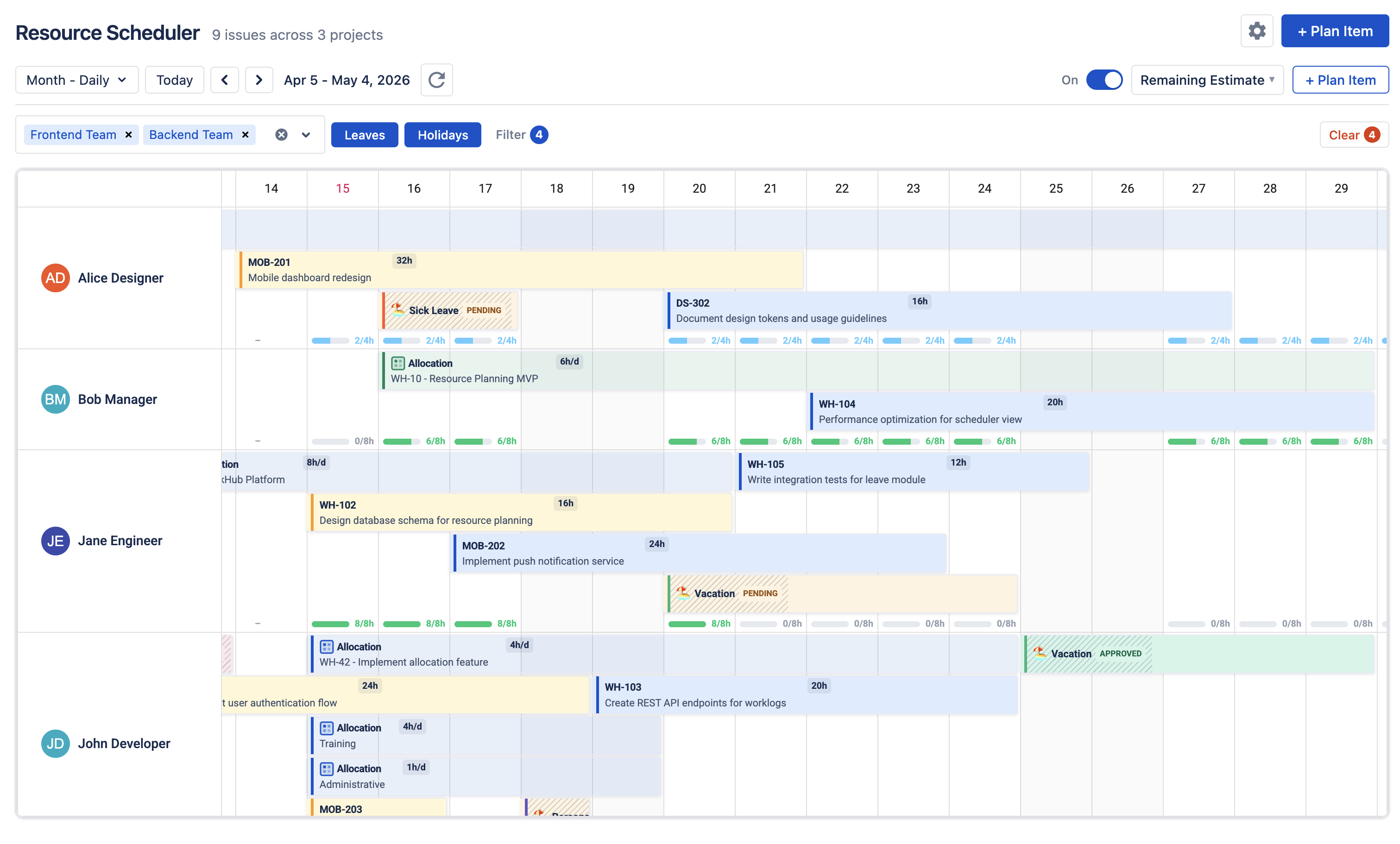
View modes
Five zoom levels let you see the right time horizon:
- Week — seven days with day columns (default)
- 2-Week — fourteen days with day columns
- Month — one calendar month with day columns
- Year (monthly) — twelve months with month columns
- Year (daily) — twelve months with day-level granularity
Key features
- Drag-and-drop — drag issues horizontally to reschedule, vertically to reassign, or resize to change duration.
- Custom allocations — create manual bookings alongside Jira issues for non-issue work.
- Leave & holiday display — approved leave and holidays appear as colored blocks on the scheduler.
- Workload indicators — toggle the workload overlay to see real-time capacity per person per day.
- Context menu — right-click for quick actions like scheduling an issue or logging time.
- Custom issue colors — admins can color-code bars by priority, status, project, assignee, fix version, custom field, due date, and more — with AND / OR groups and date functions like
today(). Anyone can click the palette icon in the Scheduler header to see which rule painted a bar. Full reference: Issue Colors.
For full details, see Resource Scheduler.
My Work Overview Back to top
My Work is the personal counterpart to the Scheduler. It shows your row from the team timeline, paired with a daily logged-hours chart on top so you can compare time logged against your real capacity (work schedule minus approved leave and holidays).
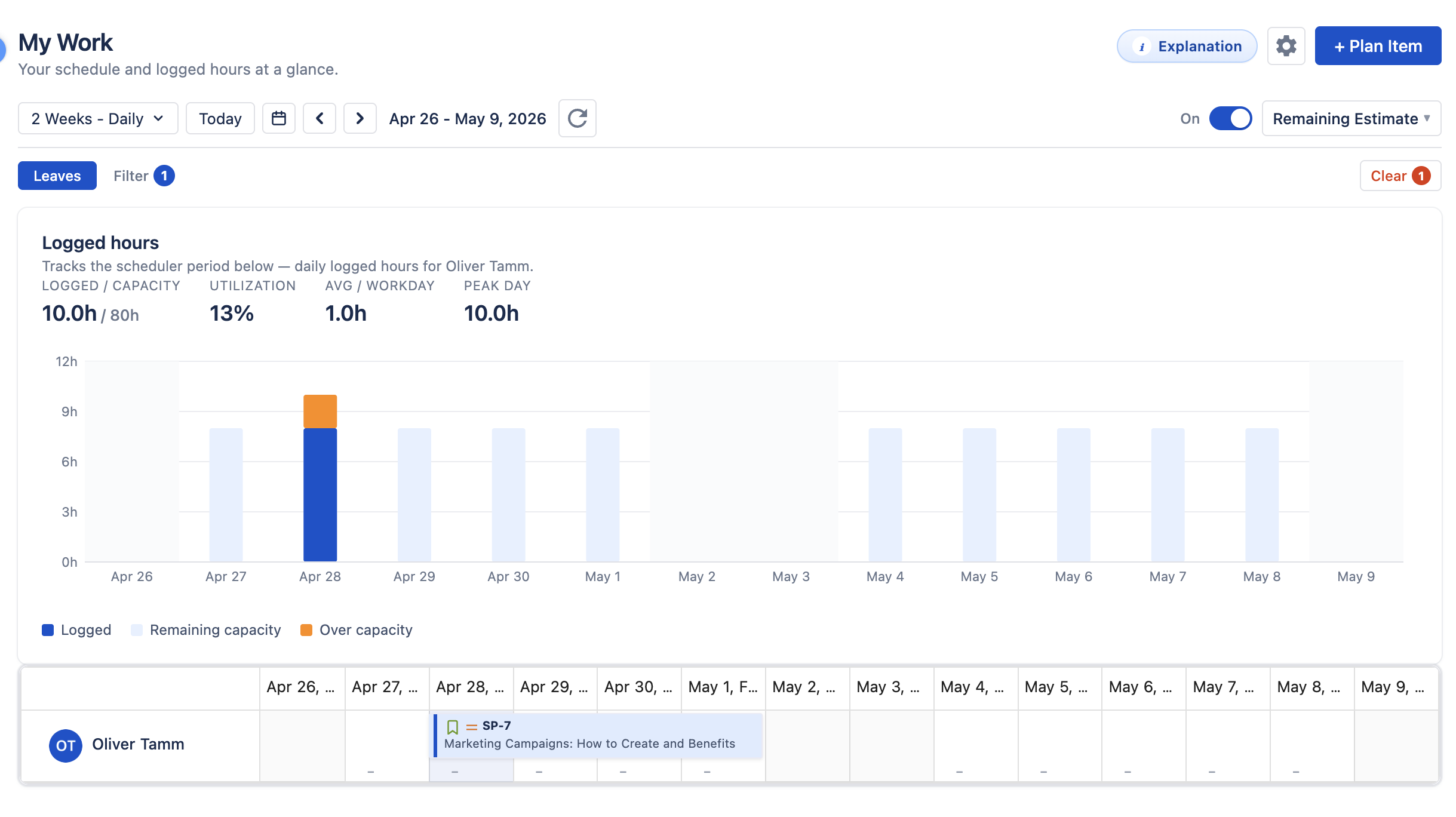
- Logged hours chart — daily bars where the filled portion is the time you logged, the light track is the remaining capacity, and any orange segment above the track means you logged more than your capacity that day. A slim gray bar means hours were logged on a non-working day (weekend, holiday, or full-day approved leave).
- Personal timeline — the full Scheduler timeline locked to your row. All scheduler interactions (drag, resize, right-click context menu) work here.
- Period sync — switching the time scale or stepping through periods updates both the chart and the timeline together.
- Independent settings — My Work and the Scheduler each remember their own time scale, visible date, and workload mode. Selecting Week in My Work does not change the Scheduler view.
For the full breakdown, see My Work.
Capacity & Workload Basics Back to top
Workload calculation brings together three data sources to show whether your team is balanced or overloaded:
- Capacity schemes define how many hours each person works per day (default: 8 h/day, Mon–Fri). See Capacity Schemes.
- Holiday calendars reduce available hours on public holidays. See Holiday Calendars.
- Leave is approved time off that further reduces available hours. See Leave Management.
The workload overlay offers three indicator modes, each showing a different perspective on your team's load. The default Remaining Estimate mode distributes remaining hours across future working days, giving you a forward-looking view of planned workload. See Workload Management for details.
Color-coded indicators
Green means healthy utilization (51–100%). Yellow means near capacity (101–120%). Red means overloaded (>120%). Light blue means underloaded (0–50%). At a glance, you can see where to redistribute work.
What's Next Back to top
Now that you understand the core concepts, explore the features in detail:
- My Work — Personal page pairing your scheduler row with a daily logged-hours chart.
- Resource Scheduler — Gantt-like timeline with drag-and-drop, view modes, and custom allocations.
- Workload Management — Color-coded capacity indicators and five workload modes.
- Time Tracking — Log work hours against Jira issues with weekly grid view.
- Timesheets Approval — Submit weekly timesheets and manage the approval workflow.
- Timesheet Reports — Review logged hours and track progress against capacity.
- Leave Management — Request and approve time off, with leave reflected in capacity calculations.
- Reports — Generate utilization, worklog, leave, and planned-vs-actual reports.
Email support@reinwok.com for assistance.
Need Help?
If you have questions or need assistance with WorkHub for Jira, our support team is here to help.
Contact Support