This page covers the approval side of timesheets: how you submit your own timesheet, how the plugin decides who approves it, and who can approve, reject, or reopen. For the reporting views (logged hours, progress, Excel export) see Timesheet Reports.
Submitting Timesheets Back to top
You submit your own timesheet from the Time Tracking page. Pick the week, check your worklogs, and click Submit for Approval.
- Open Time Tracking and go to the week you want to submit.
- Check your worklogs for the week. After you submit, they are locked from edits (when locking is turned on in settings).
- Click Submit for Approval. It goes to your approver and moves to Pending Approval (see How approval works).
Before you can submit
- Approval must be turned on. If the approval workflow is disabled in Timesheet Settings, there is nothing to submit to, and the Approvals section (Pending Approvals and Approval History) is hidden from the Timesheets sidebar.
- You need at least one worklog in the period — you can’t submit an empty week.
- The week can’t be in the future — you can submit the current week, but not one that hasn’t started.
- It can’t already be in progress. A timesheet that is already Pending Approval or Approved can’t be re-submitted; a Rejected or Reopened one can.
Timesheet statuses
Every timesheet moves through a set of statuses:
| Status | What it means | Can you edit worklogs? |
|---|---|---|
| Not Submitted | No submission exists yet. You can freely add, edit, or delete worklogs. | Yes |
| Pending Approval | Submitted and waiting for the approver to act. | Locked |
| Approved | The approver accepted the timesheet. Hours are finalized. | Locked |
| Rejected | The approver returned the timesheet with a reason. Fix the issues and resubmit. | Yes |
| Reopened | An approver or admin reopened a previously approved timesheet so corrections can be made. | Yes |
Reviewing & Approving Back to top
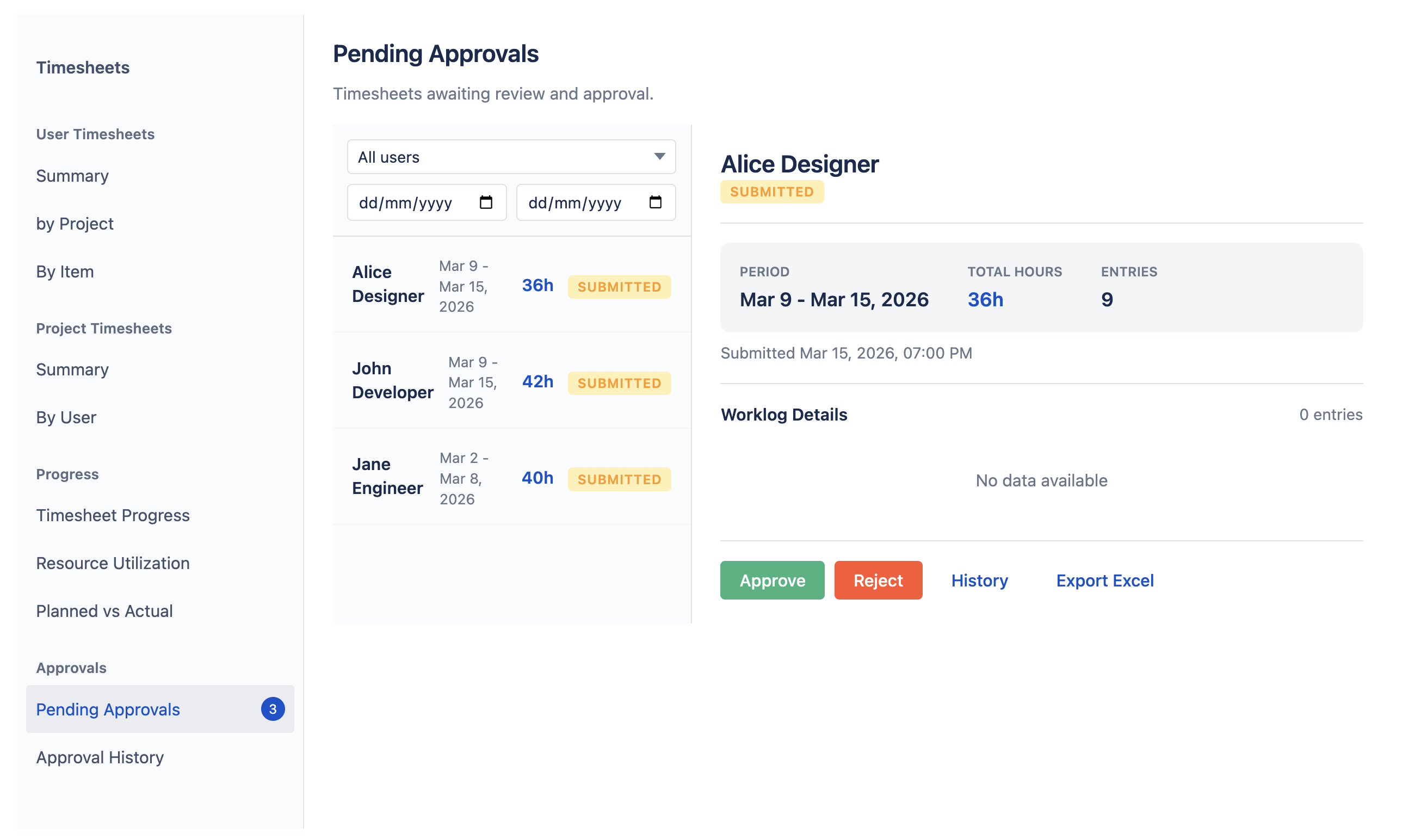
If you can approve timesheets, the Timesheets Approval area lists the submissions waiting on you. Each one shows the employee, the date range, the total hours, the worklog count, and the full status history. Narrow the pending list by team, by employee, or by period date range — the team filter appears when you oversee more than one team.
Approve or reject
- Approve accepts the timesheet and keeps the worklogs locked.
- Reject sends it back with a reason (at least 10 characters). The employee’s worklogs unlock so they can fix and resubmit.
Approval History
Approval History lists every approved and rejected timesheet, newest first. Filter by team or search by employee to narrow the list. Approved rows also have a Reopen action — see below.
Reopening an approved timesheet
If a timesheet was approved but later needs corrections, an approver or admin can reopen it:
- Find the approved timesheet in Approval History.
- Click Reopen and enter a reason (at least 1 character) explaining why.
- The employee's worklogs are unlocked. They can make corrections and resubmit.
How approval works Back to top
When you submit, your timesheet goes to your approver and becomes Pending Approval. An approver can be:
- your team manager;
- an app admin or org manager;
- or a specific person assigned to you or your team in Advanced Access.
Your timesheet isn’t tied to one person — any eligible approver can approve it, and whoever acts first decides it. From there:
- If you have an approver, it waits until one of them approves or rejects it (a rejection comes with a reason, so you can fix it and resubmit).
- If an admin set you as your own approver, the timesheet is approved automatically.
- If no one is set up to approve you, you can’t submit — you’ll see a message to ask an admin to assign you an approver.
Need Help?
If you have questions about timesheet approval or need help with your setup, our support team is here to help.
Contact Support