Overview Back to top
Issue Colors lets administrators control how Jira issue bars are colored on the Resource Scheduler. You can keep the default Jira status-category palette, pick a single uniform color, or build a list of rules that paint bars based on field values — Priority = Highest → red, Status = Done → green, Fix versions in 2.5.0, 2.6.0 → orange, Due date < today() → red overdue, and so on.
Key Capabilities
- Two default modes: color by Jira status category (the existing behavior) or pick a single color for every issue
- Field-driven rules: match on priority, status, issue type, fix versions, components, labels, project, assignee, custom select fields, dates, numbers, and more
- Twelve operators:
=,!=,<,<=,>,>=,in,not in,contains,not contains,is empty,is not empty— narrowed per field type - Multi-value pickers: chip-style selection for fields with multiple values (fix versions, components, multi-select)
- Combine with AND / OR: each rule is a tree of conditions joined by AND or OR — switch the combinator on any group with one click
- Nested sub-groups: build expressions like Priority = Highest AND (Status = Backlog OR Status = To Do) by adding sub-groups inside a rule, up to 5 levels deep
- Function values:
currentUser()for "my issues", plustoday(),now(),startOfMonth(),endOfMonth(),startOfYear(),endOfYear()for date rules that adjust automatically - Relative date expressions: compare a date field against offsets like
+7d(a week from today) or-1M(a month ago) - Auto-contrast text: issue titles and hours badges automatically switch between dark and light so they stay readable on any background color
- Drag-to-reorder: rule priority is set by list order — the first matching rule wins
- Explain colors dialog: a one-click popup on the Scheduler / My Work that lists every active rule and the default-appearance fallback, so anyone can see why a bar is painted a given color
Where to find it Back to top
Open Settings → Issue Display in the WorkHub sidebar. The tab has two sections: Default Appearance on top, Rules below. A small ℹ How it works button in the top-right corner opens an in-tab help dialog with the same concepts you'll find on this page, condensed.
Only WorkHub app admins (or Jira site admins) can view and edit the Issue Display settings. Everyone else sees the resulting colors on the Scheduler. Non-admins can still open the Explain colors dialog from the Scheduler to see why a bar is painted a given color.
Default Appearance Back to top
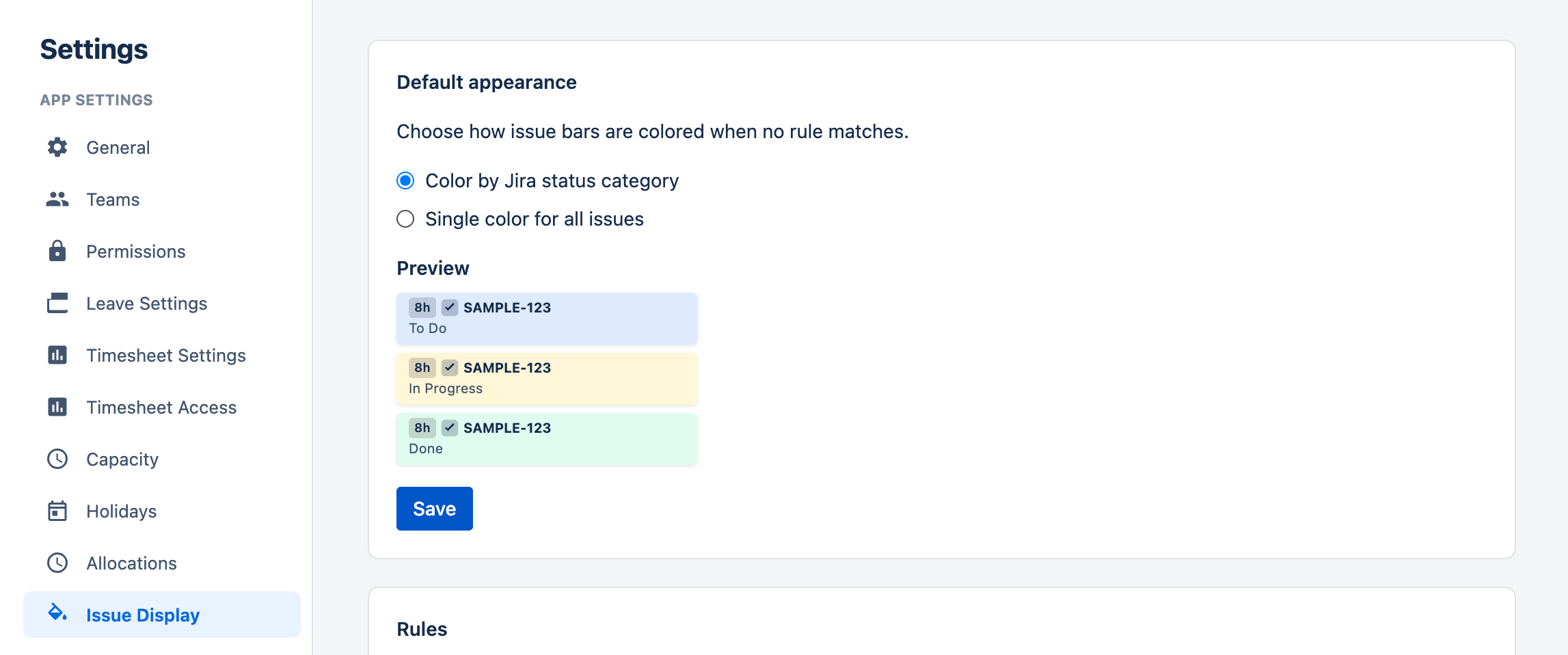
The default appearance applies to every issue that doesn't match a color rule. Choose one of two modes:
Color by Jira status category
The original behavior: issues are colored according to which workflow category their status belongs to. The preview shows all three categories side by side so admins can see exactly how each bar will look.
- To Do — light blue background
#DEEBFF - In Progress — light yellow background
#FFF7D6 - Done — light green background
#DFFCF0
Single color for all issues
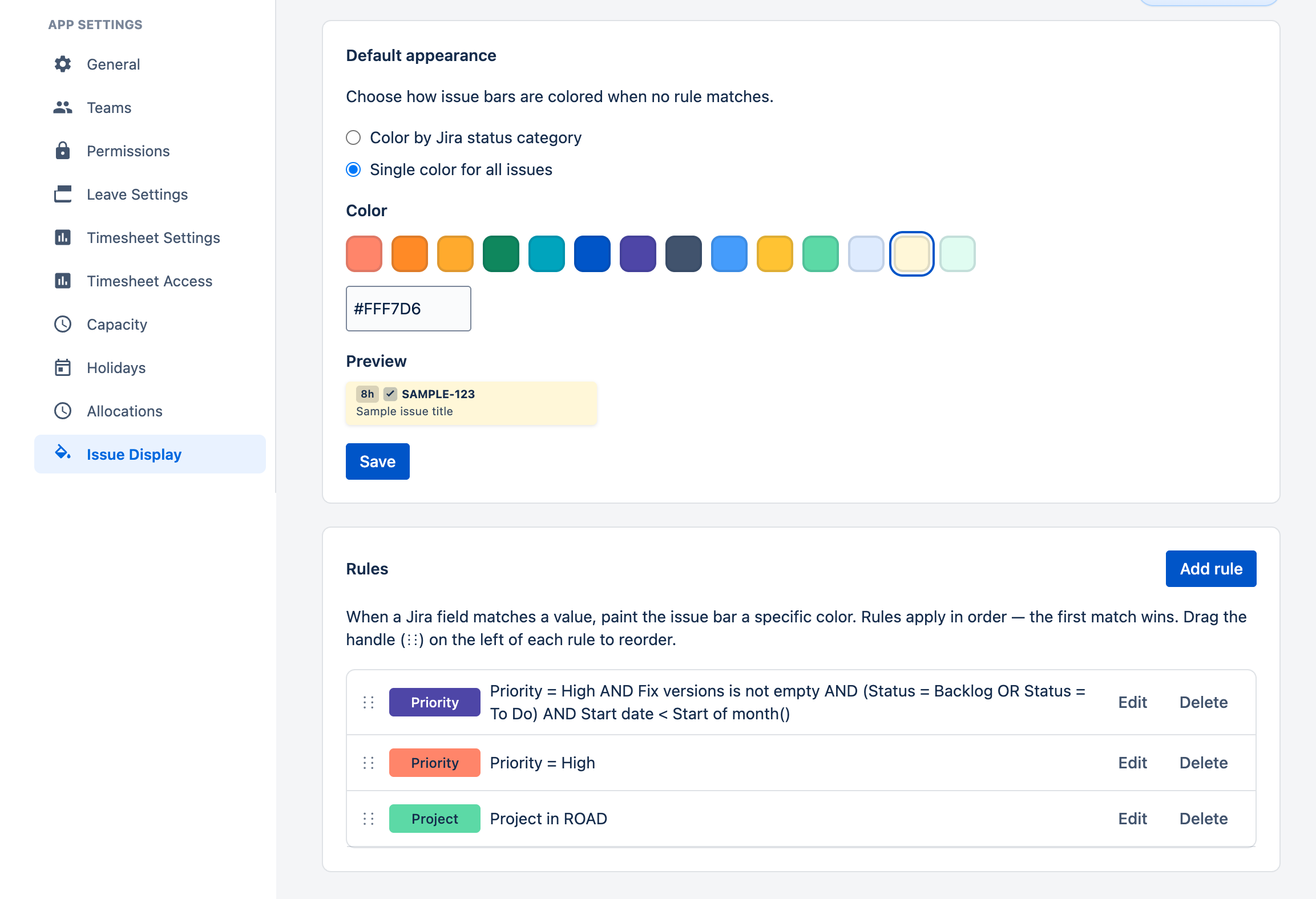
Pick one color from the 14-swatch palette or type a custom hex value. Every issue bar (that doesn't match a rule) renders with that color as the background. The issue title and hours badge automatically switch between dark and light text using a YIQ perceived-brightness check, so the bar stays readable no matter which color you choose.
Color Rules Back to top
A color rule says "when an issue matches an expression, paint the bar a specific color." The expression is a tree of conditions joined by AND or OR, with optional sub-groups for nested logic. Rules are evaluated top-to-bottom; the first matching rule wins. If no rule matches, the default appearance is used.
Resolution order
- For each issue rendered on the Scheduler, walk the rule list from top to bottom.
- For each rule, evaluate its condition expression: each group's combinator (
ANDorOR) decides whether all or any of its children must match. Sub-groups are evaluated recursively. - The first rule whose expression evaluates to true paints the bar with that rule's color.
- If no rule matches, the Default Appearance takes over.
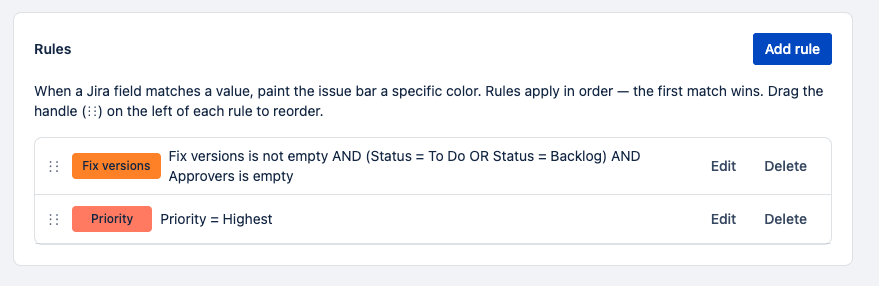
In the Rules list, each row shows the rule's color chip, a short label (or the field name when no
label is set), and the full expression. Nested sub-groups are wrapped in parentheses so precedence
is visible at a glance — for example, Fix versions is not empty AND (Status = To Do OR Status = Backlog) AND Approvers is empty.
Creating a Rule Back to top
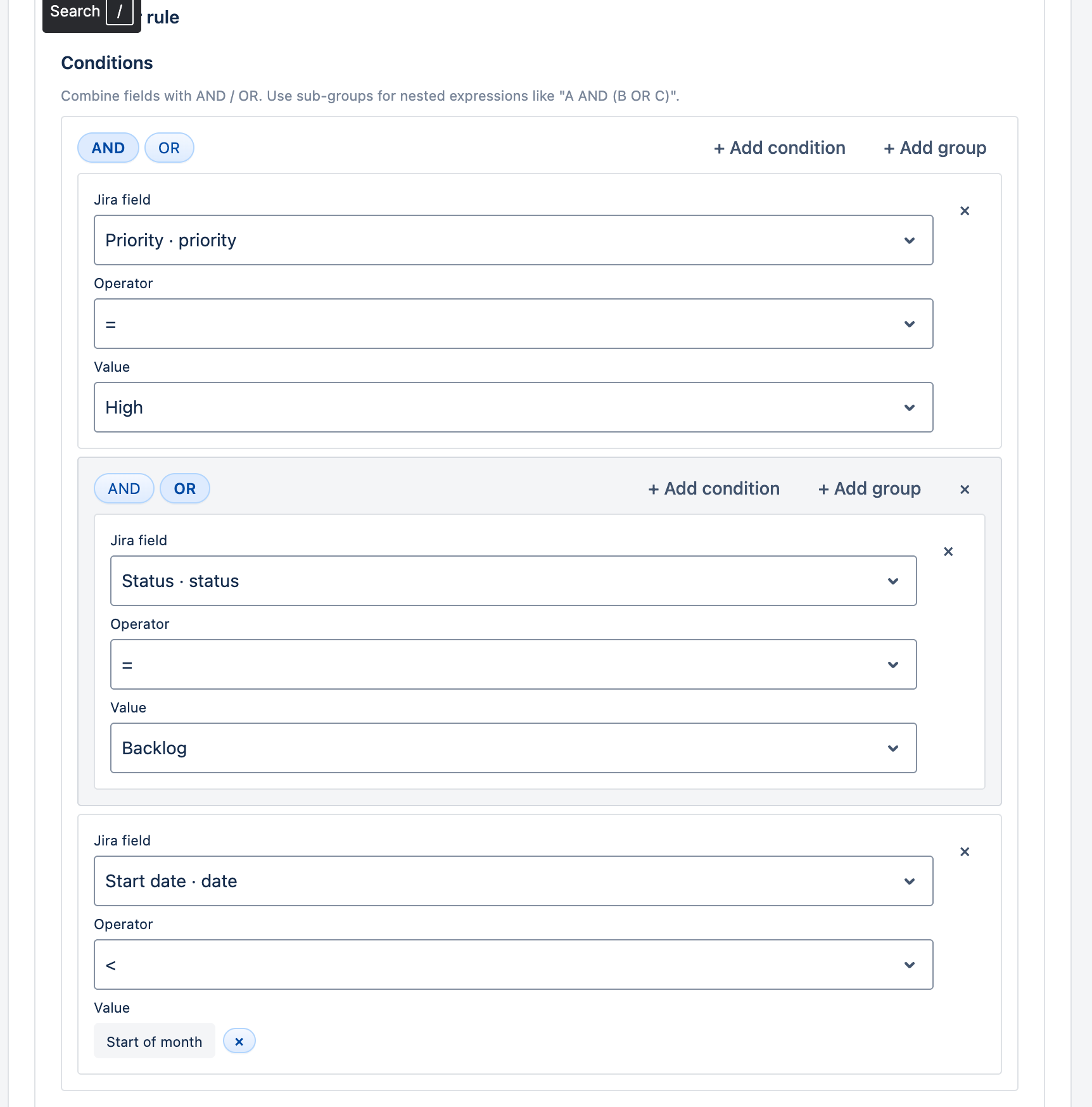
Click Add rule in the Rules section. The editor has a Conditions block at the top (with a root group seeded with one empty condition), followed by the rule's color and label. Fill in:
- Conditions — the rule's expression. Every condition lives inside a group;
the group's combinator (
ANDorOR) decides how its children combine. Each condition row has:- Jira field — the field whose value the condition checks. Only fields whose type WorkHub knows how to compare appear in the dropdown (see Supported Fields).
- Operator — how the field's value should match. Operators are narrowed to those that make sense for the chosen field type (see Operators).
- Value — what to compare against. For fields with a configured value list (select fields, priority, status, issue type, fix versions, components, resolution), WorkHub pulls the live options from Jira so you can pick from a dropdown or chip-style multi-select. Free-text and number fields use a plain text input. Date fields offer a literal date input plus a row of function chips (Today, Start of month, …) and relative-date expressions like
+7d. User fields get a Current user chip. Nullary operators (is empty,is not empty) hide this section.
- Color — pick a swatch from the 14-color palette or type a custom
#RRGGBBhex. - Label (optional) — a short human-readable name for the rule. Shows up in the Rules list and in the issue bar tooltip ("Color: rule 'Critical work'") so colleagues can see why a bar is painted a given color.
- Preview — a live sample bar showing exactly how an issue will look with the chosen color and label.
Combining Conditions (AND / OR) Back to top
Conditions inside a rule combine via the group's AND / OR toggle. Across rules, the first matching rule wins.
- AND — every condition must match. Use this when an issue should be painted only when it meets every criterion in the group.
- OR — any condition can match. Use this when any one of the conditions is enough to apply the rule (e.g. "Priority = Highest OR Priority = High").
- Mix both with sub-groups. A group's combinator applies only to its direct children. Add a nested group with a different combinator for expressions like A AND (B OR C). See Sub-groups & Precedence.
- First match wins across rules. Two rules with the same color act like a top-level OR — either matching rule paints the bar the same color. Useful when you want different chip labels for different match reasons.
To paint a bar red when an issue is both highest-priority and overdue: one rule with an AND group containing Priority = Highest AND Due date < today().
To paint a bar red when an issue is high-priority or tagged security: one rule with an OR group containing Priority = Highest OR Labels contains security. Either match paints the bar red.
Sub-groups & Precedence Back to top
A sub-group is a nested group inside another group. It lets you mix AND and OR in the same rule without writing two rules. Click + Add group at any level to start a sub-group; it picks the opposite combinator from its parent by default so the most interesting case (A AND (B OR C)) needs no extra clicks.
- A sub-group evaluates to a single boolean — the result is then combined with the rest of its parent group's children via the parent's combinator.
- Visual indentation: nested groups are inset and have a blue left-border accent so the scope is obvious at a glance. Each additional level adds another indent step.
- In the rule-list summary, sub-groups are parenthesised so precedence is
unambiguous — e.g.
Fix versions is not empty AND (Status = To Do OR Status = Backlog). - Depth cap: up to 5 levels deep. The + Add group button is disabled at the cap so you can't save a tree the backend would reject.
Paint my own highest-or-high-priority issues amber: a root
AND group with two children — Assignee = currentUser() and a nested OR sub-group
containing Priority = Highest OR Priority = High. Reads as
Assignee = currentUser() AND (Priority = Highest OR Priority = High).
Function Values & Relative Dates Back to top
For user fields and date / date-time fields, the value picker offers a row of function chips alongside the literal input. Function values are resolved at render time, so a rule using them stays correct without you re-saving it — today always means today, current user always means the viewer.
| Function | Available on | Resolves to |
|---|---|---|
currentUser() |
Assignee, Reporter, Creator | The viewer's Jira account ID — great for "my issues" rules. |
today() |
Date, Date-time | Start of the current calendar day in the viewer's local time. |
now() |
Date, Date-time | The current timestamp. On date-time fields, = uses a 60-second window so updated = now() isn't always false. |
startOfMonth() |
Date, Date-time | First day of the current month at 00:00. |
endOfMonth() |
Date, Date-time | Last day of the current month at 23:59:59. |
startOfYear() |
Date, Date-time | January 1st of the current year at 00:00. |
endOfYear() |
Date, Date-time | December 31st of the current year at 23:59:59. |
Relative date expressions
On date and date-time fields, type a relative offset into the value input to compare against
today's date shifted by that amount. The syntax is ([+-])(\d+)([yMdhm]):
+7d— one week from today-1M— one month ago+1y— one year from today-30d— 30 days ago
Combine with comparators for rolling windows: Due date > today() AND Due date < +14d
paints anything due in the next two weeks.
Supported Fields Back to top
The field picker filters Jira's full field list down to types WorkHub can match against. Each row
shows the type alongside the field name (e.g., Jira Space · option).
| Field Family | Value Picker | Allowed Operators |
|---|---|---|
| Priority / Status / Issue type / Resolution | Dropdown (single) / chips (multi) | =, !=, in, not in, is empty, is not empty |
| Fix versions / Components | Multi-select chips | in, not in, is empty, is not empty |
| Labels | Text input (comma-separated for in) |
contains, not contains, in, not in, is empty, is not empty |
| Project | Text input (project key, e.g. DESIGN; comma-separated for in) |
=, !=, in, not in, is empty, is not empty |
| Single-select custom field | Dropdown / chips | =, !=, in, not in, is empty, is not empty |
| Multi-select custom field | Multi-select chips | in, not in, is empty, is not empty |
| Text custom field | Text input | =, !=, contains, not contains, is empty, is not empty |
| Number custom field | Number input | =, !=, <, <=, >, >=, is empty, is not empty |
| Date / Date-time custom field | Literal date, function chip, or relative expr | =, !=, <, <=, >, >=, is empty, is not empty |
| Assignee / Reporter / Creator (user fields) | currentUser() chip |
=, !=, is empty, is not empty |
| Sprint, Group, Cascading, Single-named, multi-user custom fields | — (no value needed) | is empty, is not empty |
Operators Back to top
| Operator | Meaning |
|---|---|
= |
The field's value exactly matches the rule's value. On date-time fields, = uses a 60-second window so timestamps don't fail by milliseconds. |
!= |
The field's value does not equal the rule's value. |
< / <= / > / >= |
Comparators. Available on number and date / date-time fields only. Pair with today() or a relative expression for "overdue" / "due today" / "due this month" patterns. |
in |
The field's value (or any element of a multi-value field) is in the rule's selected list. For free-text fields, type comma-separated values. |
not in |
The field's value is not in the rule's selected list. |
contains |
The field's value contains the rule's text as a substring (case-insensitive). Useful for labels and free-text fields. |
not contains |
The field's value does not contain the rule's text. Useful to flag the inverse of a labels/free-text filter. |
is empty |
The field has no value on this issue (null, blank string, or empty array). Available on every supported field type — great for "color unassigned issues" or "no fix version set" rules. |
is not empty |
The field has any value. The inverse of is empty — useful when paired with another condition in an AND group. |
is before today,
is today, is after today. The same effect is now built from comparators
plus the today() function value — e.g. Due date < today(),
Due date = today(), Due date > today(). The expression-style form is more
flexible (supports any date offset, like > +7d for "more than a week out").
Explain Colors on the Scheduler Back to top
Anyone — not just admins — can ask the Scheduler why an issue bar is painted a given color. Click the palette icon () in the Scheduler's header row. The same button appears in My Work, since My Work embeds the Scheduler.
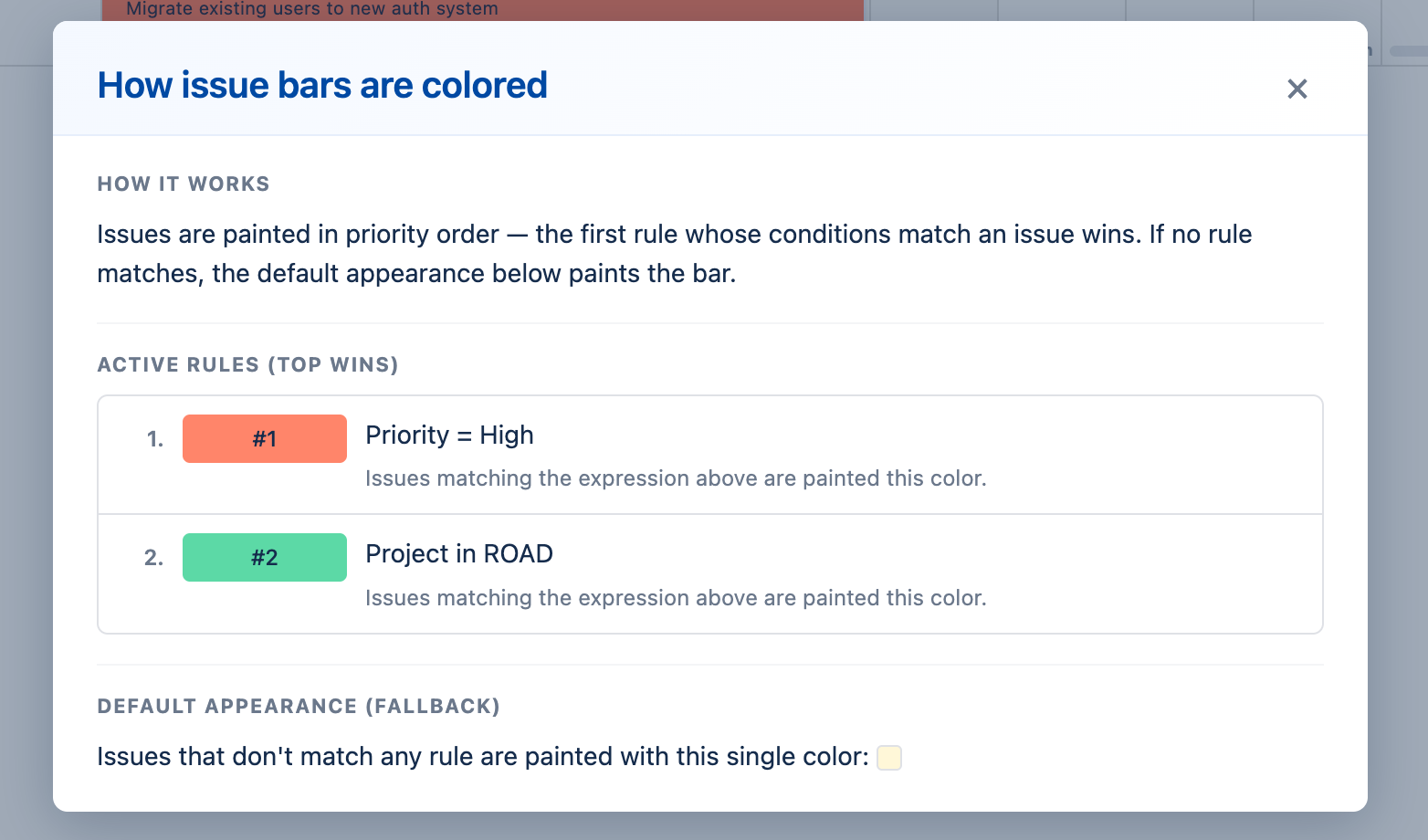
The dialog has three sections:
- How it works — a short reminder that issues are painted in priority order (first rule wins) and the default appearance paints the rest.
- Active rules (top wins) — every saved rule, in priority order, with its
color chip, label (or the auto-generated
#1,#2…), and the full expression in human-readable form. Nested sub-groups are parenthesised. If you have no rules configured, an empty-state note points you at Settings → Issue Display. - Default appearance (fallback) — the swatch (or three swatches, for status-category mode) that paints issues which don't match any rule.
The dialog reads rules directly from the same source the Scheduler uses to paint bars, so the list you see is exactly what's being applied. Jira field IDs in expressions are resolved to their display names automatically.
Reorder, Edit, Delete Back to top
Each row in the Rules list has a drag handle on the left and Edit / Delete buttons on the right.
- Reorder — click and drag the
⋮⋮handle on a rule to move it up or down. The new order is saved immediately and takes effect on the next Scheduler refresh. - Edit — opens the rule editor pre-filled with the existing values. Save to apply changes; Cancel to discard.
- Delete — removes the rule after a confirmation dialog. Any issues that were being painted by this rule revert to the next matching rule (or the default appearance) on next refresh.
Examples Back to top
A few rule recipes that map common planning questions to color rules:
Highlight overdue work
Rule: Due date < today() → red · label "Overdue". Any
issue whose due date has passed lights up red on the scheduler.
Highlight work due today
Rule: Due date = today() → orange · label "Due today".
Anything with today's date in that field jumps out at standups.
Paint "my urgent work" for every viewer
Rule with a sub-group: Assignee = currentUser() AND (Priority = Highest OR Priority = High)
→ amber. Because currentUser() resolves per viewer, each user sees
their own urgent issues highlighted — same rule, personalized result.
Color-code by project
Create one rule per project (or one rule with Project in DESIGN, PORTAL, ROAD): each
gets its own color. Easiest way to tell apart bars from different streams in a shared timeline.
Surface a release window
Rule: Due date > today() AND Due date < +14d → blue. Paints
everything due in the next two weeks. Combine relative-date offsets with comparators for any
rolling window.
Flag stalled backlog items
Rule: Fix versions is not empty AND (Status = To Do OR Status = Backlog) AND Approvers is empty
→ orange. A nested OR group lets you target multiple statuses without writing
two rules.
Spot unassigned work
Rule: Assignee is empty → grey. Useful for triage meetings —
instantly see which issues still need an owner.
Stand out the next release
Rule: Fix versions in v3.2.0, v3.2.1-hotfix → orange. Use the
chip-style multi-select to add any number of versions to the same rule.
Highlight bugs across the team
Rule: Issue Type = Bug → red. Bug bars stand out among feature work.
Permissions Back to top
- Viewing colors on the Scheduler — every WorkHub user. Rules are global; everyone sees the same colors.
- Reading the Issue Display Settings tab — WorkHub app admins and Jira site admins only.
- Creating, editing, deleting, or reordering rules — same as above. Non-admins never see the tab in the sidebar.
- Changing the default appearance — admin only.
See Permissions & Access for how app admin status is granted.
Need help?
If you have questions about Issue Colors or want help building a rule that matches a tricky field setup, our support team is here to help.
Contact Support