Overview Back to top
The Admin Settings page is accessible only to Jira administrators. It provides configuration tabs that control how the calendar app behaves across your entire Jira instance: Calendar Configuration, Global Permissions, and Service Management Portal.
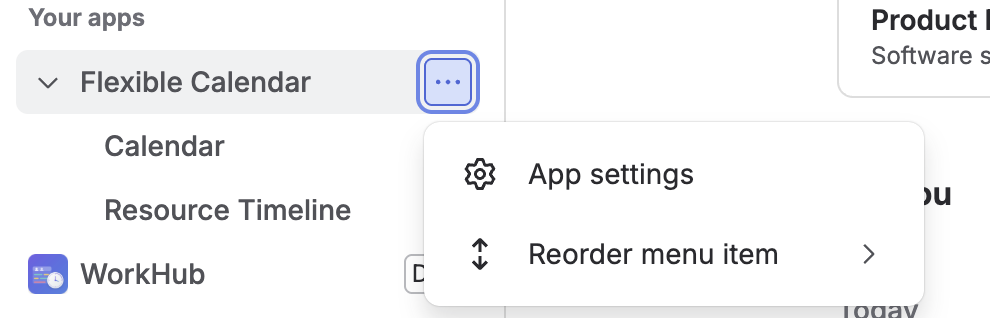
To open Admin Settings, expand Apps in the left Jira sidebar, hover over Flexible Calendar, click the … (more actions) button and select App settings.
Calendar Configuration Back to top
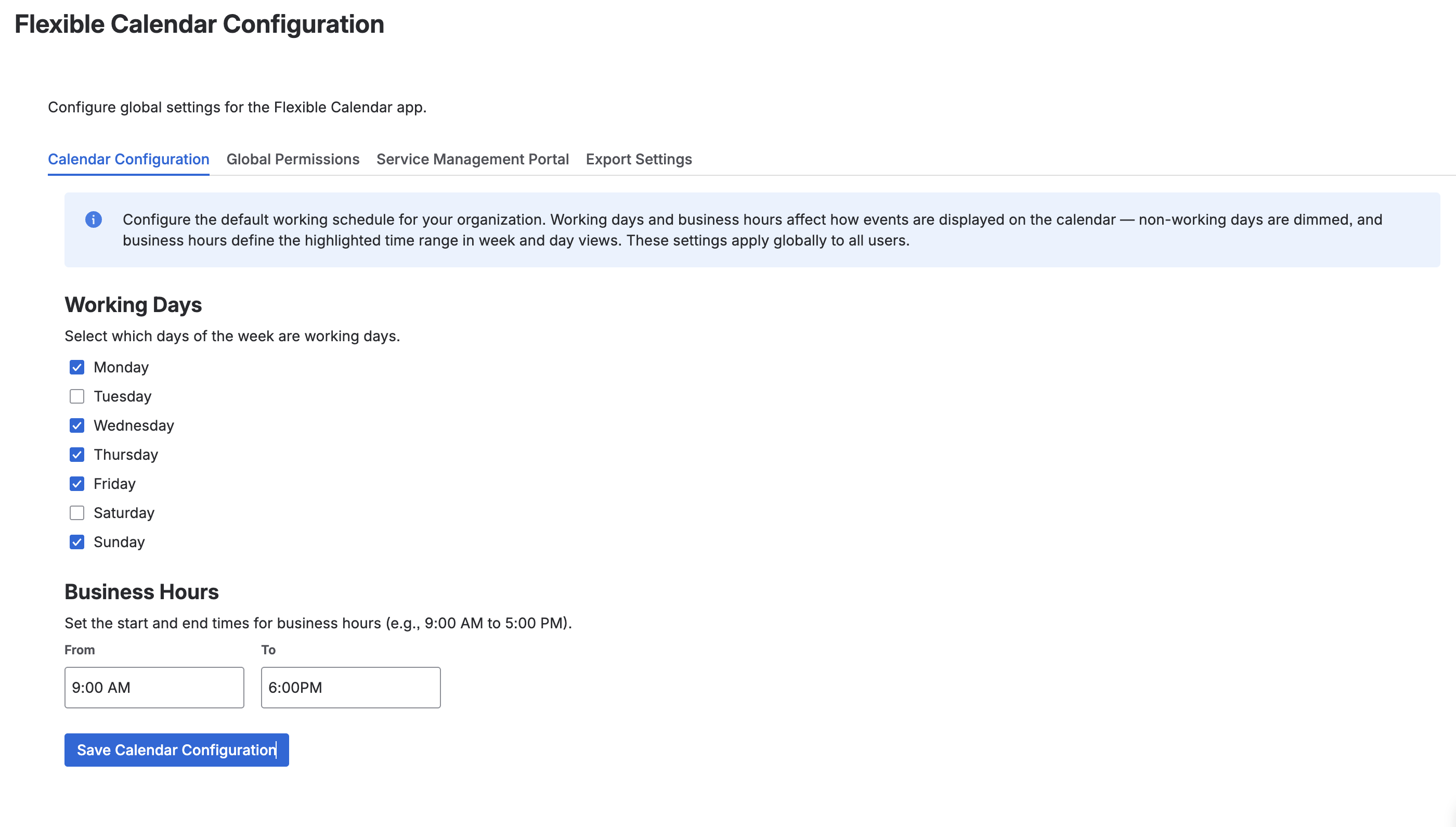
The Calendar Configuration tab controls the default display settings for all calendars in your Jira instance. These settings affect how the calendar grid renders working and non-working time.
Working Days
Select which days of the week are considered working days using the checkboxes for Monday through Sunday. By default, Monday through Friday are selected. Non-working days appear with a shaded background on the calendar grid, making it easy to distinguish weekends or custom rest days from active workdays.
First Day of Week
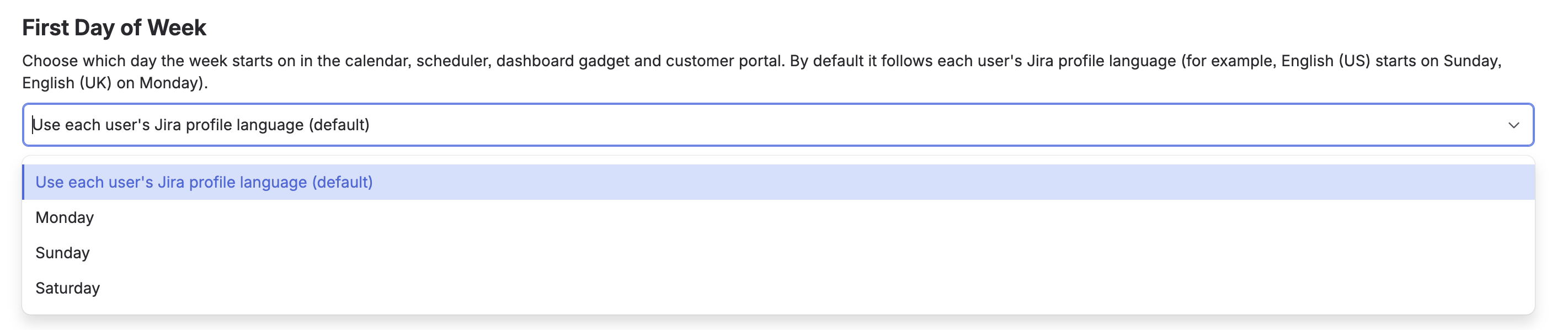
Choose which day the week starts on. The setting applies to the calendar (month and week views), the Resource Timeline, the dashboard gadget, the customer portal calendar and every date picker in the app.
- Use each user's Jira profile language (default) — each user sees the week start that matches their Jira language. For example, English (US) starts the week on Sunday and English (UK) on Monday.
- Monday, Sunday or Saturday — the same first day for every user, regardless of their language.
Business Hours
Set the start and end time for your organization's business hours. The default is 9:00 AM to 6:00 PM. In the week and day views, hours outside the configured business hours range are displayed with a subtle background tint so users can quickly identify core working hours at a glance.
Global Permissions Back to top
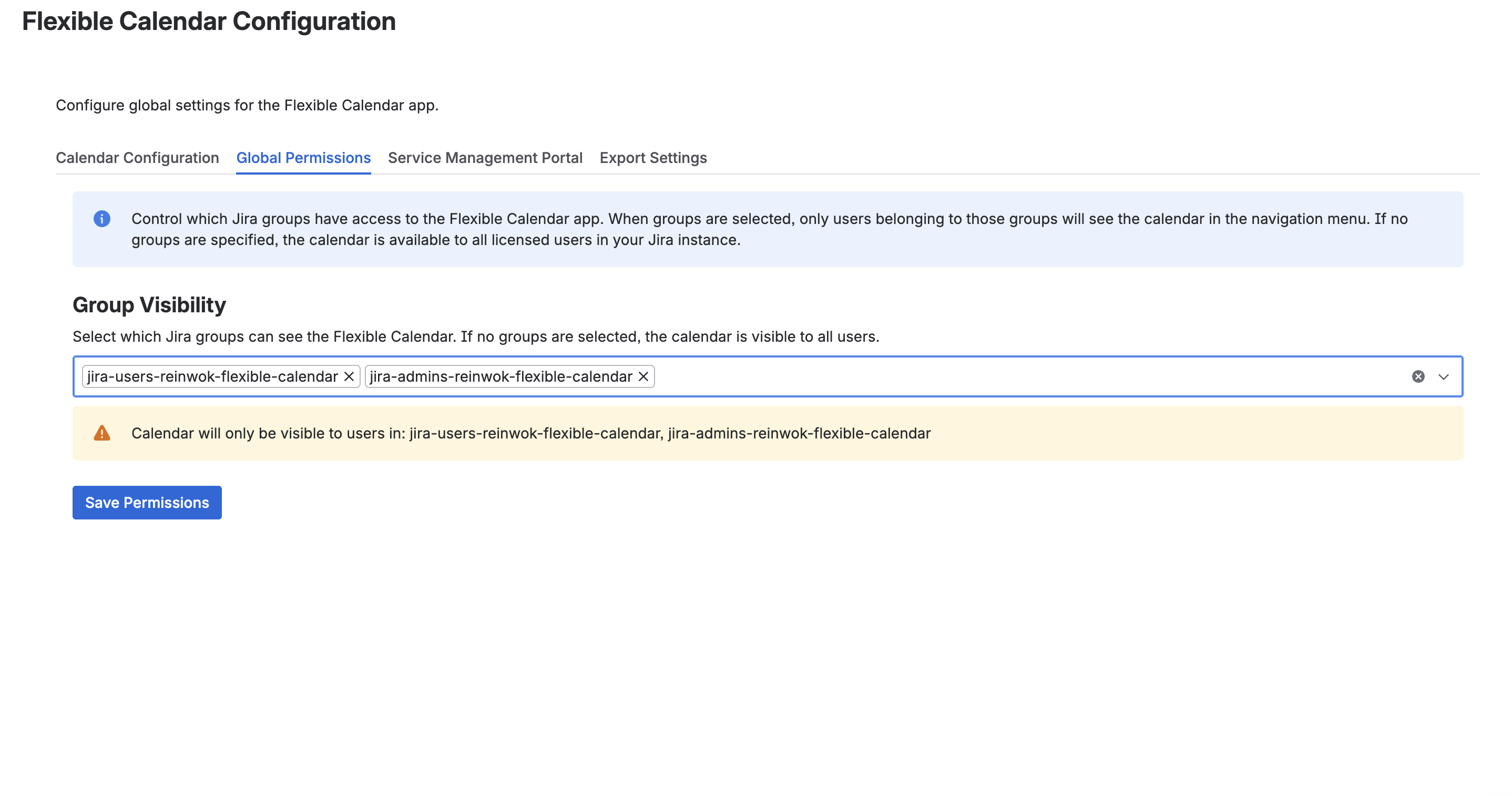
The Global Permissions tab controls which users can access the Calendar for Jira app and who can create new calendars and timelines. Use it to restrict the app to specific teams or departments. Click Save Permissions to apply changes.
Group Visibility
Use the multi-select field to choose one or more Jira groups. Only members of the selected groups will be able to see and use the calendar app. If the field is left empty, all users in the Jira instance have access to the calendar.
Calendar and Timeline Creation
Choose which Jira groups can create new calendars and timelines. If the field is left empty, all users can create them. Users outside the selected groups can still view and use the calendars and timelines they have access to.
This restriction applies to Jira administrators too — make sure the selected groups include everyone who should be able to create calendars and timelines.
Service Management Portal Back to top
The Service Management Portal tab controls where calendars appear on your Jira Service Management customer portal.
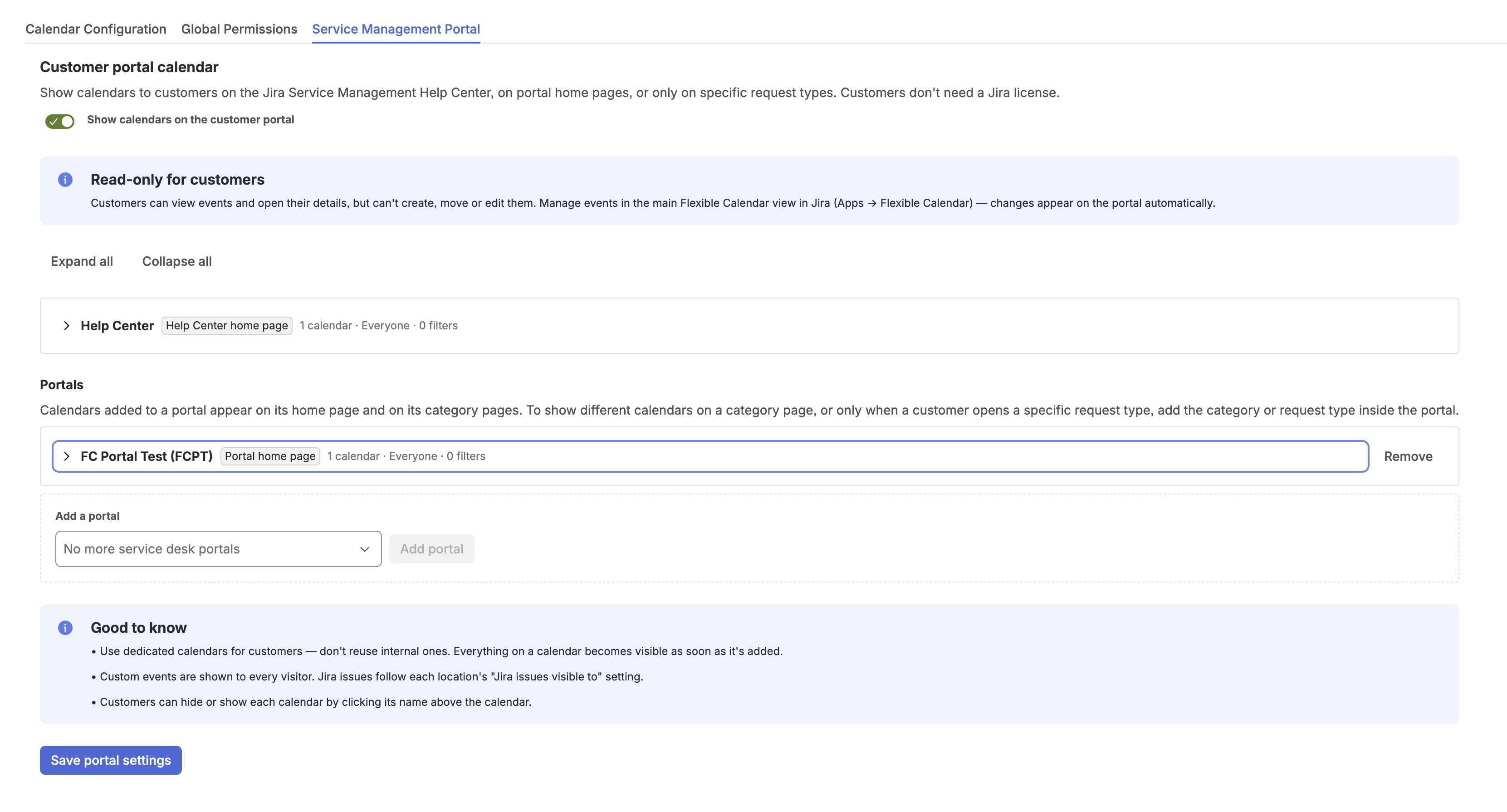
- Turn on Show calendars on the customer portal to enable the feature.
- Add the places where calendars should appear: the Help Center and portals. Inside a portal, the Portal home page, Categories and Request types blocks are all optional — fill in only the ones you need.
- For each place, choose the Calendars, who can see Jira issues (Jira work items visible to) and optional Customer filters.
- Each place is a collapsed row with a short summary; click it to expand, or use Expand all / Collapse all.
- Click Save portal settings to apply your changes.