Calendar Gadget Back to top
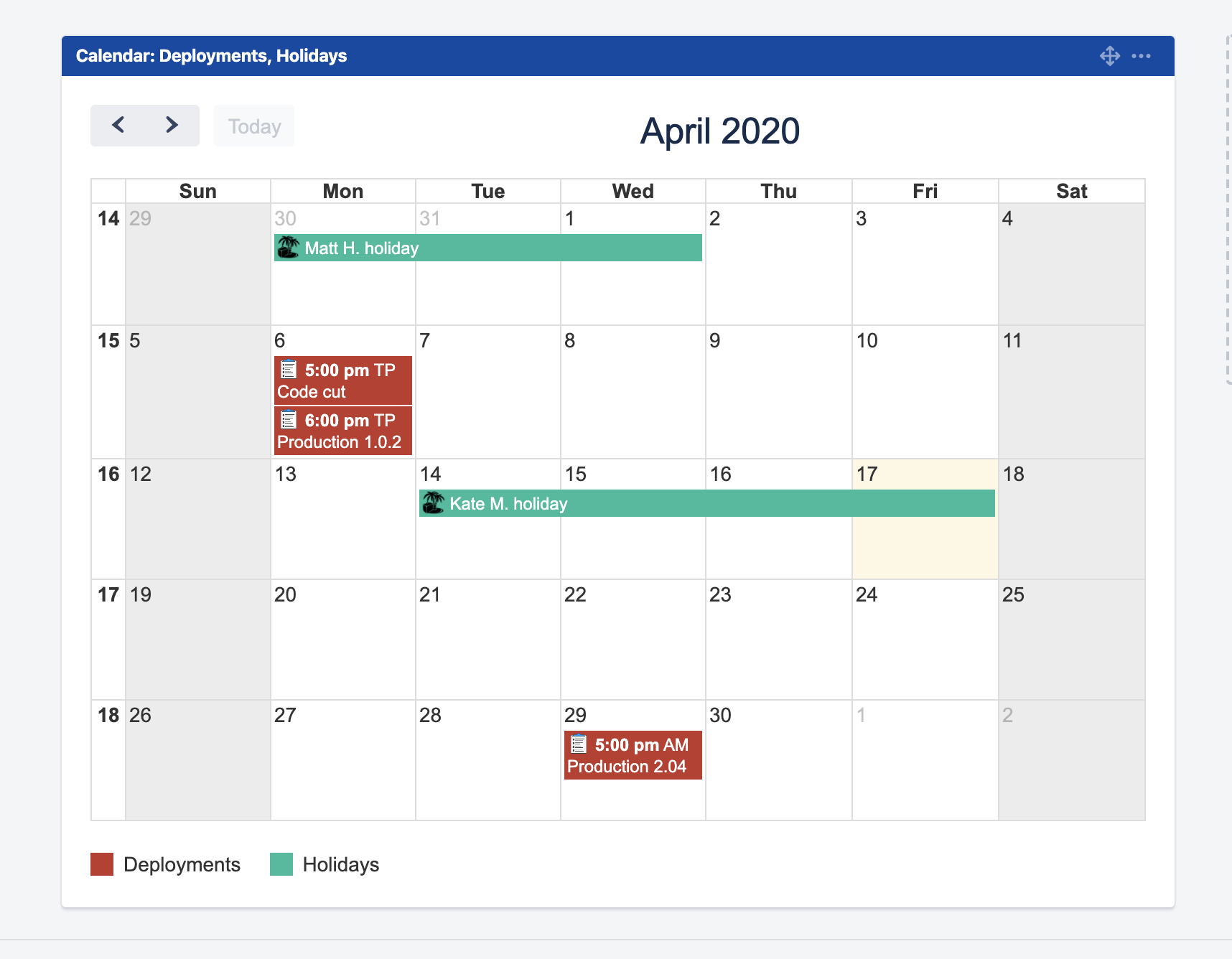
The Calendar Gadget lets you embed a calendar view directly on your Jira dashboard. Team members can see scheduled events and issues at a glance without navigating to the full calendar.


- Navigate to your Jira Dashboard and click "Add gadget".
- Load all gadgets and search for "Calendar for Jira".
- Select "Calendar for Jira Gadget" and add it to your dashboard.
- Configure the gadget — Click the three-dot menu on the gadget and select "Configuration".
-
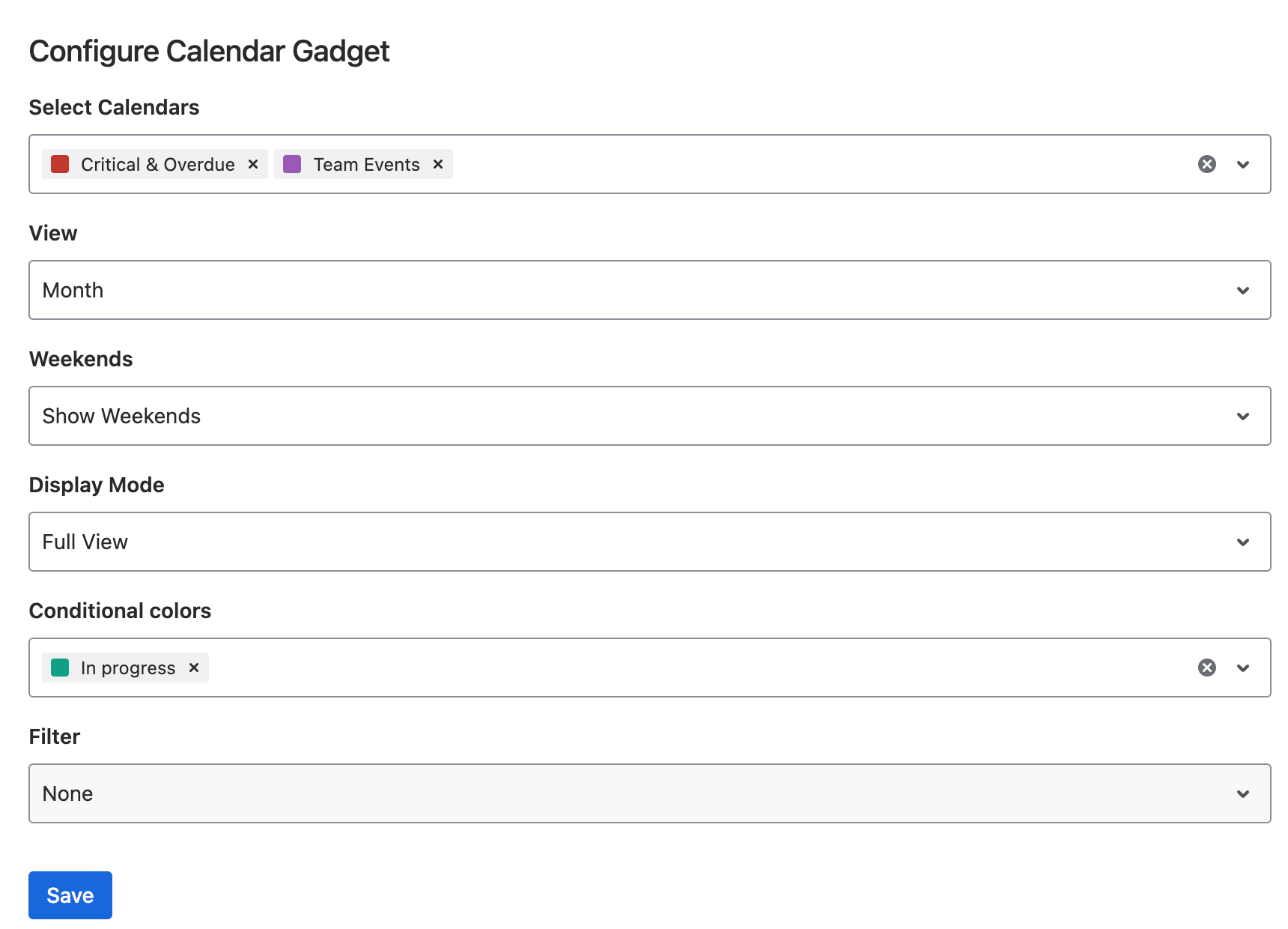
Set gadget options:
- Select Calendars: Select which calendars appear in the gadget
- View: Choose day, week, or month view
- Weekends: Show or hide weekends
- Display Mode: Choose how events are rendered in the gadget
- Conditional colors: Pick which color rules apply in this gadget instance — each gadget can use a different set. See Conditional Colors for how rules work.
- Filter: Choose None or one of the shared saved filters. The gadget then shows only the Jira issues that match it. Filters are created in the main calendar's filter panel and must be shared with everyone to appear here.
- Click Save to apply settings.
The gadget follows the saved filter: if its owner edits it later, the gadget updates automatically. If the filter is deleted or no longer shared, the gadget shows all issues again and the configuration marks the filter as not available.
Upcoming Events Gadget Back to top
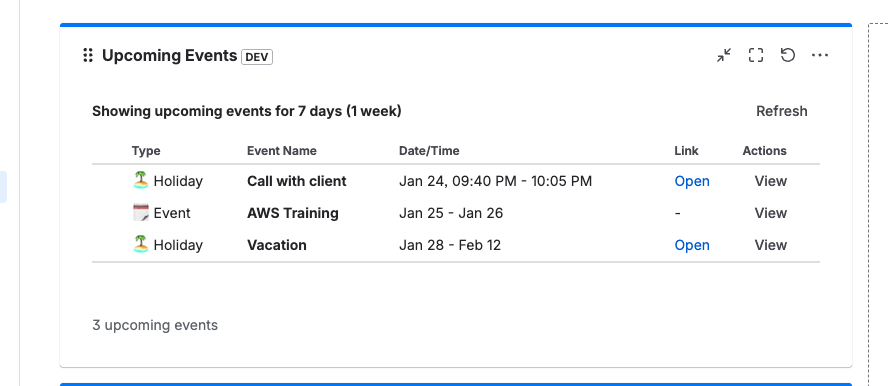
The Upcoming Events Gadget shows a chronological list of upcoming events from your selected calendars, making it easy to see what's coming next.
- Navigate to your Jira Dashboard and click "Add gadget".
- Search for "Upcoming Events" in the gadget list.
- Add the gadget to your dashboard.
-
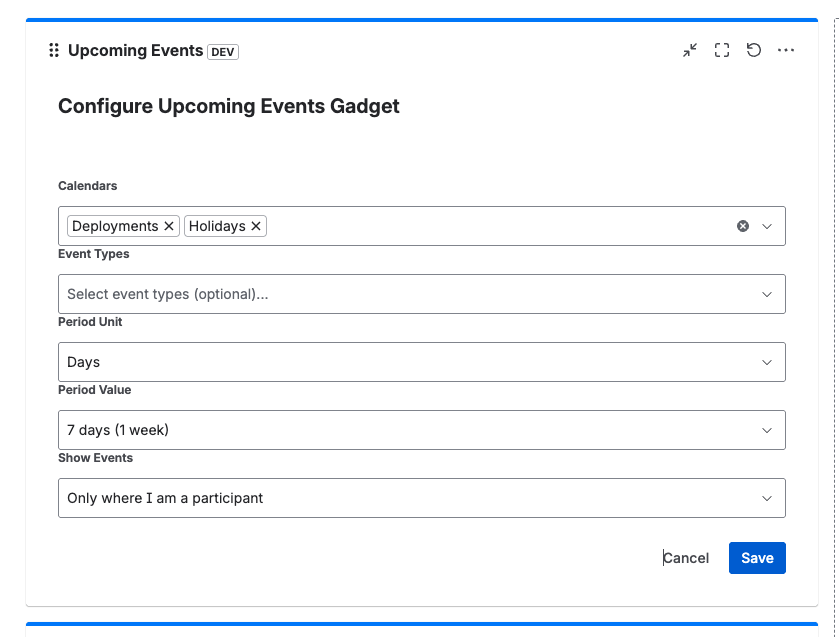
Configure the gadget settings:
- Select Calendars: Choose which calendars to pull events from
- Choose Event Types: Select which event types to display
- Set Period: Define the upcoming time range (days/weeks)
- Configure Show Events options: Customize which event details are visible
- Click Save to apply the configuration.
- View upcoming events — The gadget shows a chronological list of upcoming events.
- Click on any event to navigate directly to the event details.
Need Help?
If you have questions or need assistance with dashboard gadgets, our support team is here to help.
Contact Support