Overview Back to top
Show calendars on your Jira Service Management customer portal — for example maintenance windows, release dates or office closures. Customers see them right on the portal, without opening Jira or raising a request.
A calendar can appear in four places:
- Help Center — the start page that lists all your portals.
- Portal — the portal's home page and its category pages.
- Category — a group of request types, such as “Computers”, shown on the portal under Contact us about. A category's own calendars replace the portal's calendars on that category page. Categories without their own calendars show the portal's calendars.
- Request type — shown only on that request type's form and on requests of that type, not on the portal home page.
Which calendars a customer sees
| Page the customer opens | Calendars shown |
|---|---|
| Help Center | The Help Center calendars |
| Portal home page | The portal's calendars |
| Category page | The category's own calendars — or, if the category has none, the portal's calendars |
| Request form, or a request of that type | Only that request type's calendars — if the request type has none, no calendar is shown |
Example: you add an “IT maintenance” calendar to the IT portal only, without any categories or request types. Customers see it on the IT portal home page and on every category page of that portal — but not while filling in a request form or viewing a request. To show it there too, add the request types and pick the same calendar for them.
Set Up the Portal Calendar Back to top
This is done by a Jira administrator.
- Go to Jira settings → Apps → Flexible Calendar and open the Service Management Portal tab (see Admin Settings).
- Turn on Show calendars on the customer portal.
- Optionally pick calendars for the Help Center.
- Add a portal. Inside it you'll find three blocks — Portal home page, Categories and Request types. Fill in only the ones you need.
- Click Save portal settings.
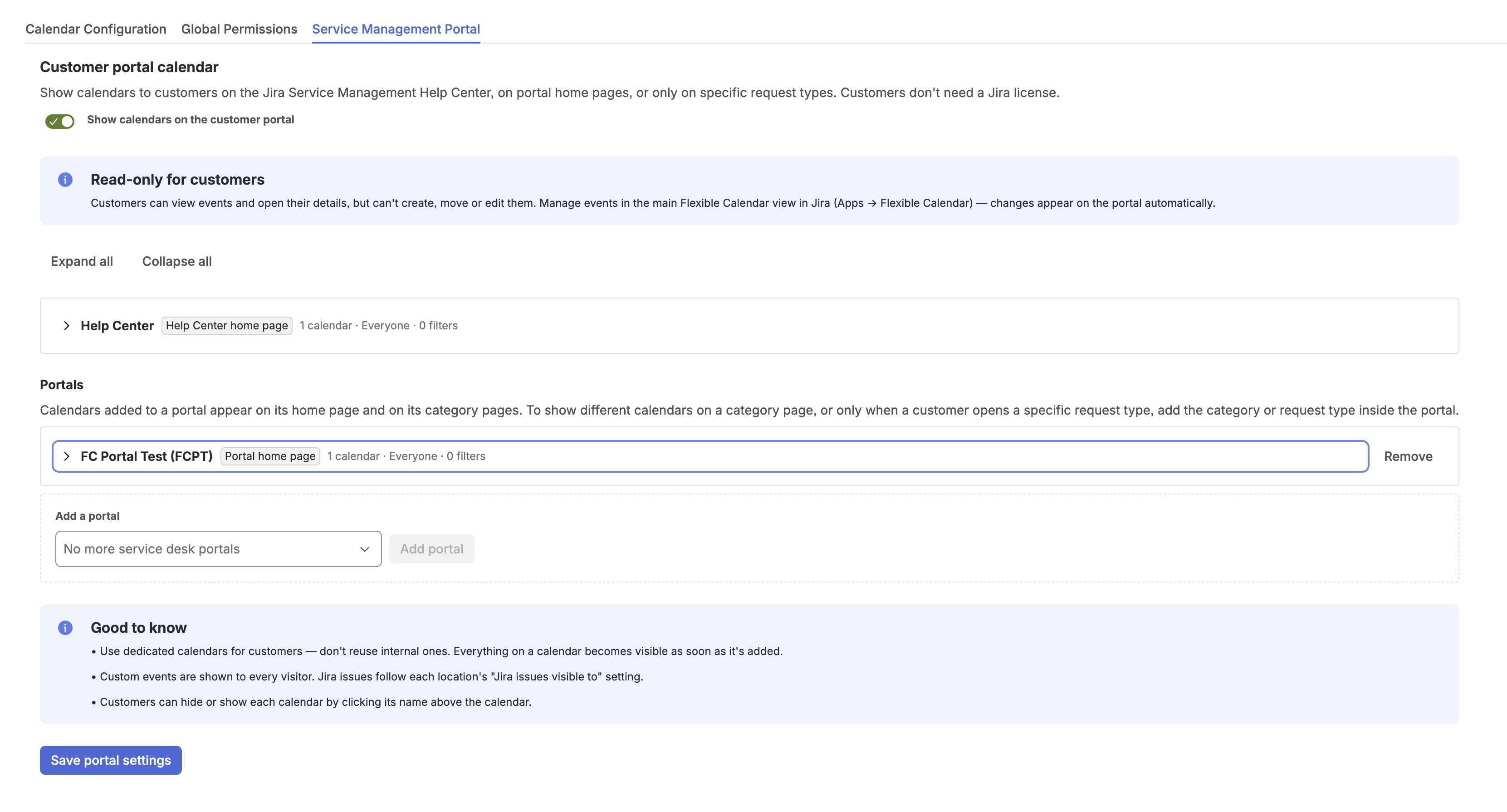
Each location is a collapsed row with a short summary — for example 1 calendar · Everyone · 1 filter — and a warning if something needs attention. Click a row to open it, or use Expand all / Collapse all. Remove deletes a location.
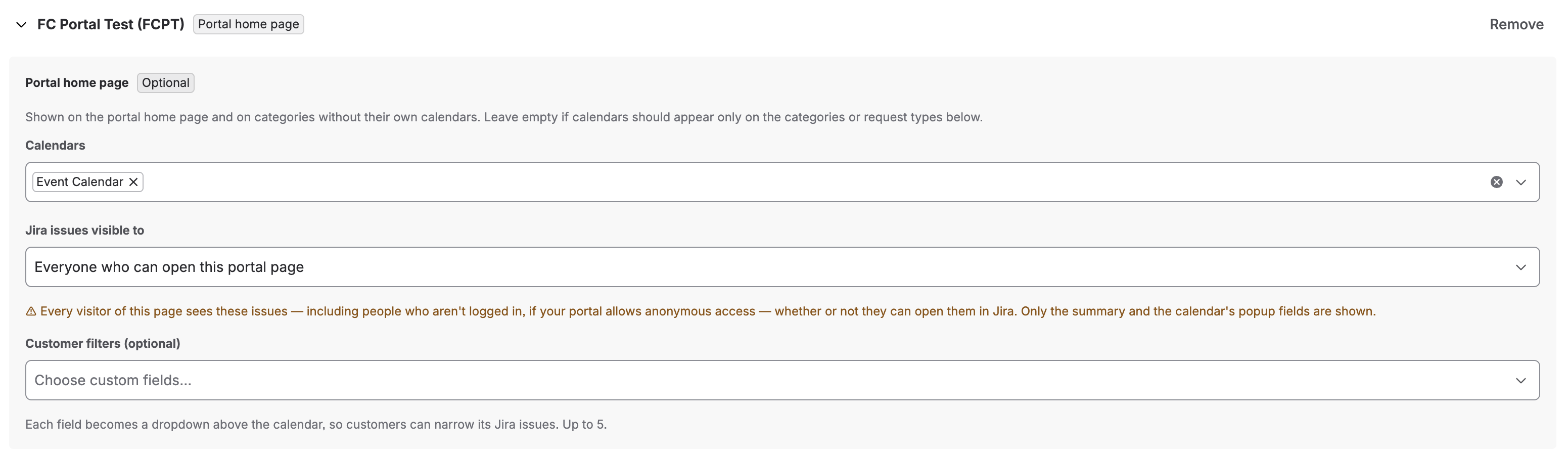
Portal home page (optional)
Calendars picked here appear on the portal home page and on every category page that has no calendars of its own. You can leave it empty — for example, to show a calendar only on one request type.
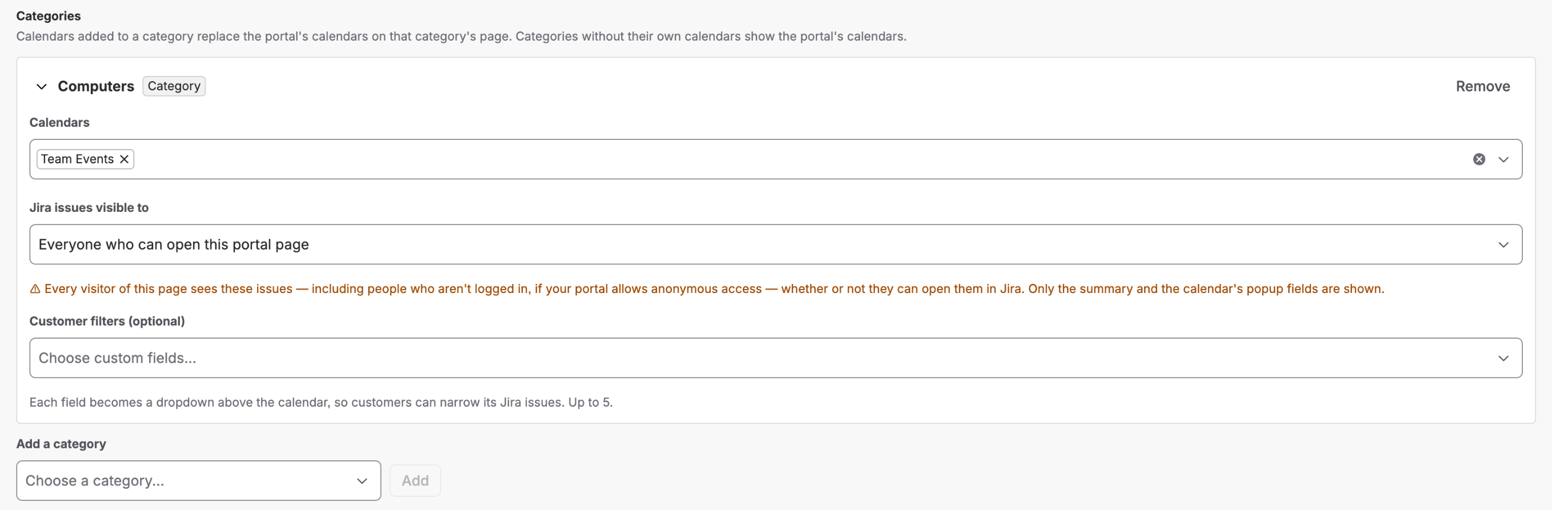
Categories
Show different calendars on a category page (a group of request types, such as “Computers”). A category's calendars replace the portal home page calendars on that page.
- Open the portal row and choose the category under Add a category.
- Click Add, then pick the calendars and settings for it.
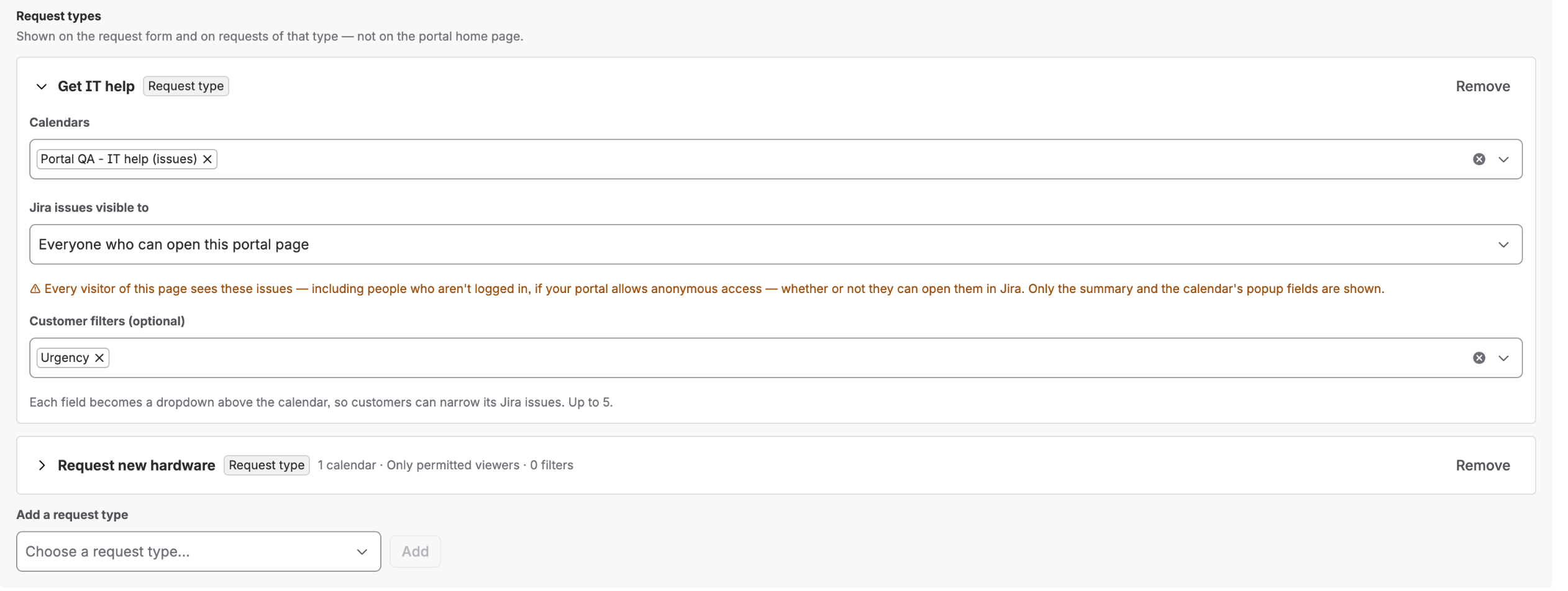
Request types
Show a calendar only to customers raising a specific kind of request — for example room availability on Book a meeting room, or planned outages on Report a system problem. It appears on that request type's form and on every request of that type.
- Open the portal row and choose the request type under Add a request type.
- Click Add, then pick the calendars and settings for it.
Settings for each location
- Calendars — the calendars shown at this location.
- Jira work items visible to
- Everyone who can open this portal page — every visitor sees the issues, including anonymous visitors if the portal allows it, even without access to the issues in Jira. Only the issue summary and the fields set up for the calendar's event popup are shown.
- Only viewers who can see the work item themselves — Jira permissions decide. Anonymous visitors see no issues.
- Customer filters (optional) — up to 5 custom fields with a list of options (for example a select list). Each one becomes a dropdown above the calendar that customers can use to narrow the Jira issues. Filters never hide custom events.
What Customers See Back to top
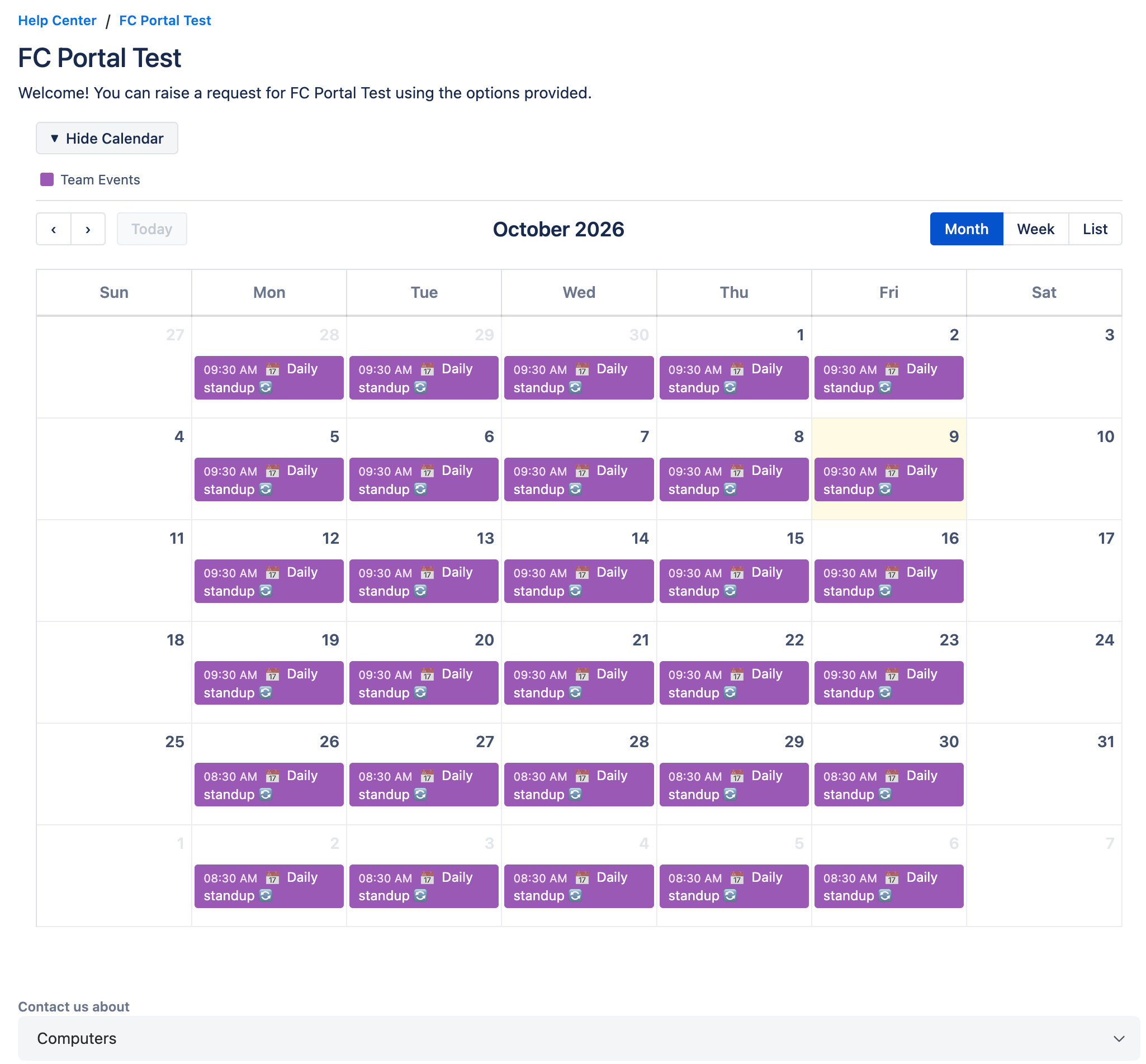
The calendar appears at the top of the portal page. Which calendars are shown depends on the page — see Which calendars a customer sees.
Portal home page

Category page
The category's own calendars — or the portal home page calendars, if the category has none.
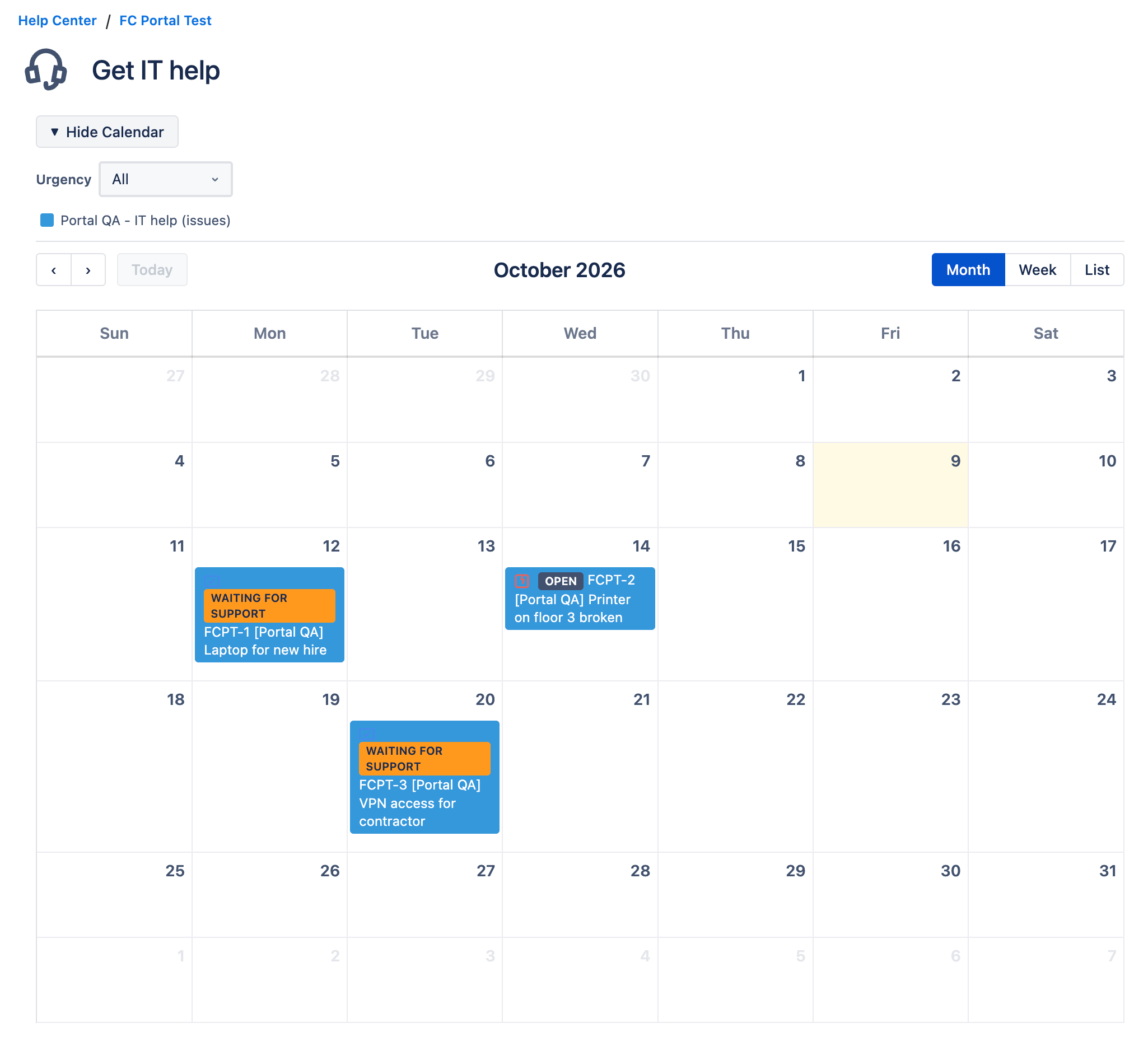
Request form
Only the calendars of that request type, shown on the request form and on requests of that type.
Using the calendar
- Browse — switch between Month, Week and List, and move between periods with the arrows.
- Hide a calendar — click a calendar's name in the legend to hide or show it. Hide Calendar collapses the whole calendar.
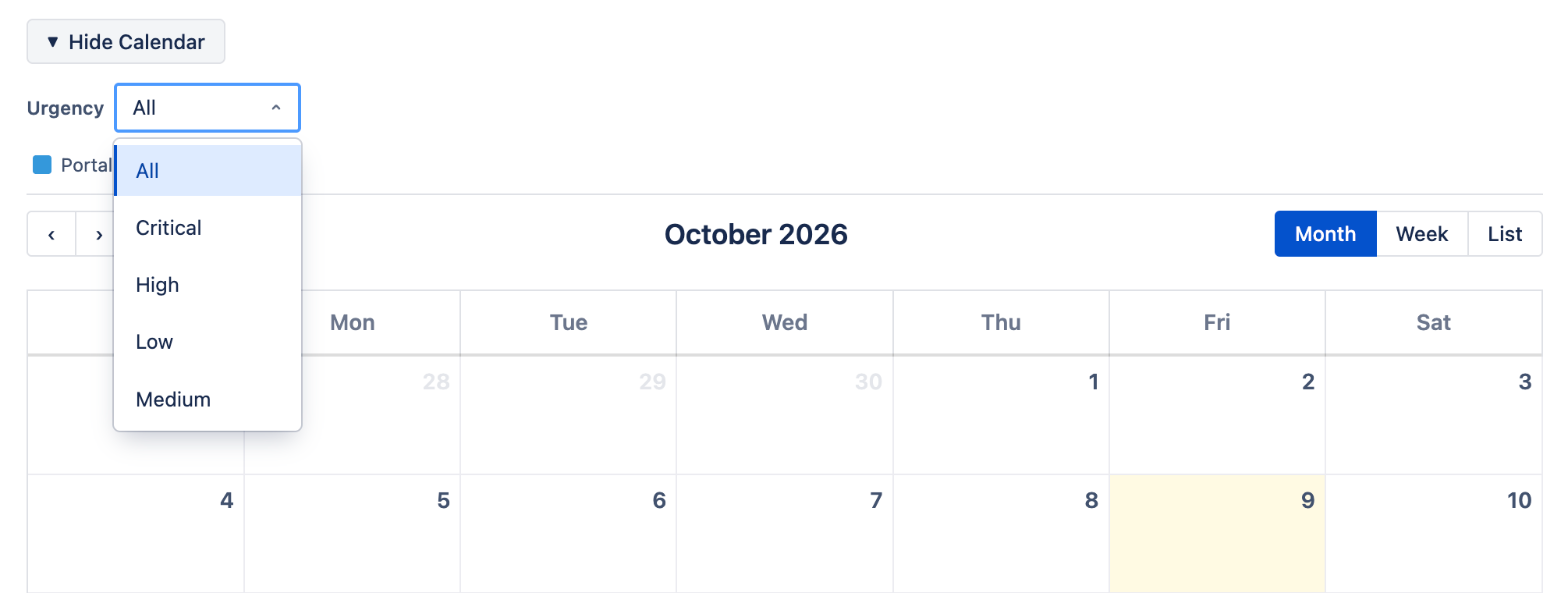
- Filter — if the admin added customer filters, pick All or one value in each dropdown to narrow the Jira issues.
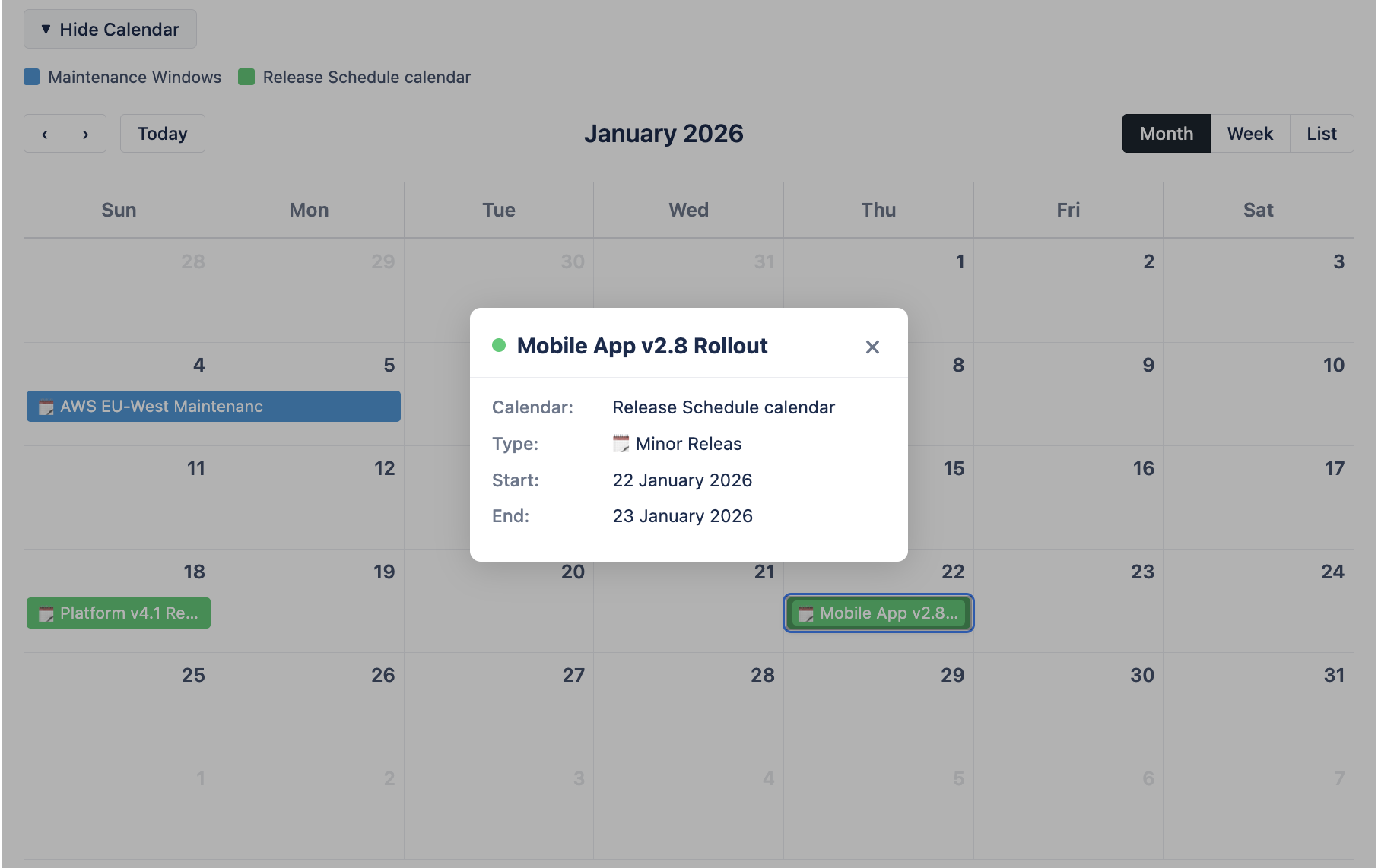
- Event details — click an event to see its details.
See Which Calendars Are on the Portal Back to top
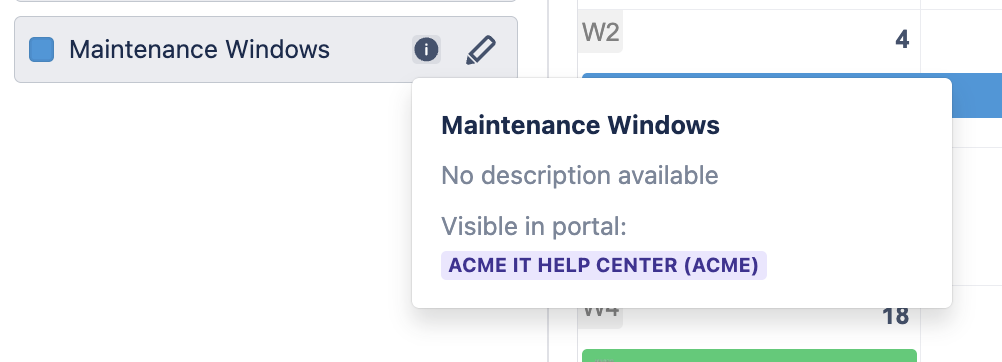
In the main calendar in Jira, hover over the info icon next to a calendar name to see where it is shown on the portal. This makes it easy to tell customer-facing calendars from internal ones.
Tips Back to top
- Use dedicated calendars for customers. Everything on a calendar becomes visible as soon as it is added to the portal.
- Custom events are shown to every visitor, including anonymous visitors if the portal allows it. Don't put internal or confidential events on portal calendars.
- Check who sees Jira issues — choose Only viewers who can see the work item themselves when issue summaries shouldn't be public.
- The feature requires Jira Service Management.
Need Help?
If you have questions or need assistance with the JSM Portal Calendar, our support team is here to help.
Contact Support