Permissions Back to top
Each calendar and timeline has its own permission settings. You can control who can view, edit, and manage your calendars and timelines by assigning permission levels to users and groups.
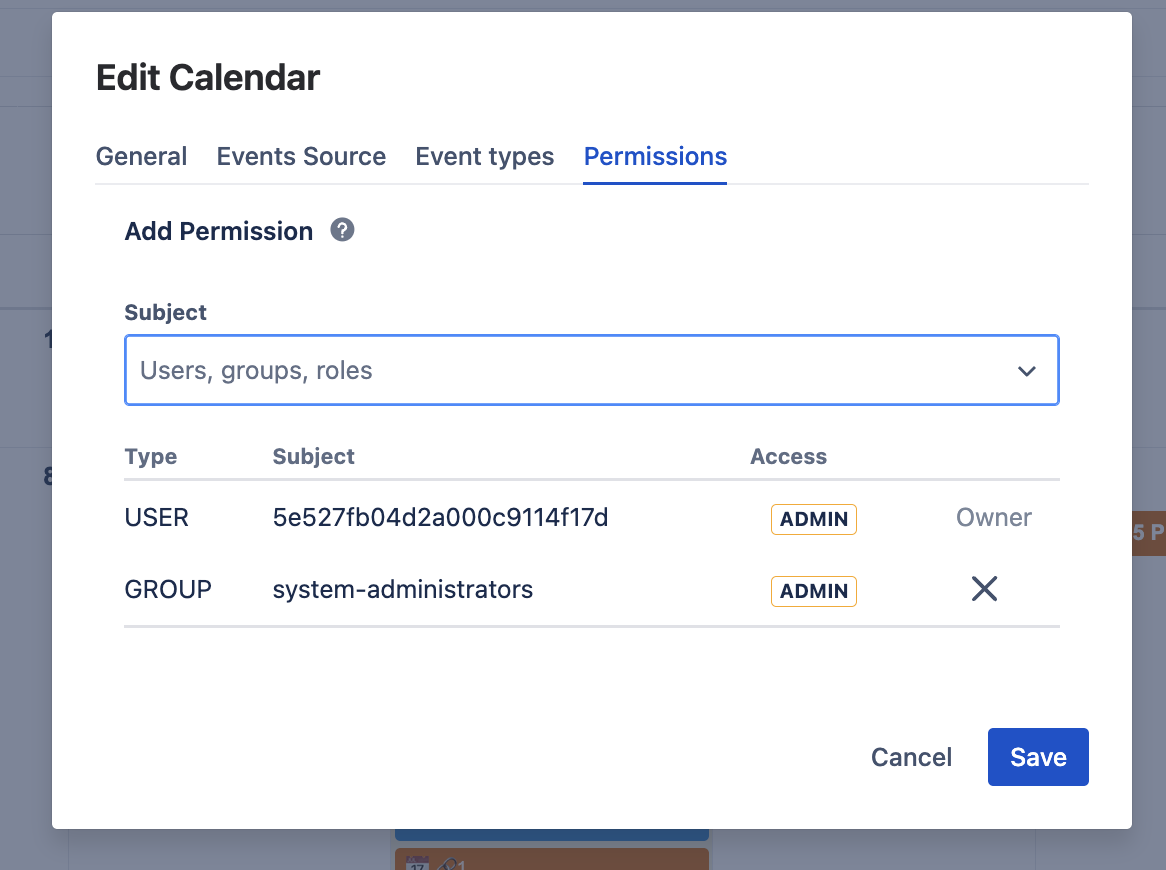
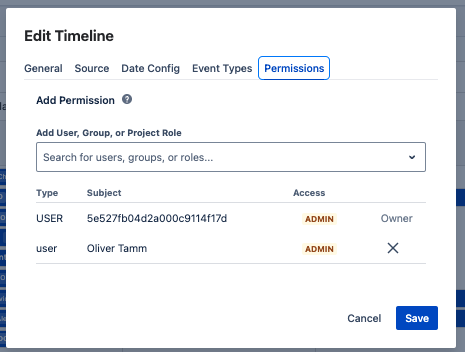
- Click the three dots next to the calendar or timeline name you want to configure.
- Select "Edit" to open settings, then navigate to the Permissions tab.
- Add users or groups — Search and select the users or Jira groups you want to grant access to.
- Assign permission levels to each user or group:
| Permission Level | What Users Can Do |
|---|---|
| Admin | Full access: edit settings, manage event types, manage permissions, create/edit/delete events, delete the calendar or timeline |
| Use | Create, edit, move, and delete events. Cannot modify settings, event types, or permissions |
| Read Only | View only. Cannot create, edit, delete, or move any events or issues |
- Click Save to apply the permissions.
Note: Only users covered by a permission entry (directly, through a group or through a project role) can see a calendar or timeline. Users who are not included in any permission entry cannot see it at all. The creator of a calendar or timeline always has Admin access. To control who can access the app at all, or who can create calendars and timelines, see Global Permissions.
Need Help?
If you have questions or need assistance, our support team is here to help.
Contact Support