Filter Panel Back to top
Click Filter in the calendar header (or in the Resource Timeline) to open the filter panel. A badge on the button shows how many filters are active. The same filters apply to the calendar and the timeline, and your browser remembers them for next time.
- Filter button — applies to the whole view: every calendar (or timeline) you see is narrowed at once.
- Quick filters — belong to one calendar (or timeline) and only narrow that calendar's issues. Other calendars are not affected. See Quick Filters.
Basic tab
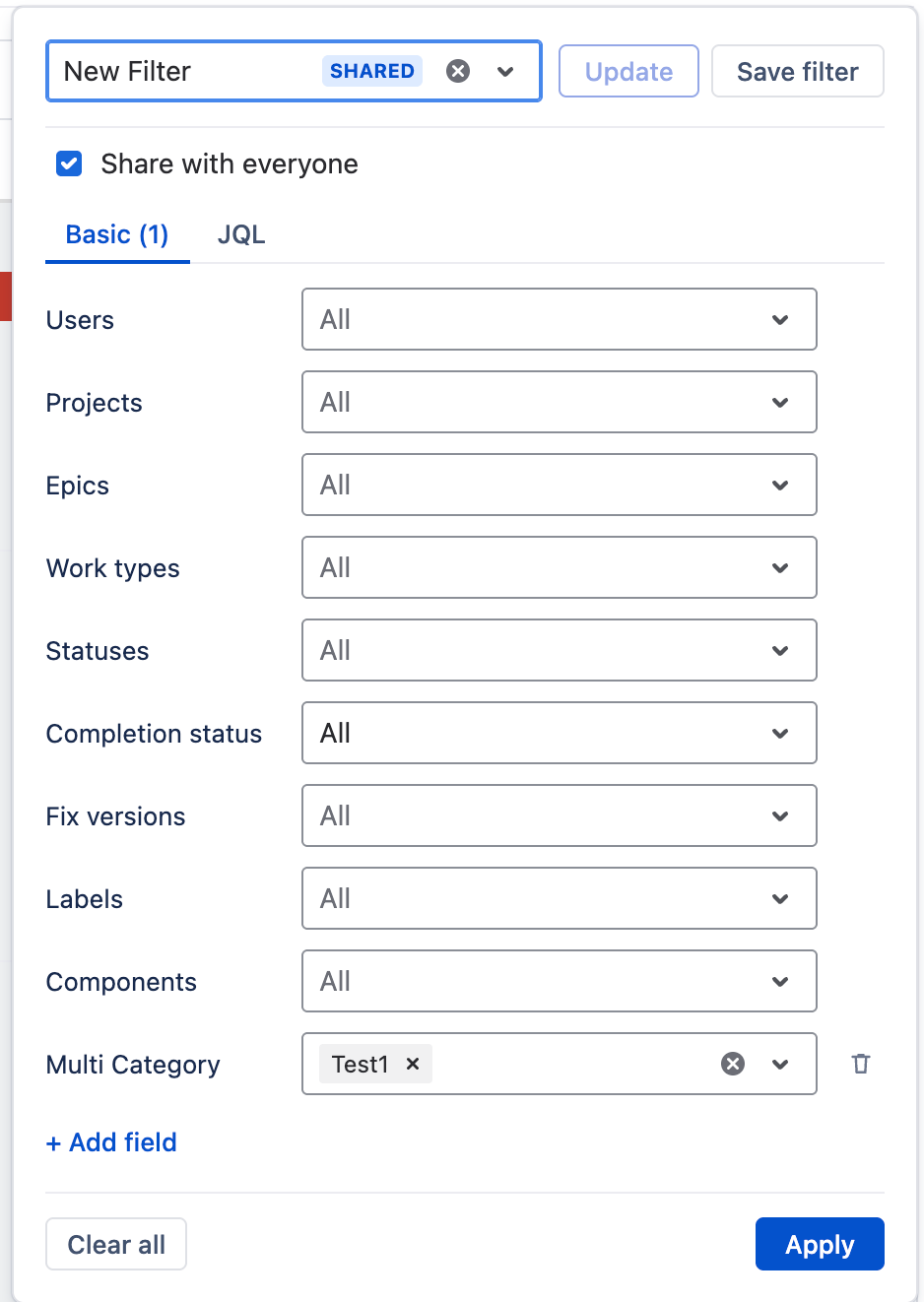
- Filter by Users, Projects, Epics, Work types, Statuses, Completion status (all, complete or incomplete), Fix versions, Labels and Components.
- Click + Add field to filter by a custom field with a list of options, such as a select list.
- Several values in one field show issues that match any of them. Different fields combine: an issue must match all of them.
- Users also filters custom events by participant (you can turn this off). All other fields only affect Jira issues.
JQL tab
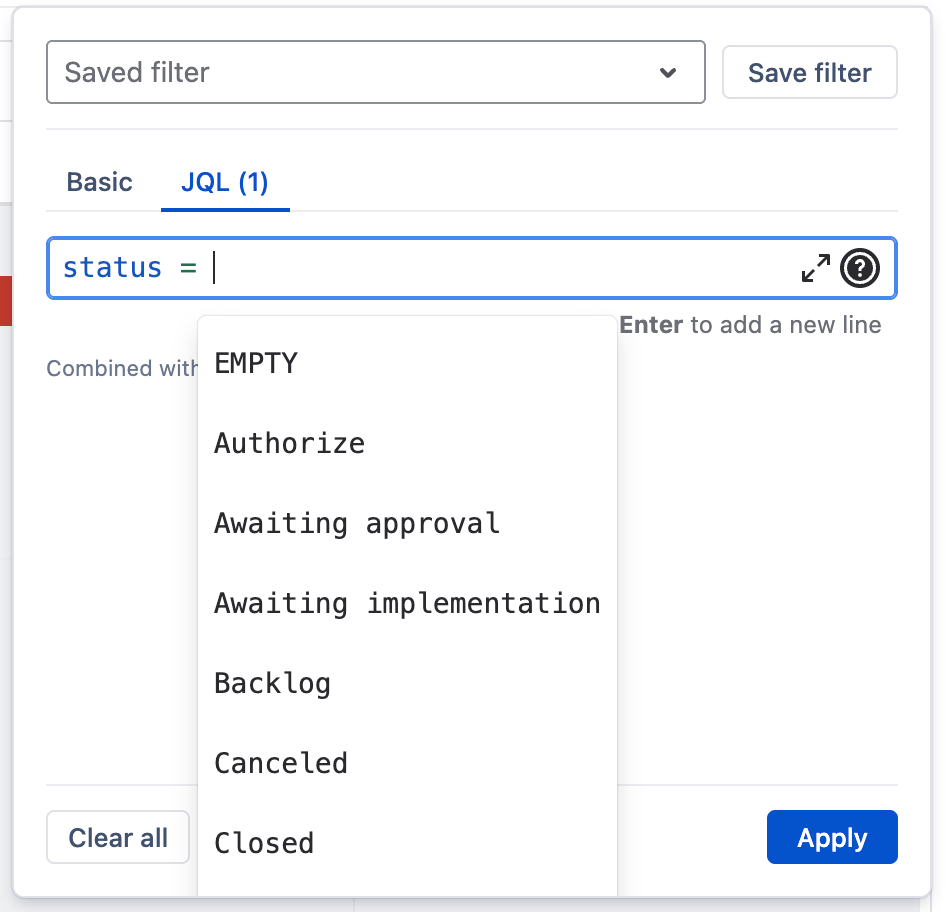
Type a JQL query — suggestions appear as you type. It narrows each calendar's own issues further. If the query is invalid, you see the error before anything is applied.
Both tabs are applied together when you click Apply. Clear all removes every filter.
Saved filters
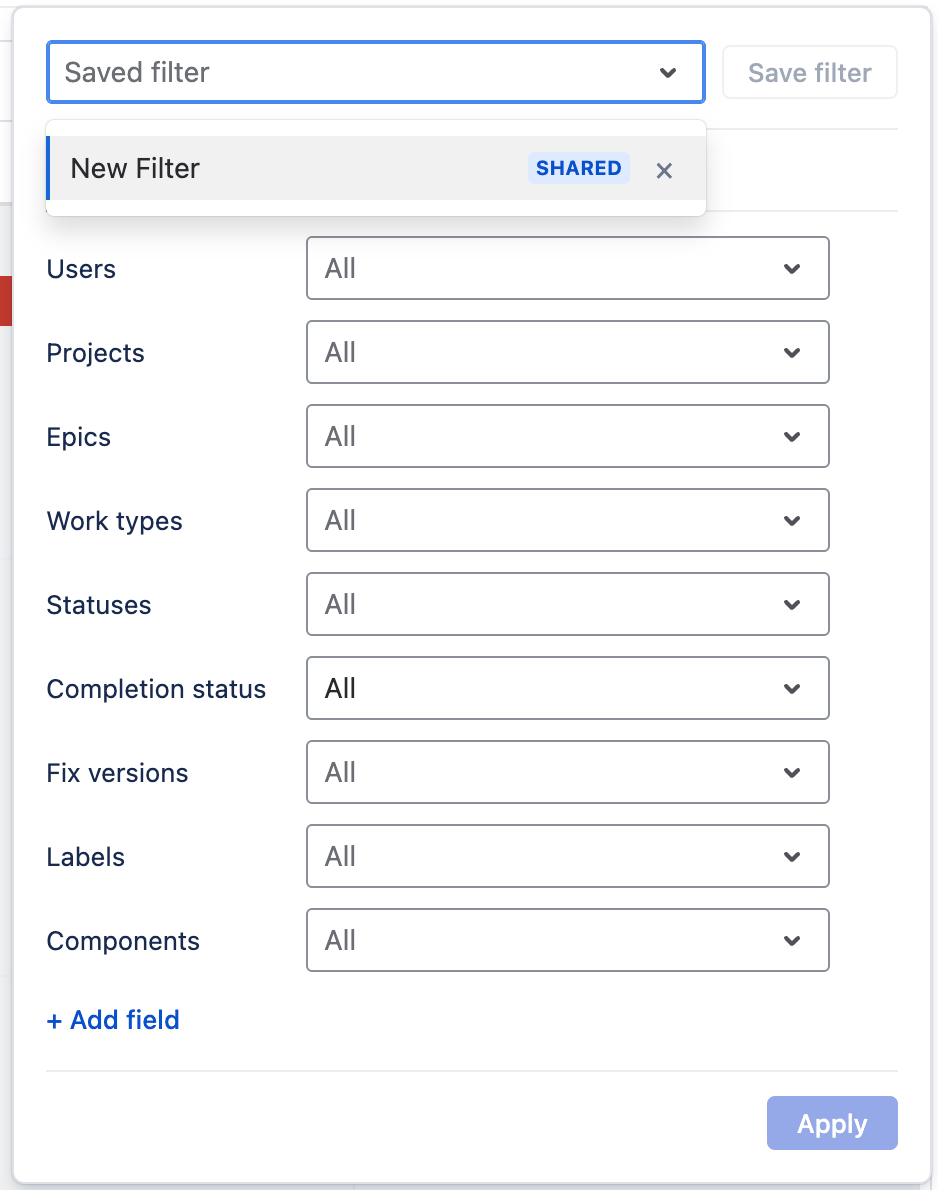
- Set up your filters, click Save filter and enter a name.
- Tick Share with everyone to let other users use it. Shared filters are marked SHARED.
- To use a saved filter later, pick it from the saved-filter menu at the top of the panel.
Only the person who created a saved filter can update or delete it. When you reopen the panel, the saved filter that is currently applied is shown in the menu.
Quick Filters Back to top
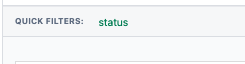
Quick filters are saved JQL conditions that belong to one calendar or timeline. Once set up, they appear as buttons in the view header that you can switch on and off. They can be shared with other users. A quick filter only affects its own calendar — to narrow everything you see at once, use the Filter button instead.
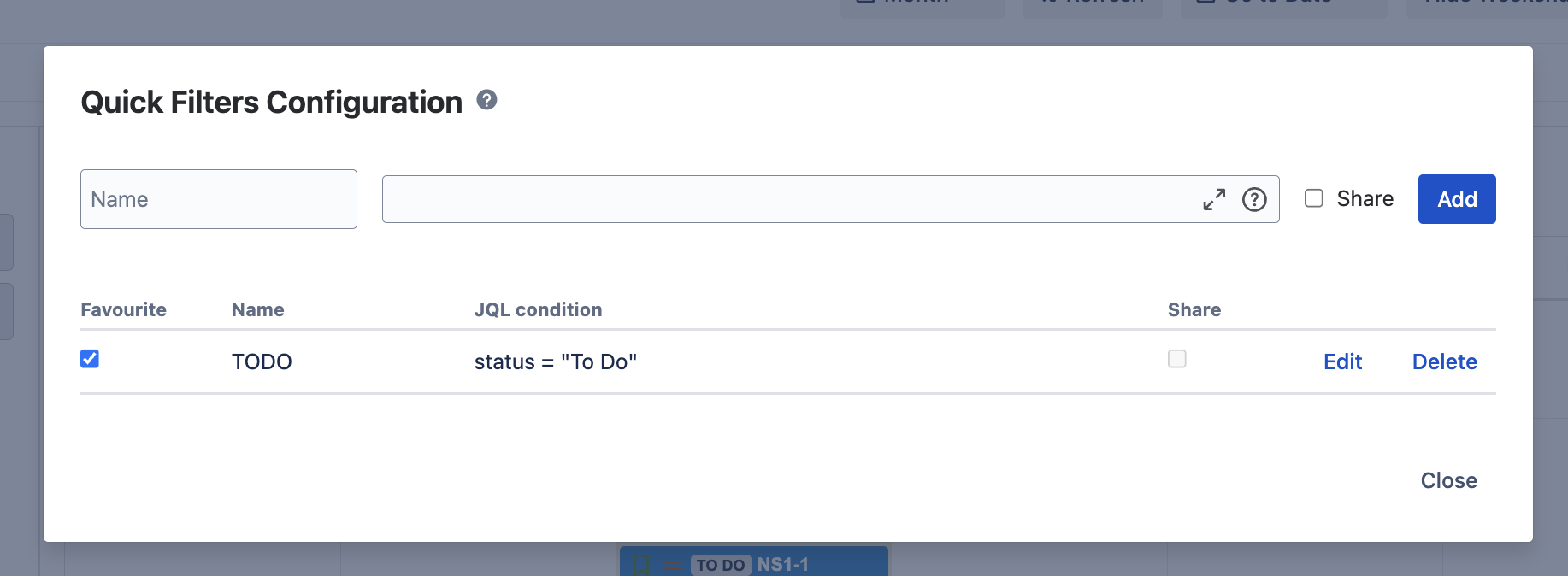
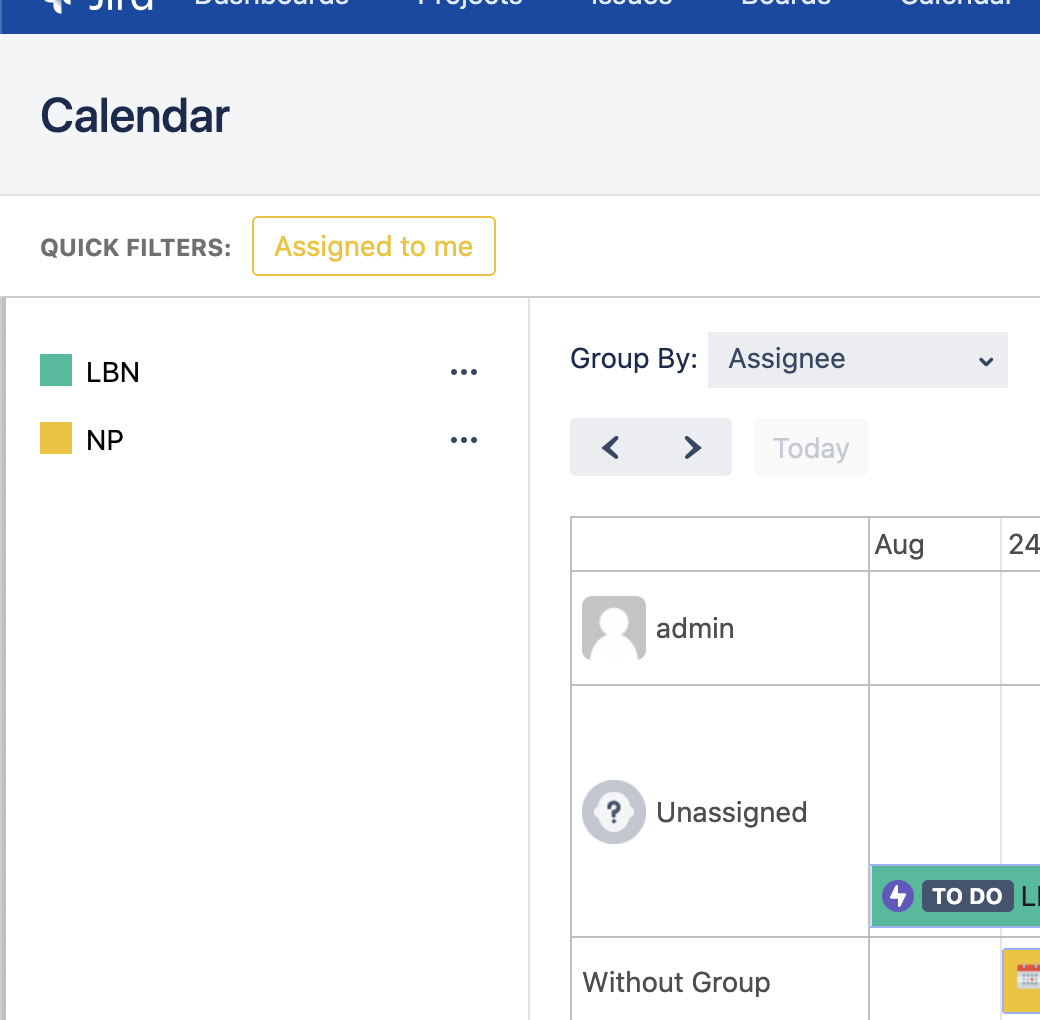
- Click the three dots next to the calendar or timeline name.
- Select "Configure quick filters" from the menu.
-
Enter required fields:
- Name: The name of the quick filter
- Condition: A JQL condition to filter events and issues
- Shared: Toggle to allow other users to use this filter
- Click Save to create the filter.
- Enable the filter by clicking the checkbox near the filter name.
- Click Close to exit the configuration.
- Apply the quick filter by clicking on it in the view header.
How Filters Work
When multiple quick filters are active simultaneously, they combine with OR logic — issues matching any of the active filters are shown. Quick filters only affect Jira issues of the calendar or timeline they belong to; custom events are always shown. Quick filters also combine with the filter panel — an issue must match both.
Need Help?
If you have questions or need assistance, our support team is here to help.
Contact Support