How It Works Back to top
Calendar for Jira is a Runs on Atlassian app: it never sends your data outside Atlassian and makes no outbound network calls. Because of that it cannot fetch an external calendar URL by itself.
External calendars are therefore fetched by a separate, free companion app — Flexible Calendar Connectors. It downloads each ICS feed every hour and delivers the events to Calendar for Jira through a signed trigger URL. The Connectors app has no access to your Jira data; it only reads the feed URLs you give it.
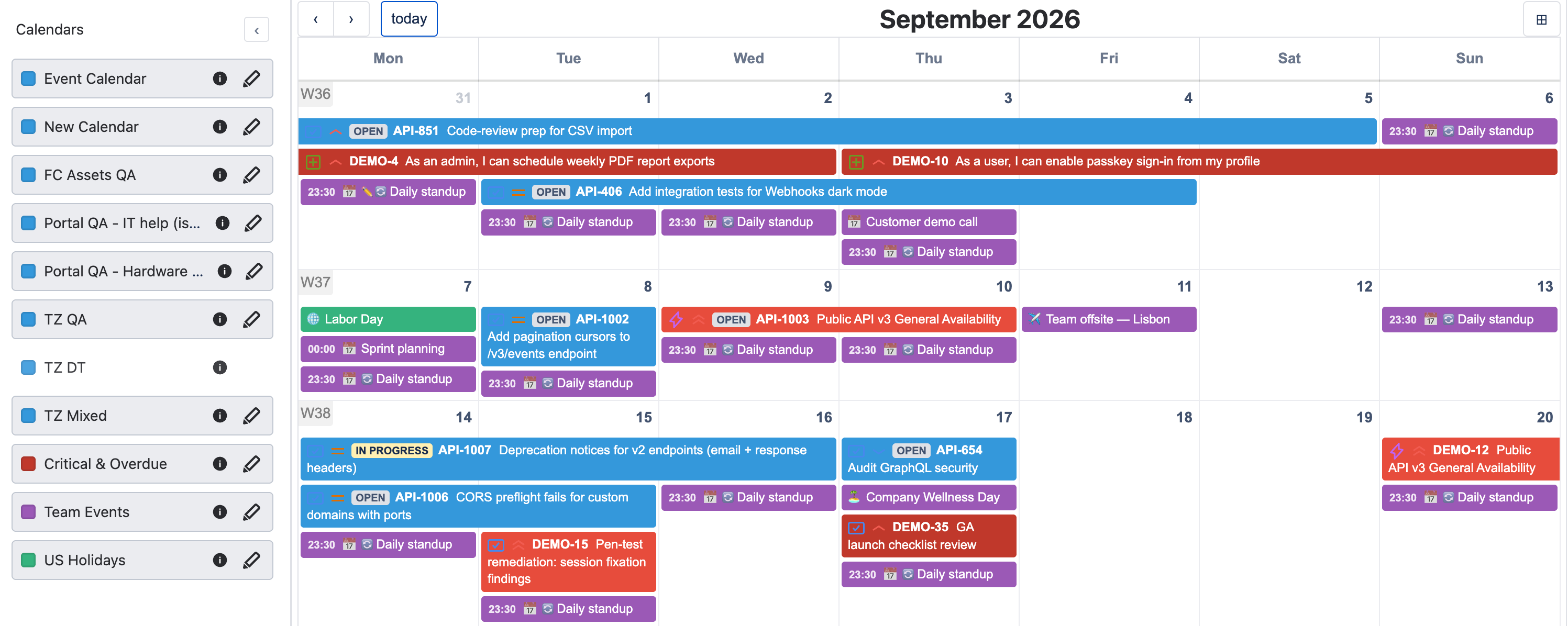
- Works with any ICS feed: Google Calendar, Microsoft Outlook / Office 365, Apple iCloud, public holiday calendars and more.
- Sync is one-way: events appear in Jira as read-only and are replaced on every sync.
- All-day events (holidays, vacations) and timed events (meetings) are both supported. Timed events are shown in each viewer's own time zone.
Set Up External Calendar Feeds Back to top
This is done once by a Jira administrator.
1. Install Flexible Calendar Connectors
Install the free Flexible Calendar Connectors app from the Atlassian Marketplace on the same Jira site as Calendar for Jira. During installation Jira asks you to approve that the app can reach external websites — this is how it downloads the feeds.
Coming soon — the app is in Marketplace review and will be listed shortly.
2. Pair the two apps
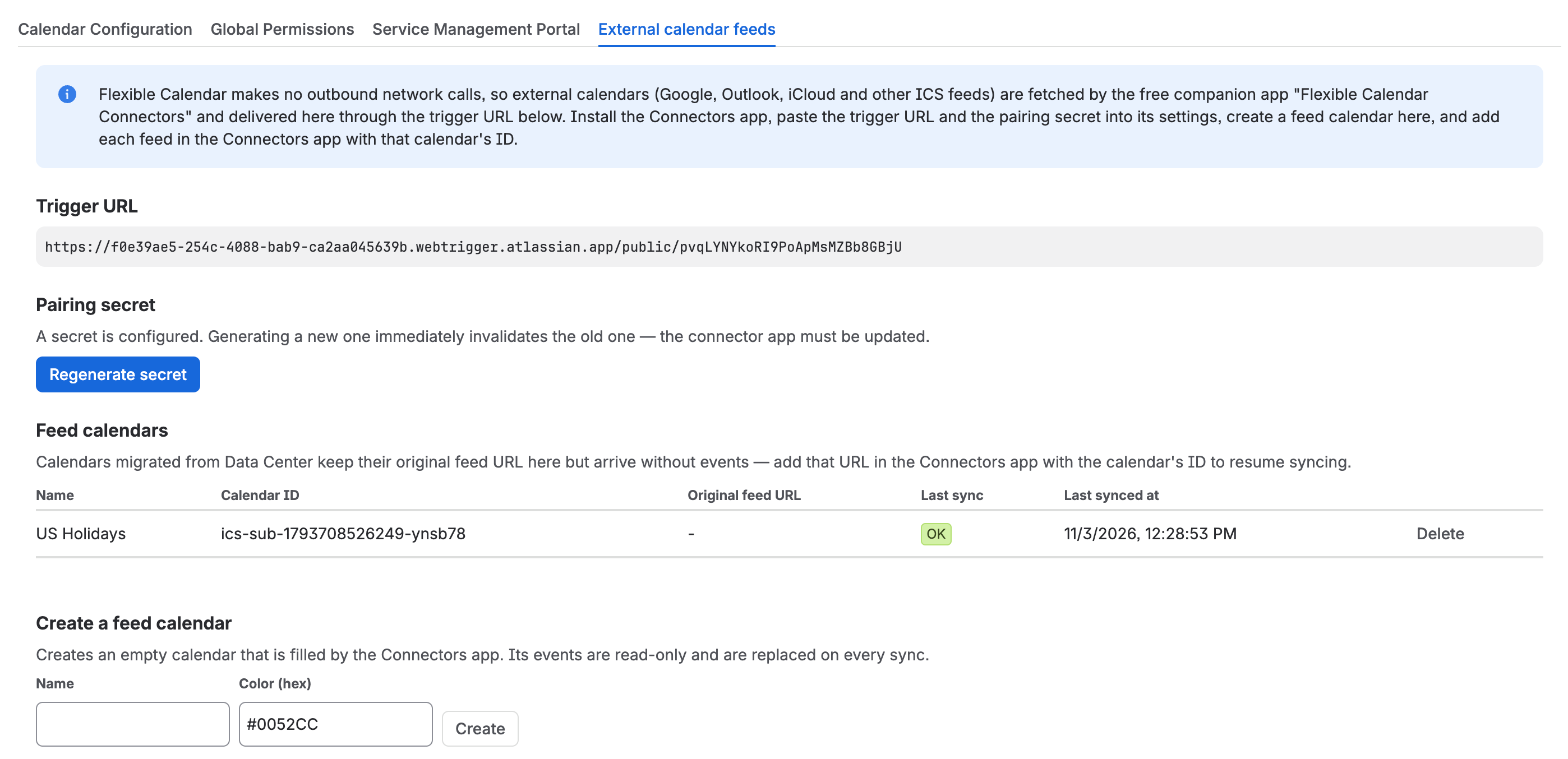
- Open Admin Settings of Calendar for Jira and select the External calendar feeds tab.
- Copy the Trigger URL.
- Click Generate secret and copy the pairing secret. It is shown only once.
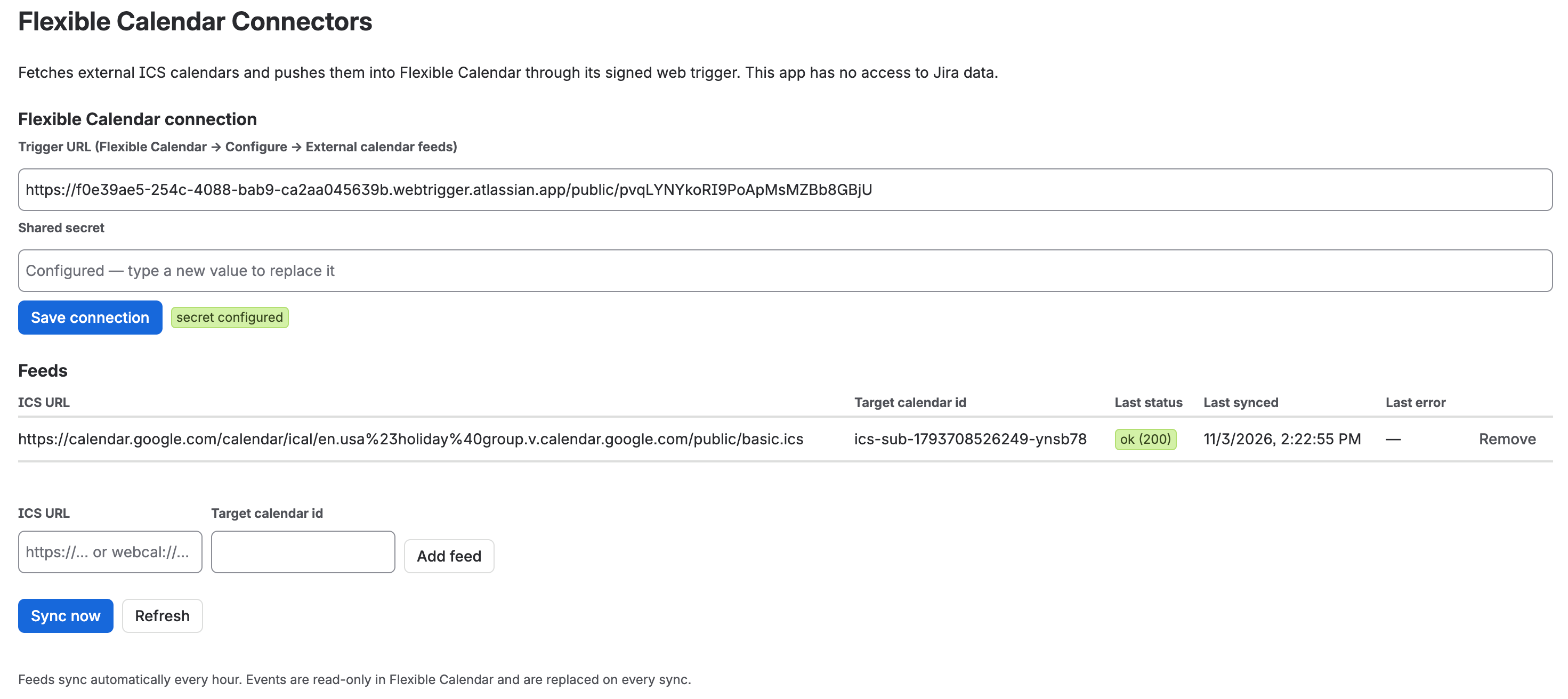
- Go to Jira settings → Apps → Flexible Calendar Connectors, paste the trigger URL and the secret, and click Save connection. The status changes to secret configured.
3. Create a feed calendar
On the same External calendar feeds tab, enter a Name and a Color under Create a feed calendar and click Create. The new calendar appears in the Feed calendars table — copy its Calendar ID.
4. Add the feed in the Connectors app
- Copy the ICS address of the external calendar — for example in Google Calendar: Settings → your calendar → Integrate calendar → Public address in iCal format (or the secret address for a private calendar).
- In Flexible Calendar Connectors, paste it into ICS URL (
https://andwebcal://addresses are accepted), paste the calendar ID into Target calendar id and click Add feed. - Click Sync now, wait a few seconds and click Refresh. Last status shows ok when the events were delivered.
Using Feed Calendars Back to top
A feed calendar behaves like any other calendar: add it to your calendar list and share it with users or groups on the Permissions tab.
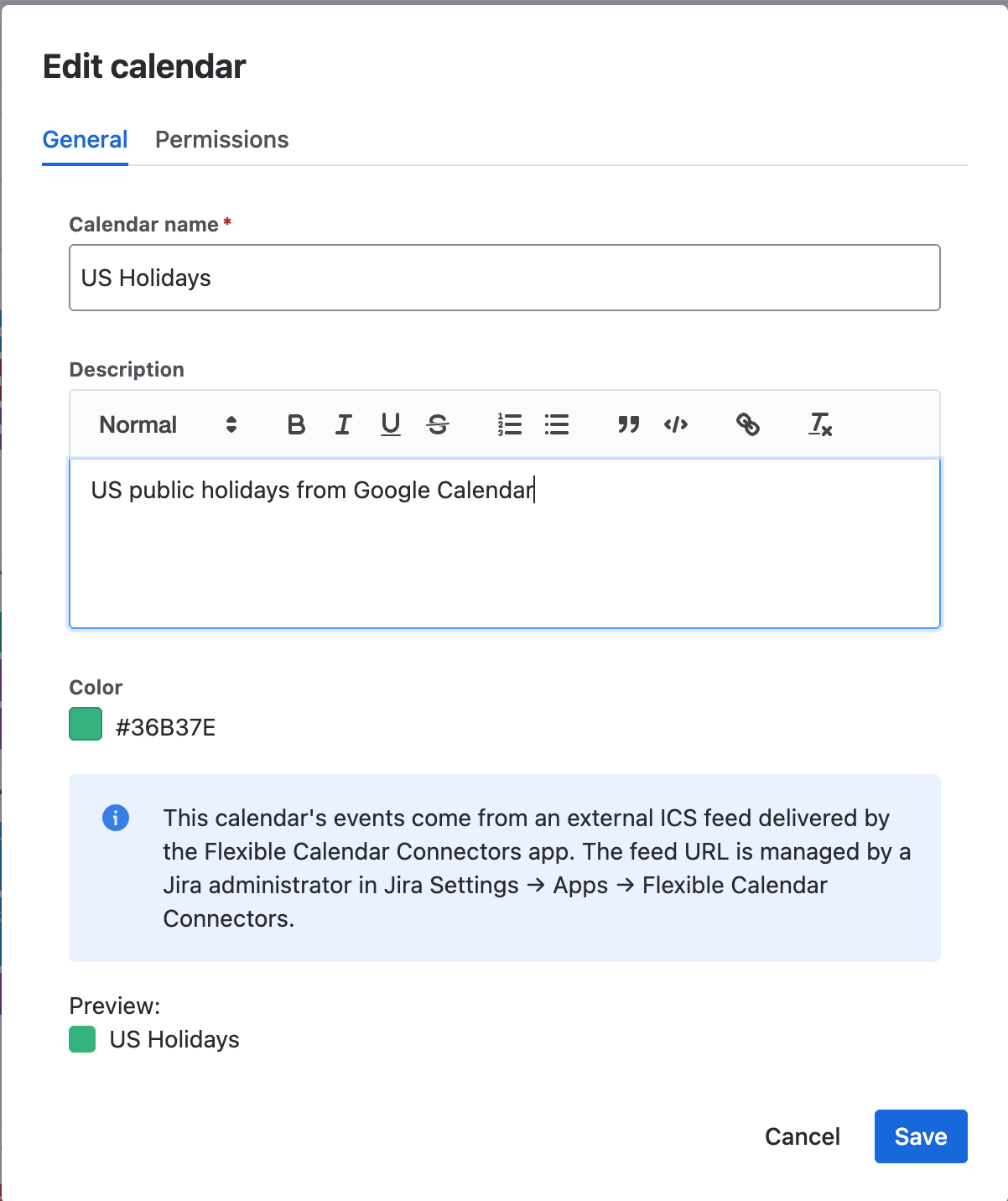
In Edit calendar you can change the name, description, color and permissions. The feed URL is not edited here — it is managed by a Jira administrator in the Connectors app.
Manage and Remove Feeds Back to top
- Check sync status — the Connectors app shows the last status, time and error of every feed. The Feed calendars table in Calendar for Jira shows when each calendar last received events.
- Stop syncing a feed — click Remove next to it in the Connectors app. The calendar keeps the events it already has.
- Delete a feed calendar — click Delete and then Confirm delete in the Feed calendars table. The calendar and all its events are removed. Remove its feed in the Connectors app as well.
- Regenerate the secret — if the secret may have leaked, click Regenerate secret and paste the new one into the Connectors app. Until you do, deliveries are rejected.
Calendars Migrated from Data Center Back to top
ICS subscription calendars migrated from Data Center with the Jira Cloud Migration Assistant arrive with their name, color and permissions but without events. To resume syncing:
- Install and pair Flexible Calendar Connectors as described above.
- On the External calendar feeds tab, find the migrated calendar in Feed calendars. The Original feed URL column shows the address it used on Data Center.
- Add that URL in the Connectors app with the calendar's ID and click Sync now.
Limitations Back to top
- Only
https://(andwebcal://) feeds are supported; plainhttp://addresses are rejected. - Up to 25 feeds per site; a single feed can be up to about 2 MB.
- The feed must be reachable from the internet without signing in (public or "secret address" links).
- Sync is one-way and hourly; events cannot be created or edited in Jira.
Need Help?
If a feed does not sync or you have questions about external calendars, contact our support team.
Contact Support