Overview Back to top
The Leave page is where you request time off, follow your requests and see who on your team is away. It has two tabs: My leave and Team calendar. The + Request Leave button is in the page header on both tabs.
Requesting Leave Back to top
Click + Request Leave and fill in the form:
- Request for — Myself, or search for a person. Only shown if you can request leave for others.
- Leave Type — for example Vacation or Sick Leave.
- Leave Days — the Date From and Date To.
- Duration — Full Day, or Partial with the Hours per day (more than 0 and less than a full day). Partial is only available for leave types where the admin allowed it.
- Approver — filled in for you if one is assigned.
- Note — optional.
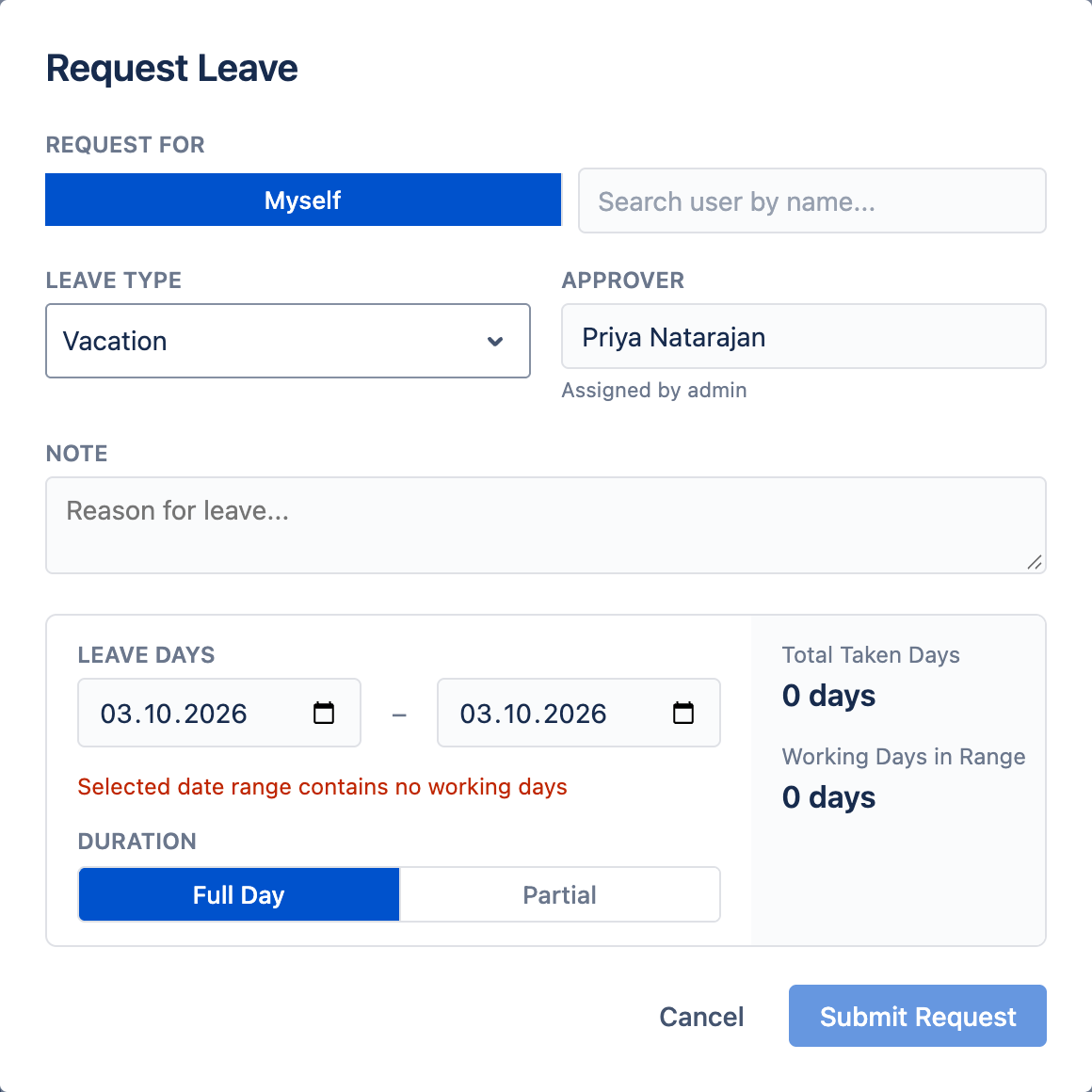
The form shows the Working Days in Range and the Total Taken Days. Only the person's working days count — weekends and holidays are skipped.
Click Submit Request. What happens next:
- If you have an approver, the request is Pending until they decide.
- If you have no approver assigned, the request is approved automatically.
- If you request leave for someone you approve for, it is approved automatically.
Shortcut: click a day on your calendar in My leave, or an empty day on your row of the Team calendar, to open the form with that date filled in.
My Leave Tab Back to top
- Taken in — a strip at the top with the days you have taken in the selected year, per leave type.
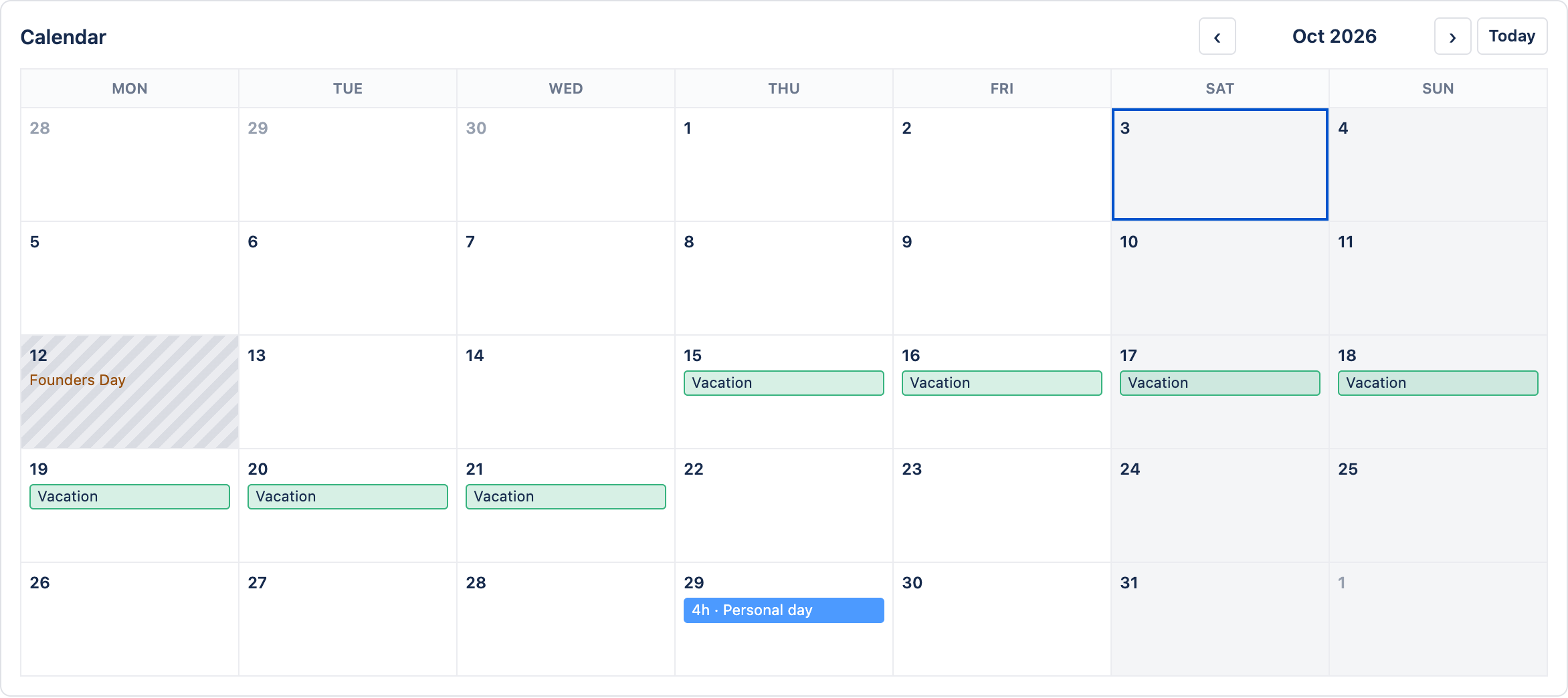
- Calendar — your month calendar. Click a leave to see its details, edit it or recall it. Holidays are marked; click one to see its name. You cannot request leave on a holiday.
- My requests — a table of your requests. Use the status filters (All, Pending, Approved, Rejected, Recalling, Recalled) to narrow it.
- Approvals — shown only if you approve leave for someone. See Approving Leave.
- Year details — your approved leave in working days, per month and leave type.
Team Calendar Tab Back to top
The Team calendar shows a month at a time: one row per person, one cell per day, coloured by leave type.
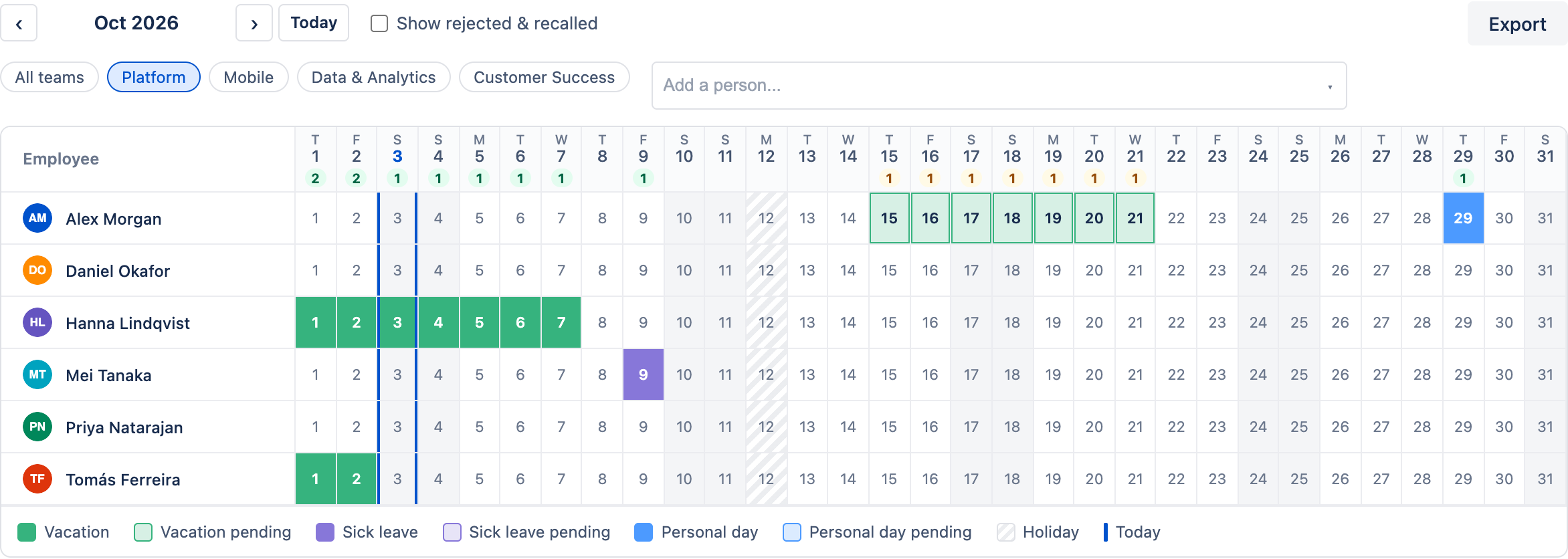
- Who is shown — use the team pills to choose teams, and Add a person… to add someone else.
- Who is out — each day has a badge with the number of visible people who are away. It is green when all of them are approved and amber when only pending requests are involved. Hover it to see the names.
- Details and actions — click a leave cell to see its details. From there you can approve, reject, revoke, recall or edit, depending on your role. App admins can also delete.
- Show rejected & recalled — rejected and recalled leave is hidden unless you turn this on.
- Export — downloads the month as an Excel file.
| Marker | Meaning |
|---|---|
| Solid colour | Approved leave |
| Lighter colour | Pending request |
| Dashed outline | Approved leave with a recall pending |
| Grey | Weekend |
| Striped | Holiday |
Approving Leave Back to top
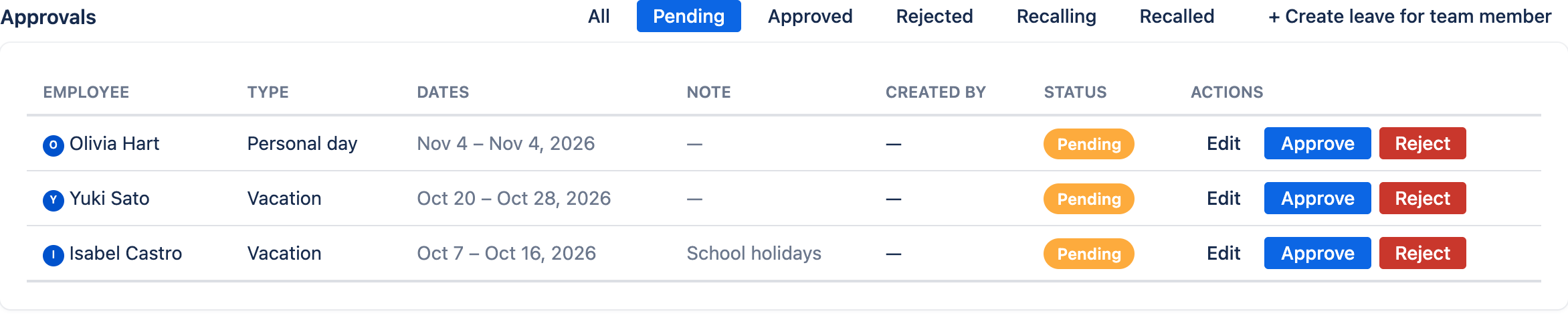
The approver decides; app admins can always act too. Requests waiting for you appear in the Approvals section of the My leave tab and on the Team calendar.
| Status | Meaning |
|---|---|
| Pending | Waiting for the approver. |
| Approved | The leave is confirmed. |
| Rejected | The approver declined the request. |
| Recalling | The person asked to cancel an approved leave, and the approver must agree. |
| Recalled | The leave is cancelled. |
The actions you can take:
- Approve or Reject a pending request. You can also Edit it before deciding.
- Revoke — cancel a leave that is already approved.
- Approve Recall or Deny Recall — answer a request to cancel an approved leave. Denying keeps the leave approved.
As the requester, you can Recall your own request. A pending request is cancelled right away; an approved one goes to the approver first.
If Approvals Are Off Back to top
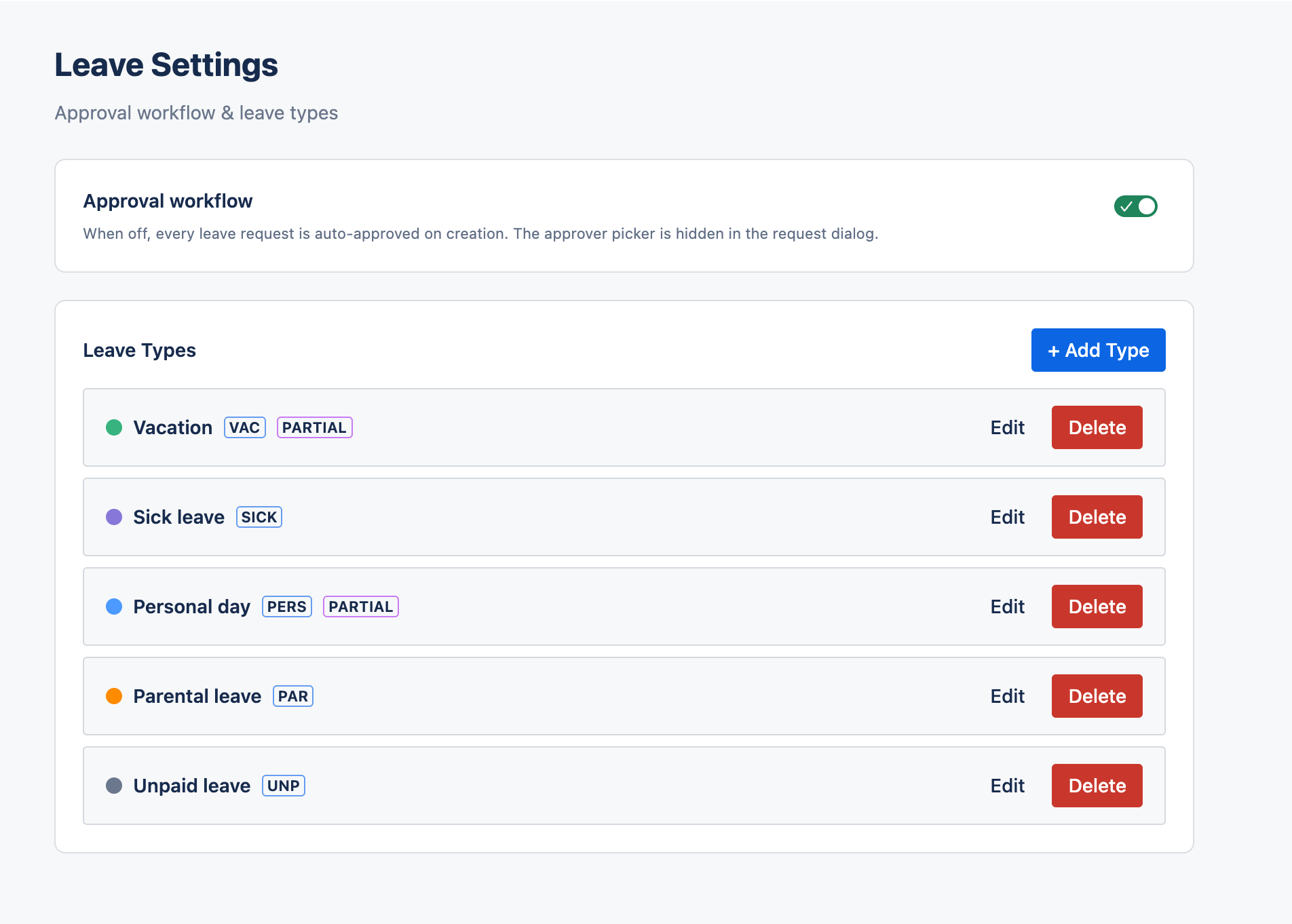
An admin can turn off the approval workflow in Settings → Leave Settings. Then requests are approved immediately, there is no Approvals section, and you can edit or recall your approved leave directly.
Leave in Timesheets Back to top
Approved leave removes those hours from the person's required hours in Timesheets. This includes leave that is waiting for a recall decision. Partial-day leave removes only its hours.
Leave Types Back to top
Admins set up leave types in Settings → Leave Settings. Click + Add Type and fill in:
- Name — for example Vacation.
- Abbreviation — a short code, for example VAC, used where space is tight and in the export.
- Color — used on the calendars and in lists.
- Description — optional.
- Allow partial-day requests — lets people request a number of hours per day instead of a full day.
Deleting a leave type keeps the existing requests of that type.
Need Help?
If you have questions or need assistance with leave management, our support team is here to help.
Contact Support