Overview Back to top
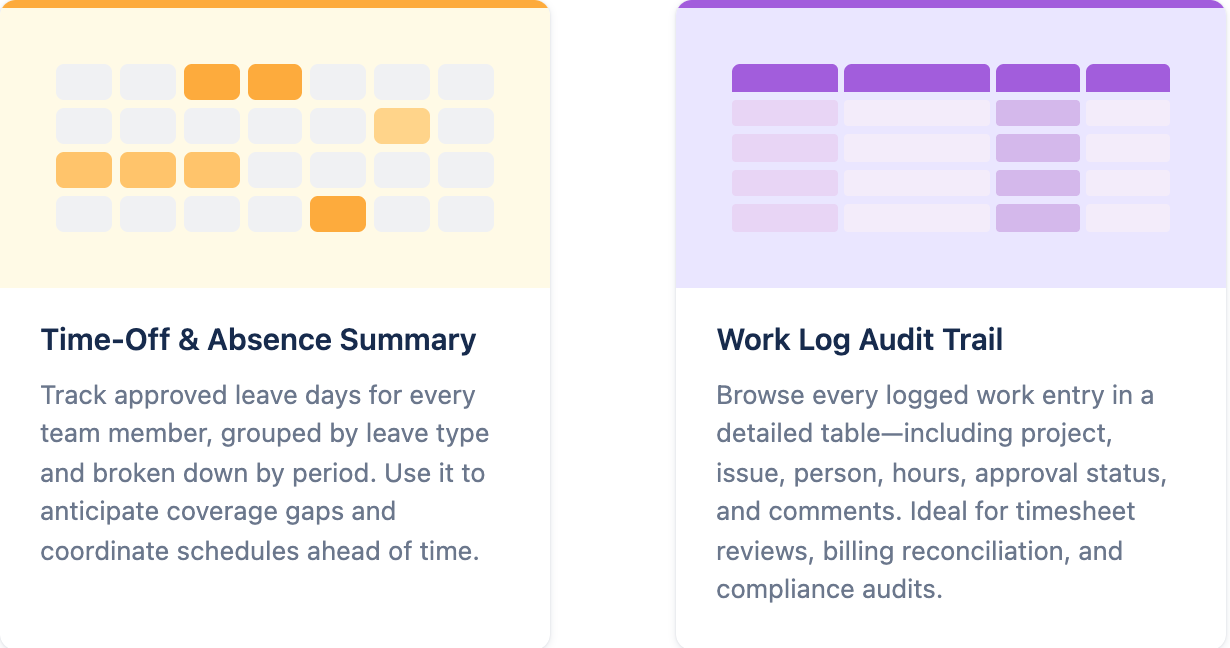
The Reports page has two reports:
- Time-Off & Absence Summary — the Leave Report.
- Work Log Audit Trail — the Worklog Report.
Pick a report on the Report Templates tab. Your saved reports are on the Bookmarked Reports tab.
Run a Report Back to top
- Click a report card.
- Pick a period — for example a month, quarter or year, or Custom Range.
- Pick at least one team or person. Create stays disabled until you do.
- Optional: set Group by to Team to get a section and subtotal per team.
- Click Create.
Each report has a How to read this report panel that explains what you see.
Leave Report Back to top
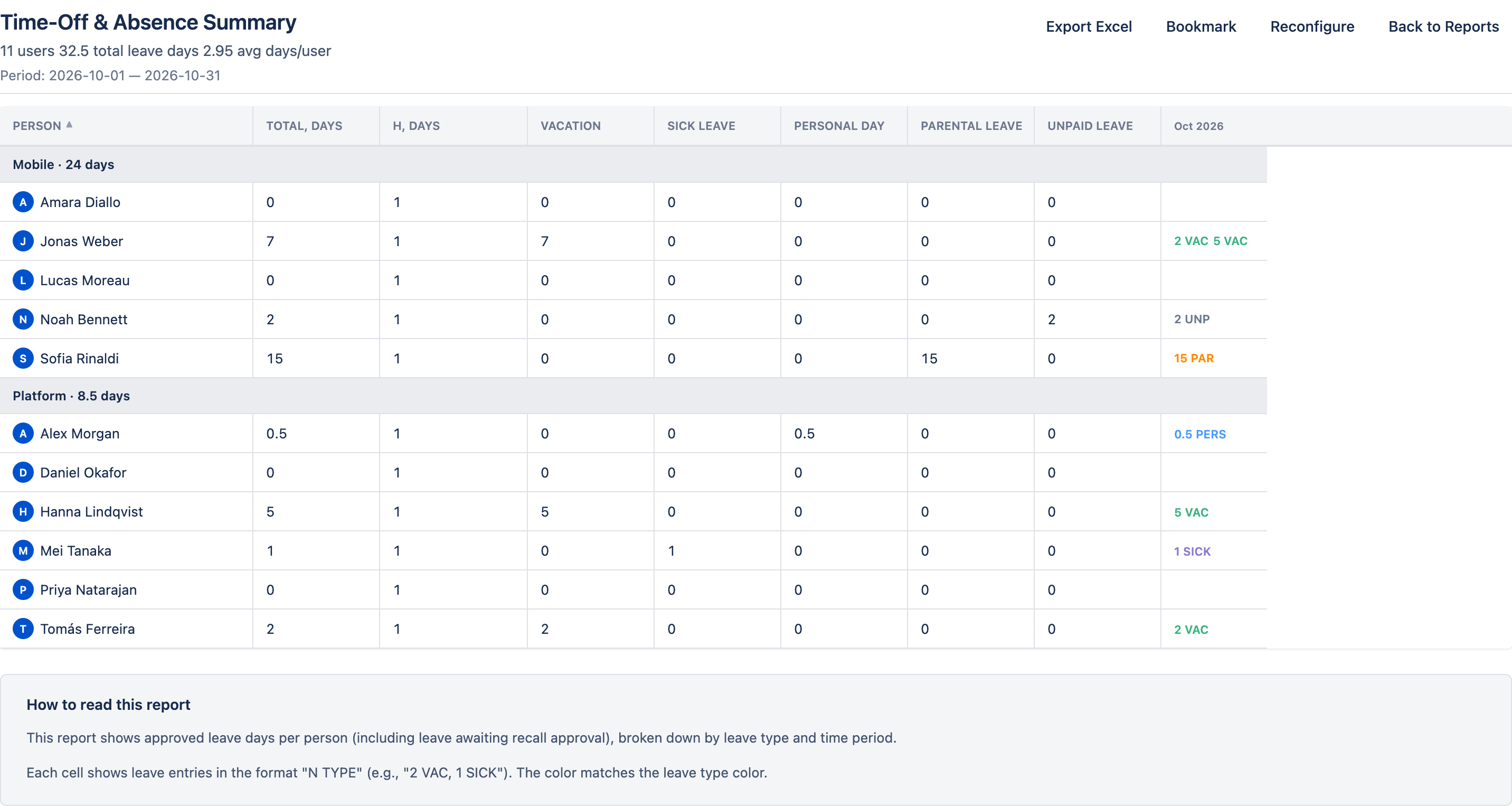
Shows approved leave in working days, including leave whose recall is still waiting for approval. Holidays are not counted as leave.
- Person
- One column per period — cells read like “2 VAC, 1 SICK”, in the leave type’s colour.
- Total, days — leave days in the whole period.
- H, days — holidays.
Worklog Report Back to top
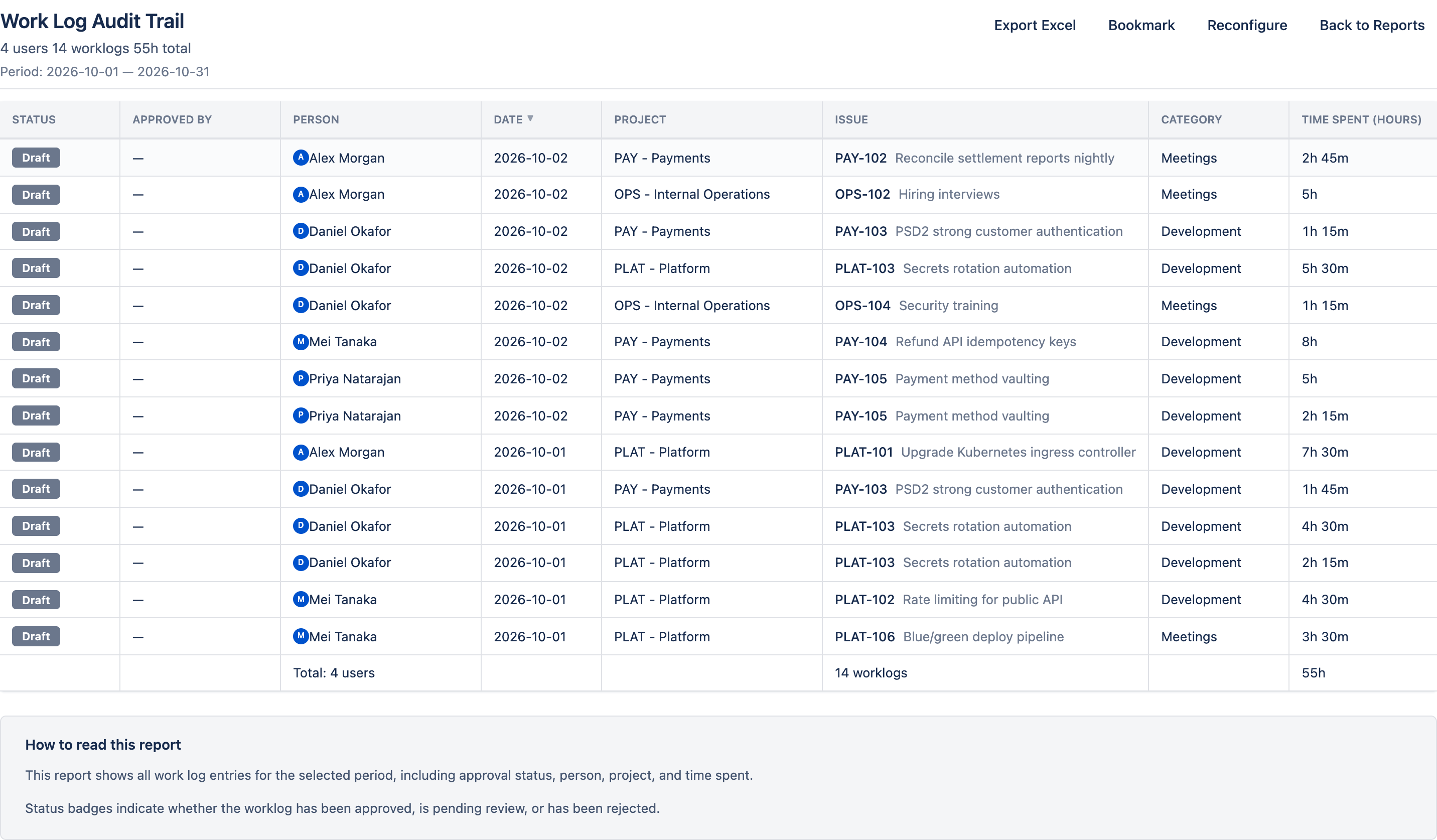
Shows one row per worklog: Person, Date, Project, Issue, Time Spent (Hours) and the description. You also see the Category when categories are set up, and the timesheet status.
Click Person, Date or Project to sort.
Bookmarks Back to top
To save a report, click Bookmark, enter a Bookmark Name and save. It appears on the Bookmarked Reports tab; click it to run it again.
To change a bookmarked report, click Reconfigure, then Bookmark. Choose Update to change the bookmark, or Save as New to keep both. To delete one, use Remove bookmark.
Export Back to top
Click Export Excel to download the report with the same rows, groups and totals.
Who You See Back to top
You only see people you have access to. Worklogs are more private than leave, so you may see a teammate in the Leave Report but not in the Worklog Report. See Permissions.
Need Help?
If you have questions or need assistance, our support team is here to help.
Contact Support