Overview Back to top
Open Settings from the app navigation. App Admins see every tab. Organization Managers and Team Managers see only Capacity and Holidays, so they can assign schemes and calendars to the people they manage. Other users do not see Settings. See Permissions & Access.
Recommended setup order
- General — work hours, work days and first day of week.
- Teams — group your people.
- Permissions — admins, managers and approvers.
- Leave Settings — approval on or off, and leave types.
- Timesheet Settings — approval, period and worklog categories.
- Capacity — expected hours per weekday.
- Holidays — public holiday calendars.
General Back to top
App-wide defaults for all users. Click Save to apply.
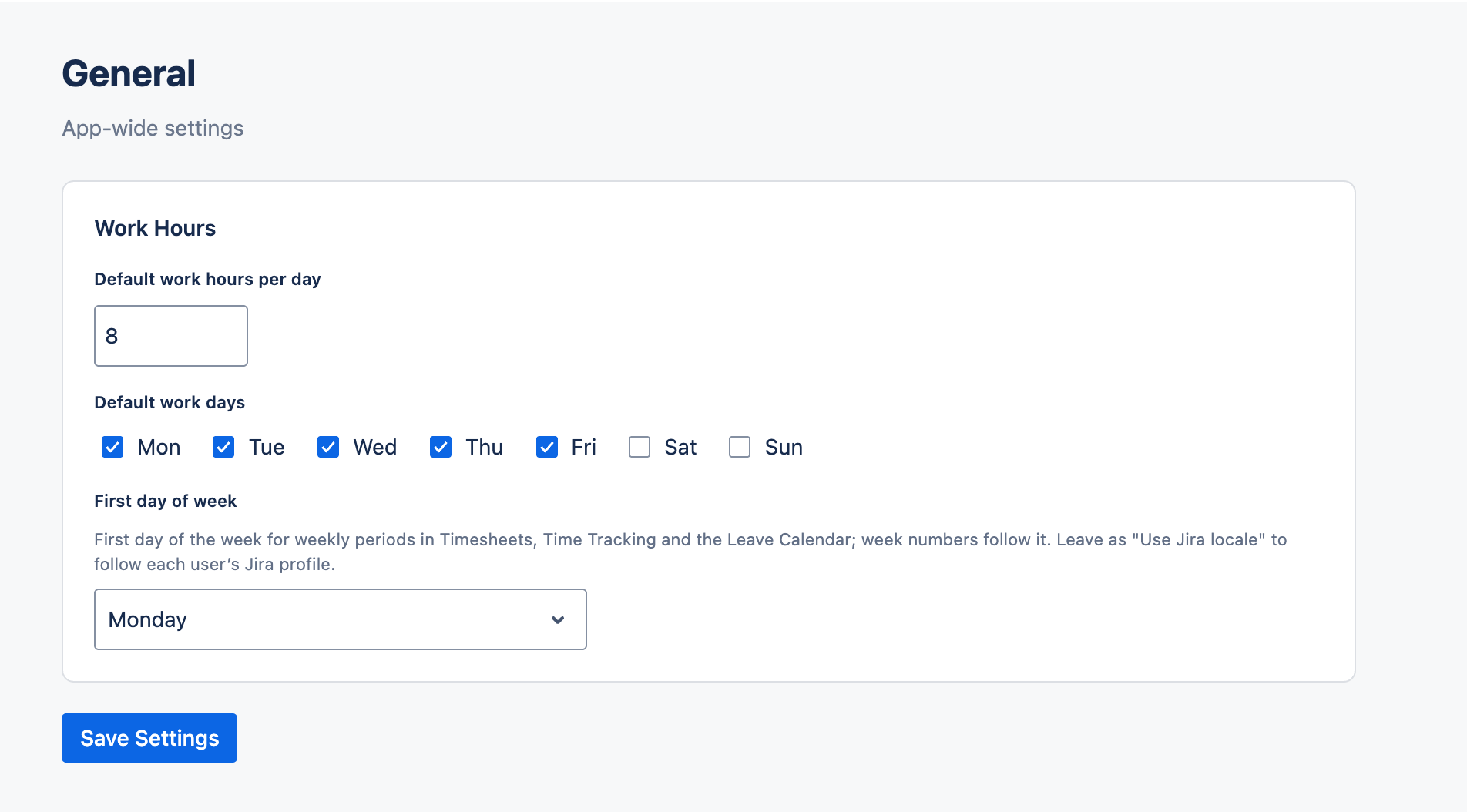
- Work Hours — the default work hours per day, for example 8. Timesheet progress compares logged time against it, and leave is measured in it. A capacity scheme can override it.
- Default work days — the days people normally work. The default is Monday to Friday. Other days have no expected hours and do not count toward leave.
- First day of week — where weeks start in Time Tracking, Timesheets, the leave calendar and weekly reports. Keep Use Jira locale to follow each user's Jira profile, or pick a day so everyone has the same week.
Teams Back to top
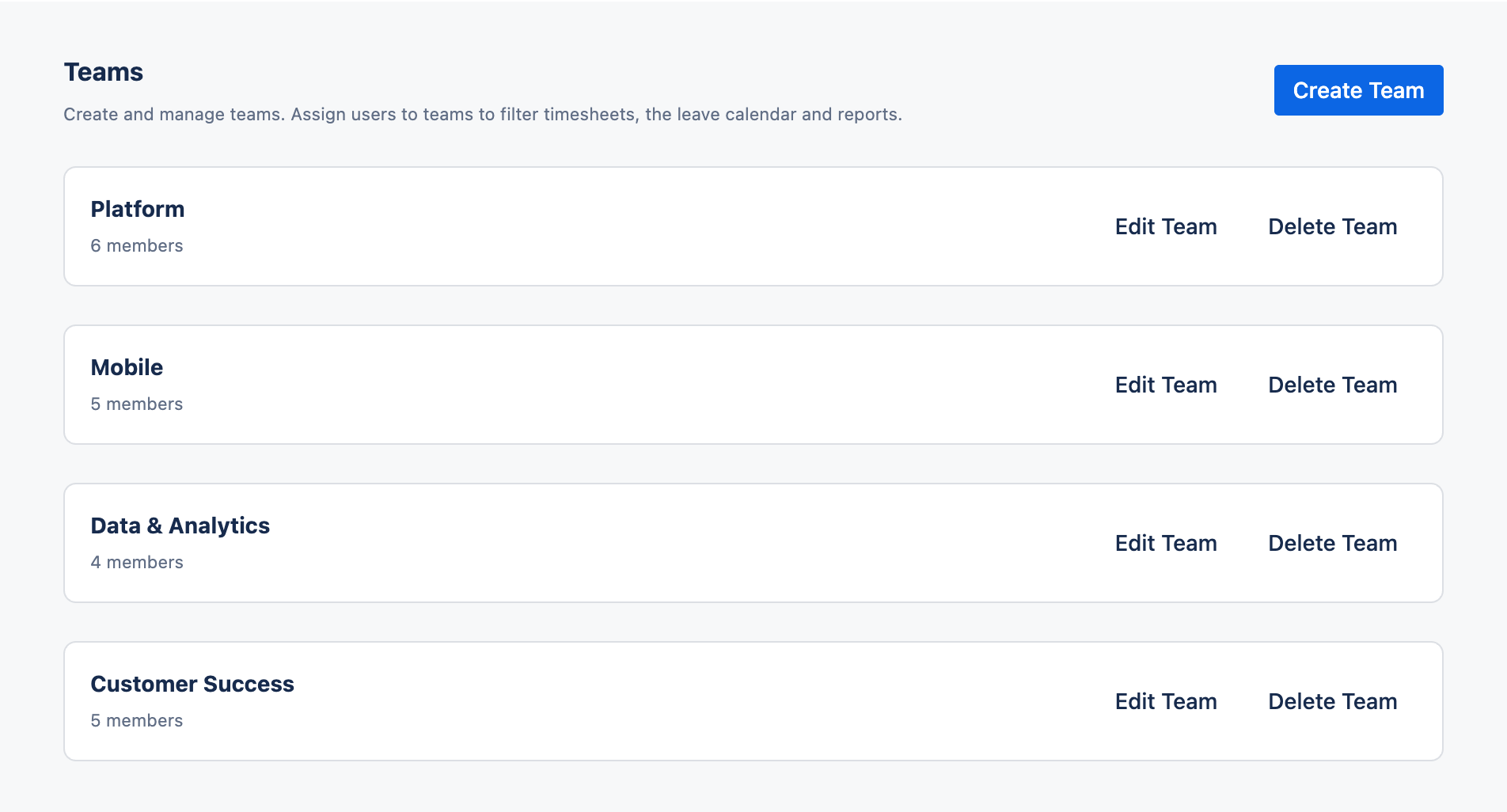
Create named groups of Jira users. Teams filter timesheets, the team calendar and reports, and let you assign capacity schemes and holiday calendars to many people at once. A team gives no approval rights by itself. See Team Management.
Permissions Back to top
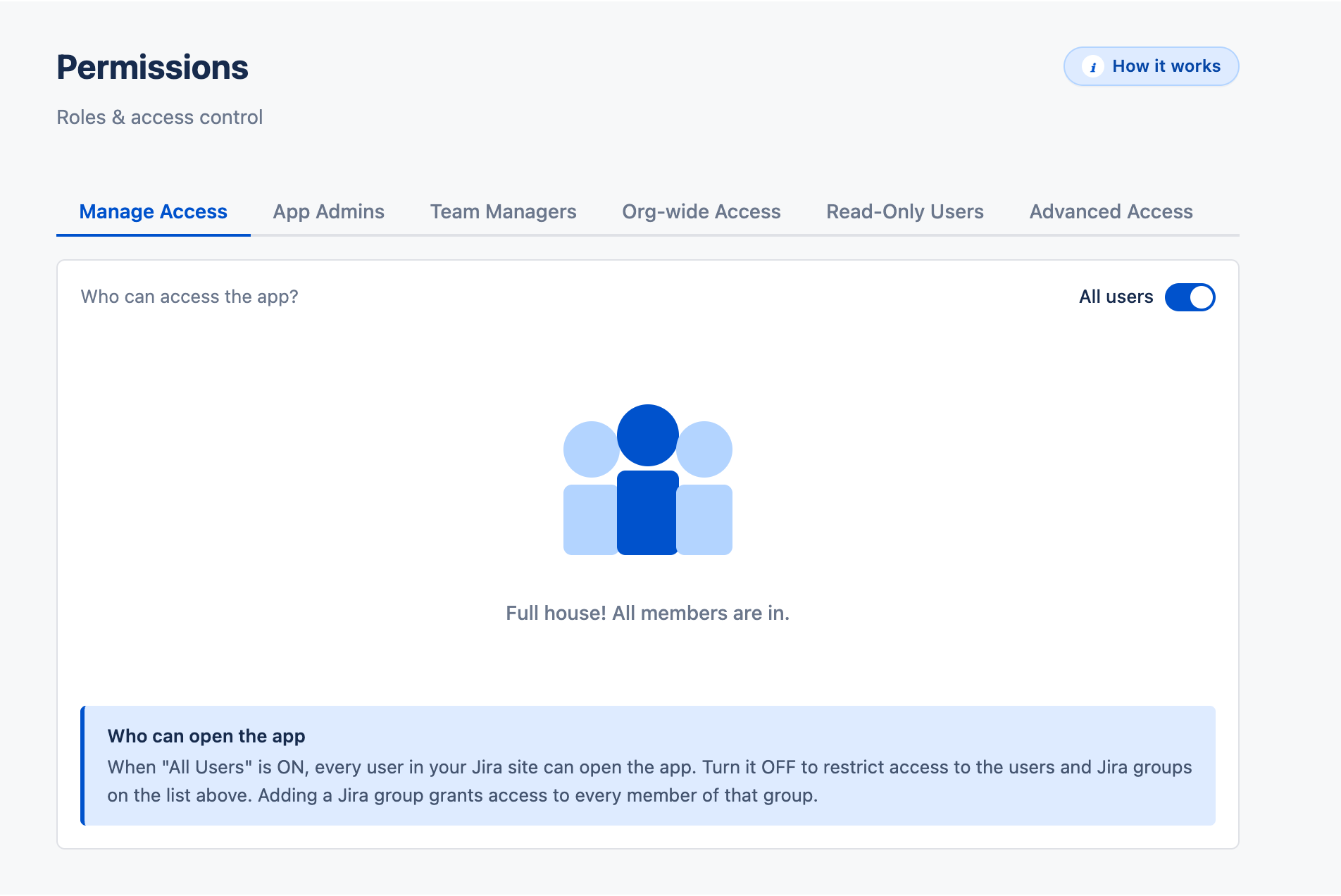
Decide who can open the app, who the App Admins are, who manages which teams, who sees everyone, who is read-only, and who approves leave and timesheets. Approvers for both leave and timesheets are set here. See Permissions & Access.
Leave Settings Back to top
Approval workflow
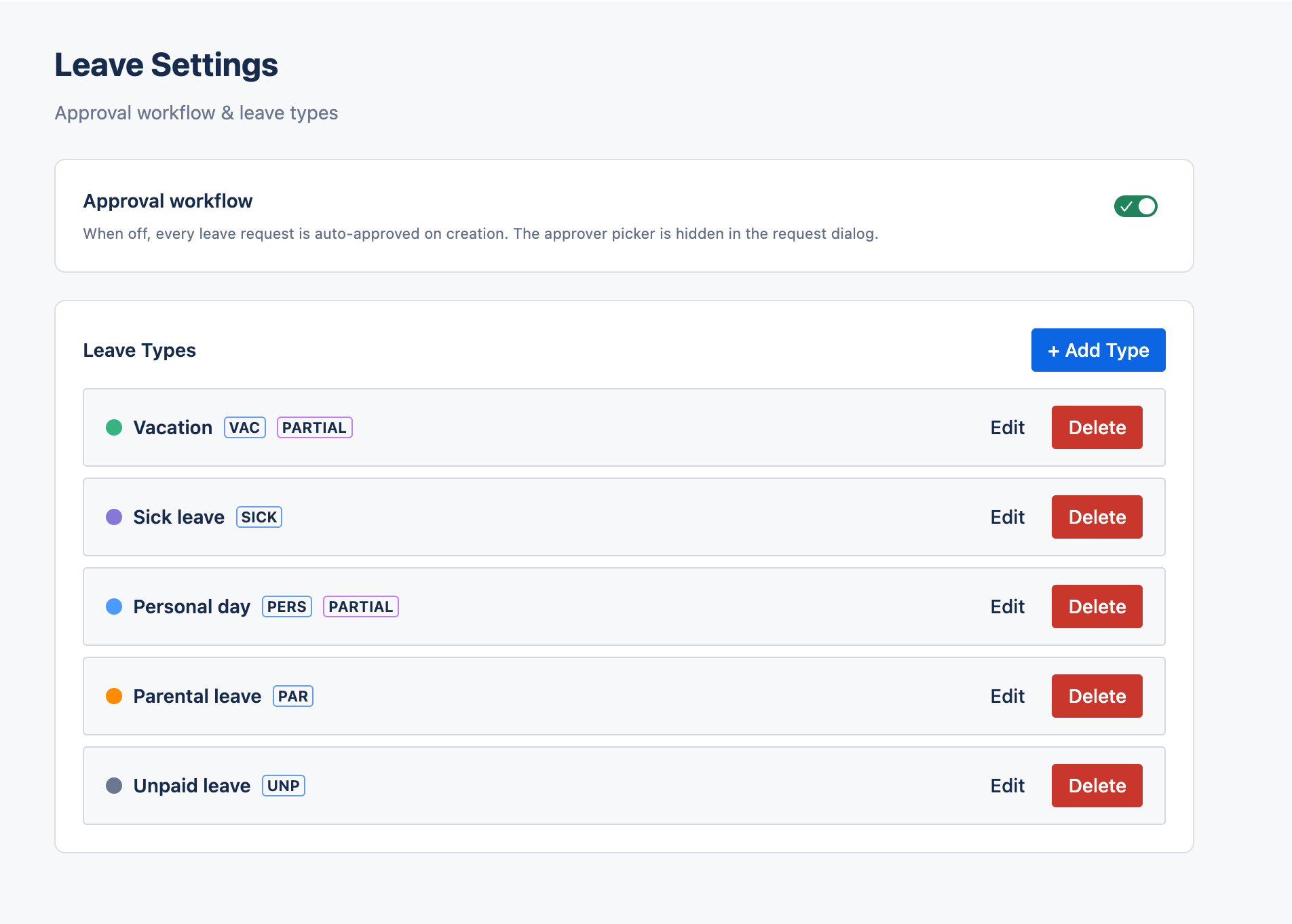
When on, leave requests wait for an approver. When off, every request is approved on creation and the approver picker is hidden. See Leave Management.
Leave Types
Click + Add Type to add a type. Each type has:
- Name — for example Vacation.
- Abbreviation — a short code for compact views, for example VAC.
- Color — shown on the leave calendars and lists.
- Description — optional.
- Allow partial-day requests — lets people request a number of hours per day instead of a full day.
New installs start with Vacation and Day off.
Timesheet Settings Back to top
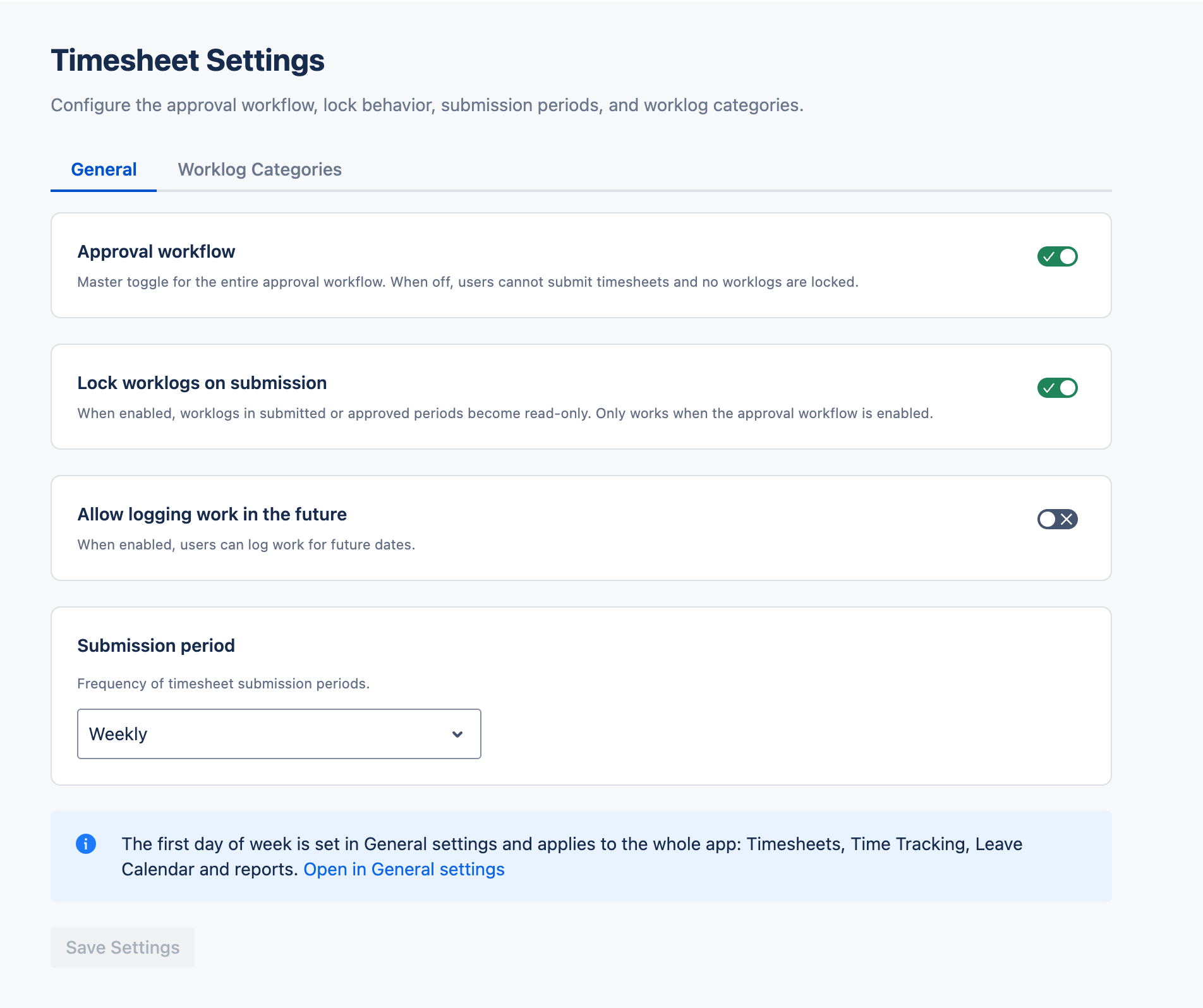
- Approval workflow — turns timesheet submission and approval on. When off, nobody submits timesheets and no worklogs are locked.
- Lock worklogs on submission — worklogs in submitted or approved periods become read-only. It only applies when the approval workflow is on. An approver can reopen a period so the person can correct it.
- Allow logging work in the future — lets people log work for future dates. Off by default.
- Submission period — Weekly, Bi-weekly or Monthly. Weeks start on the First day of week.
See Timesheets Approval.
Worklog Categories
This sub-tab defines categories such as Billable and Non-Billable, so hours can be filtered and reported by type of work. Click + Add Category to add one; deactivate a category to hide it from pickers while existing worklogs keep it. The Default category cannot be removed, and the category picker appears only when more than one active category exists.
Capacity Back to top
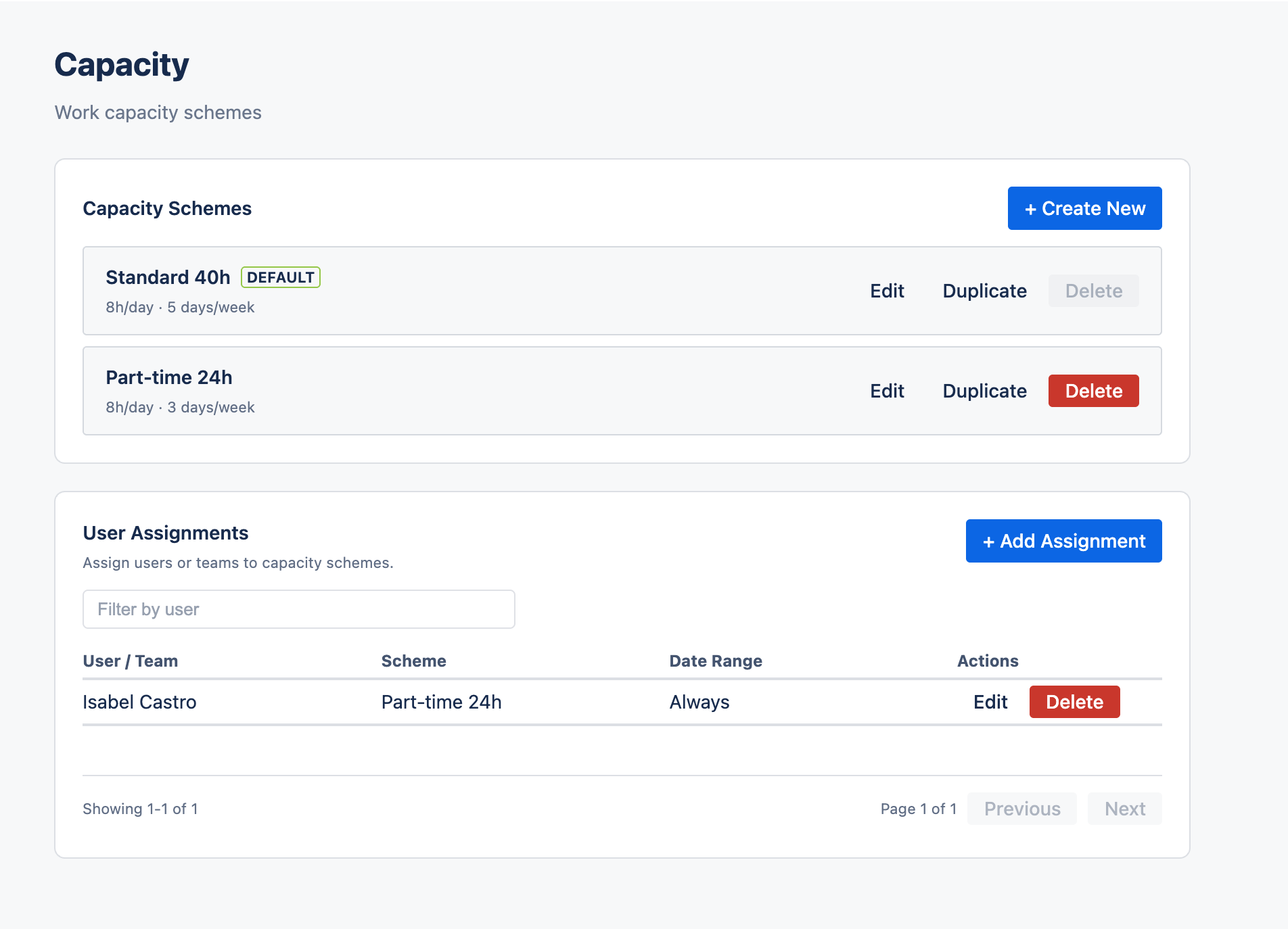
Create capacity schemes — expected hours for each weekday, such as full-time or part-time — and assign them to people or teams. See Capacity Schemes.
Holidays Back to top
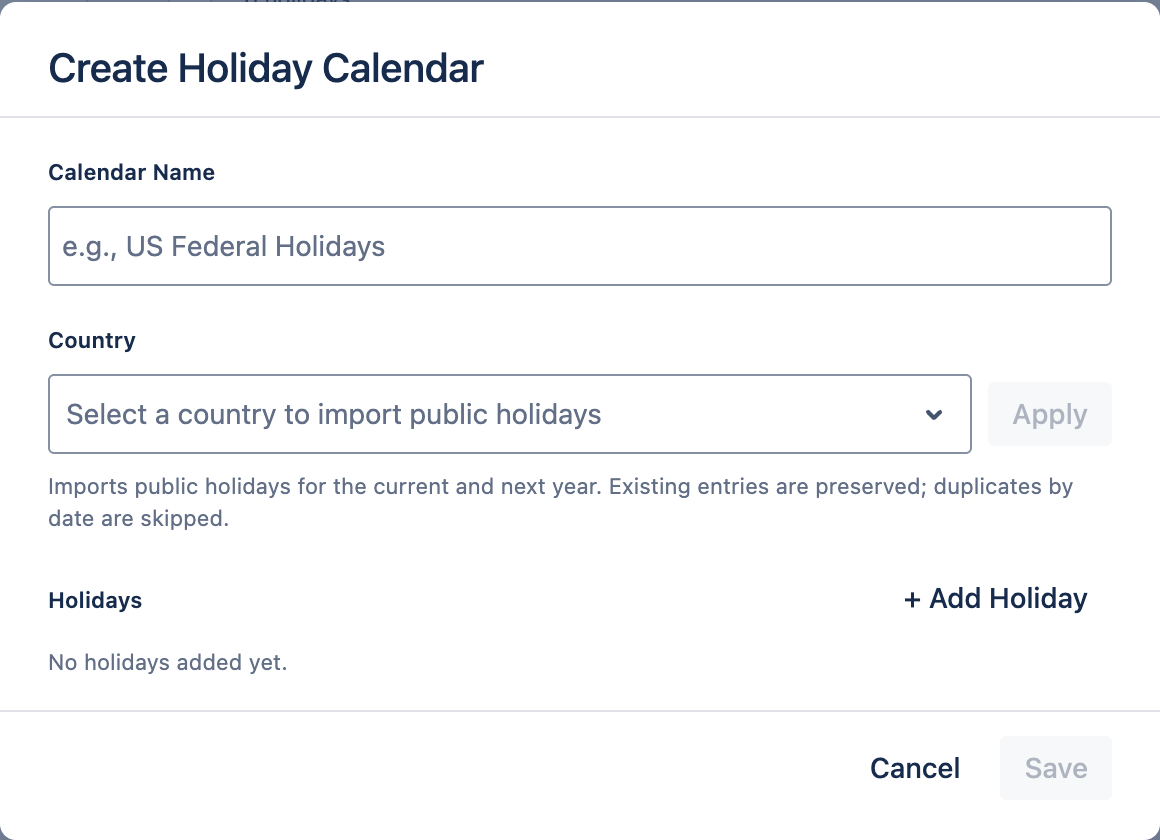
Create holiday calendars and assign them to people or teams. Holidays have no expected hours and do not count toward leave. See Holiday Calendars.
Need Help?
If you have questions or need assistance, our support team is here to help.
Contact Support