Who Can Open the App Back to top
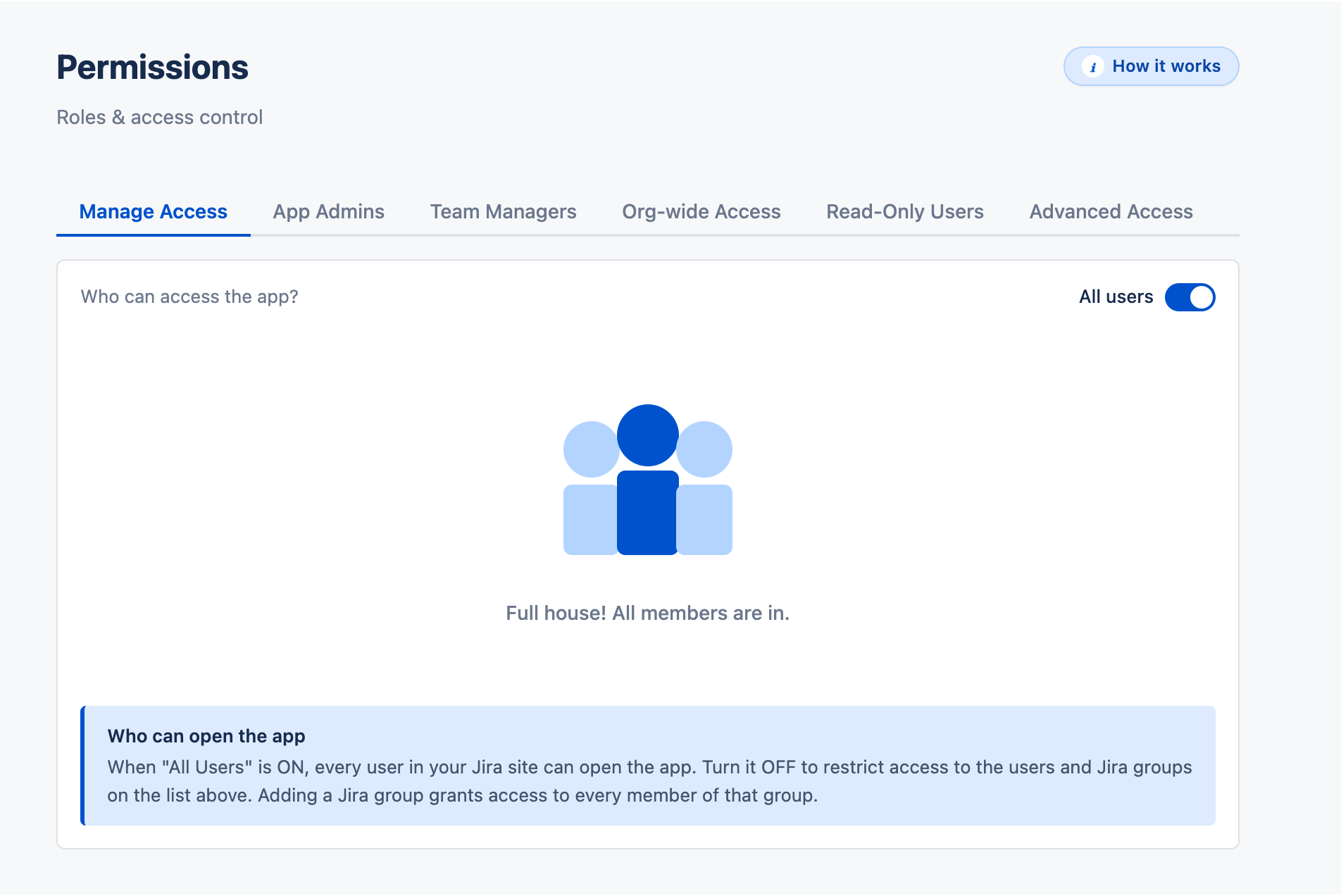
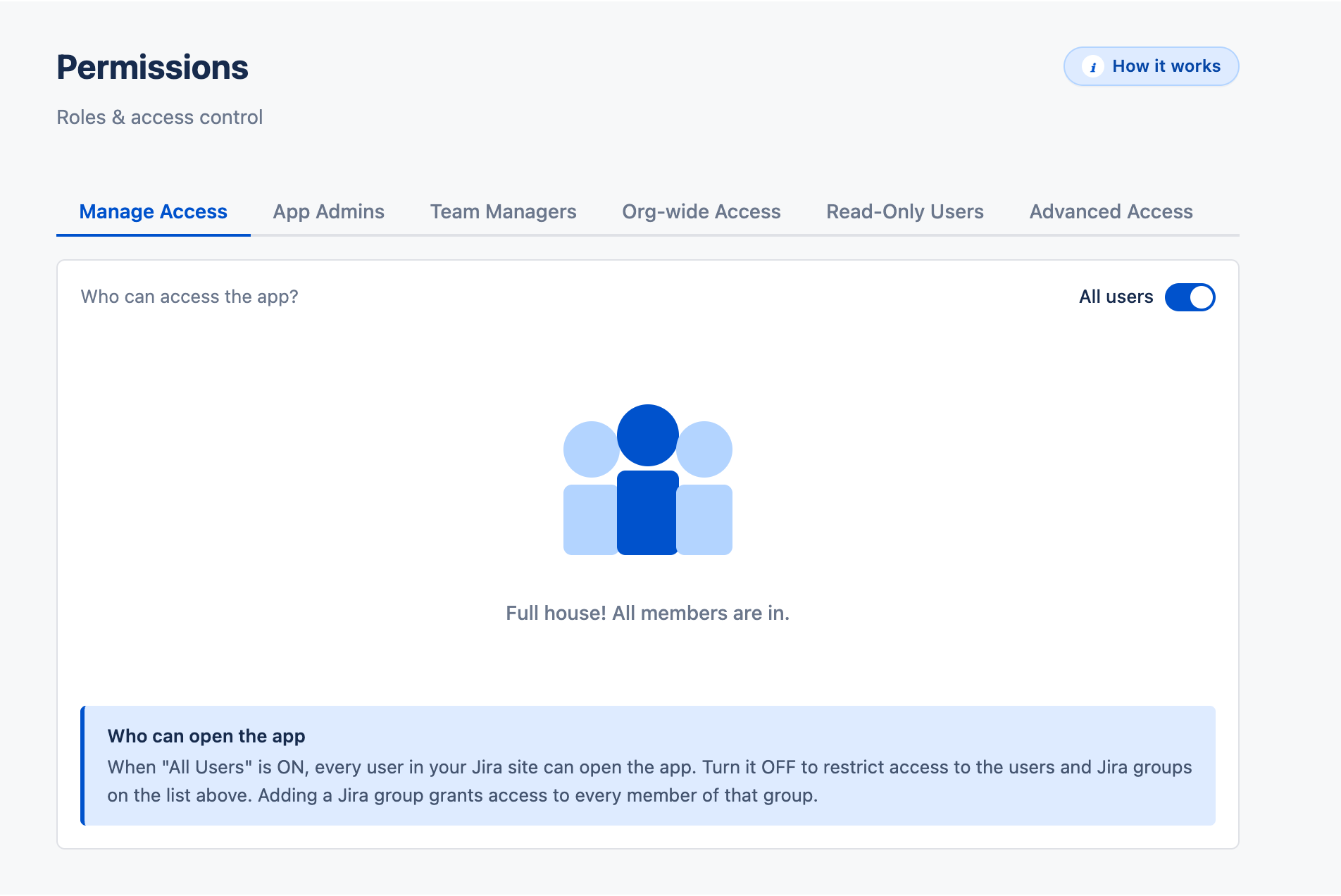
By default, All users on your Jira site can open Timesheets for Jira. To limit access, turn the toggle off in Settings › Permissions › Manage Access and list the users or Jira groups who may use it. App Admins always have access.
The first person to open the app becomes its App Admin. Add more admins in Permissions › App Admins.
Roles Back to top
| Role | Can see | Can do | Where to assign |
|---|---|---|---|
| App Admin | Everyone | Everything, including all Settings | Permissions › App Admins |
| Organization Manager | Everyone | Approve anyone's leave and timesheets; assign capacity schemes and holiday calendars | Permissions › Org-wide Access |
| Organization Viewer | Everyone | Nothing on other people's data (read-only) | Permissions › Org-wide Access |
| Team Manager | Members of their teams | Approve their members' leave and timesheets; assign capacity schemes and holiday calendars to them | Permissions › Team Managers |
| Member | Own data, plus teammates' leave on the team calendar | Log work, submit timesheets, request leave | Everyone with access |
A read-only user can view what their role allows but cannot change anything. Admins are never affected. Set it in Permissions › Read-Only Users.
Who Approves Back to top
- A Team Manager approves leave and timesheets for the members of their teams.
- To pick a specific approver for one person or one team, add an approver rule in Advanced Access. One rule covers both leave and timesheets.
- If several approvers apply, the person chooses one when requesting leave. Timesheets go to the first match.
- With no approver, timesheet submission is blocked — assign one. Leave requests are approved automatically.
What People Can See Back to top
Members see their own data. Approvers, viewers and managers also see the people they are responsible for. Organization Managers, Organization Viewers and App Admins see everyone.
Configuring Permissions Back to top
Go to Settings › Permissions. Each sub-tab handles one job:
- Manage Access — keep All users on, or turn it off and click + Add Users or Group to list who may open the app.
- App Admins — people with full access and all Settings.
- Team Managers — pick a person and the teams they manage.
- Org-wide Access — add Organization Managers and Organization Viewers.
- Read-Only Users — people who can view but not change anything.
- Advanced Access — approver and viewer rules for one person or one team. A viewer sees that person's or team's data without approving.
Jira groups can be used in Manage Access and Read-Only Users; other roles are assigned per user. Changes to Jira group membership can take up to 15 minutes to apply.
Turning Approval Off Back to top
- Timesheets — turn off Approval workflow in Timesheet Settings. Nobody submits timesheets and no worklogs are locked.
- Leave — turn off Approval workflow in Leave Settings. Every leave request is approved automatically.
Examples Back to top
- An auditor needs to see all hours — make them an Organization Viewer.
- A contractor reports to someone outside their team — add an approver rule for that one person in Advanced Access.
- Someone is leaving but their history must stay visible to them — add them to Read-Only Users.
Need Help?
If you have questions or need assistance, our support team is here to help.
Contact Support