Submit your timesheet when your week is done, and your approver reviews it. For logged-hours views and exports, see Timesheet Reports.
Submit Your Timesheet Back to top
- Open Time Tracking and go to the period you want to submit.
- Check your worklogs.
- Click Submit for Approval.

Before you can submit
- Approvals must be on. If you don’t see Submit for Approval, your admin hasn’t turned on approvals.
- You need at least one worklog in the period.
- The period can’t be in the future.
- The view must show exactly one submission period — a week, two weeks or a month, as your admin set it.
Timesheet Statuses Back to top
| Status | What it means |
|---|---|
| Draft | Not submitted yet. |
| Submitted | Waiting for your approver. Shown as Pending Approval in Time Tracking. |
| Approved | Your approver accepted it. |
| Rejected | Your approver sent it back with a reason. |
| Reopened | An approved timesheet was opened again for corrections. |
After Rejected or Reopened, you see the reason. Fix your worklogs and submit again from Time Tracking.
For Approvers Back to top
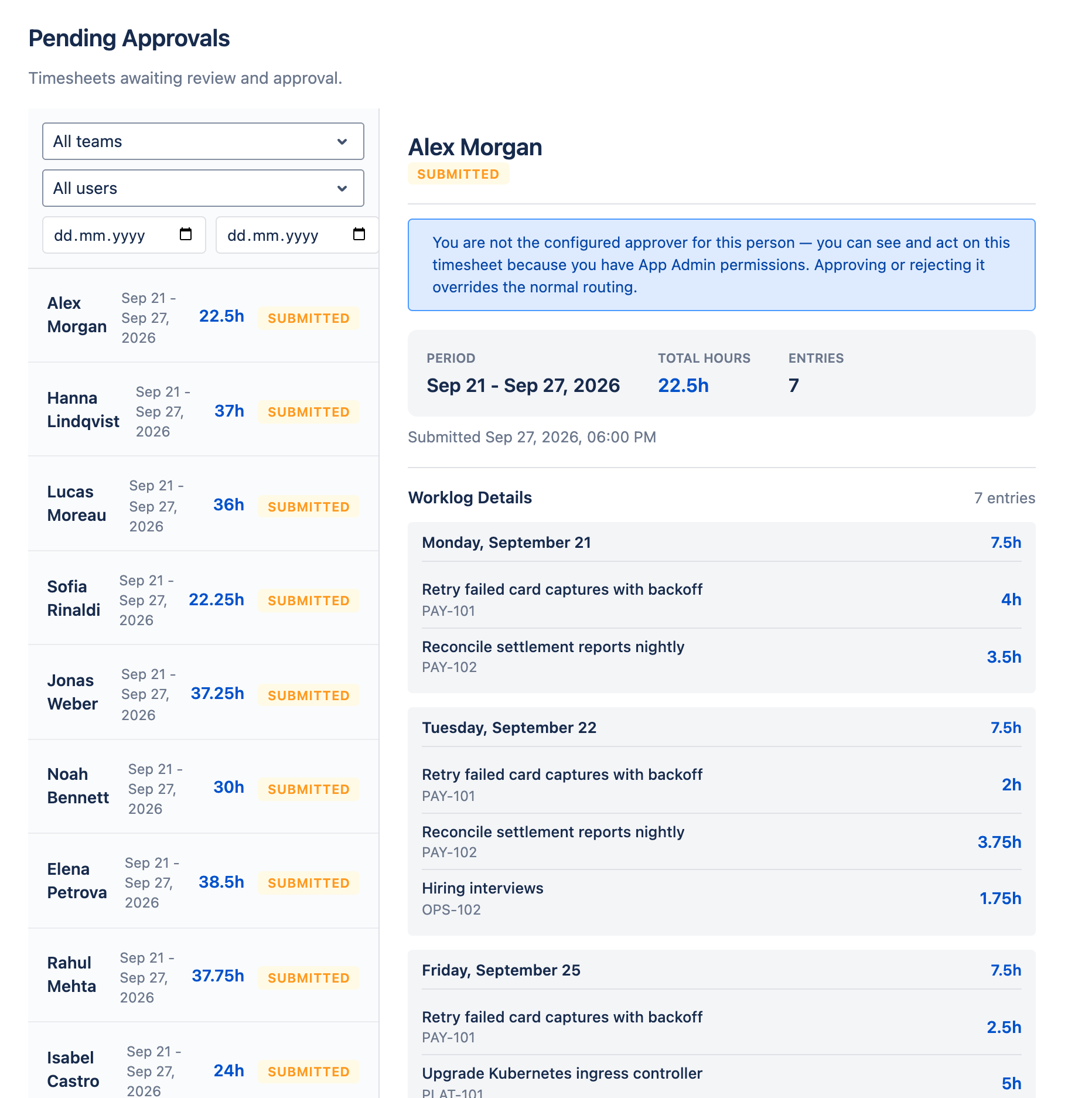
Open Pending Approvals in the Timesheets sidebar to see timesheets waiting for you. Filter by team, person or date range.
- Select a timesheet to see its worklogs and history, or click Export Excel.
- Approve accepts it.
- Reject sends it back. Enter a reason of at least 10 characters.
Approval History
Approval History lists timesheets that were already approved or rejected. To correct an approved timesheet, click Reopen and enter a reason. The person can then fix it and submit again.
Need Help?
If you have questions about timesheet approval or need help with your setup, our support team is here to help.
Contact Support