Roles at a Glance Back to top
Everyone starts as a Regular user — you don't need to add anyone for that. Give extra rights only where needed under Settings → Permissions. A person can hold several roles; the most generous one applies.
| Role | What they can do | Where to set it |
|---|---|---|
| App Admin | Everything, including all settings. Sees and acts on everyone. | App Admins |
| Org Manager | Sees and acts on everyone (approve, edit, plan), but can't change settings. | Org-wide Access |
| Org Viewer | Sees everyone's schedules, timesheets, leave, and reports. Acts only on their own data. Good for HR and auditors. | Org-wide Access |
| Team Manager | Sees and acts on members of the teams they manage, and is their default approver. Can assign capacity schemes and holiday calendars to those teams. | Team Managers |
| Approver / Viewer rule | Approves (or only views) leave and timesheets for one person, one team, or everyone, without a wider role. Viewers can't plan work for the people they view. | Advanced Access |
| Read-only | Not a role but a lock: the person keeps what they can see, but can't change anything. Useful for offboarding or audits. App Admins are never locked. | Read-Only Users |
| Regular user | Sees their own teammates on the Scheduler and can plan shared work with them. Logs their own time and requests their own leave. | Default — nothing to set |
- First App Admin: whoever completes the first-run setup dialog becomes App Admin. The last App Admin can't be removed.
- Jira permissions still apply: even an App Admin only sees the Jira issues and worklogs they can access in Jira.
Who Sees Whose Timesheets Back to top
Timesheets and worklogs are private. Being on the same team shows a teammate on the Scheduler, but not their timesheet or logged time.
- App Admin, Org Manager, Org Viewer — everyone's timesheets.
- Team Manager — only members of teams they manage.
- Approver or Viewer rule — only the people the rule covers.
- Regular user — only their own.
On the Time Tracking page, you can open the weeks of the people listed above for your role. App Admins, Org Managers, Team Managers and approvers can also log, edit and delete work for the people they cover; Org Viewers and Viewer rules see those weeks read-only.
Who Approves Back to top
When someone submits leave or a timesheet, WorkHub picks the approver in this order:
- A Team Manager of their team (never the person themselves).
- An Advanced Access approver set for that person.
- An Advanced Access approver set for their team.
- An Advanced Access approver set for all users.
- Leave: if several approvers fit, the requester picks one in the request dialog. If nobody fits, the leave is approved automatically.
- Timesheets: sent to the first approver in the list, but any eligible approver can act on it. If nobody fits, the person can't submit until an admin assigns an approver.
Approval can be turned off separately in Leave Settings and Timesheet Settings. For recall and other leave actions, see Leave Management.
Configuring Permissions Back to top
All permissions live under Settings → Permissions. Click How it works there for a quick in-app summary.
| Sub-tab | What it does | Accepts Jira groups? |
|---|---|---|
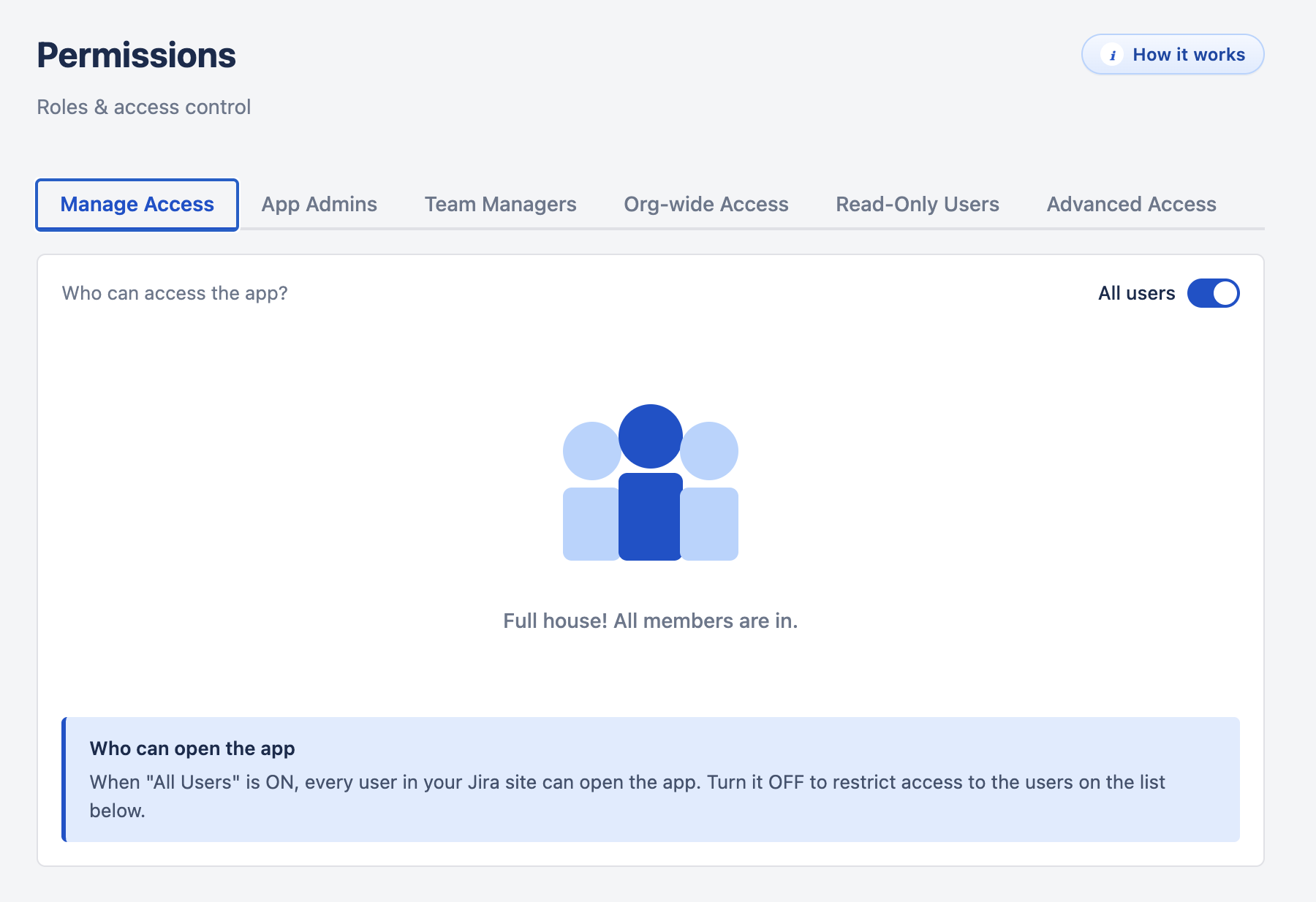
| Manage Access | With All users on, everyone on your Jira site can open WorkHub. Turn it off to allow only the people and groups on the list. App Admins always keep access. | Yes |
| App Admins | Add or remove App Admins. | No |
| Team Managers | Pick a person and the teams they manage. | No |
| Org-wide Access | Two lists: Organization Managers and Organization Viewers. | No |
| Read-Only Users | Lock people out of making changes. | Yes |
| Advanced Access | Approvers and Viewers for all users or a team (Rules), or for one person (Per-User Assignments). Covers both leave and timesheets. | No |
A Jira group covers its current and future members, so you don't need to update WorkHub when group membership changes. Changes can take up to 15 minutes to apply.
Common Setups Back to top
- Auditor or HR — add them as an Org Viewer.
- A manager approving one contractor — add an Advanced Access per-user approver.
- Cover while a Team Manager is away — add a second Team Manager to the team, then remove them later.
- Offboarding without removing Jira access — add the person to Read-Only Users.
Need Help?
If you have questions or need assistance, our support team is here to help.
Contact Support