Overview Back to top
Issue Colors decides the color of each issue bar on the Scheduler and My Work. Bars get a default color, and you can add rules that override it — for example Priority = Highest → red or Deadline < Today → overdue red (where Deadline is a custom date field). Rules apply to everyone; text on the bar always stays readable.
App admins set this up in Settings → Issue Display → Issue Color. The How it works button there opens a short in-app guide. Everyone else can see why a bar has its color with Explain colors.
Default Appearance Back to top
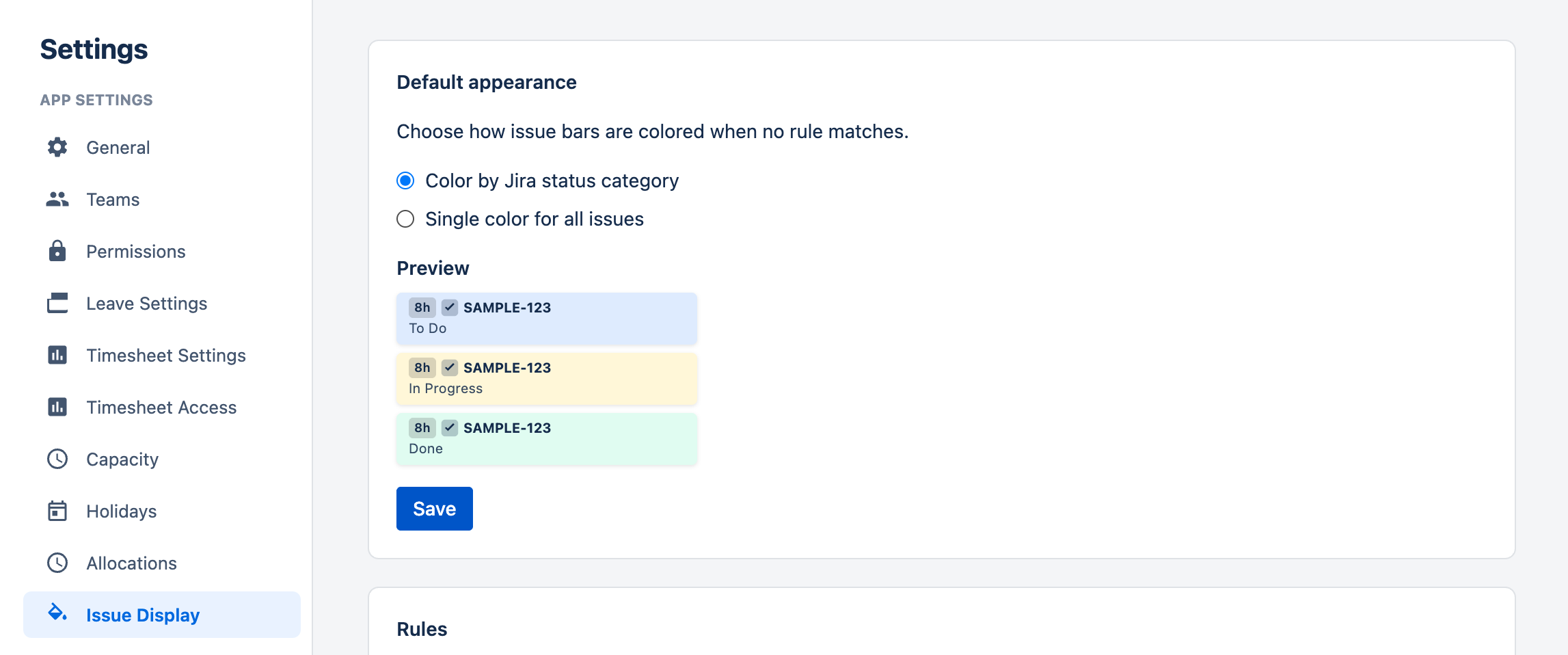
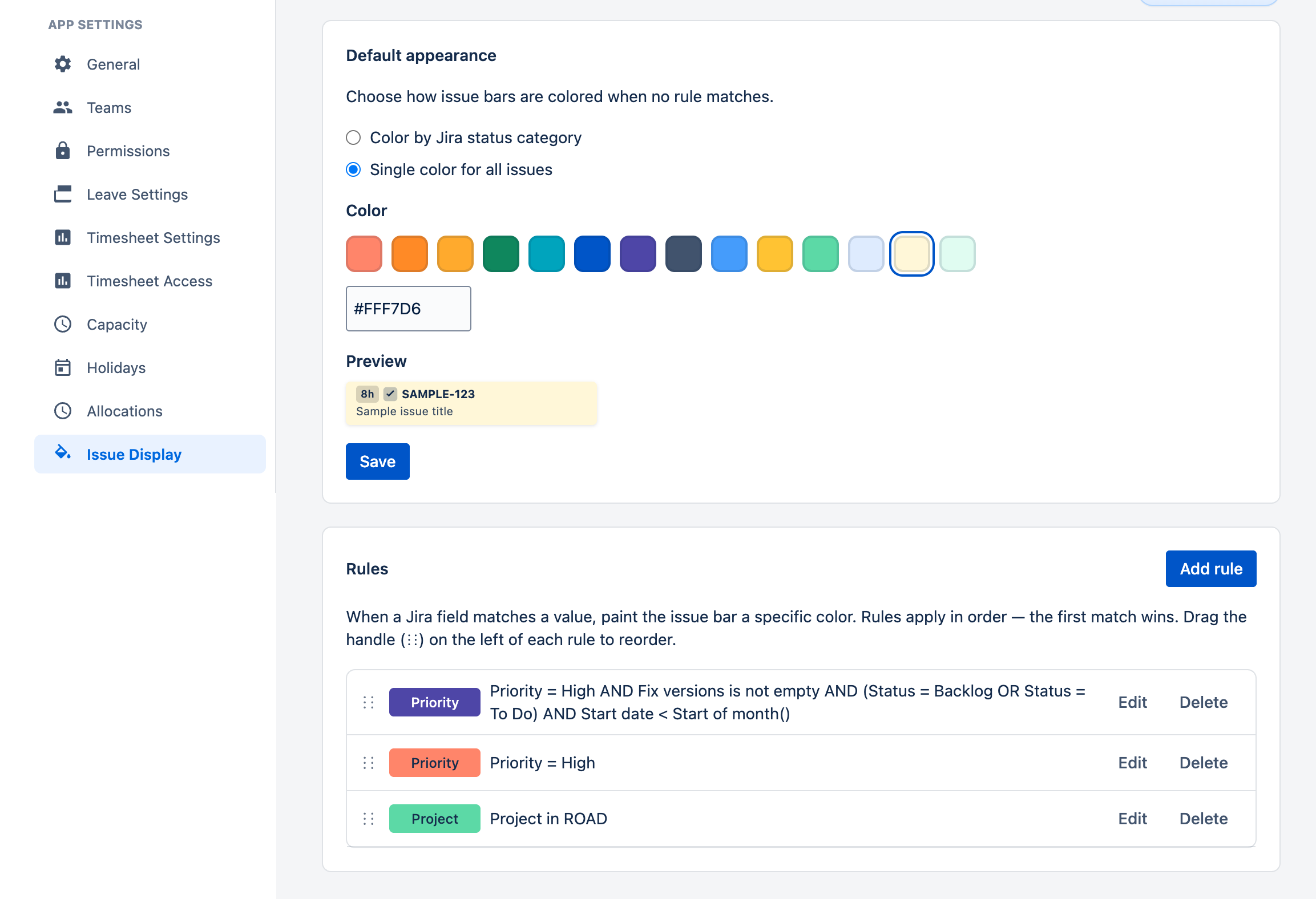
The default color applies to every issue that no rule matches. Choose one:
- Color by Jira status category — light blue for To Do, light yellow for In Progress, light green for Done. Works with any workflow.
- Single color for all issues — pick one color from the palette or choose a custom color.
Color Rules Back to top
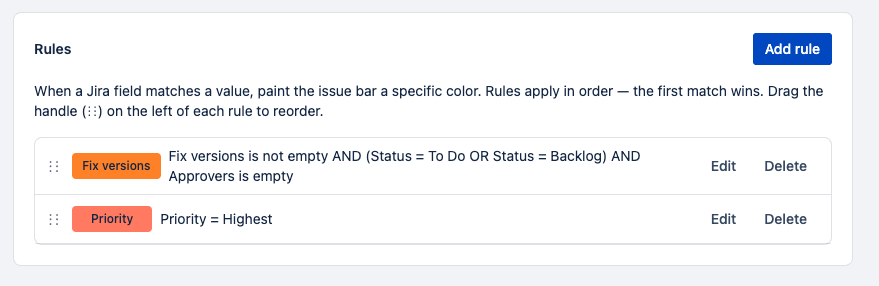
A rule says "when an issue matches these conditions, paint its bar this color." Rules are checked from top to bottom,
and the first match wins. Drag the ⋮⋮ handle to reorder — put specific rules above general ones.
Use Edit and Delete on each rule to change or remove it.
Creating a Rule Back to top
- Click Add rule.
- Under Conditions, pick a Jira field, an Operator and a Value. For fields like priority, status or fix version, you pick values from a list.
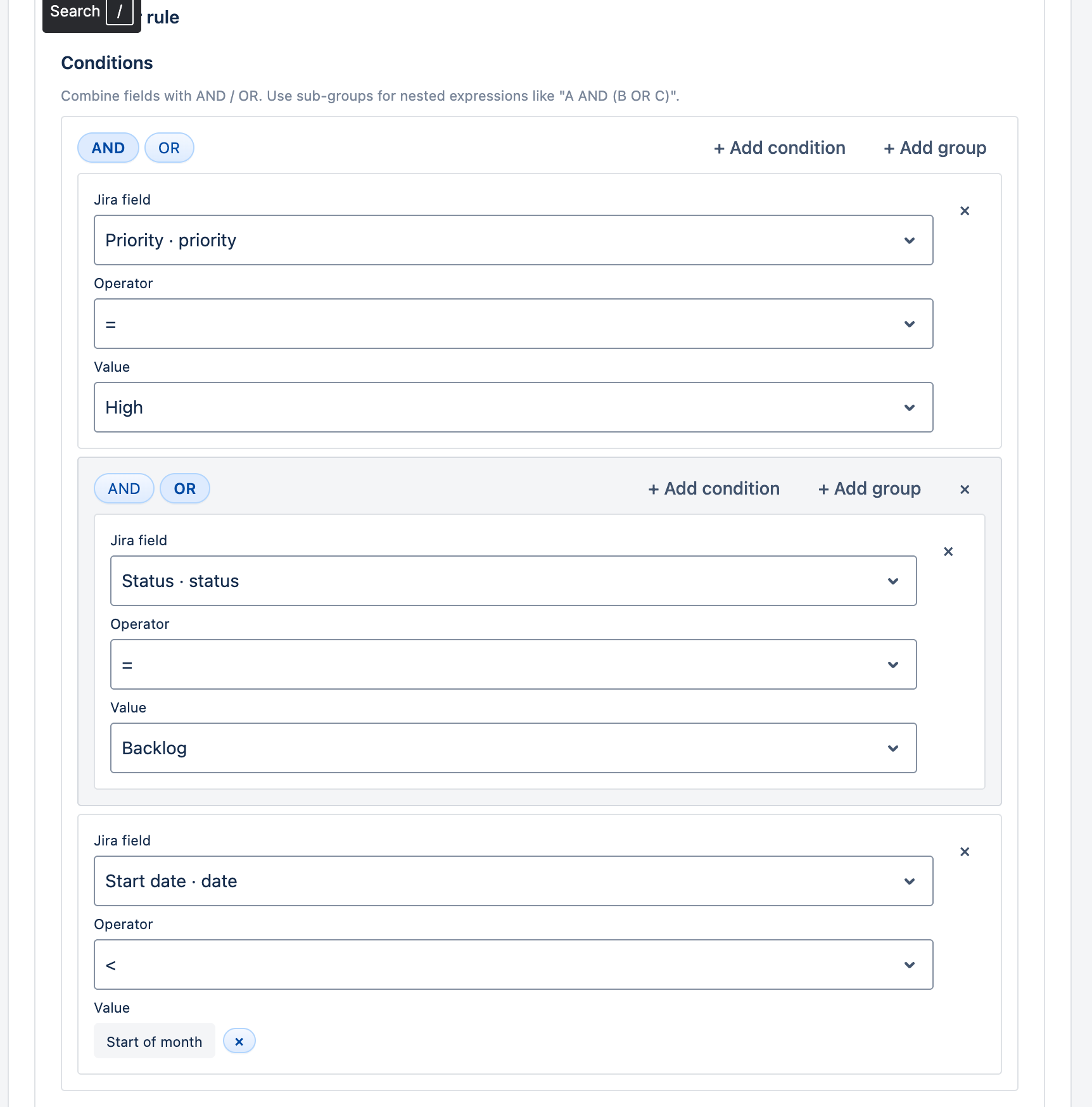
- Click Add condition for more conditions, and set the group to AND (all must match) or OR (any can match).
- Choose a Color and, optionally, a Label that tells colleagues what the color means. Check the Preview, then click Save.
Mixing AND and OR
Click Add group to nest conditions, for example Assignee = Current user AND (Priority = Highest OR Priority = High). Groups are shown in brackets in the rules list.
Operators
Only operators that fit the chosen field are offered: =, !=, <, <=, >, >= (numbers and dates), is one of, is not one of, contains, does not contain, is empty and is not empty. For text fields, type several values separated by commas.
Dates and "me"
For user fields, Current user means whoever is looking, so each person sees their own issues highlighted.
For custom date fields, use Today, Now, Start of month, End of month, Start of year, End of year,
or a relative value such as +7d (in a week) or -1M (a month ago). These update automatically, so you never need to re-save the rule.
Explain Colors on the Scheduler Back to top
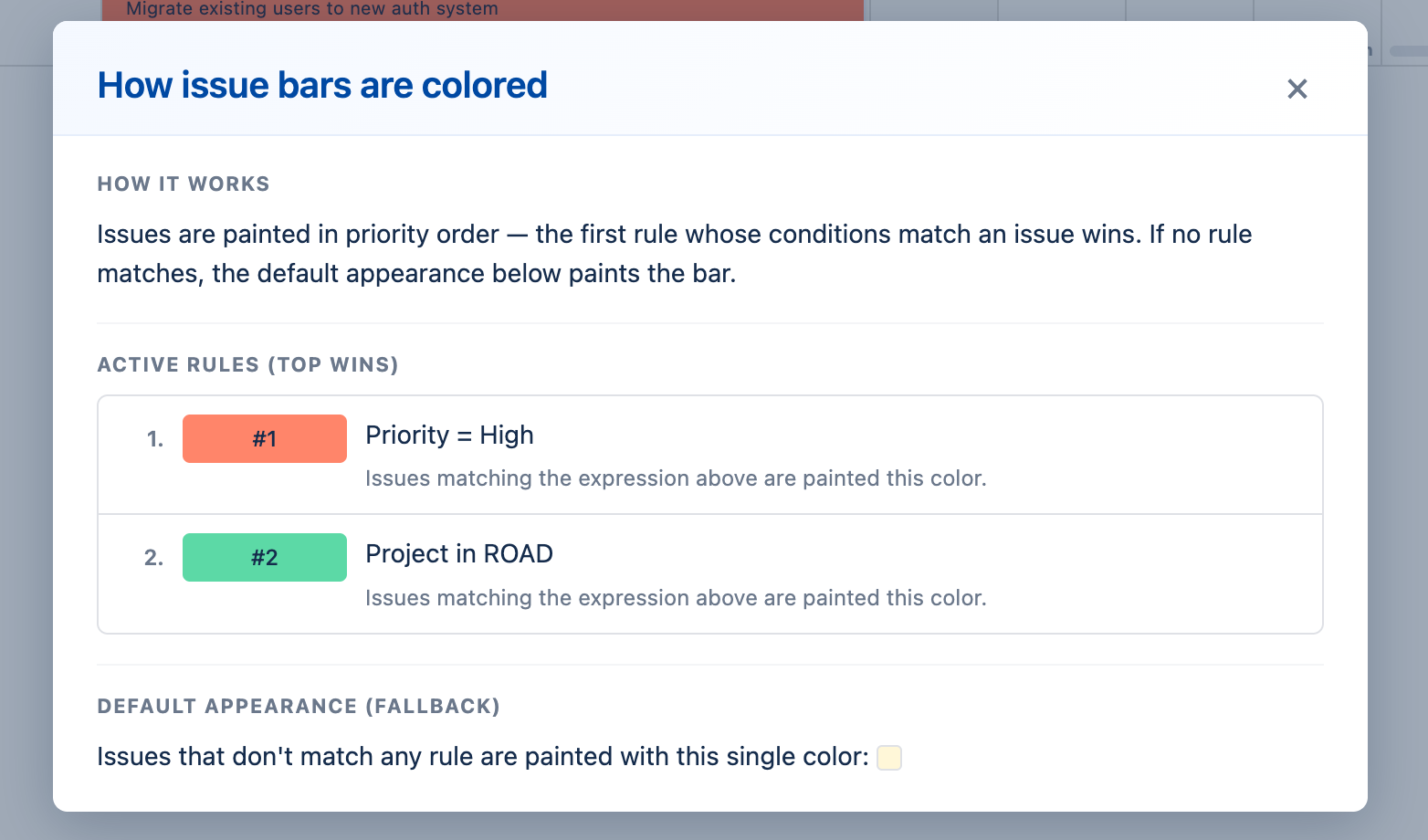
Anyone can click Explain colors (the palette icon ) in the Scheduler or My Work header. It lists the active rules in order, top rule first, and the default color used for everything else.
Examples Back to top
| Goal | Rule |
|---|---|
| Overdue work | Deadline < Today → red |
| Due in the next two weeks | Deadline > Today AND Deadline < +14d → blue |
| My urgent work | Assignee = Current user AND (Priority = Highest OR Priority = High) → amber |
| Tell projects apart | One rule per project, e.g. Project = DESIGN → teal |
| Next release | Fix versions is one of v3.2.0, v3.2.1 → orange |
| Bugs | Issue Type = Bug → red |
Need help?
If you have questions about Issue Colors or want help building a rule, our support team is here to help.
Contact Support