Overview Back to top
Settings is where App Admins configure WorkHub for everyone on the site. Org Managers and Team Managers also see Settings, but only the Capacity and Holidays tabs. Other users don't see it. See Permissions & Access →
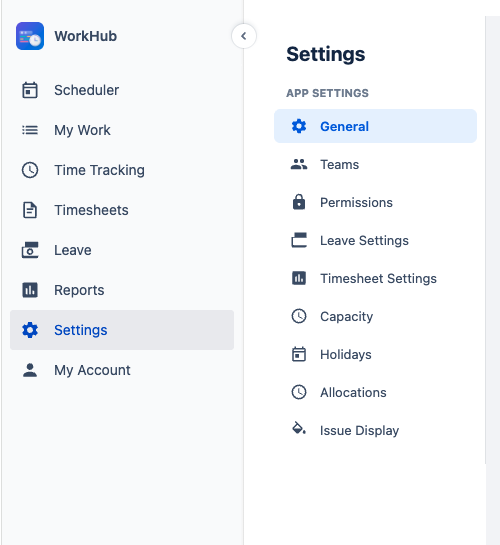
Changes apply to all users as soon as you save them.
General Back to top

- Default work hours per day and Default work days — the standard working schedule used for capacity, unless a capacity scheme applies to the person.
- First day of week — the day weeks start on across the Scheduler, Time Tracking, Timesheets, and reports. Leave it on Use Jira locale to follow each user's Jira profile.
- Field Mapping — where issue start and end dates are stored. See Field Mapping below.
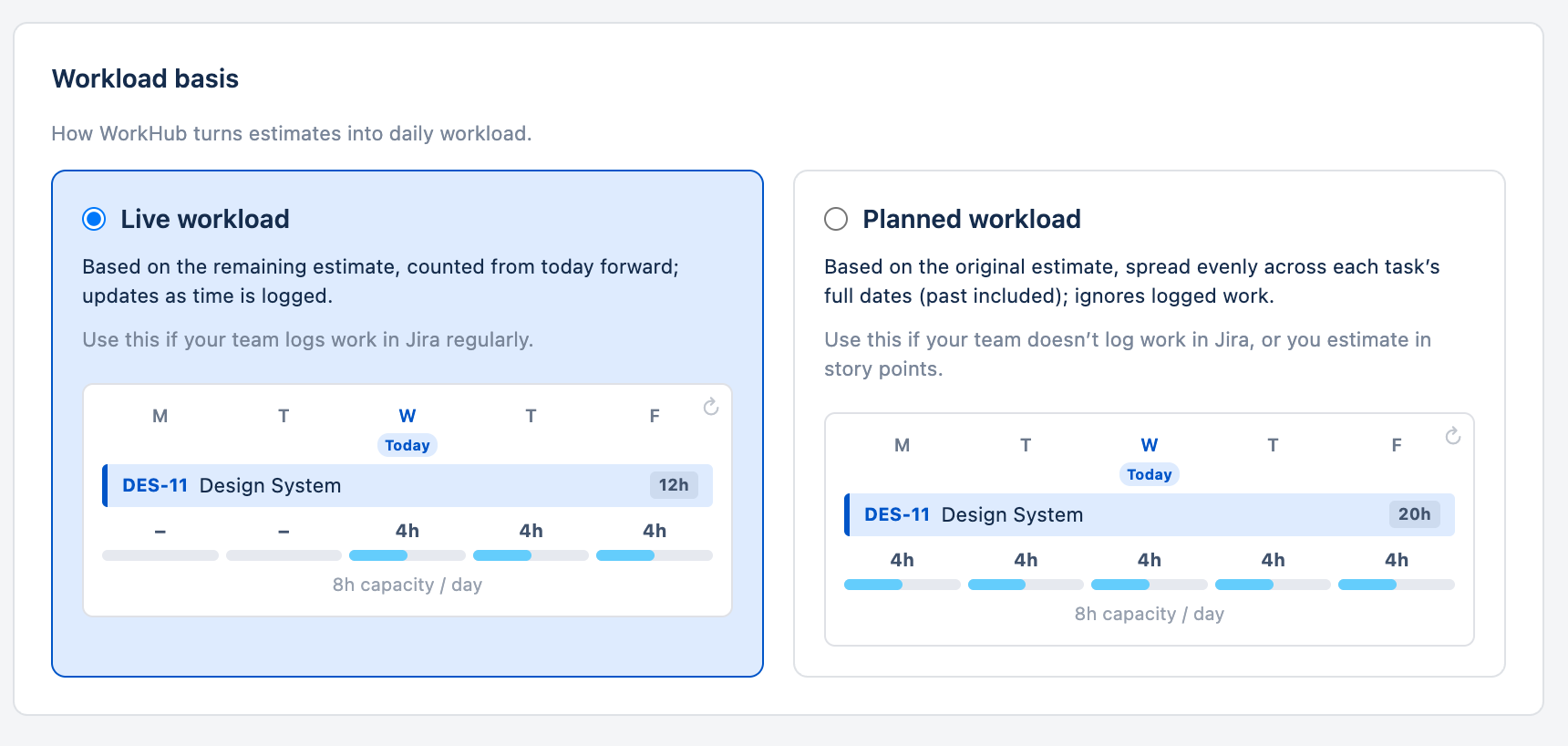
- Workload basis — Live workload counts the work still remaining from today on; Planned workload spreads each issue's full estimate across its dates. The Estimate source and Resolved issues options sit in the same section. See Workload Basis.
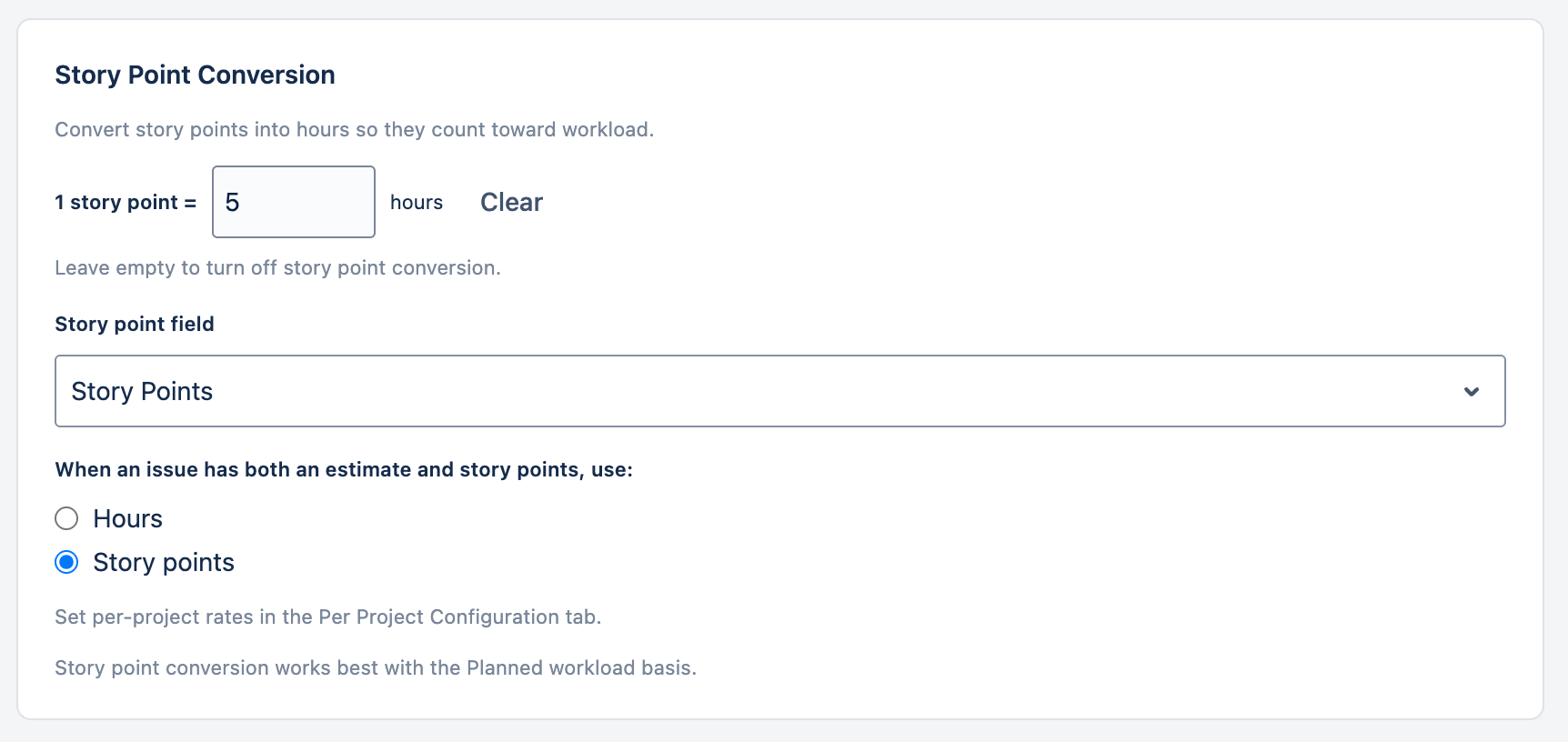
- Story Point Conversion — turns story points into hours so story-point estimates count toward workload. See Planning with Story Points.
Field Mapping Back to top
Field Mapping tells WorkHub where each issue's start and end dates live, so it can place issues on the Scheduler and save new dates when you move them. You set it in the setup dialog on first launch (see Getting Started) and can change it any time under Settings → General.

For Start Date Field and End Date Field, pick either:
- WorkHub storage (no Jira field) — works in every project with no Jira setup. Dates show in WorkHub and in the WorkHub panel on each issue, and can be searched in JQL with
workhubStartDate/workhubEndDate. They don't appear in Jira's own date fields or on boards. - A Jira date field — dates stay visible on boards, issue views, and in other apps, and can be edited in Jira too. The field must be available in every project you schedule.
You can mix them: for example, WorkHub storage for the start date and Jira's Due date for the end date.
- Fields such as Created or Resolved are read-only. WorkHub can show them, but you can't reschedule those issues from the timeline.
- After you change the mapping, issues whose dates are only in the old field disappear from the timeline until they get dates in the new one.
- If Jira refuses a date change because the field isn't available in a project, the error message has a How to fix link. In company-managed projects WorkHub first tries to fix this by itself.
Show issues that have only one date (on by default) shows an issue with just one date as a one-day bar. Turn it off to show only issues with both dates.
Per Project Configuration Back to top
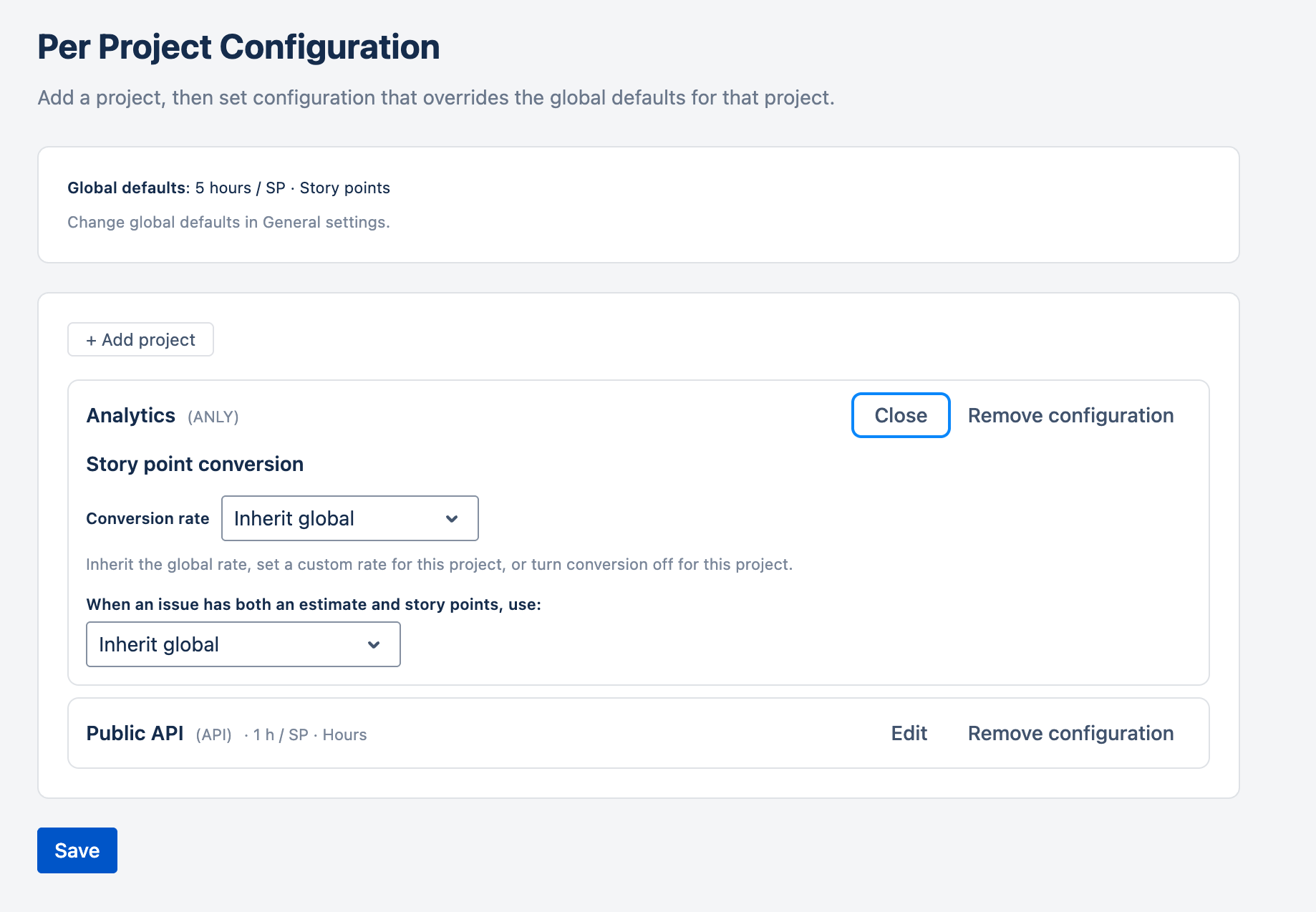
Override site-wide defaults for individual projects. For each project you add, you can change the story point conversion (inherit, use the project's own rate, or turn it off) and set the default worklog category. Projects you don't add use the site-wide settings.
Teams Back to top
Create teams of Jira users to filter the Scheduler and reports, and to assign managers, capacity, and holidays. See Team Management.
Permissions Back to top
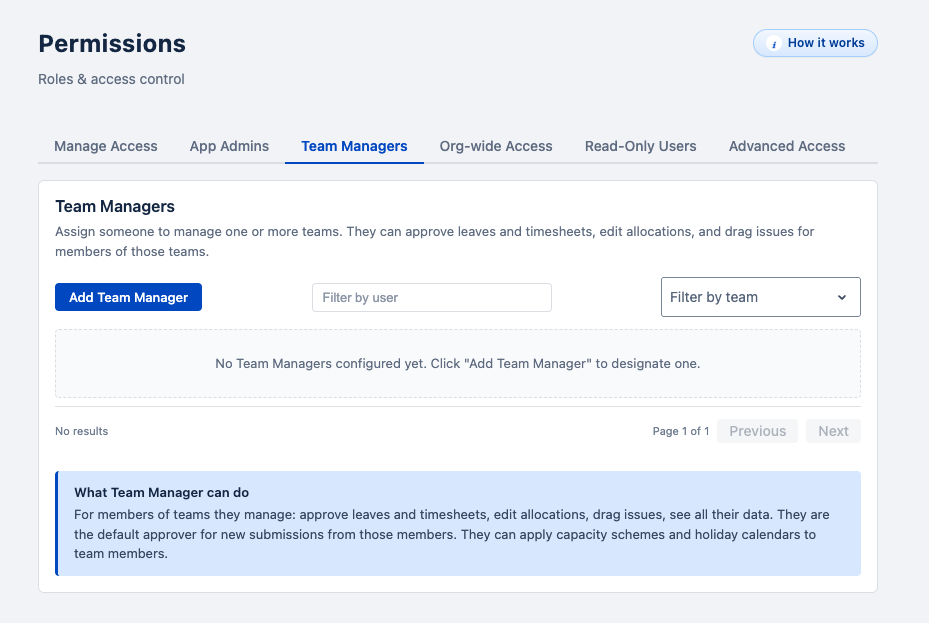
Decide who can open WorkHub and who gets extra rights: App Admins, Team Managers, Org-wide Access, Read-Only Users, and Advanced Access rules. See Permissions & Access.
Leave Settings Back to top
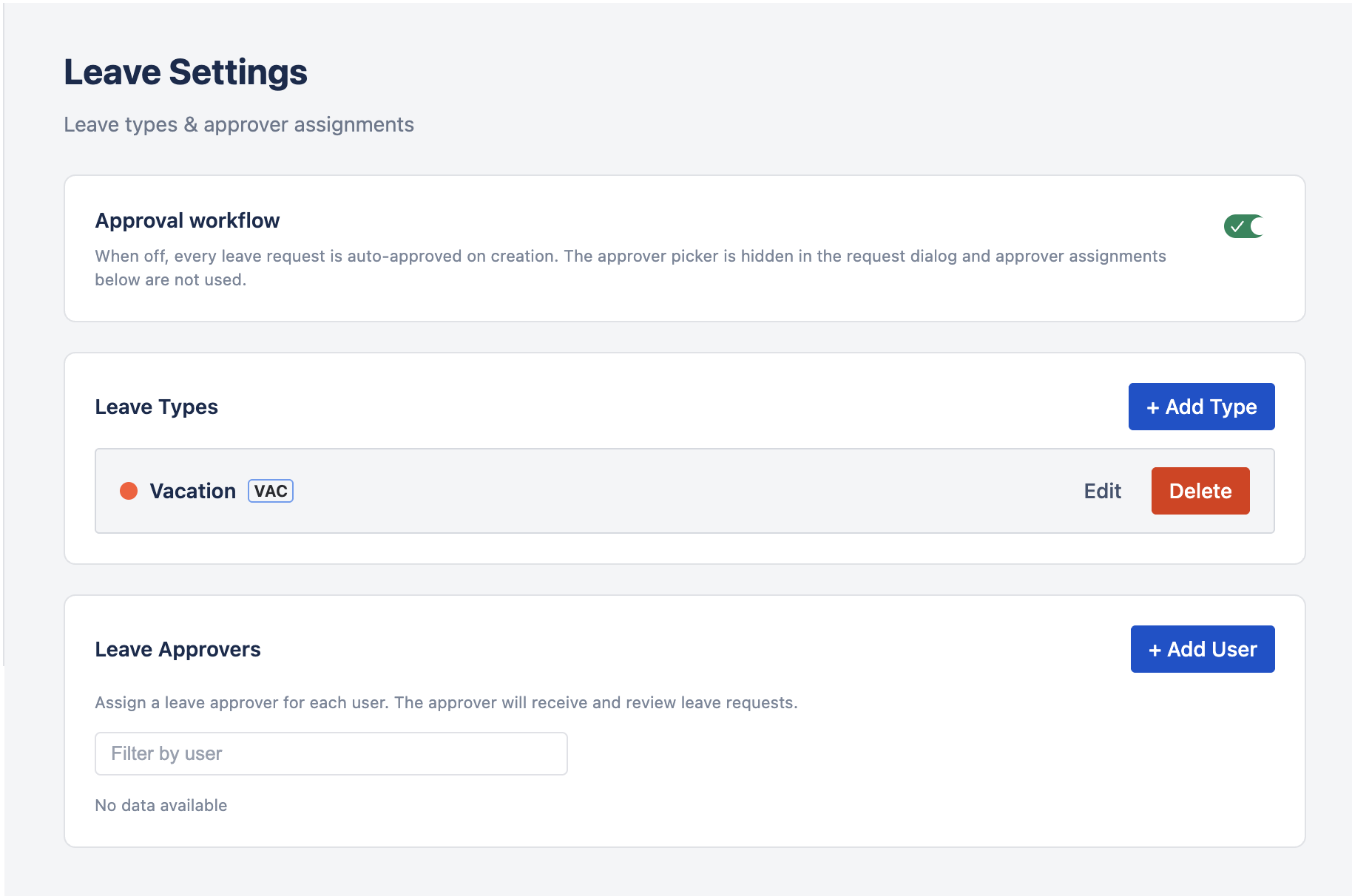
- Approval workflow — when on, leave requests wait for an approver. When off, every request is approved right away and people can edit or recall their own leave freely.
- Show recalled/rejected leave on scheduler — on by default. Turn it off to keep the timeline focused on pending and approved leave. It doesn't change capacity.
- Leave Types — add, edit, or delete types with a name, abbreviation, and color. Turn on Allow partial-day requests to let people request some hours per day instead of a full day.
Leave approvers are set in Permissions. For the request and approval flow, see Leave Management.
Timesheet Settings Back to top
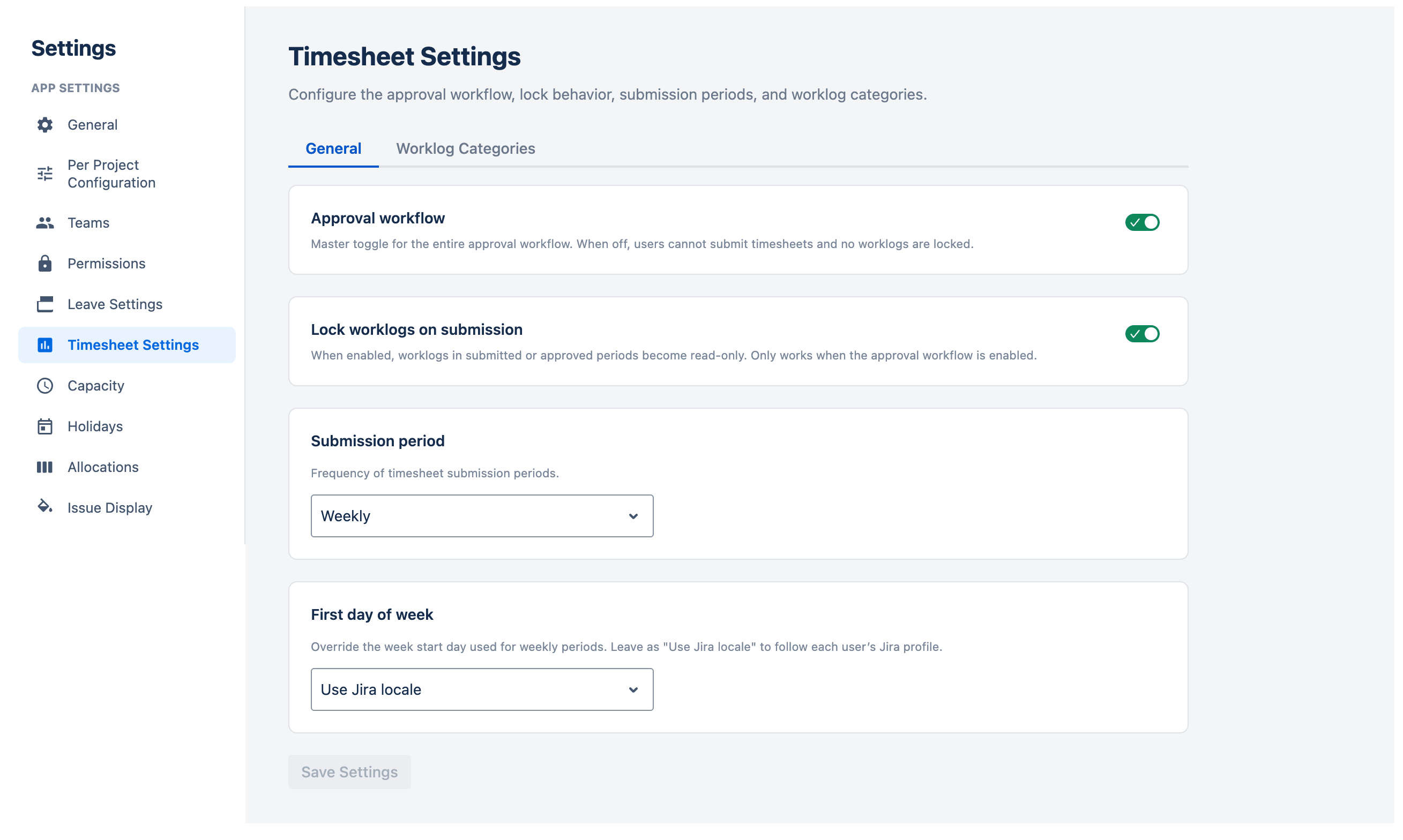
- Approval workflow — turns timesheet submission and approval on or off. When off, nobody submits timesheets.
- Lock worklogs on submission — makes worklogs in submitted or approved periods read-only.
- Allow logging work in the future — lets people log time for future dates.
- Allow logging work for others — on by default. Lets managers and approvers log time for the people they manage on Time Tracking. When off, everyone logs only their own time and other people’s weeks are view-only.
- Submission period — Weekly, Bi-weekly, or Monthly.
See Timesheets Approval for how submission works.
Worklog Categories
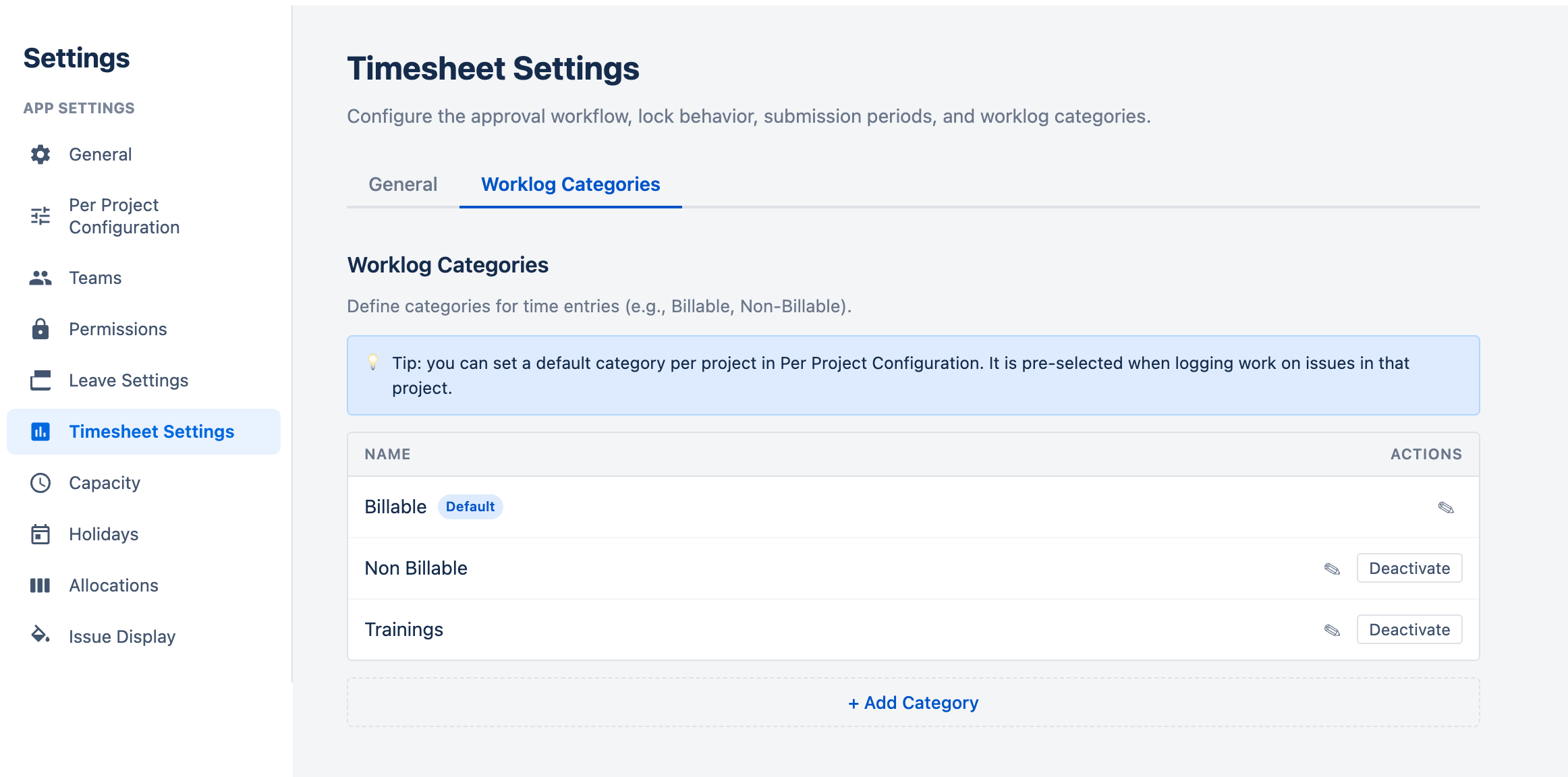
Categories such as Billable or Non-Billable that people attach to their time entries, so you can report hours by type of work. You can add, rename, deactivate, and reactivate categories, or delete one that no worklog uses. One category is the default and is used when nobody picks one. The category picker only appears once you have more than one active category.
Capacity Back to top
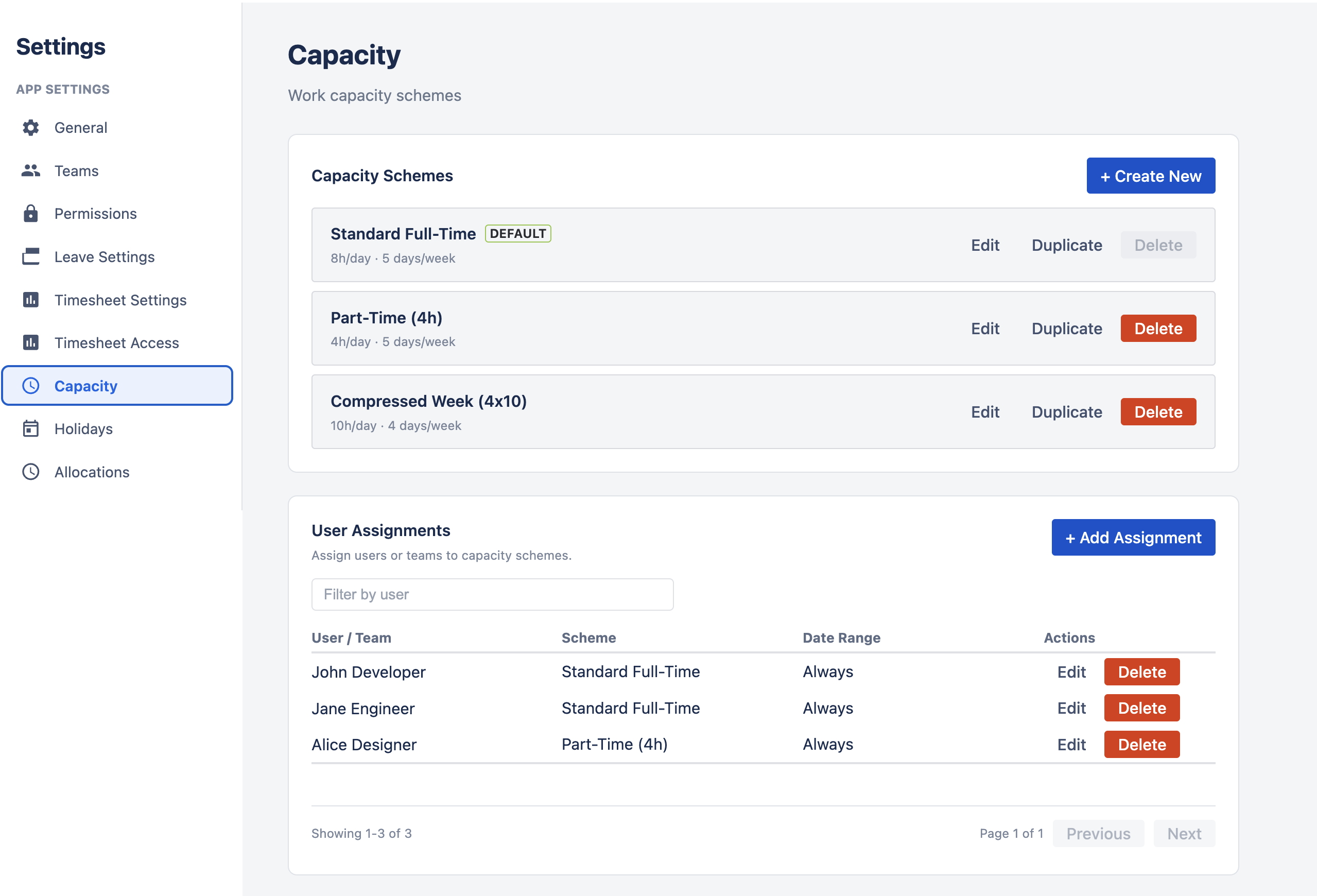
Create capacity schemes (hours per weekday, for example full-time or part-time) and assign them to people or teams. Team Managers can assign existing schemes to their own teams and team members. See Capacity Schemes.
Holidays Back to top
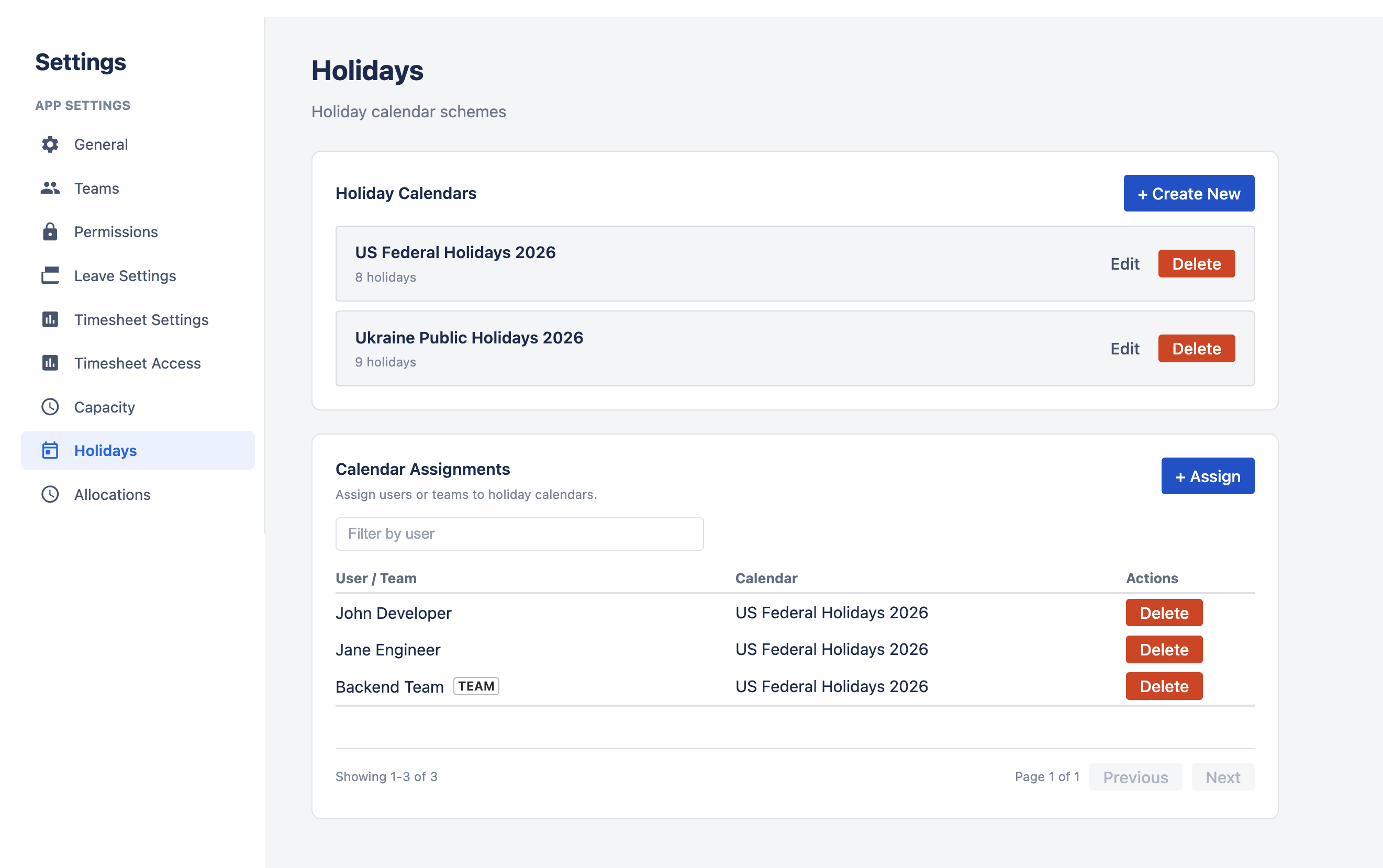
Create holiday calendars and assign them to people or teams, so public holidays reduce available hours. Team Managers can assign existing calendars to their own teams and team members. See Holiday Calendars.
Allocations Back to top
Define Allocation Categories for work that isn't a Jira issue, such as Training or Meetings. Allow Work Logging controls whether people can log time against a category. See Custom Allocations.
Issue Display Back to top
Control how issues look on the Scheduler for everyone on the site:
- Issue Color — color bars by status category, with one single color, or with your own rules (for example by priority or due date). See Issue Colors.
- Issue Card — choose up to two fields on each of the two lines shown on an issue bar, and whether to show the type icon, priority icon, and hours. A preview shows the result.
- Issue Tooltip — choose which Jira fields appear when someone clicks an issue bar. People only see values they're allowed to see in Jira.
Reset to defaults restores the original layout.
Need Help?
If you have questions or need assistance, our support team is here to help.
Contact Support