Overview Back to top
My Work is your personal page in WorkHub. It shows your own schedule together with a chart of the hours you logged each day, so you can compare what you planned, what you logged and how much time you really had.
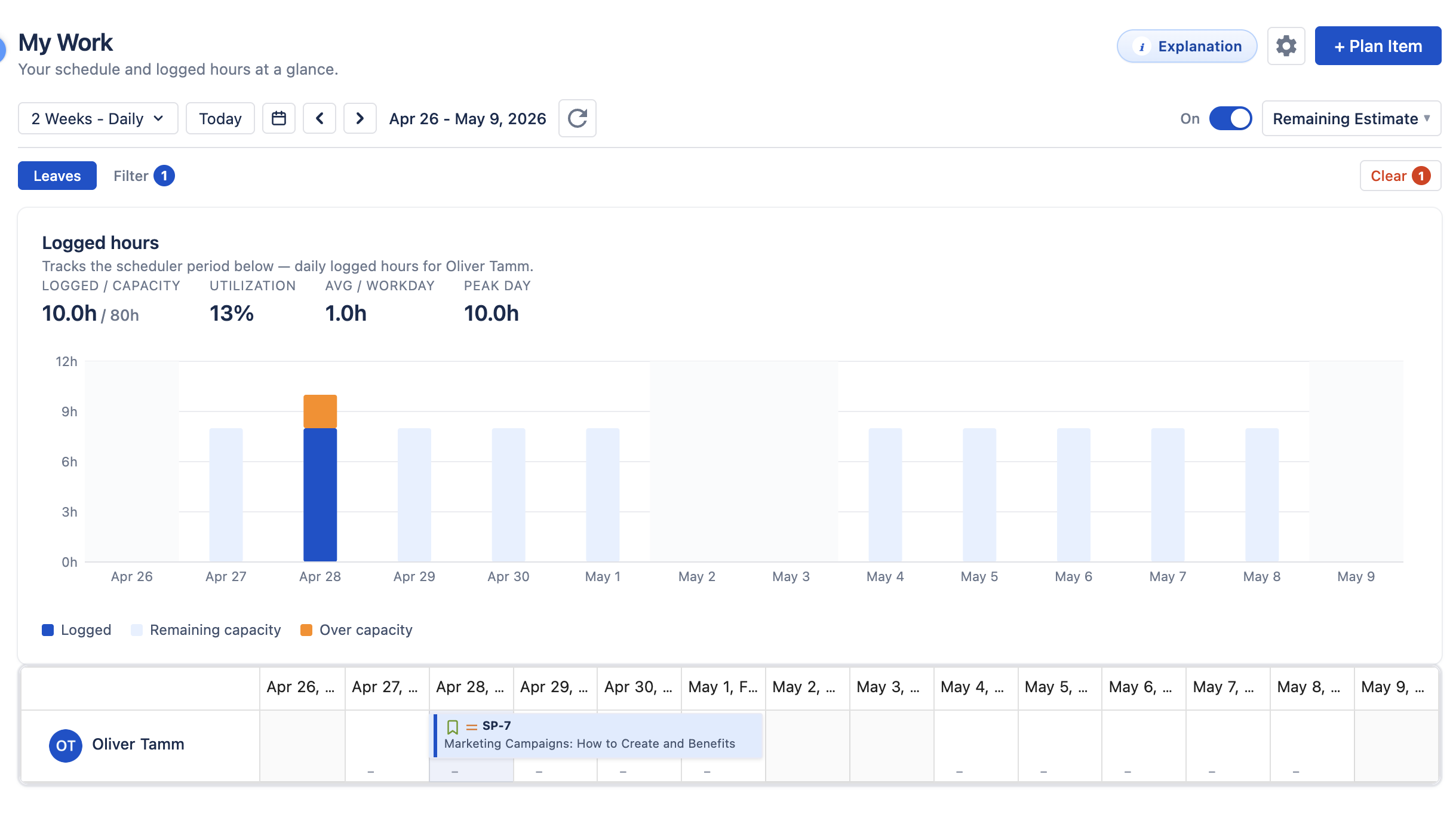
The page only ever shows you. To plan for the whole team, use the Resource Scheduler. WorkHub reopens the page you used last.
Logged Hours Chart Back to top
Each bar is one day of the period shown on the timeline below. It counts time logged on Jira issues and on allocations such as meetings or training. Your available time per day is your capacity scheme minus approved leave and holidays, so a vacation day never makes you look underused.
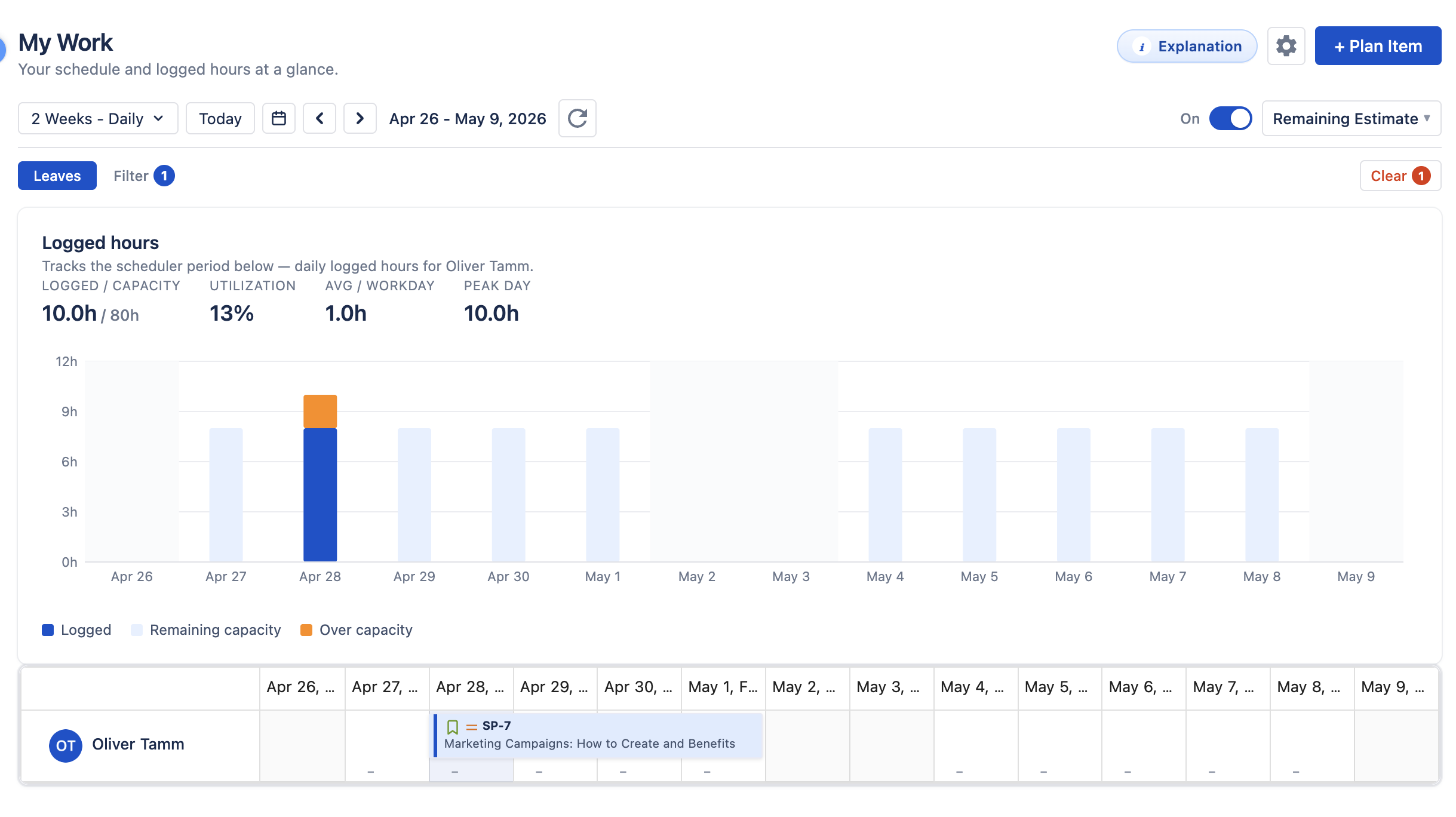
| Color | Meaning |
|---|---|
| Logged | Hours you logged that day. |
| Remaining capacity | Time you had available but did not log. |
| Over capacity | You logged more than your available time. |
| Logged on non-working day | Time logged on a weekend, holiday or leave day — worth checking for mistakes. |
Above the chart, Logged / capacity, Utilization, Avg / workday and Peak day sum up the period on screen. Hover a bar for exact numbers, or click a day to see its worklogs and log more time.
My Schedule Timeline Back to top
Below the chart is your row from the Resource Scheduler, with your issues, allocations, leave and holidays. It works the same way: drag a bar to move it, drag an edge to change its dates, click it for details, or right-click a day to log work, schedule an issue or request leave. See Resource Scheduler for details.

Header & Controls Back to top
The time scale, Today and the arrows move the chart and the timeline together, so they always show the same period.
- + Plan Item — add a Jira issue to your schedule.
- Workload — show or hide your daily workload bars (see Workload Management).
- Leaves and Holidays — hide those bars from the timeline; your capacity still accounts for them.
- Explanation — an in-app guide to this page.
Need Help?
If you have questions or need assistance with WorkHub for Jira, our support team is here to help.
Contact Support