Overview Back to top
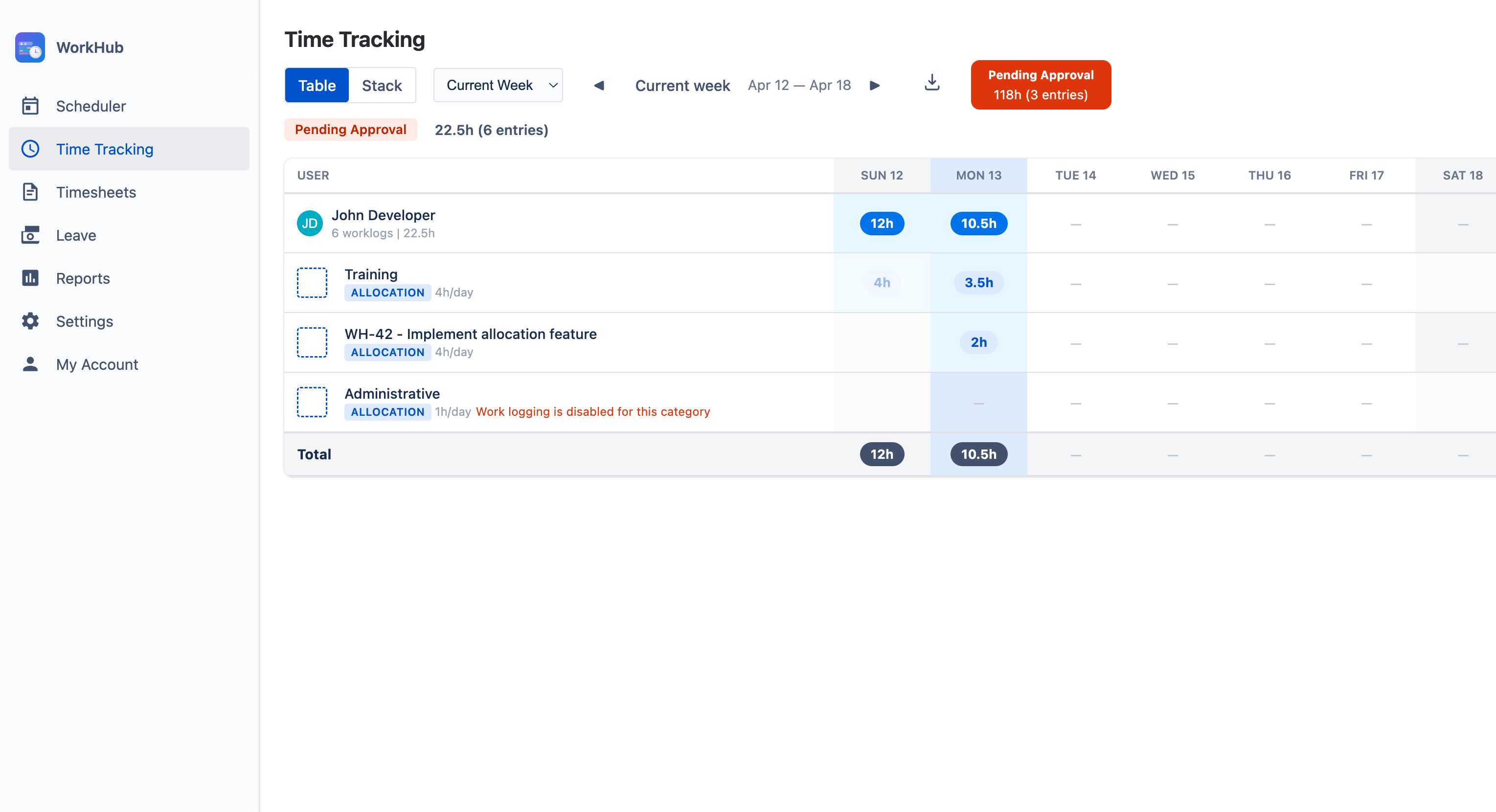
Time Tracking is where you record the hours you spend on Jira issues and on allocations scheduled for you. Each entry is a worklog: what you worked on, the date, the hours, and an optional description.
Managers and approvers can also view and log time for the people they look after — see View and Log Hours for Users You Manage. If your team uses timesheet approval, you also submit your week from this page (see Timesheets Approval).
Logging Work Back to top
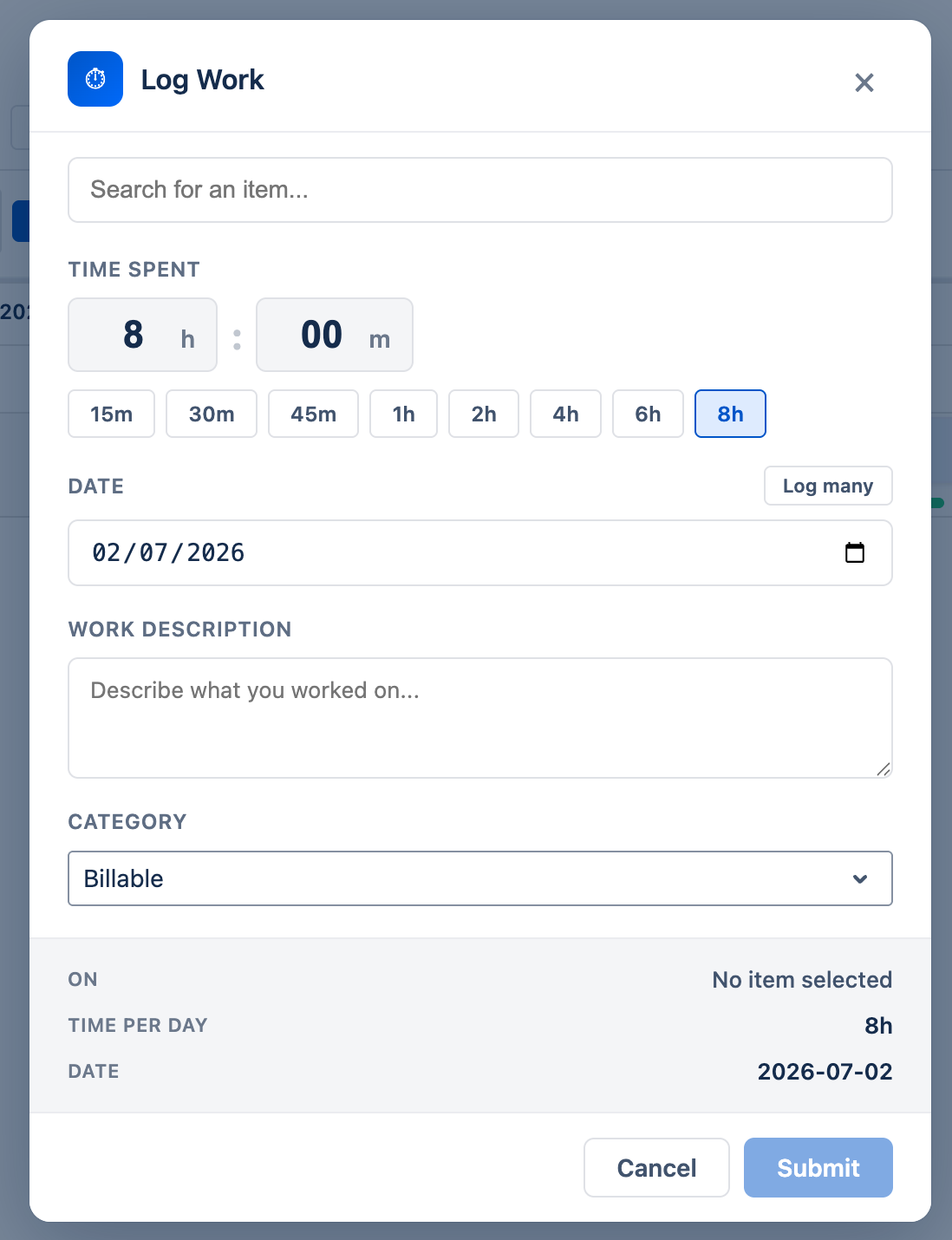
Click any day cell in the grid (or + Log More Time in a day’s worklog list) to open the Log Work dialog. Fill it in and click Submit.
- Item — the Jira issue. Pick one from Recently viewed or type to search by key or summary.
- Time Spent — hours and minutes; quick buttons cover common durations.
- Date — defaults to today. Turn on Log many to log the same time on every working day in a From–To range.
- Work description — optional note on what you did.
- Category — for example Billable or Non-Billable. Shown only when your admin has set up more than one worklog category, and pre-selected to the default.
Logging Work on Allocations Back to top
Allocations (non-issue work such as training or support) appear as their own rows on the grid, marked Allocation, on the dates they cover. Click a cell on the row to log time against it. You can also right-click a day on your own row in the Scheduler and choose Log Time.
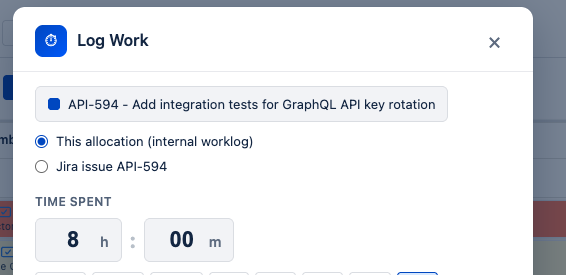
If the allocation is linked to a Jira issue or epic, the dialog asks where the time goes:
- This allocation (internal worklog) — counts toward the allocation and appears in timesheets and reports, but doesn’t change the Jira issue.
- Jira issue <KEY> — logged on the Jira issue like a normal Jira worklog.
Start / Stop Timer Back to top
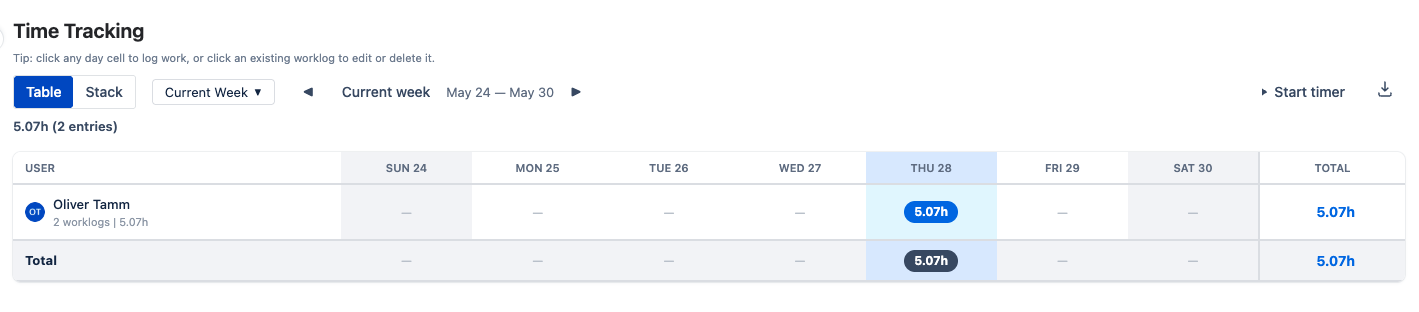
Click Start timer in the toolbar and pick an issue (in the WorkHub panel on a Jira issue, it times that issue). The button shows the running time; click it again to stop, and the Log Work dialog (or the panel’s log form) opens with the time already filled in.
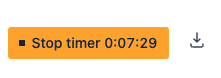
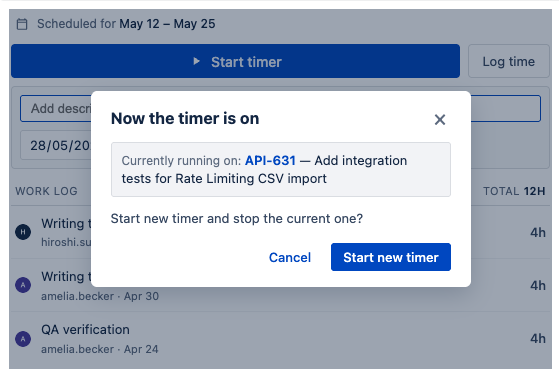
Only one timer runs at a time. Starting another one asks you to confirm, then logs the current timer and switches.
Jira Issue Panel Back to top
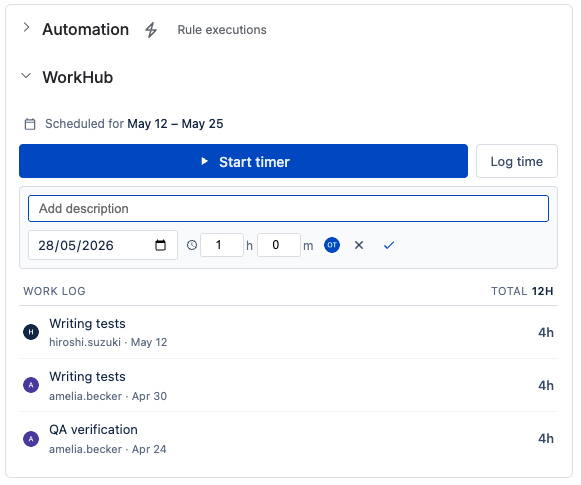
Every Jira issue has a WorkHub panel, so you can track time without leaving the issue:
- See and edit the issue’s scheduled dates (Set dates if it has none yet).
- Log time with a short inline form.
- Start timer on this issue.
- See every worklog on the issue, from everyone, with a total.
Weekly Grid Back to top
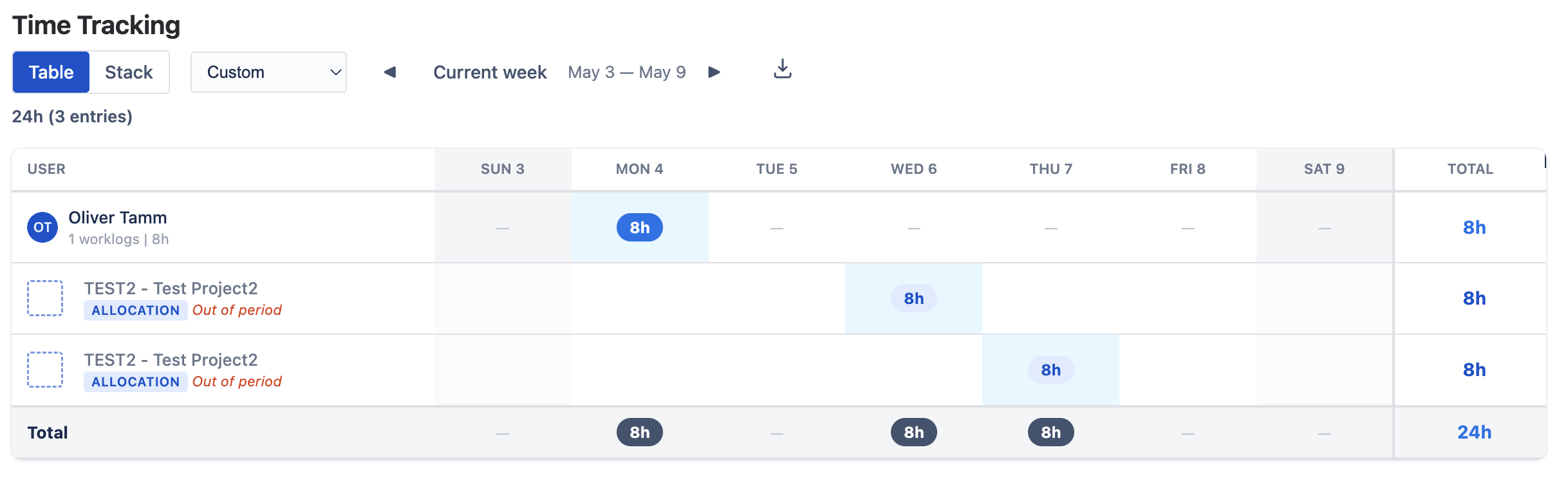
The grid shows one row per issue or allocation you worked on, one column per day, and totals for each row and day. Switch between Table and Stack (one card per worklog) with the toggle in the toolbar.
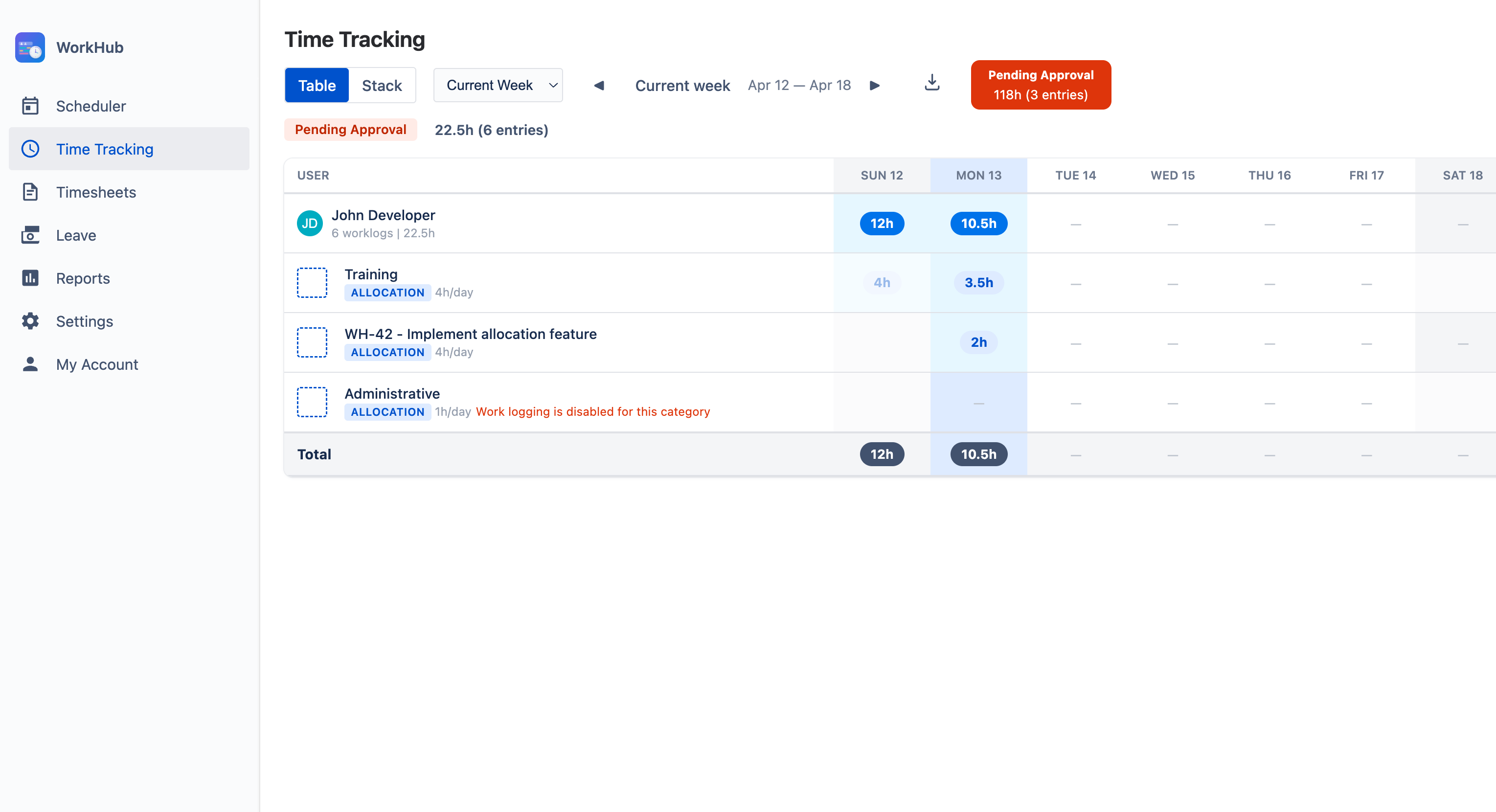
Use the arrows or Current week to move between weeks, or pick a period from the dropdown: Current Week, Last Week, Last 2 Weeks, Current Month, Last Month, or Custom for any date range.
A dimmed Out of period row keeps hours you logged on an allocation that was later moved or deleted. You can review or delete those worklogs, but not add new ones.
Editing & Deleting Back to top
Click a cell with hours to see that day’s worklogs. Use the pencil icon to change hours or description, or the delete icon to remove an entry.
Locked worklogs
If your admin turned on worklog locking, worklogs in a submitted or approved timesheet are read-only. To change them, ask your approver to reject or reopen the timesheet — see Timesheets Approval.
View and Log Hours for Users You Manage Back to top
If you look after other people’s time, pick a person under Viewing at the top right to open their week. When you log work for someone, Jira records them as the worklog author.
| Role | Can open the week of | Can log, edit and delete work for |
|---|---|---|
| App Admin, Org Manager | Everyone | Everyone |
| Team Manager | Members of the teams they manage | Members of the teams they manage |
| Approver rule | The people the rule covers | The people the rule covers |
| Org Viewer, Viewer rule | Everyone / the people the rule covers | Nobody — the week is read-only |
| Regular user | Only themselves (no Viewing picker) | Only themselves |
Excel Export Back to top
Click the export icon in the toolbar to download the worklogs in the current period as an Excel file, with date, project, issue or allocation, hours, and description.
Need Help?
If you have questions or need assistance with time tracking in WorkHub for Jira, our support team is here to help.
Contact Support