Overview Back to top
Team members request time off and approvers review it, all inside WorkHub. Approved leave shows on the Resource Scheduler and lowers the person's available hours, so plans stay realistic.
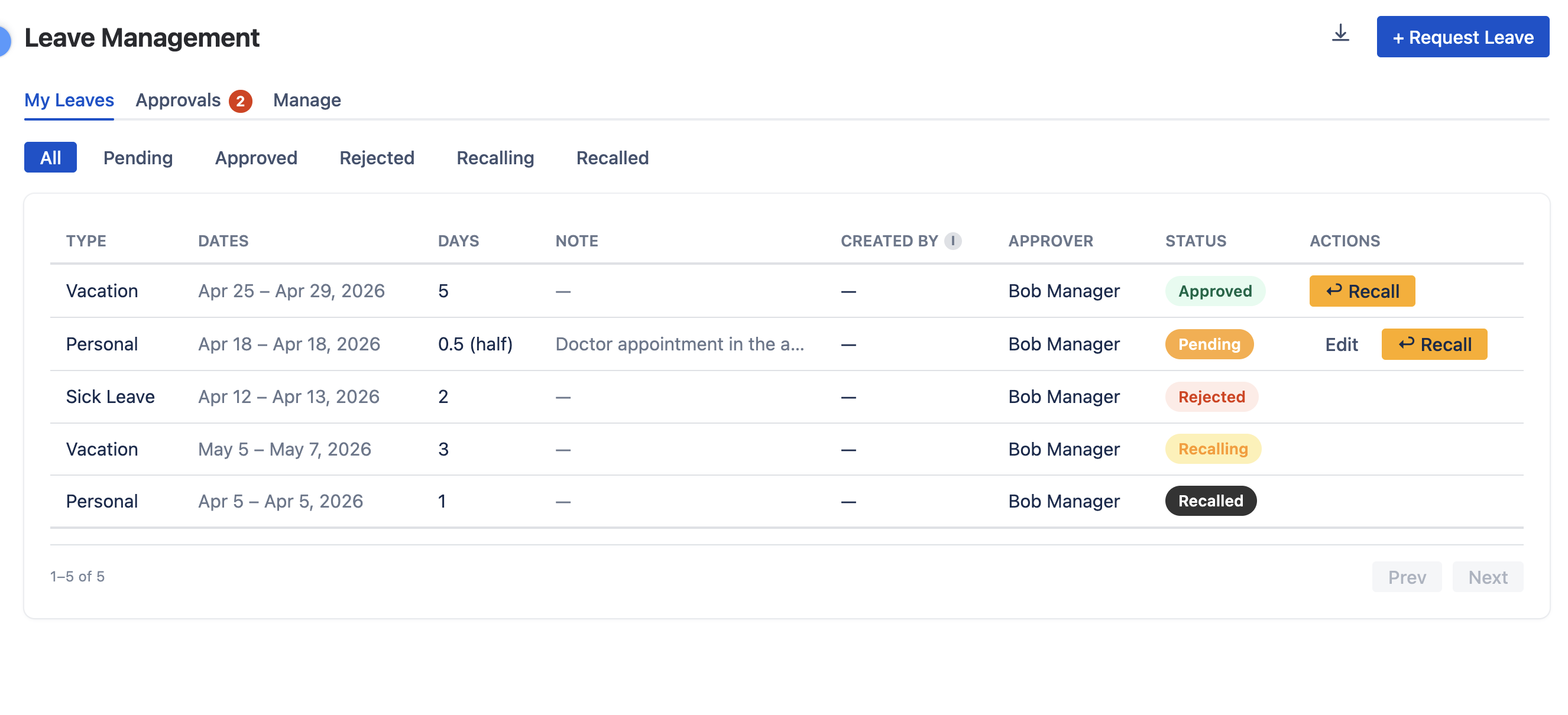
- My Leaves — your own requests.
- Approvals — requests waiting for your decision.
- Manage (app admins only) — view and permanently delete any leave request.
Use the status filters (All, Pending, Approved, Rejected, Recalling, Recalled) to find a request quickly.
Requesting Leave Back to top
Click + Request Leave, fill in the form and click Submit Request. The request becomes Pending and goes to your approver.
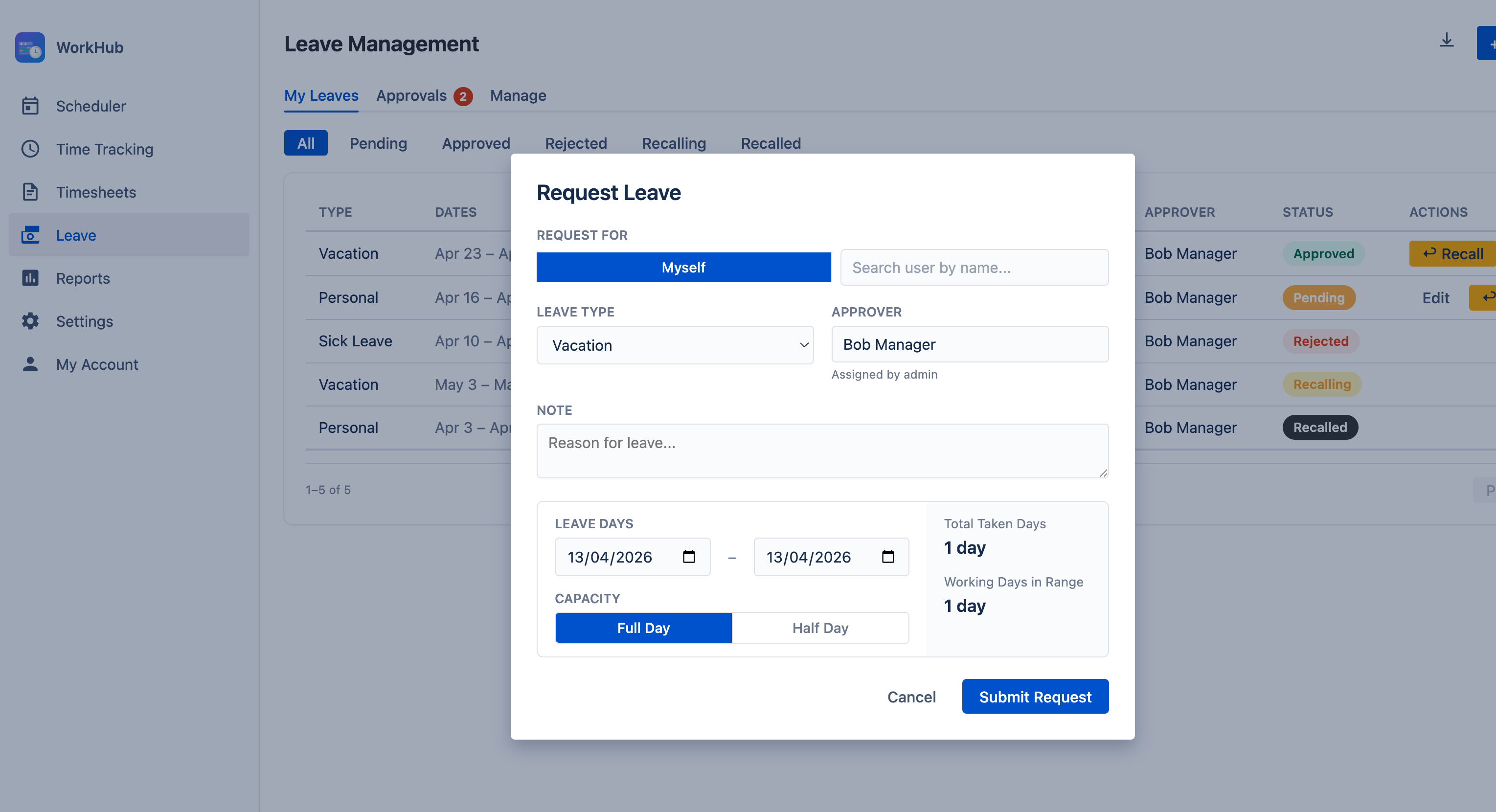
- Leave Type — one of the types your admin created.
- Date From / Date To — the form shows how many working days the request takes.
- Duration — Full Day or Partial (a number of Hours per day), only for leave types that allow it.
- Approver — usually assigned by your admin. If you have no approver, the request is approved automatically.
- Note — optional reason.
On Behalf of Another User Back to top
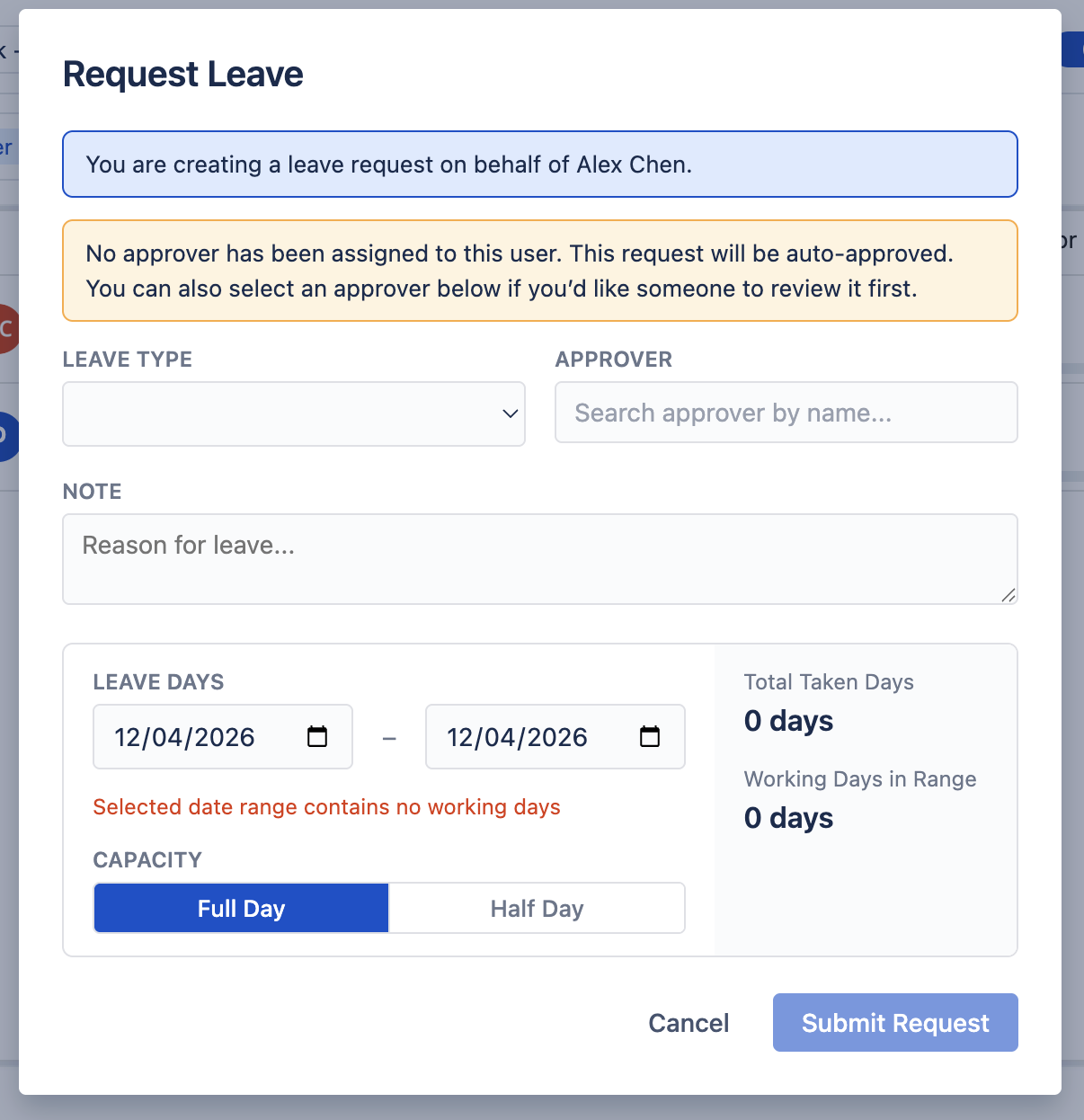
App admins and approvers can record leave for someone else, for example sudden sick leave. Pick the person in Request for; the request appears in their My Leaves. When an approver creates it, it is approved straight away.
Approval Workflow Back to top
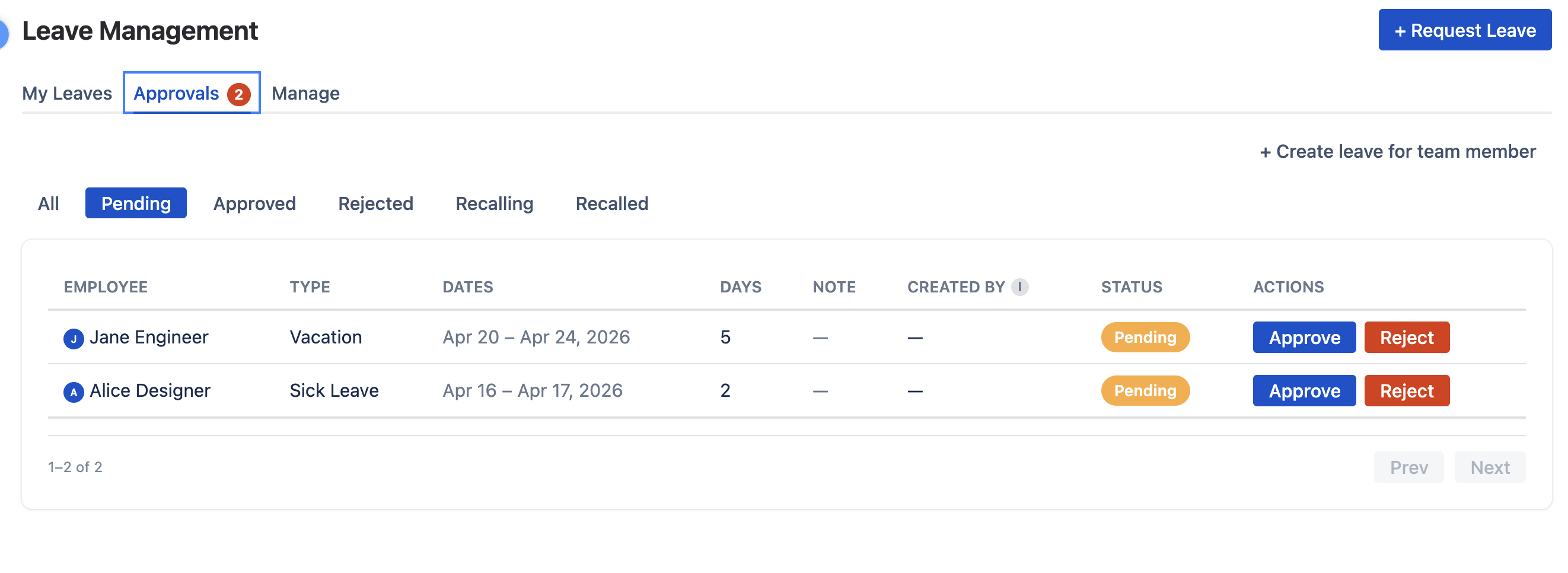
Approvers act from the Approvals tab or from the leave's popup on the Scheduler. An app admin can always step in.
| Status | Requester can | Approver can |
|---|---|---|
| Pending | Edit, or Recall (withdrawn at once) | Edit, Approve or Reject |
| Approved | Recall — asks the approver, status becomes Recalling | Revoke — cancels the leave |
| Recalling | Wait for the decision | Approve Recall (becomes Recalled) or Deny Recall (stays Approved) |
| Rejected / Recalled | Final — no further actions | |
Recalling an approved leave needs consent because plans may already be built around the absence. If the requester had no approver, the recall is immediate.
Leave on the Scheduler Back to top
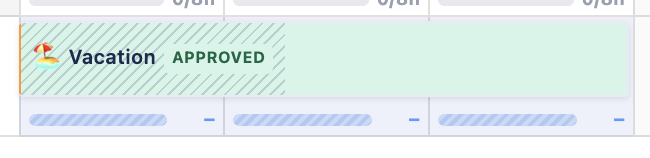
Leave appears as blocks on the person's row, labeled with the leave type: the fill shows the status (for example green for approved) and the left edge shows the type's color. Approved full-day leave removes that day's capacity; partial leave removes only the hours taken, so an 8-hour day with 2 hours off leaves 6 hours to plan. Pending, rejected and recalled requests do not change capacity.
Configuring Leave Types Back to top
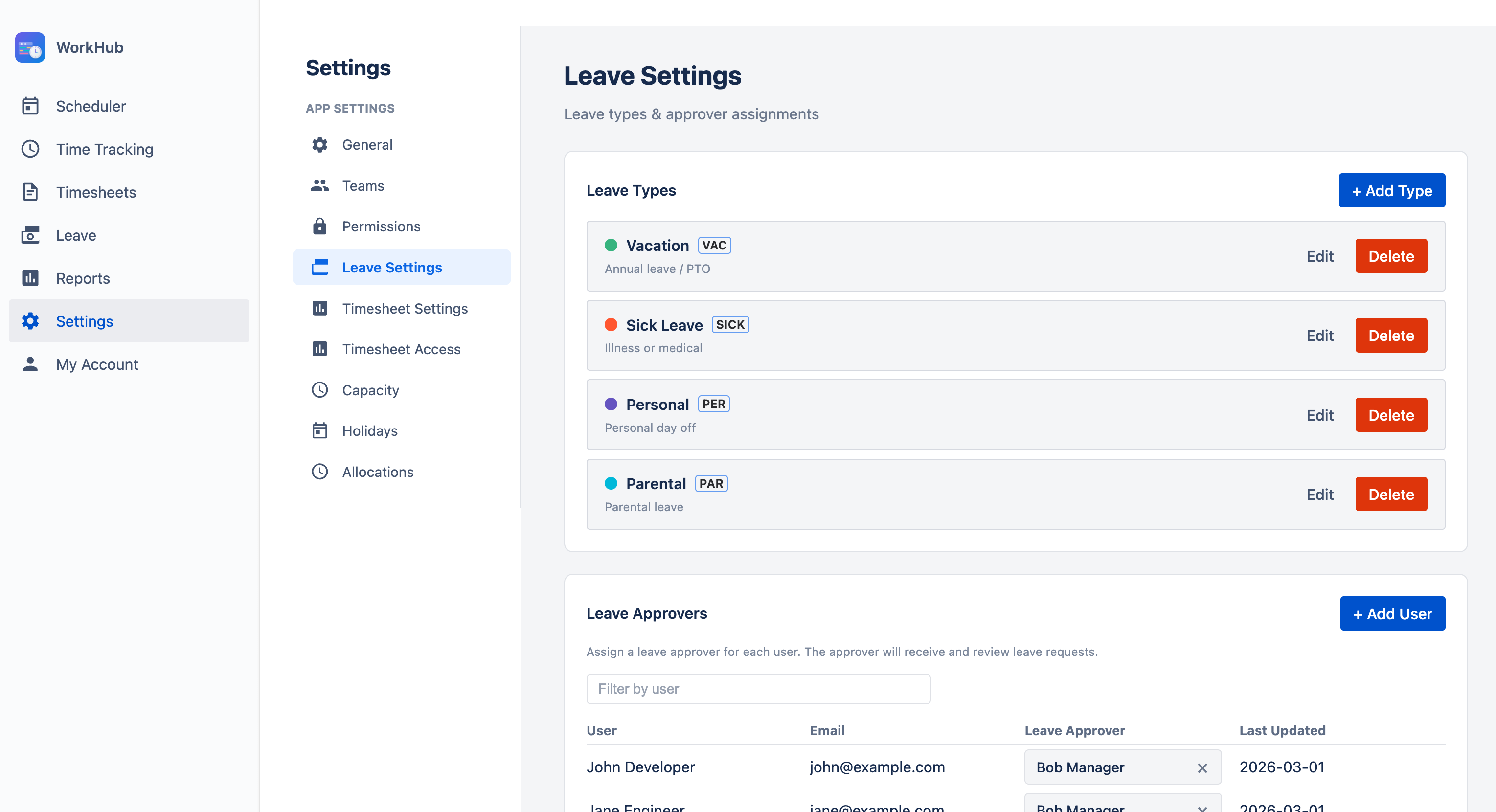
A new installation comes with two leave types, Vacation and Day off; an app admin can add more. In Settings > Leave Settings, click + Add Type and set a name, a color and a short abbreviation used in reports. Tick Allow partial-day requests to let people take hours instead of whole days. Deleting a type also hides every existing request of that type, so delete only types nobody has used.
Need Help?
If you have questions or need assistance with leave management, our support team is here to help.
Contact Support