Overview Back to top
Holiday calendars list the days your people do not work, such as public holidays or company days off. On a holiday, a person has no available hours, so the Scheduler, timesheets and reports do not expect work that day. Create one calendar per country or office and assign each person the one that applies to them.

Creating a Holiday Calendar Back to top
App admins go to Settings > Holidays and click + Create New.
- Enter a Calendar Name, for example "US Holidays".
- Optionally import a country's public holidays (see below).
- Click + Add Holiday for extra days such as a company anniversary. Edit or remove any day you do not observe.
- Click Save.
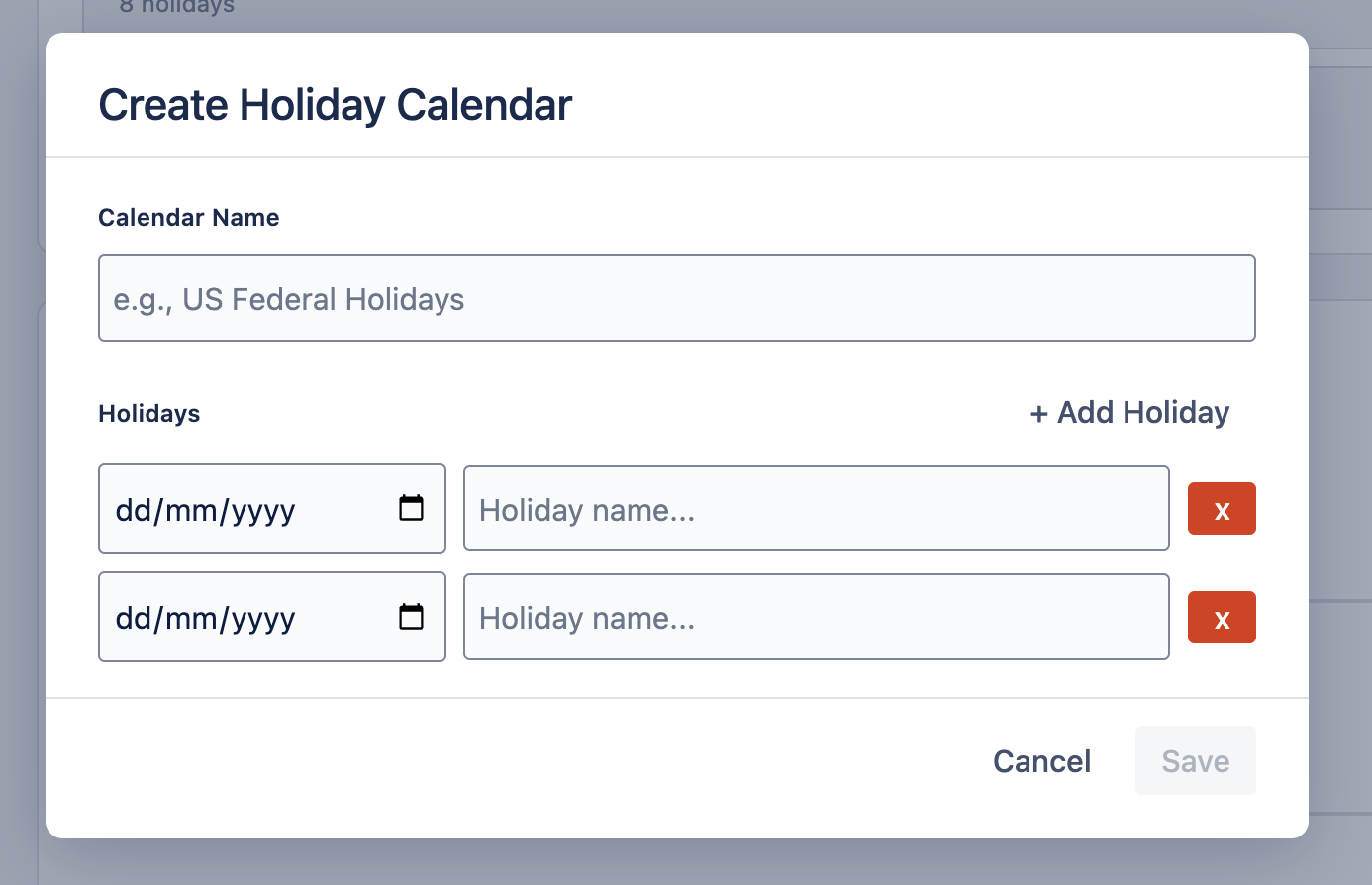
Changes apply right away to everyone using the calendar.
Importing Holidays by Country Back to top
In the calendar dialog, choose a Country and click Apply to add its public holidays for this year and next. Days already in the list are kept and duplicates are skipped. Regional (state or province) holidays are not included, so add those by hand.
After the first import the country cannot be changed, but you can click Apply again at year end to add the next year. For a different country, create a new calendar.
Assigning Calendars Back to top
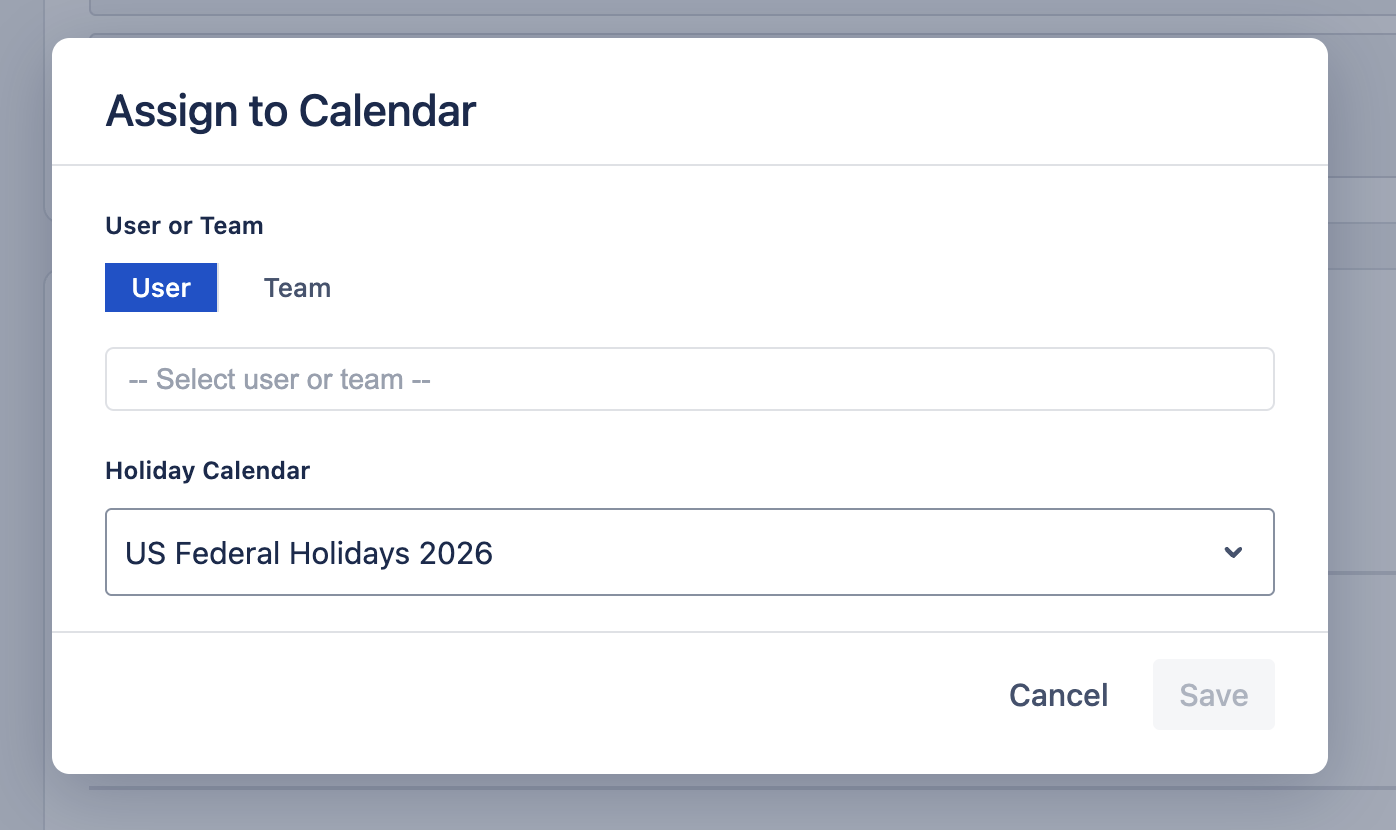
In Calendar Assignments, click + Assign, pick users or teams and the calendar, then save. If a person has both a personal and a team calendar, holidays from both apply. Team Managers can assign calendars to the teams they manage and their members. People can see their calendar on the My Account page.
Setting a Default Calendar Back to top
Click Set as Default on a calendar to use it for everyone who has no calendar assigned. This is handy when most of your team is in one country. Only one calendar can be the default; Unset Default removes it, and then unassigned people have no holidays.
How Holidays Affect Capacity Back to top
On a holiday, a person's available hours drop to zero, whatever their capacity scheme says. An issue that spans a holiday has its hours spread over the other working days. If an issue falls only on holidays or other days off, so its hours have nowhere to go, the workload indicator shows a conflict warning.
Need Help?
If you have questions or need assistance with holiday calendars, our support team is here to help.
Contact Support